

Best AI for PowerPoint: Consulting and Boardroom-Style Slides
We analyzed the full AI-for-PowerPoint market. This is a technology-first comparison of how AI slide tools actually work, why most of them break on complex slides, and which approach produces editable, on-brand, boardroom-ready decks for consulting and boardroom-style work.
The verdict. For consulting-grade, fully editable .pptx decks, Oria is the closest fit. Gamma is best for quick, standalone decks you share by link. Plus AI works well as an add-in that lives inside PowerPoint and Google Slides. Beautiful.ai suits teams that want brand-locked, on-rails design. Pick the one that matches the job in front of you.
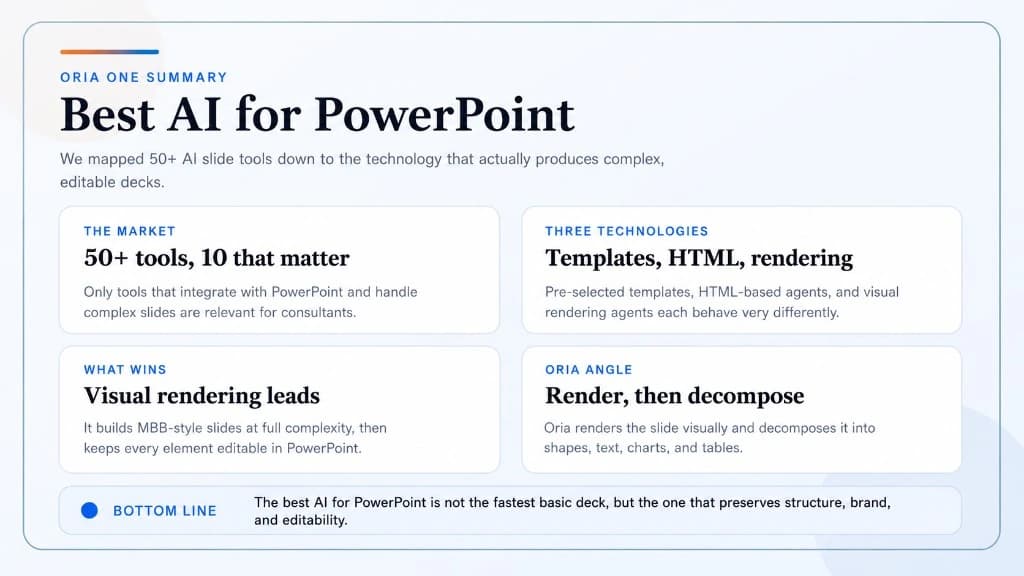
Best AI for PowerPoint at a glance
If you build consulting and boardroom-style slides, the right tool depends on the job. The grid below is a high-level map of where each option fits best. For a wider workflow view, see our consultant's guide to Claude, and for a focused look at one popular pairing, read Claude for PowerPoint.
A high-level positioning map. The deep dives below explain the underlying technology behind each category.
We mapped the whole AI-for-PowerPoint market
Search for the best AI for PowerPoint and you will find more than fifty tools that all promise to build a deck for you. Most of them are aimed at a different job than the one professionals actually have. They produce simple visual slides for students, marketers, and quick internal updates. That is a real market, but it is not the market for people who live in PowerPoint and ship dense, high-stakes, brand-controlled slides under deadline pressure.
To make sense of the landscape, the Oria team mapped the field on two axes: slide complexity, from basic visual slides to complex professional slides, and where the tool actually lives, from web interfaces and LLM platforms to extensions that run inside PowerPoint. The picture below is the starting point for the rest of this analysis.
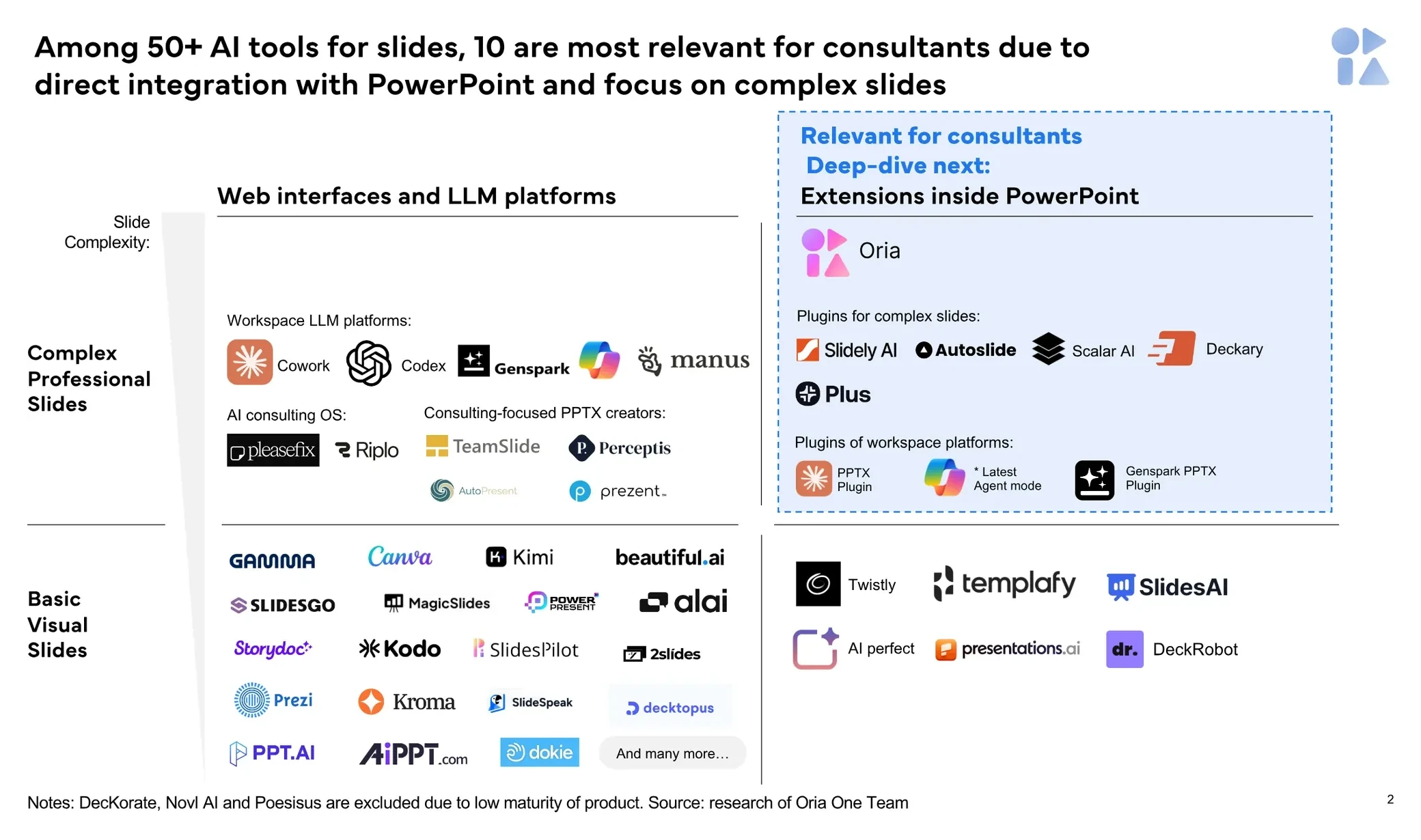
Among 50+ AI tools for slides, only about 10 are genuinely relevant for consultants, because they integrate directly with PowerPoint and focus on complex slides.
What separates the 10 that matter
- They integrate directly with PowerPoint instead of exporting to a web page or PDF.
- They are built for complex, multi-element slides, not just title-and-bullet layouts.
- They aim to keep the output editable so a professional can finish the slide, not just accept it.
Tools like Gamma, Canva, Beautiful.ai, and SlidesAI are capable products, but they sit in the basic visual slides category. The interesting question for consultants, bankers, and strategy teams is narrower: among the tools that take complex slides seriously, which underlying technology actually produces work you can put in front of a partner or a board?
AI PowerPoint tools use three core technologies
Once you look past the marketing, the AI tools for complex slides resolve into three technical approaches. Understanding them is the single most useful thing you can do before choosing a tool, because the technology, not the brand, determines whether your slides arrive polished and editable or generic and broken.
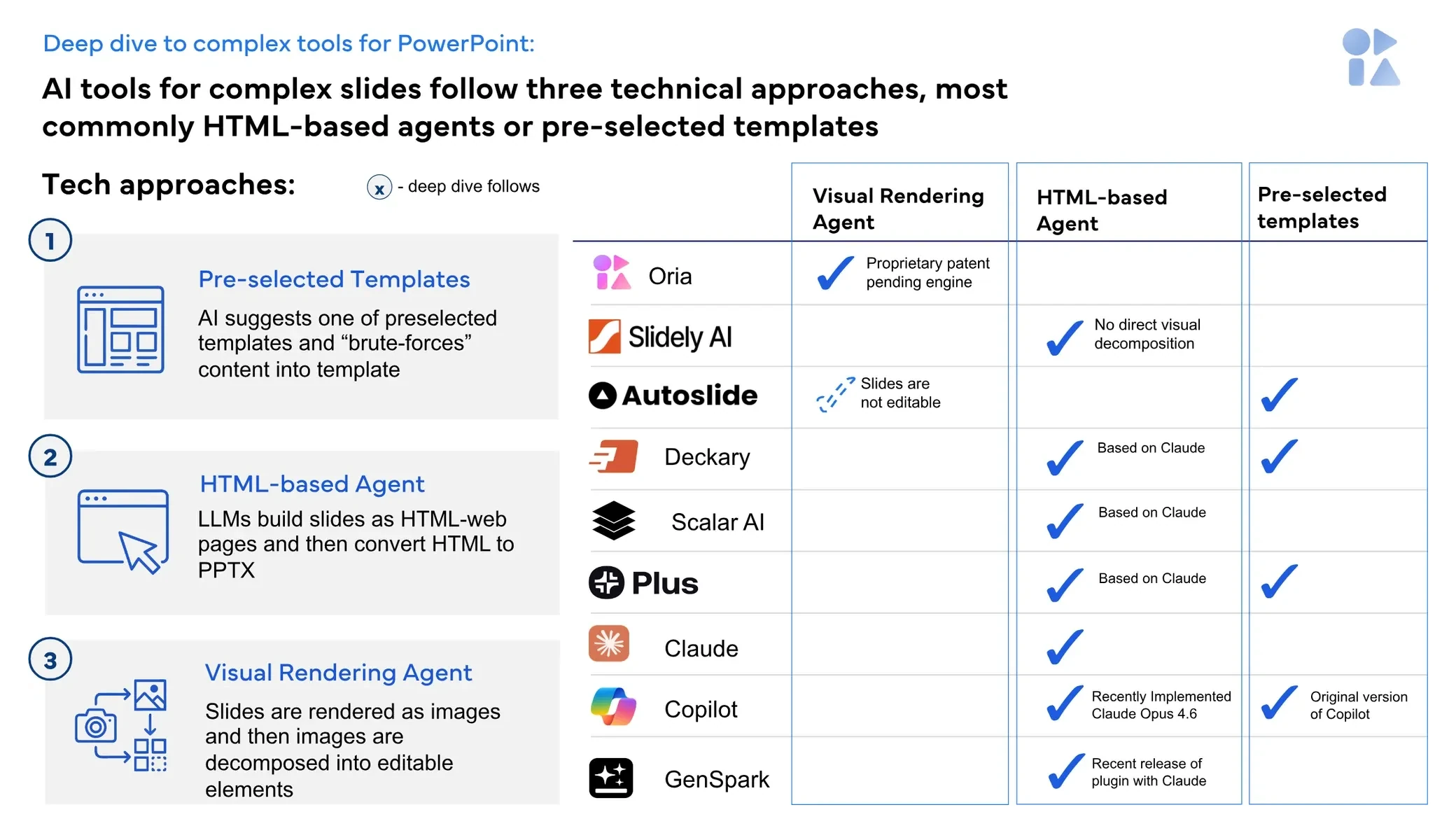
The three approaches and where each major tool falls. Most products today are HTML-based agents or pre-selected templates.
Pre-selected templates
How it works. The AI picks one layout from a small fixed library and brute-forces the user's content into it.
What you get. Clean-looking but lossy. The original layout is discarded and much of the substance is rephrased or dropped.
HTML-based agents
How it works. An LLM writes the slide as an HTML web page, then a converter turns that HTML into a PPTX file.
What you get. Editable but it looks AI-generated: inconsistent spacing, broken font sizes, and weak brand control.
Visual rendering agents
How it works. The slide is rendered visually as a complete image first, then decomposed into native PowerPoint elements.
What you get. Complex, top-tier-strategy-firm-grade slides at high visual fidelity, with every element left fully editable in PowerPoint.
Comparing the three approaches
Each approach makes a different trade-off between speed, fidelity, and editability. The summary table below shows how they compare on the dimensions that decide whether a slide is usable in a professional setting. The deep dives that follow show what actually happens to a real consulting slide under each method.
1. Pre-selected templates lose your layout and your content
The pre-selected template approach starts by choosing a fixed layout and then forcing your content into it. The output can look tidy, but the cost is severe. In the example below, a dense seven-initiative strategy slide is rebuilt into a generic template. The original layout is completely lost, and a large share of the original content is dropped or rephrased. Observed losses run past 75 percent of the original content, including the specific statistics and initiative details that made the slide worth showing.
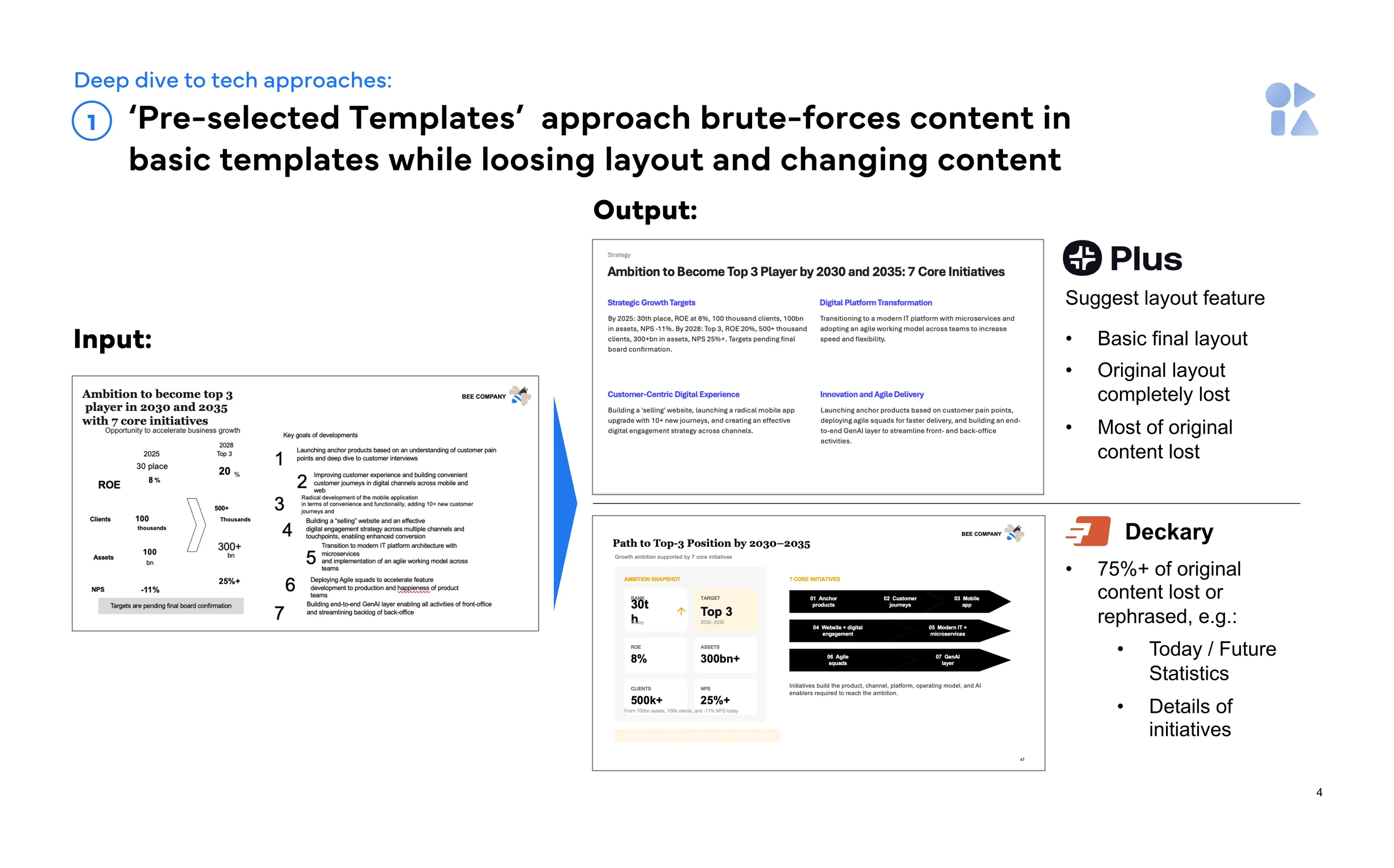
Input versus output for a pre-selected template tool. The slide is rebuilt cleanly, but the meaning is gutted.
2. HTML-based agents look AI-generated and run slow
HTML-based agents keep more of your content, which is why they have become the most common approach. But because the slide is assembled as a web page and then converted to PPTX, the result rarely passes as designer-made. The same customer-journey prompt run through two popular PowerPoint plugins took about ten and eleven minutes per slide and returned inconsistent white space, broken font sizes, and in one case content placed outside the slide area. The brand style is not really captured beyond a color palette.
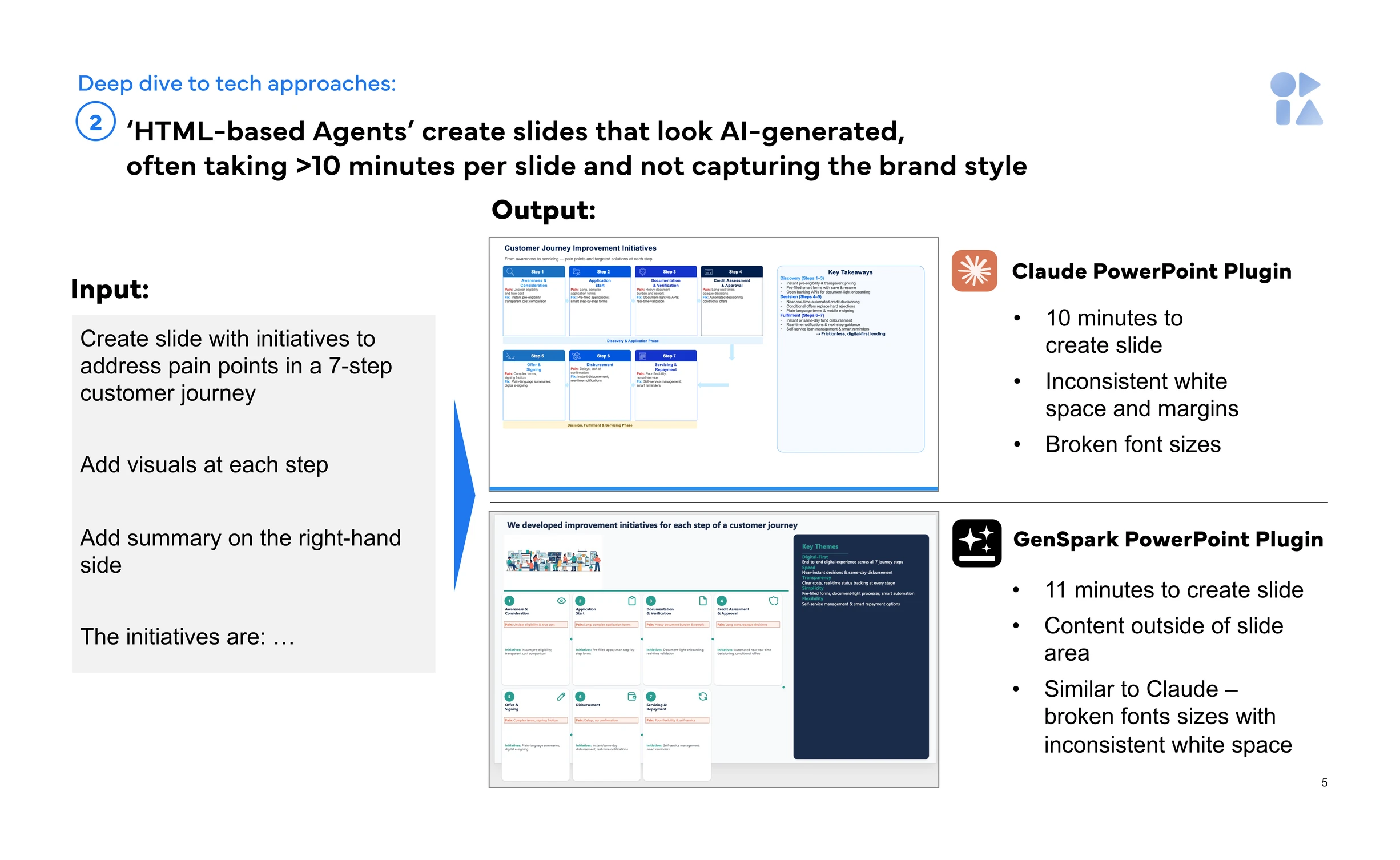
Two HTML-based PowerPoint plugins on the same input. Both are slow and visibly off in spacing and typography.
Where templates fail
- Original layout discarded
- 75%+ of content lost or rephrased
- Key statistics removed
- Generic, off-template look
Where HTML agents fail
- Slides look AI-generated
- Often 10+ minutes per slide
- Inconsistent spacing and margins
- Broken font sizes, weak brand fit
Why visual rendering wins
Visual rendering agents take a fundamentally different path. Instead of writing markup element by element with no view of the whole, the engine designs the slide visually as a complete composition, the way a human designer would, and only then turns that render into editable PowerPoint parts. Because the design step happens in the image domain, there is no practical limit on complexity. The output can match the density and discipline of a top-tier strategy firm's presentation, with no ceiling on how intricate the layout becomes.
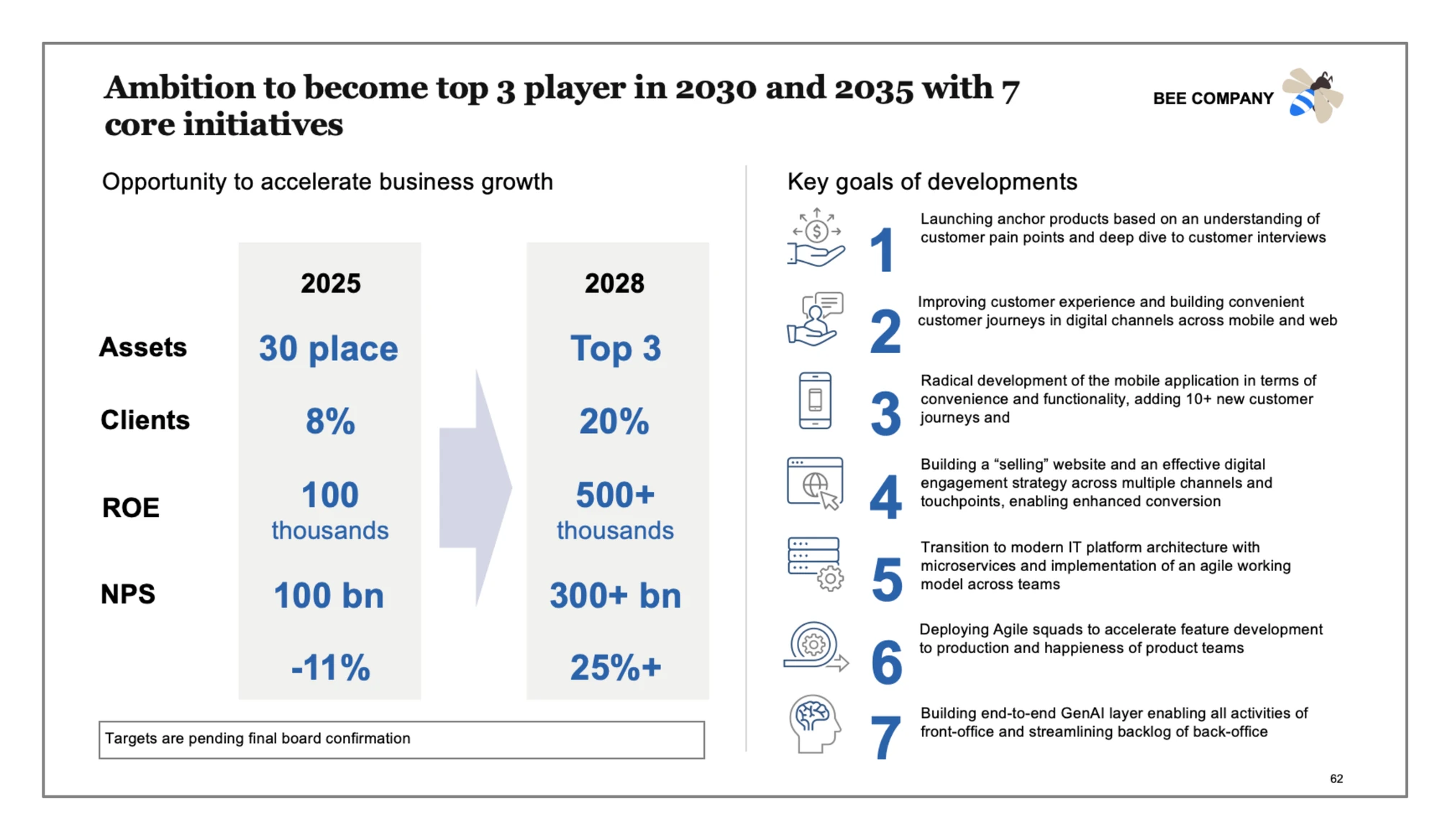
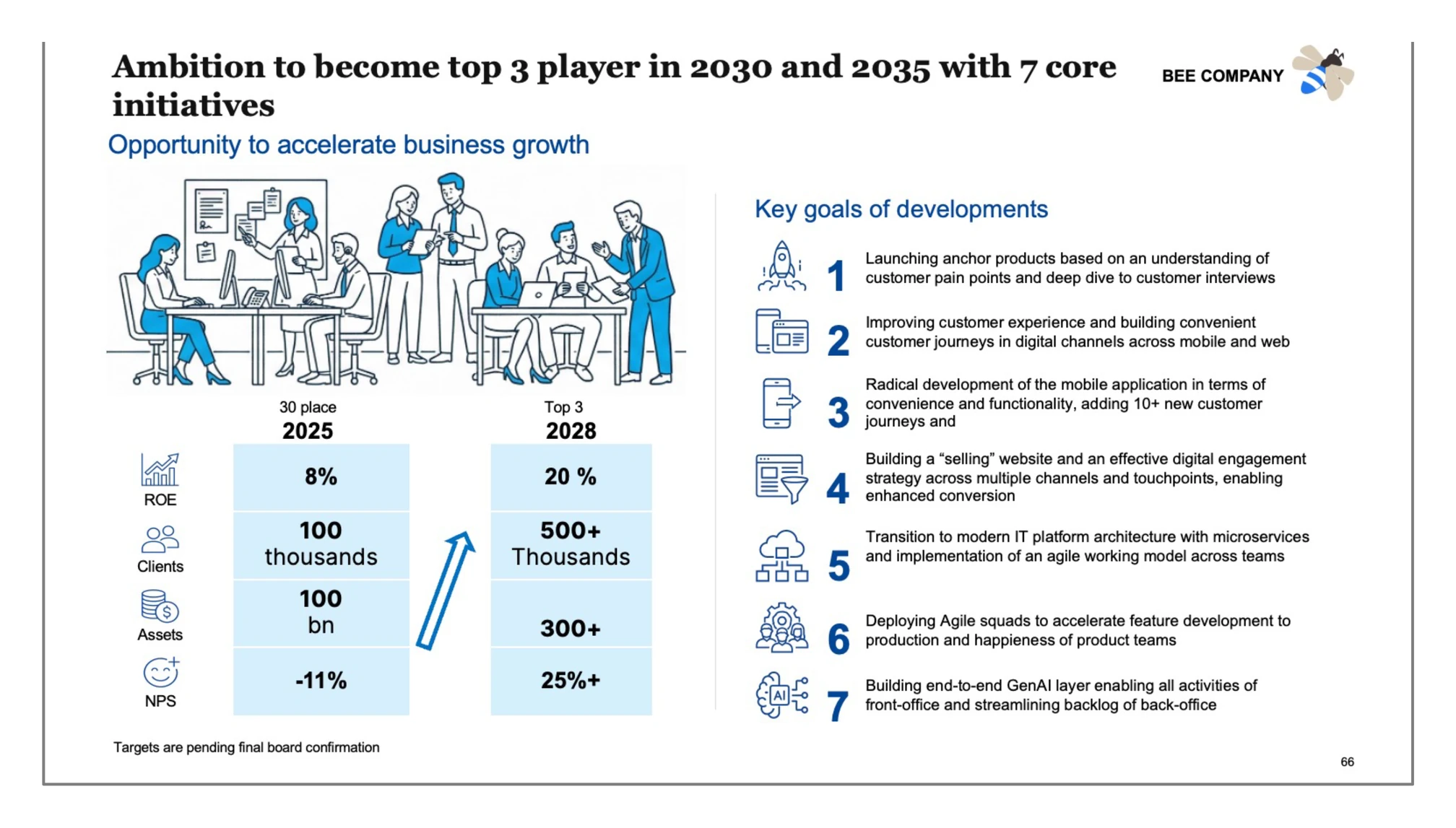
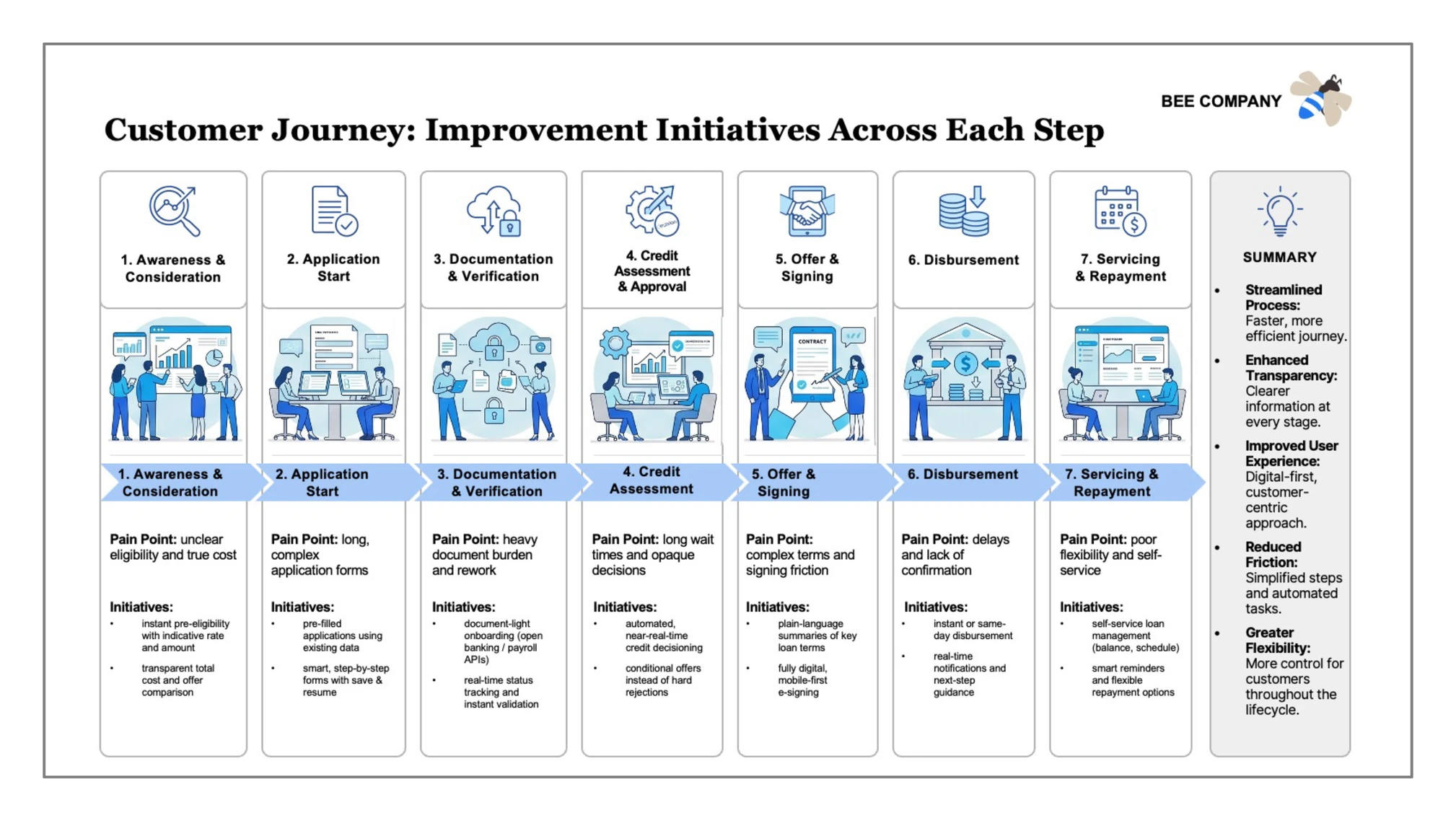
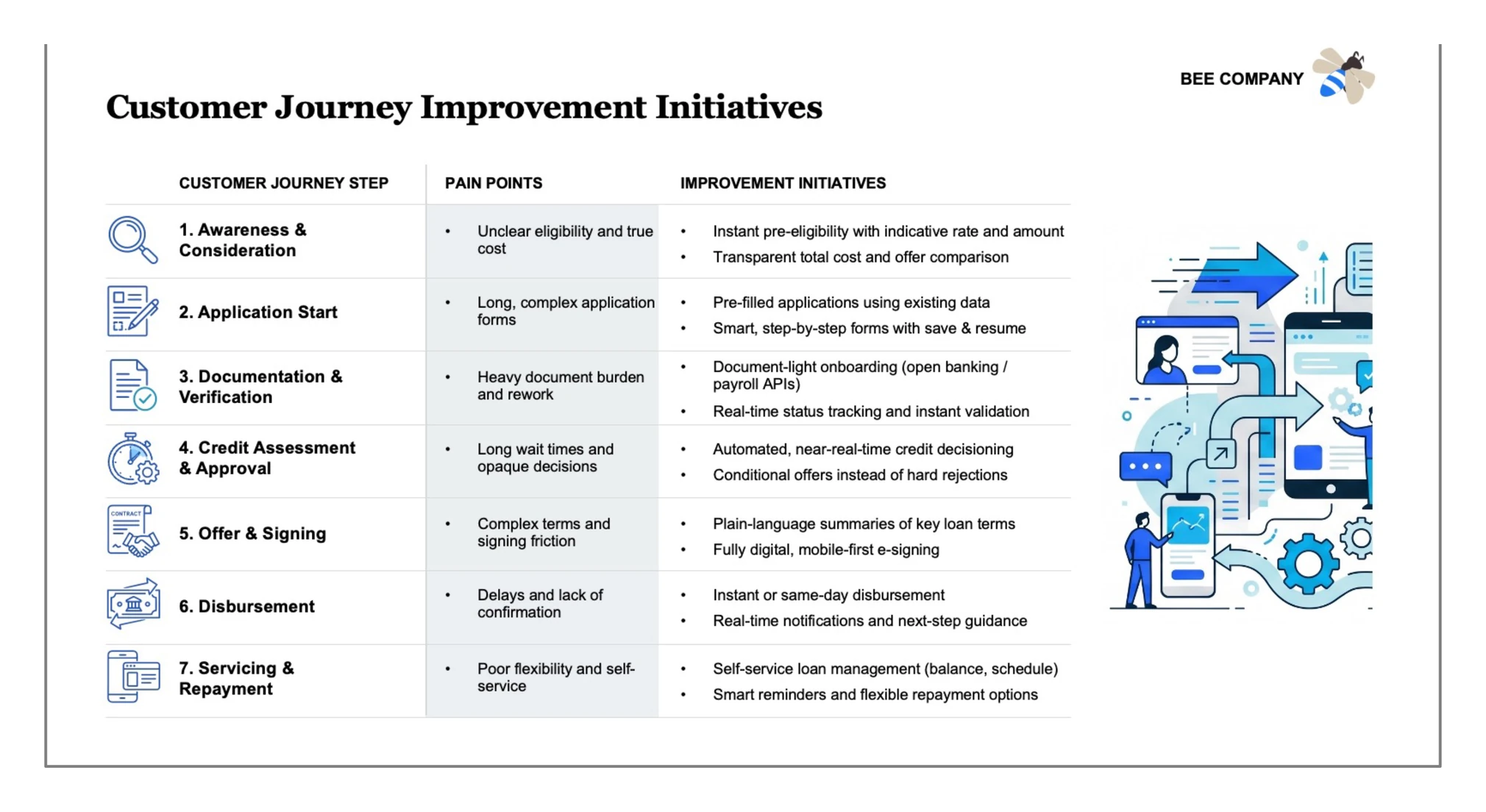
The clearest proof is to feed it the inputs that defeated the other approaches. The two examples below use the same strategy slide and customer-journey brief that the template approach gutted and the HTML plugins rendered with broken spacing. A visual rendering agent rebuilds both at full complexity, and it can return several distinct layout variations of the same content.
Example 1
Strategy on a page
The same dense seven-initiative ambition slide that the template approach gutted, rebuilt at full fidelity in two layout variations.
Example 2
Customer journey
The seven-step customer journey that broke the HTML-based plugins, reproduced with pain points, initiatives, and a summary column.
The conclusion
Visual rendering is the strongest technology for serious PowerPoint generation. It is the only approach that preserves complex structure while keeping the slide fully editable, which makes it the right default for consultants, strategy teams, finance teams, and anyone who needs polished, on-brand business slides rather than a quick draft.
How Oria applies visual rendering
Oria is the production example of the visual rendering approach. It is an AI add-in that runs inside Microsoft PowerPoint and is built specifically for complex professional slides. You give it a rough input, a text outline, notes, a photo of a whiteboard, or an existing busy slide, and it renders full design options before rebuilding them as native PowerPoint.
The examples in our market study show Oria reproducing the kind of dense, multi-element slides that consultants actually ship: a seven-step customer journey with pain points and initiatives, a strategy on a page with targets and growth levers, and framework layouts that the template and HTML approaches could not hold together.
Decomposition is what keeps slides editable
A rendered image of a slide is only useful if you can still work with it. This is where the approach separates from tools that stop at a picture. Oria's patent-pending engine works in two layers: a visual layer that designs the slide as a complete image, and a decomposition layer that reads that render and reconstructs it as real PowerPoint objects, so every part of the slide stays movable, restylable, and on-brand. The four steps below show it end to end.
User input
You describe the slide you need in plain language, with as much detail about structure, visuals, and style as you want. No layout picking, no markup.
Example prompt
"Make a slide about a framework for running an AI pilot in 6 steps. Expand each step with the necessary actions within that step. Arrange the main steps horizontally. Add a summary on the right side. Add detailed visuals at each step in a corporate Memphis style with employees working in a fashion store. And add simple, strict icons as well."
Visual render
The engine renders the slide as a complete visual composition, and it can return several distinct design options for the same brief so you can choose the direction.
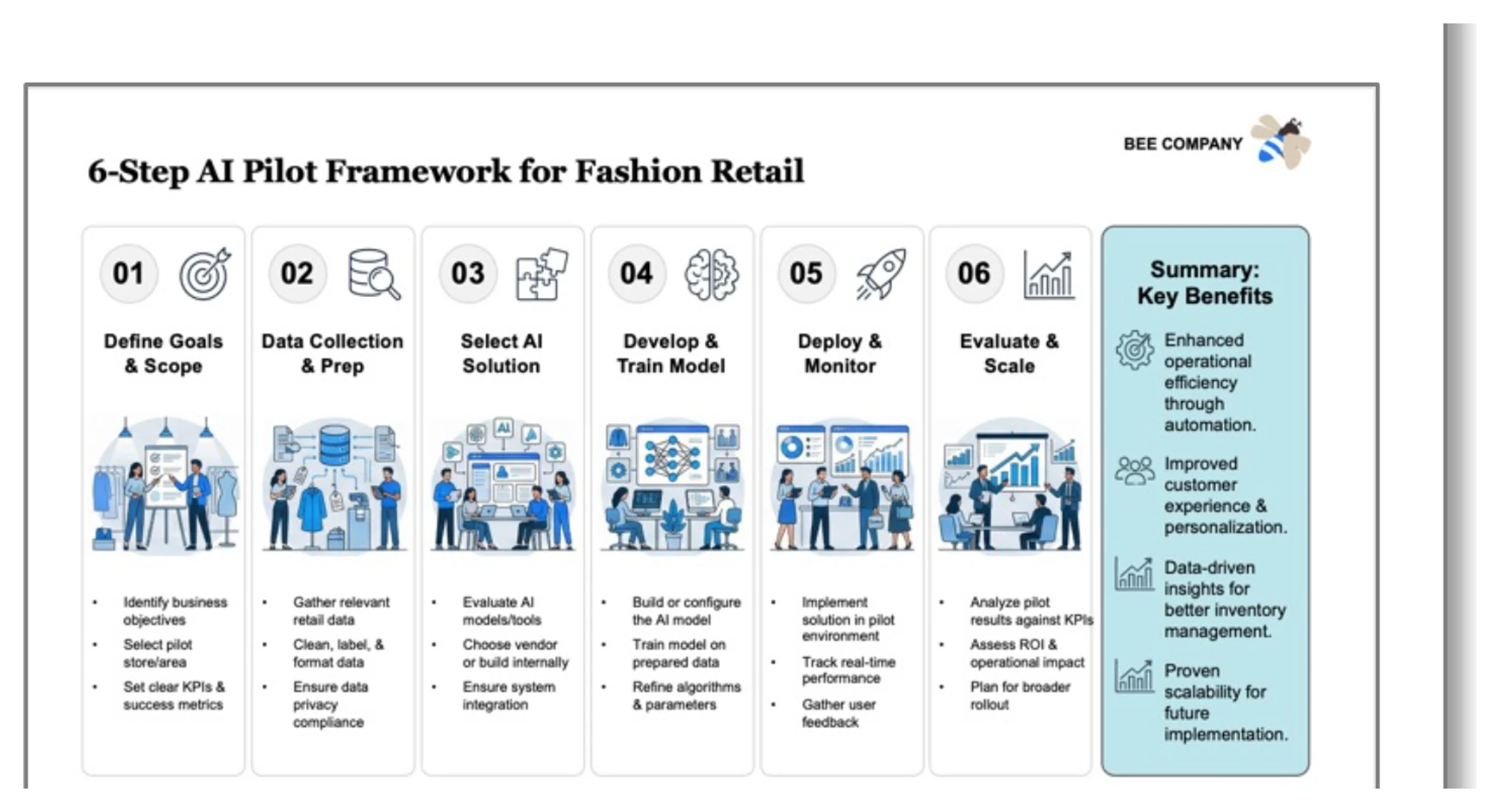
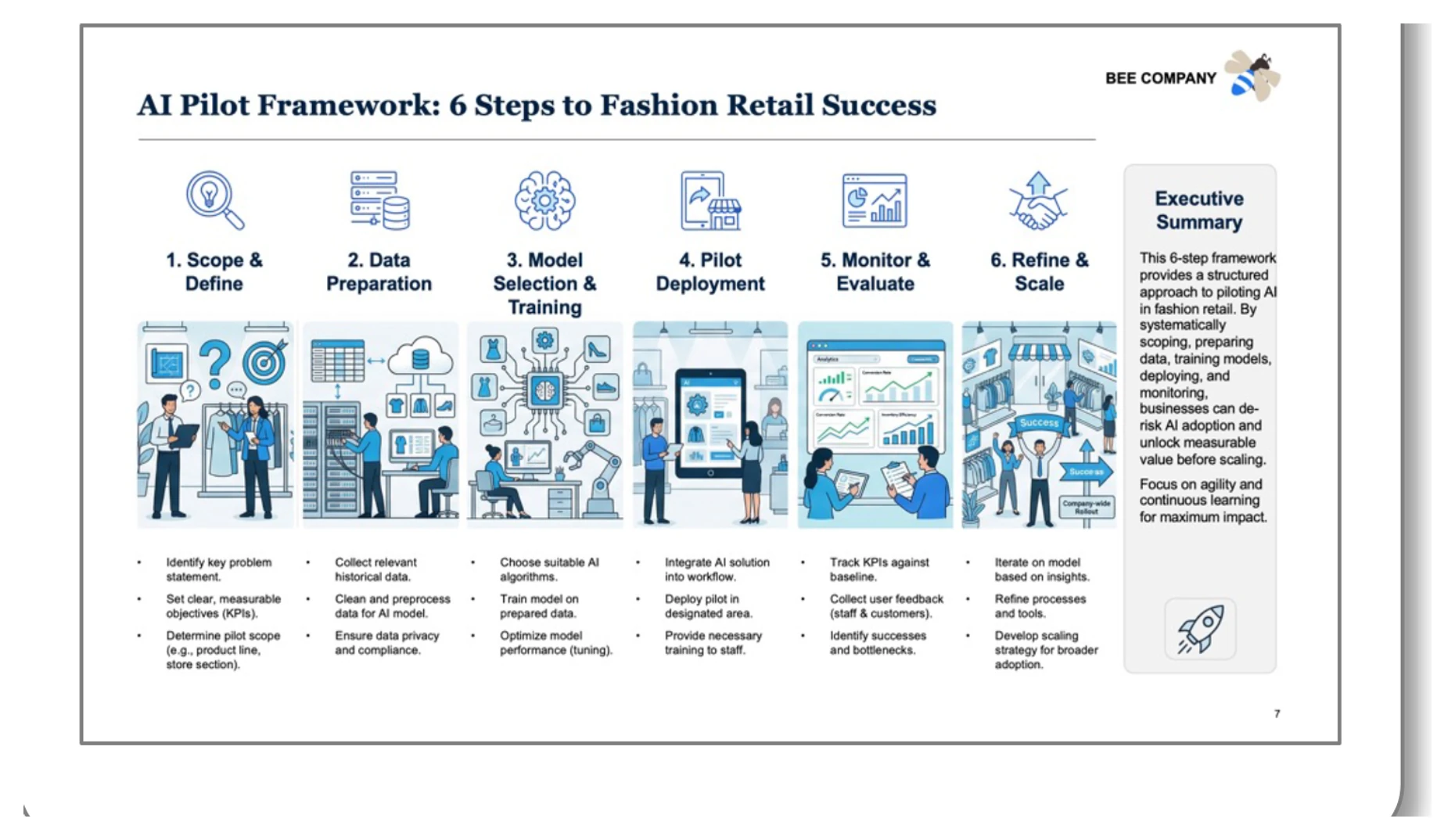
Decompose into editable elements
The decomposition layer reads the chosen render and detects, classifies, and reconstructs every object on the slide as a native PowerPoint element.
Shapes
Detection, classification, and parameter extraction of rectangles, circles, arrows, triangles, and chevrons.
Icons and images
Precise detection and segmentation of every icon and image placed on the slide.
Text
Precise text recognition with detailed formatting: font, color, style, and list markers.
Lines and arrows
Detection of connectors and arrows, including their direction across the layout.
Charts
Detection and classification of chart types and components such as bar, line, and scatter.
Tables
Detection of tables and decoding of their internal structure into editable cells.
Editable PowerPoint output
The result is a native slide that looks designed and behaves like a normal PowerPoint file. Every shape, icon, text box, and chart can be moved, edited, or restyled.
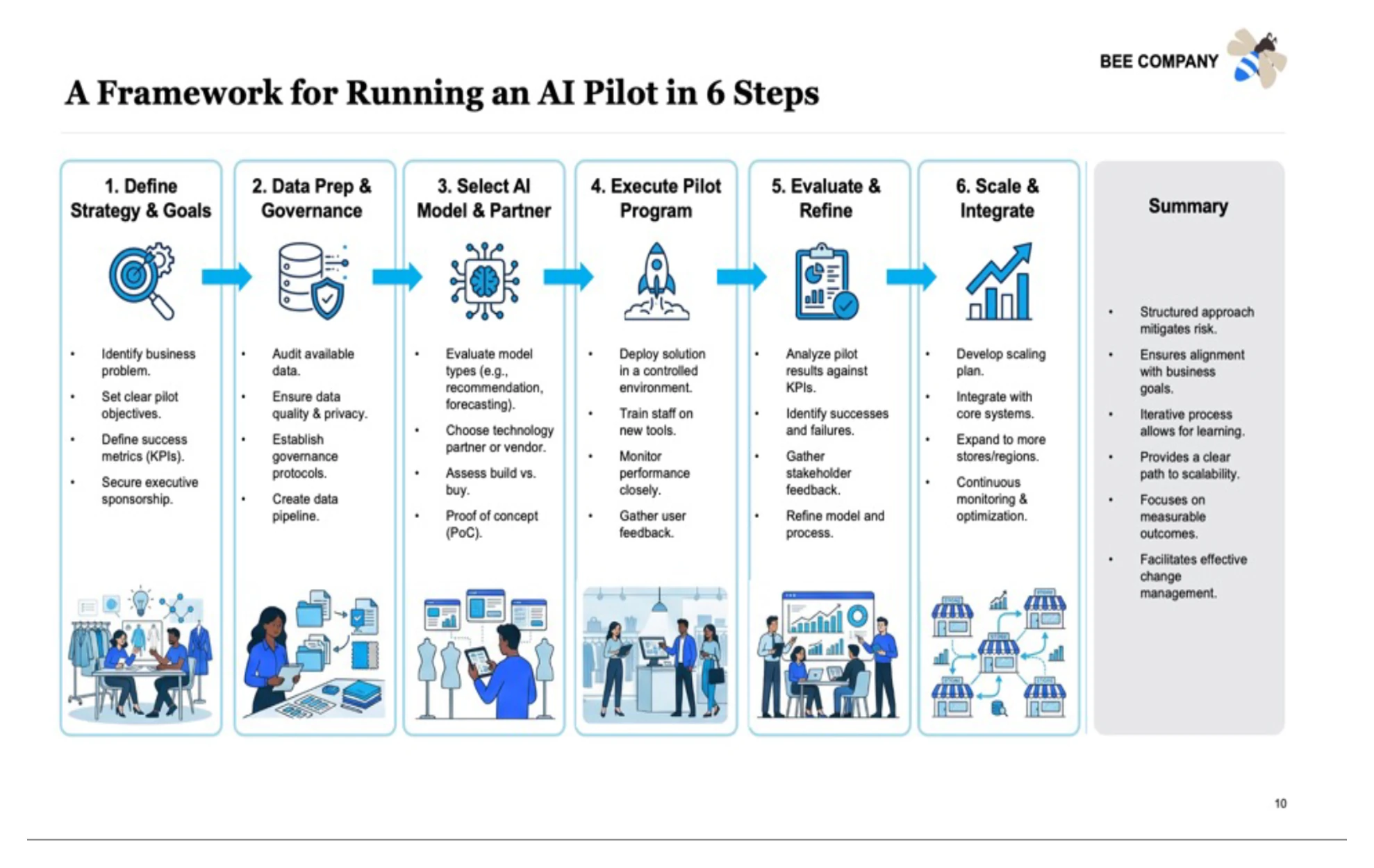
Other players either keep the preview as an uneditable image or try to recreate the core elements with basic HTML. Oria's decomposition is what lets the same slide that looks designed also behave like a native PowerPoint file, so an analyst can move a box, swap an icon, or adjust a chart without rebuilding the slide.
Why this matters for real business work
For a student or a marketer, a fast basic deck is often good enough. For a consultant, a banker, or a strategy lead, the deck is the work product. It has to survive partner review, carry exact figures, hold to a strict template, and be edited up to the last minute. That is a different bar, and it is the bar that separates a useful AI tool from a demo.
The best AI for PowerPoint is not the tool that produces the fastest basic deck. It is the tool that preserves structure, design quality, brand style, and editability on slides that are genuinely complex. On that test, pre-selected templates lose the content, HTML-based agents lose the polish, and visual rendering is the approach that holds all four at once.
The bottom line
If your slides are simple, almost any AI tool will do. If your slides are complex and professional, visual rendering is the technology to look for, and Oria is the strongest option for that workflow today: complex slides, full editability, and your brand, all inside PowerPoint.