

How to Build an Executive Summary Slide (SCR Method)
The SCR structure that makes the most-read slide skimmable, the step-by-step manual build with the real gotchas, the exact prompts, and the one-line route that renders an editable native slide for you.
How to build an executive summary slide
To build an executive summary slide, organize it with the SCR structure: a situation everyone agrees on, a complication that forces a decision, and a resolution that states your recommendation. Lead each band with one bold line a busy reader can skim, add three supporting KPI tiles, and make the title the recommendation itself. Oria can render the whole slide as an editable native slide from one line of text.
This guide walks the structure and its real gotchas, gives you the exact prompts to draft the SCR narrative and build the slide, and shows the faster one-prompt route. Everything you need is here. You will not have to leave to get the substance.
What an executive summary slide is and when to use it
An executive summary slide is the one page a senior reader opens first and often the only page they read in full. It carries the recommendation and just enough evidence to make the decision defensible. Treat it as the most-read slide in the deck, because it is. Everything behind it is backup the reader reaches for only if they want to challenge the answer.
Reach for it on any decision document: a board pre-read, an investment memo, a steering committee update, a strategy on a page. The structure that makes it work is SCR, the same answer-first logic as the Pyramid Principle behind consulting-style executive summaries. For the wider deck around it, see how to make consulting-style slides with Claude.
The SCR structure: situation, complication, resolution
Five parts carry the whole slide. Get these right and the page reads itself in one pass.
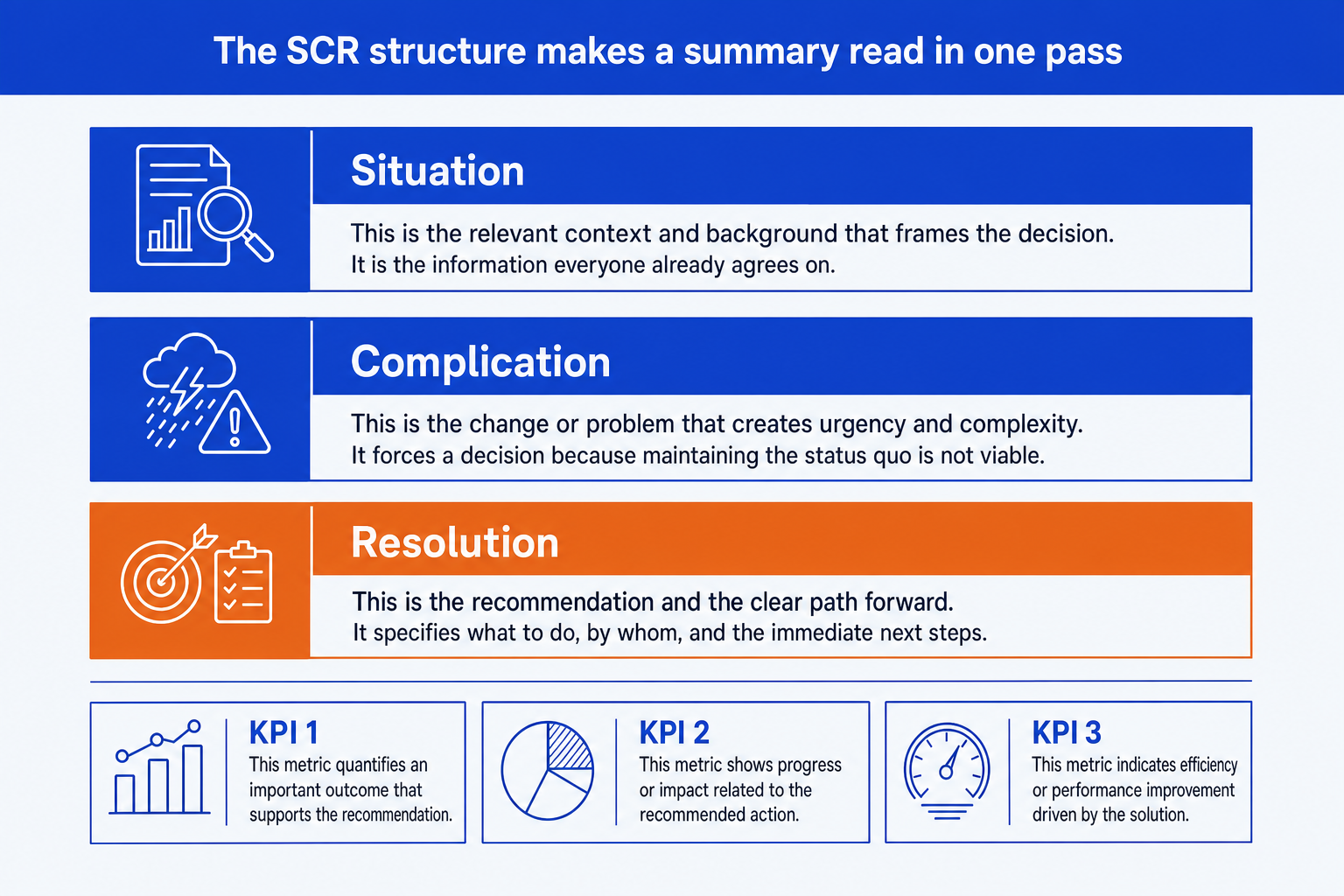
Situation. The context the audience already accepts, stated in one neutral line. It earns agreement fast so no one argues with the setup.
Complication. The change or problem that forces a decision now. This is the tension that makes the slide worth reading rather than a status update.
Resolution. Your recommendation and the next step, given the emphasis color so the eye lands on the answer. This is the band that carries the so-what.
KPI tiles. Three small tiles along the bottom, each a single metric that backs the recommendation. Keep them generic and bracketed until you have real figures.
Skimmable lead lines. Each band opens with one bold sentence a reader can absorb in seconds, with a short supporting note beneath it for anyone who wants the detail.
The step-by-step manual build, with the real gotchas
Build the narrative first, then the layout. Lead every block with a bolded one-line takeaway so the slide stays skimmable even if a reader never gets past the bold text. Each step below opens with the takeaway, then the detail.
Write the recommendation before anything else. Decide the single answer the slide exists to deliver, in one sentence. Everything else on the page either sets it up or supports it. If you cannot state it in a line, the analysis is not finished.
Draft the situation in one neutral line. State the context the audience already agrees on so the setup is not contested. Resist adding history or caveats; the situation only has to earn a nod before you introduce the tension.
Name the complication that forces a decision. Write the change or problem that makes a choice necessary now. This is the line that turns a status page into a decision page, so make it specific and consequential.
State the resolution as the recommendation plus the next step. Give it the emphasis color and the most visual weight on the slide. The reader should leave knowing what you are asking them to decide and what happens next.
Add three KPI tiles that back the resolution. Pick the three metrics that most directly support the recommendation, one number per tile, with a short label. Keep them bracketed placeholders until the real figures are confirmed.
Set the action title to the recommendation. Replace the words Executive Summary with a full-sentence so-what, then align the three bands and the KPI row to a clean grid. The title is the slide; the bands are the proof.
Gotcha
The title is the recommendation, not the words Executive Summary. A reader who sees only the title should still know what you are asking them to decide. Write the answer and its single strongest reason, then let the SCR bands prove it.
The one-prompt route: describe the SCR, get an editable slide
Aligning three bands, a KPI row, and an action title by hand is exactly the kind of mechanical work that eats an evening. Oria removes it. It is an AI add-in that runs in the PowerPoint task pane and produces fully editable native PowerPoint elements in your corporate template. You describe the SCR narrative in one line and Oria renders the executive summary slide for you.
Because the output is native, every band, tile, and label stays editable afterward. You can swap a metric, reword the resolution, or recolor the emphasis without rebuilding anything. For the narrative side of the workflow, see these Claude prompts for storyline.
One-line executive summary prompt for Oria
The prompts that make the executive summary slide sharp
These are the exact copy-paste prompts we use to draft the SCR narrative, write the title, and lay out the slide. The first three are for Oria inside PowerPoint; the last two are for drafting the narrative in Claude before you build. Replace the bracketed parts with your own decision.
Build the slide in Oria
Lay out the three SCR bands
Add and emphasize the KPI tiles
Write the action title on the slide
Draft the SCR narrative in Claude first
Turn raw findings into an SCR narrative
Sharpen the recommendation into a title
Tip
Draft the SCR lines in Claude, then hand the clean situation, complication, and resolution straight to Oria. For the end-to-end method from analysis to deck, see the consultant's guide to Claude.
Common mistakes to avoid
For the full method behind board-ready decks, the consultant's guide to Claude covers storyline, structure, and slide design end to end.
Frequently asked questions
What is an executive summary slide?
An executive summary slide is the single page a busy decision-maker reads first, and often the only one they read in full. It states the recommendation up front and gives just enough support to back it. The SCR structure, situation, complication, resolution, is the cleanest way to organize it so the page reads in one pass.
What is the SCR structure?
SCR stands for situation, complication, resolution. The situation is the context everyone already agrees on. The complication is the change or problem that forces a decision. The resolution is your recommendation and what to do next. It is the same logic as the Pyramid Principle: answer first, then the reasoning. It maps directly onto an executive summary slide.
What should the title of an executive summary slide say?
The title should state the recommendation, not the word Executive Summary. A reader who only sees the title should still know what you are asking them to decide. Write a full-sentence action title like the recommendation and its single strongest reason, then let the SCR bands underneath prove it.
How long should an executive summary slide be?
One slide. The whole point is that a senior reader can absorb it without turning the page. Lead each SCR band with one bold line they can skim in seconds, keep the supporting note to a sentence or two, and back the recommendation with three KPI tiles rather than a wall of text.
What is the fastest way to build an executive summary slide?
Draft the SCR narrative first, then describe it in one line and let Oria render the slide. You give the situation, complication, and resolution lines plus three supporting metrics, and Oria builds a fully editable native PowerPoint slide in your template, including the KPI tiles and the action title. You skip the manual alignment entirely.