

Install Oria once, then build slides in chat
Oria connects to Claude and ChatGPT through one secure MCP endpoint. Once it is connected, either assistant can use Oria to create or redesign complete presentations as native, editable PowerPoint slides.
You do not need to copy slide instructions between tools. Add the connector, authenticate with your Oria email, and ask for the presentation in the same conversation where you develop the thinking. The guide below covers Claude on desktop and mobile, plus ChatGPT.
What the connection unlocks
- Build a complete presentation from a brief, notes, or source files
- Create native, editable PowerPoint slides without leaving the conversation
- Redesign existing slides while preserving their content and template
- Use the same Oria account in Claude, ChatGPT, and PowerPoint
How to install Oria in Claude and ChatGPT
Choose the assistant you use, add the Oria MCP endpoint, and authenticate with your Oria email. You can connect both assistants to the same account. For why Claude's own slides still come out boxy, and how Oria compares with the other Claude PowerPoint routes, see the Claude PowerPoint plugin guide.
Claude desktop
Connect Oria to Claude
These steps work in Claude on the web and desktop. The screenshots open at full size when selected.
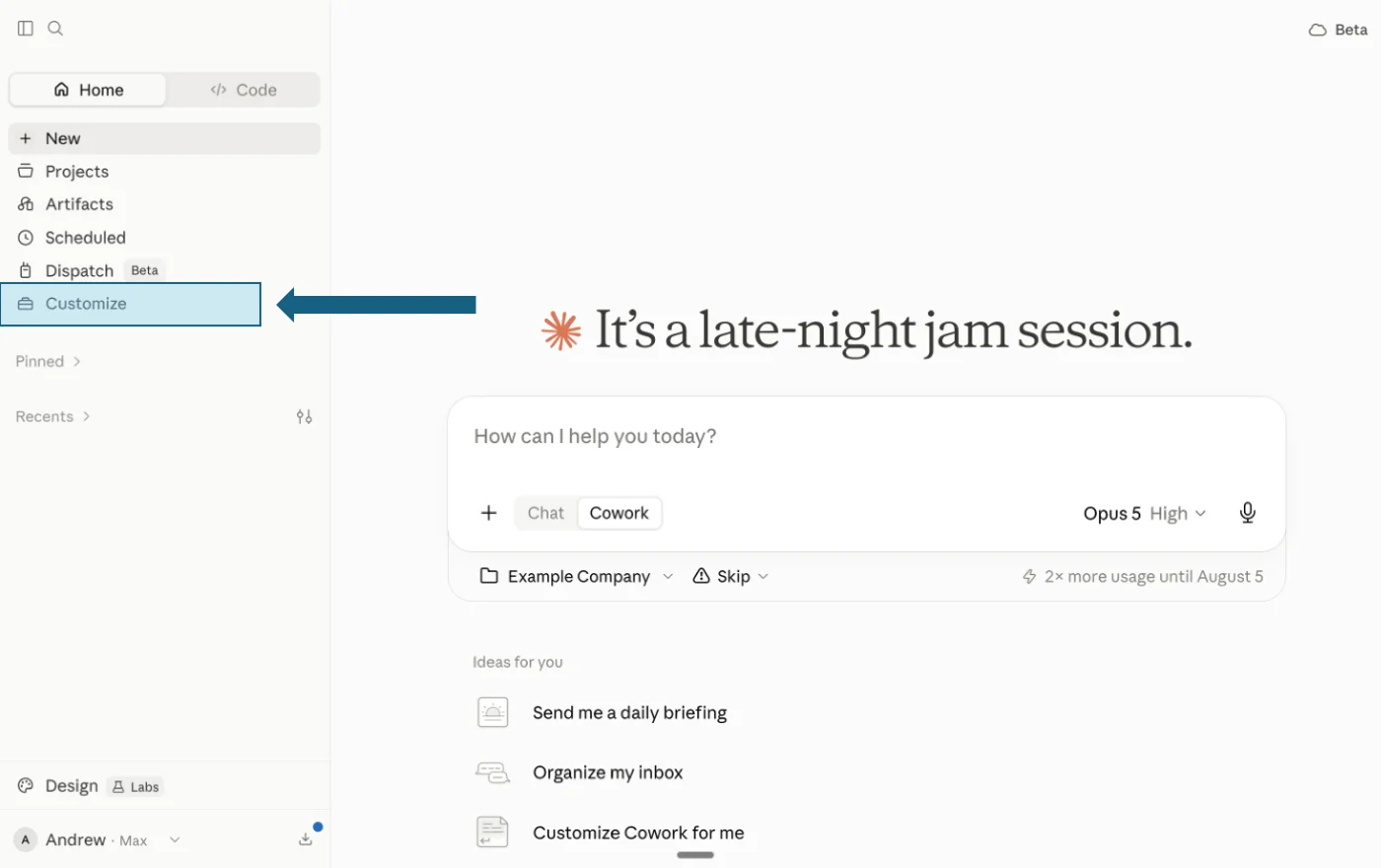
Open Customize
In Claude, click Customize in the left sidebar.
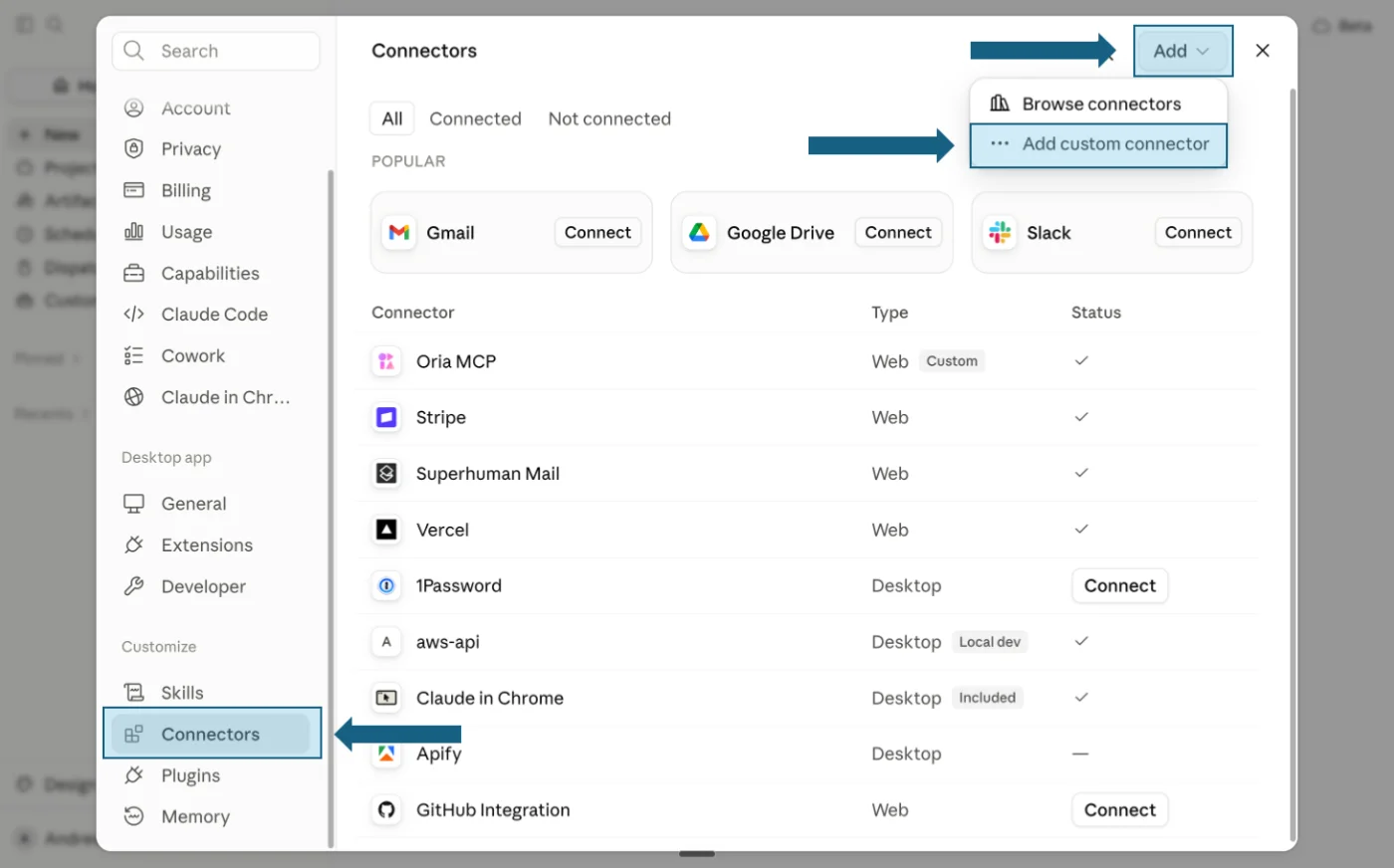
Add a custom connector
Open Connectors, click Add, then choose Add custom connector.
Name it and paste the URL
Enter Oria as the name, paste the connector URL below, then click Add. Leave the optional OAuth fields blank.
Oria connector URL
https://api.oria.one/mcp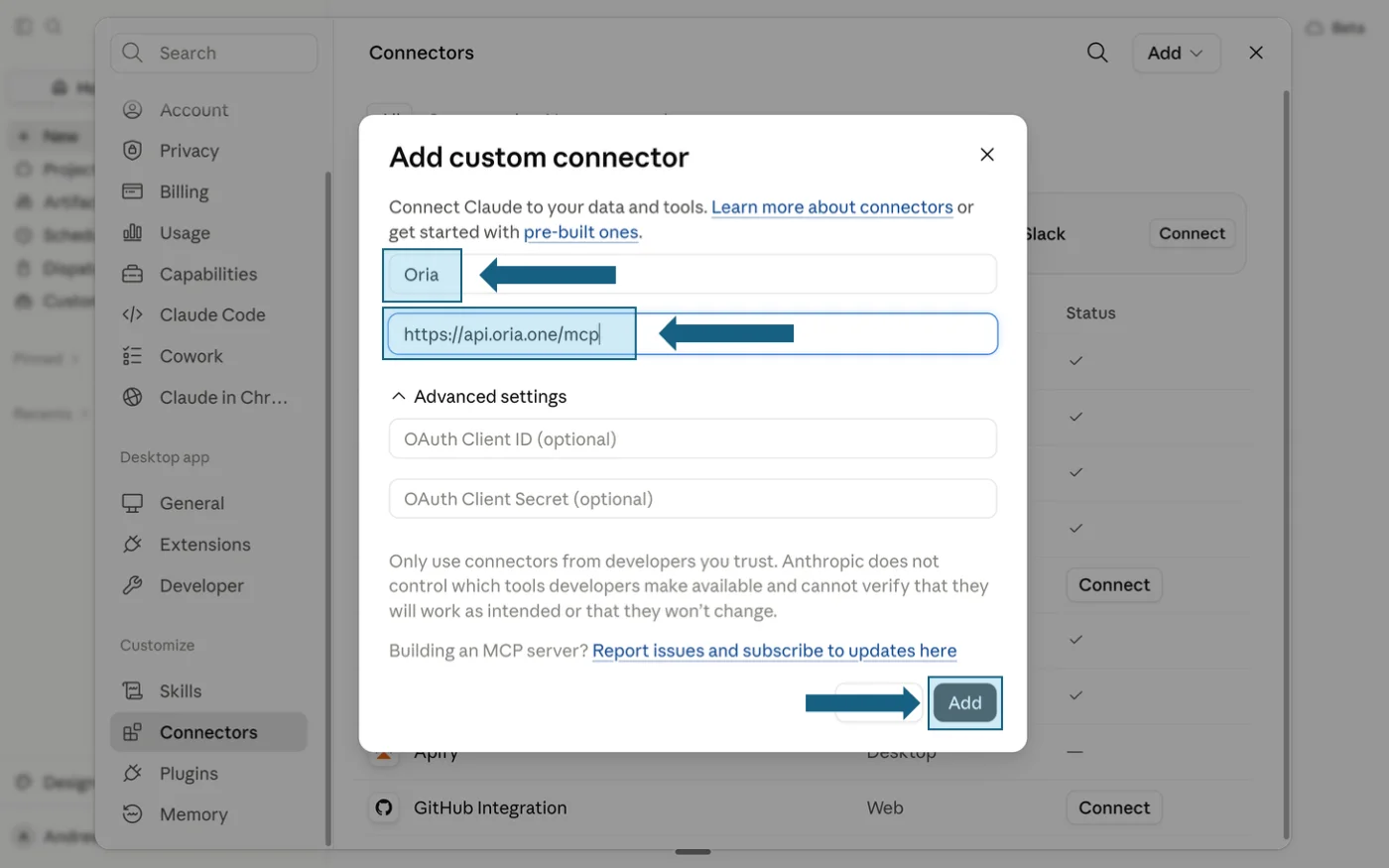
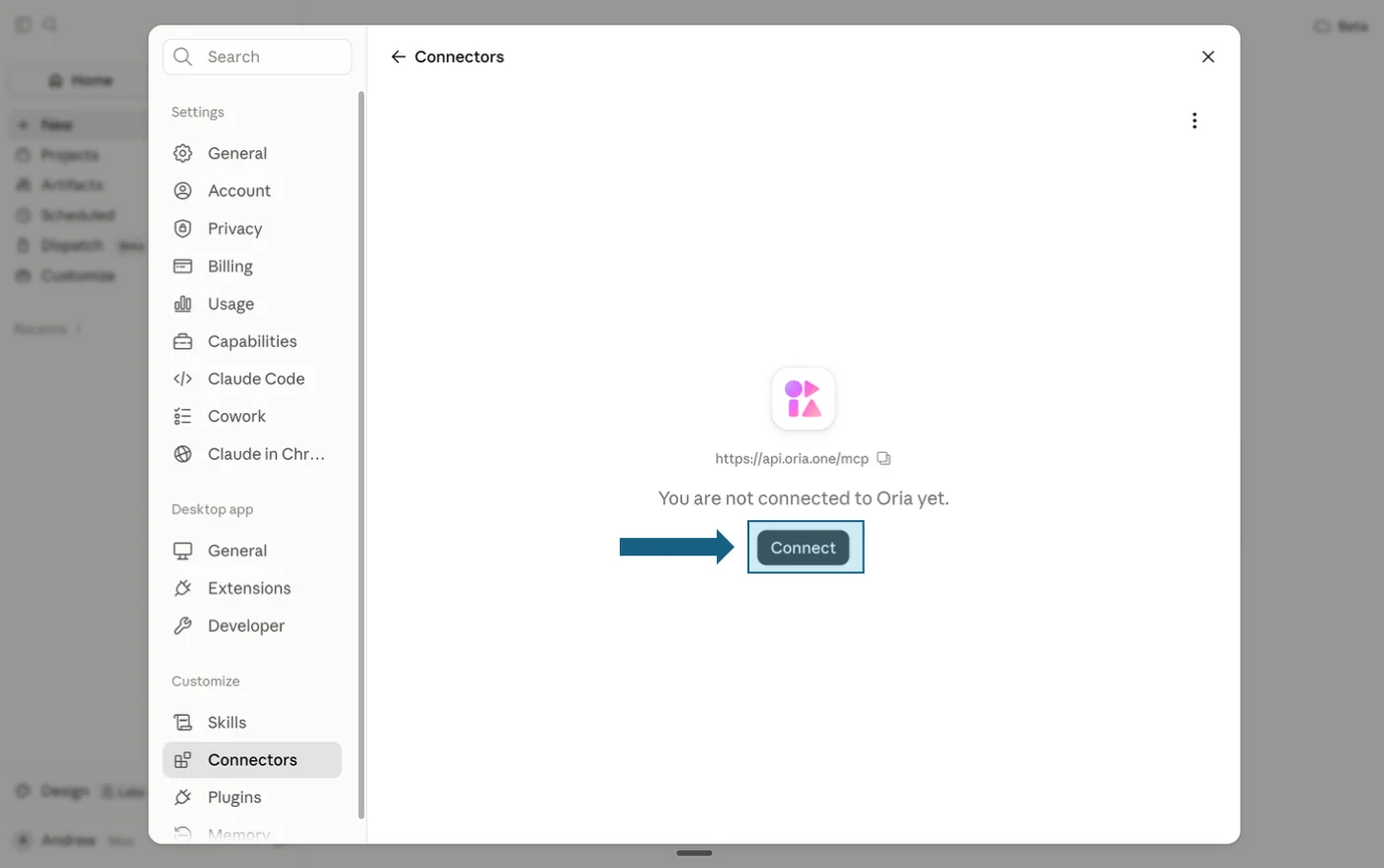
Click Connect
On the Oria connector page, click Connect.
Enter your email
An Oria sign-in window opens. Enter the same email you used to sign up for Oria.
Enter your code
Type the 6-digit code we email you, and check your spam folder if it has not arrived.
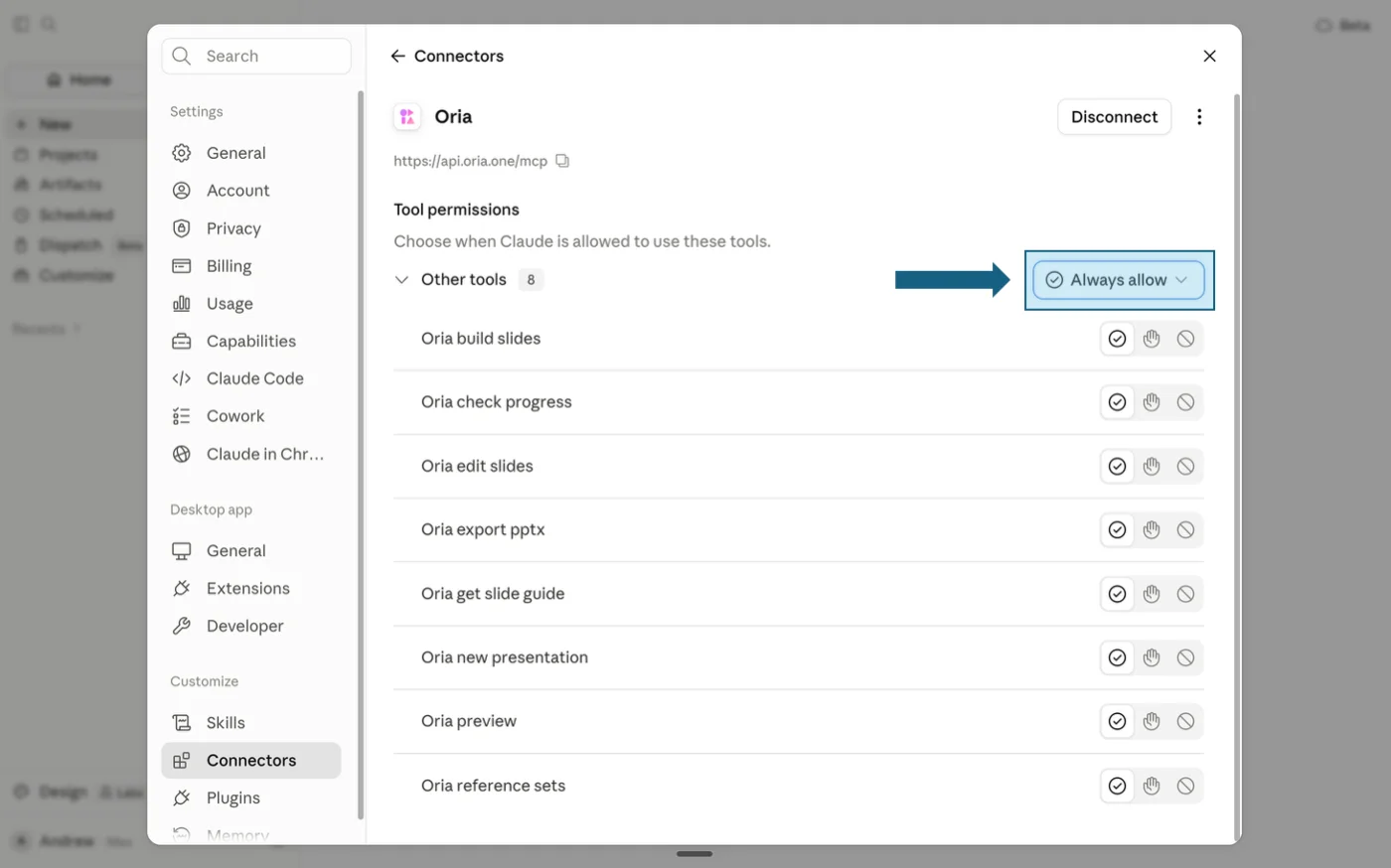
Set Always allow
Oria is connected. Switch tool permissions to Always allow so Claude stops asking for approval.
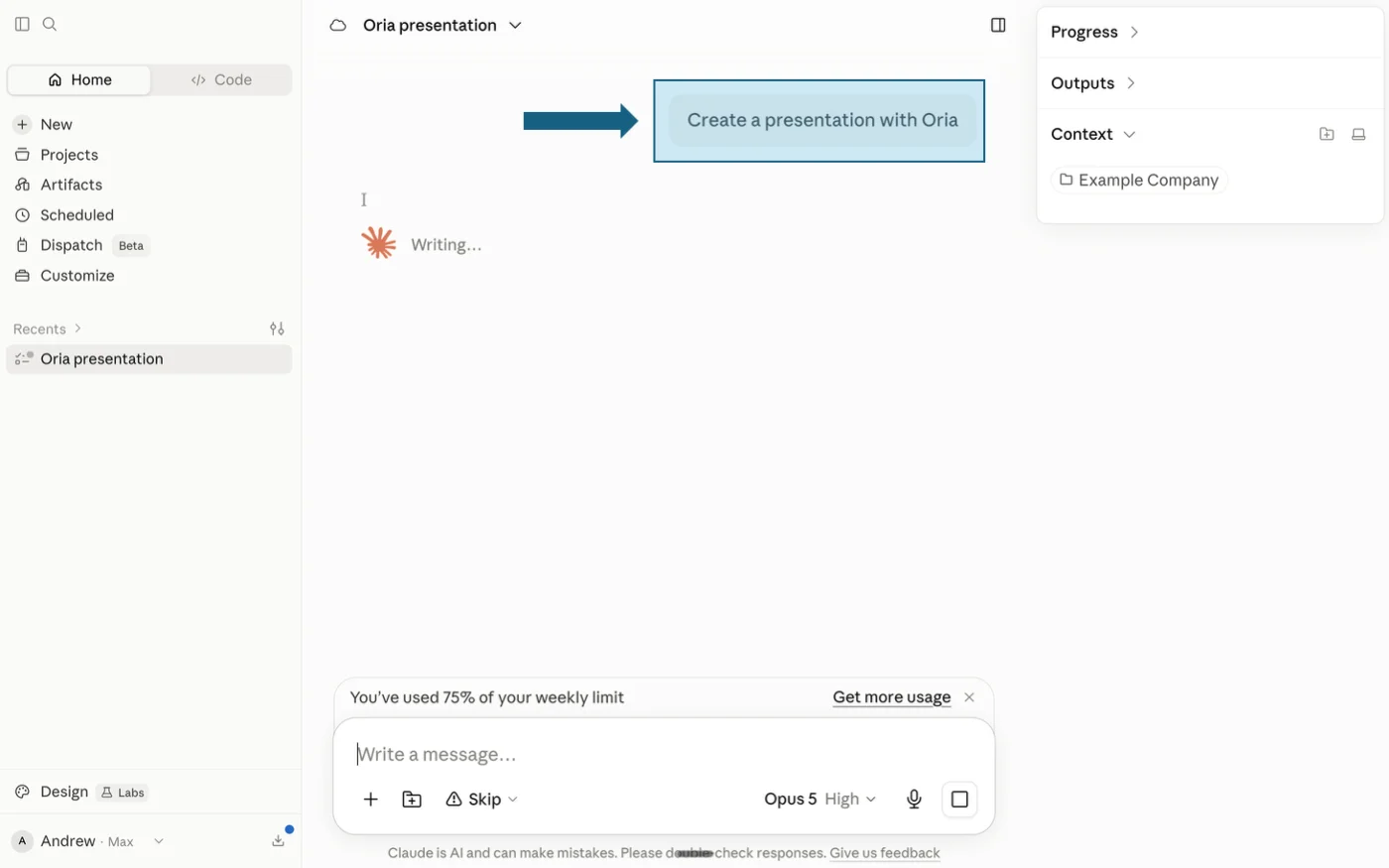
Start creating
Tell Claude in the chat to build the presentation with Oria.
ChatGPT
Connect Oria to ChatGPT
Add Oria as a Streamable HTTP MCP server, then authenticate it from the MCPs tab.
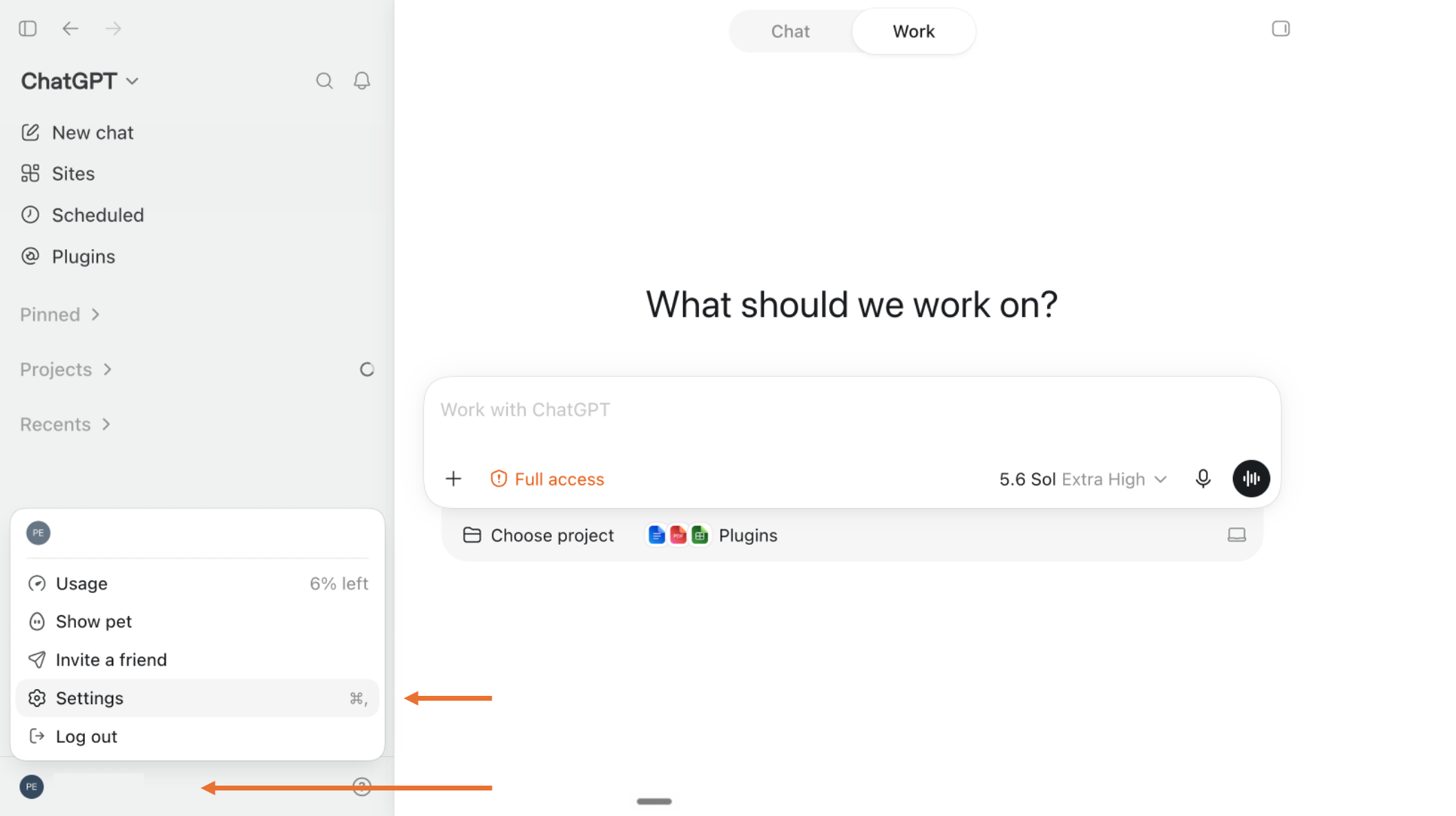
Open Settings
In ChatGPT, open your profile menu in the bottom-left corner and choose Settings.
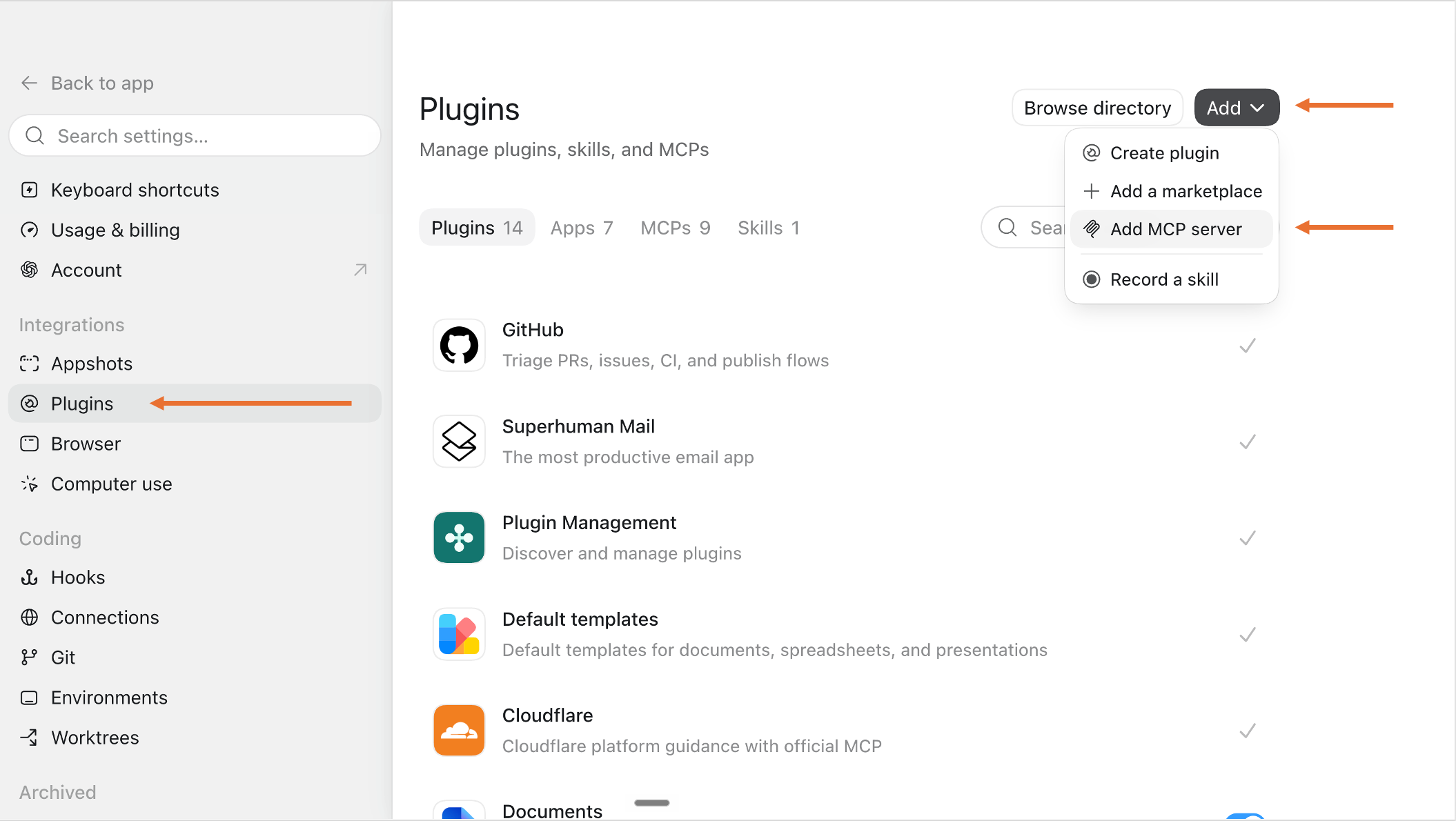
Add an MCP server
Open Plugins in Settings, click Add, then choose Add MCP server.
Enter the Oria server details
Enter Oria as the name, keep Streamable HTTP selected, paste the URL below, then click Save. Leave bearer token and header fields blank.
Oria connector URL
https://api.oria.one/mcp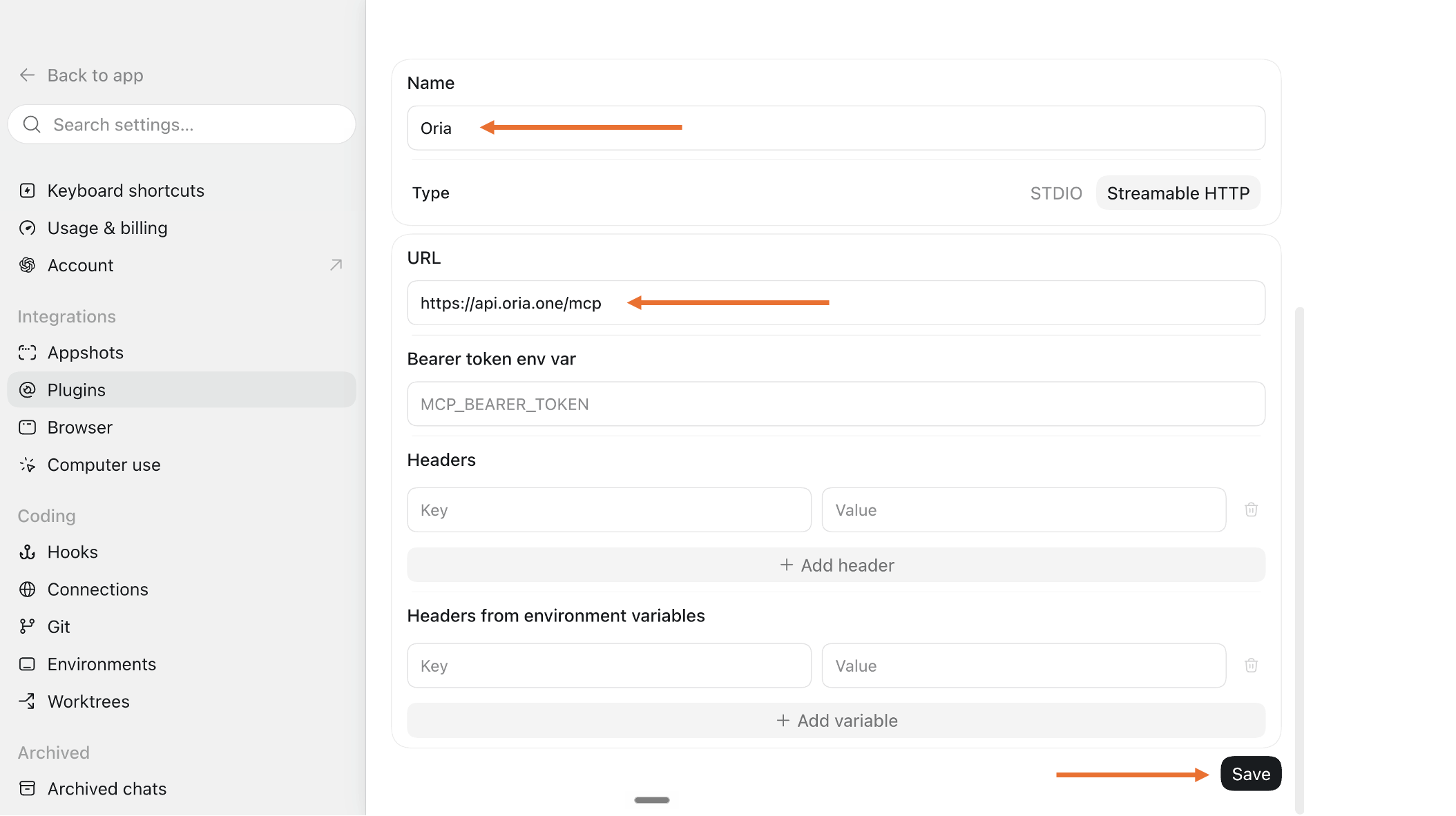
Authenticate Oria
Open the MCPs tab, find Oria in the server list, and click Authenticate.
Enter your email
An Oria sign-in window opens. Enter the same email you used to sign up for Oria.
Enter your code
Type the 6-digit code we email you, and check your spam folder if it has not arrived.
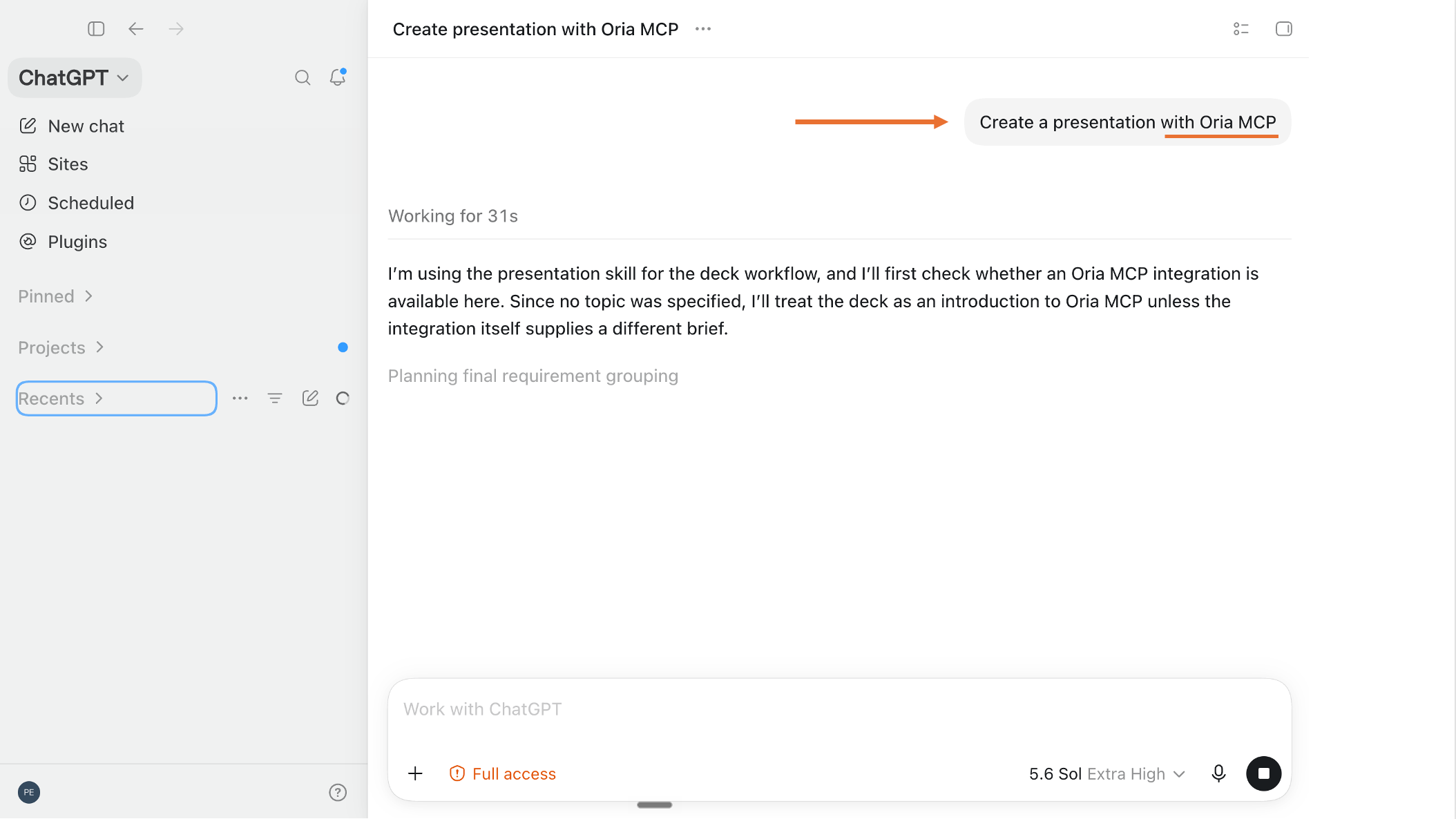
Start creating
Open a new ChatGPT conversation and ask it to create a presentation with Oria MCP.
Add an executive-presentations skill to Claude
Oria works without this skill. Add it when you want Claude to structure board, leadership, investor, or client decks around the decision, evidence, recommendation, and next action before Oria renders the slides.
Executive Presentations Skill for Claude
.skill archive · Free · No login required
To add it, open Claude's Customize area, go to Skills, select the + button, choose Create skill then Upload a skill, select the downloaded archive, and turn it on.
Use Oria directly inside PowerPoint
The Claude and ChatGPT connectors can create the presentation from chat. You can also install the PowerPoint add-in when you want to run Oria directly in an open deck on Mac or Windows.
Open Oria in PowerPoint
Launch the add-in install flow directly in PowerPoint.
Button didn't work? Try opening Oria directly in PowerPoint again.
 Open in PowerPoint
What to ask Oria after it is connected
Start a new conversation in Claude or ChatGPT, provide the brief or source file, and say that you want Oria to build or redesign the presentation. These three workflows are useful first tests.
Improve a slide you already have
Upload a slide and ask: "Use Oria to redesign this slide. Keep every fact, apply a clearer hierarchy, and return it as an editable PowerPoint slide."
Turn rough ideas into a slide
Give the assistant your notes and ask: "Use Oria to turn this into a board-ready slide with one clear message and the most appropriate structure."
Convert sketches into slides
Upload a photo of a whiteboard or notebook sketch and ask Oria to preserve its logic while rebuilding it with real shapes, type, and alignment in PowerPoint.
Once it is connected, the next question is what to feed it. The 2026 guide to using Claude in PowerPoint covers the whole workflow, and what the official Claude add-in does and does not do explains where this setup earns its place.
Reader discount
20% off Oria with this promo code
Apply the code below at checkout for 20% off your Oria subscription.
Frequently asked questions
How do I connect Oria to Claude?
Add Oria as a custom connector. In Claude, click Customize in the left sidebar, open Connectors, click Add, then choose Add custom connector. Enter Oria as the name, paste the connector URL from the setup guide above, and click Add. Then click Connect, sign in with your Oria email, and enter the 6-digit code.
Can I add the connector from the Claude mobile app?
Not from the app itself. The Claude app cannot add connectors, so open claude.ai in Safari or Chrome on your phone instead. From there, open the sidebar, tap your account name, open Settings, swipe to Connectors, and follow the same custom connector steps. The connection then works in the app as well.
How do I connect Oria to ChatGPT?
Add Oria as an MCP server. Open your profile menu in the bottom-left corner of ChatGPT, choose Settings, open Plugins, click Add, then Add MCP server. Enter Oria as the name, keep Streamable HTTP selected, paste the URL, and save. Open the MCPs tab, find Oria, and click Authenticate.
Do I need separate accounts for Claude, ChatGPT, and PowerPoint?
No. One Oria account covers all three. You authenticate each connection with the same email you used to sign up for Oria, and the sign-in flow sends a 6-digit code to that address. Work started in one place stays on the same account when you move to another.
Why has my 6-digit sign-in code not arrived?
Check your spam or junk folder first, as that is where the code most often lands. Make sure you entered the same email address you used to sign up for Oria, since a different address will not match an existing account. If it still does not arrive, close the sign-in window and start the Connect step again.
Why does Claude ask for permission every time I use Oria?
Tool permissions are still set to ask. Open the Oria connector page in Claude's settings and switch tool permissions to Always allow. On mobile, the same setting sits under Tool permissions as Other tools. After that Claude runs Oria without stopping to confirm each call.
What can I ask for once Oria is connected?
Build a full presentation from a brief, notes, or source files, or hand it a slide you already have and ask for a redesign that keeps every fact. Say in the conversation that you want Oria to do the building. Slides come back as native, editable PowerPoint rather than images.