

How to Use Claude for PowerPoint: The Complete 2026 Guide
Three different things now answer to the phrase "Claude for PowerPoint": the official add-in that lives inside the app, the .pptx files Claude builds in a normal chat, and the old habit of pasting Claude's text into your own layouts. They are not interchangeable, and the choice between them is really a choice about where the design work happens, which is what decides how much of your evening goes into fixing fonts afterwards. This guide covers every route from a Claude draft to a finished slide, what Anthropic's own documentation says each one will and will not do, and the prompts that hold up when the deck has to survive a partner review.
Quick answer: how to use Claude for PowerPoint
Two questions land here. "How do I get Claude inside PowerPoint" now has an official product behind it and a five-minute install. "How do I get a deck that looks like ours" is the harder one, and the install is not its answer.
To use Claude for PowerPoint in 2026, install the Claude for Microsoft 365 add-in from Microsoft AppSource. Anthropic lists it as generally available on the Pro, Max, Team and Enterprise plans, and it builds native, editable slides inside the deck you already have open, reading that deck's slide master for fonts, layouts and colours. On the free plan, ask Claude in an ordinary chat for a .pptx file and download it instead. If the slide has to sit on a policed corporate master or carry a dense bespoke exhibit, put a design layer such as Plus AI or Oria, or a human designer, on top of Claude's draft rather than expecting the draft to be final.
How do you add Claude to PowerPoint?
A Claude plugin for PowerPoint, a Claude add-in, a Claude add-on, a Claude extension: all four name one product, Claude for Microsoft 365, a single add-in covering PowerPoint, Excel, Word and Outlook. Anthropic shipped it as a research preview in February 2026 and made it generally available on 7 May 2026.
Check your PowerPoint build first. Anthropic supports PowerPoint on the web, on Windows with a Microsoft 365 subscription on build 16.0.13127.20296 or later, and on Mac version 16.46 or later. It does not run on the 2016 or 2019 perpetual and volume licences, on iPad or on Android. On a perpetual licence, skip to the chat route below.
Install from Microsoft AppSource. Open the Claude for Microsoft 365 listing on Microsoft AppSource and select Get it now. This is the same listing whether you want it in PowerPoint, Excel, Word or Outlook.
Activate it and sign in. Open PowerPoint and activate the add-in from Home and then Add-ins on Windows, or Tools and then Add-ins on Mac, then sign in. The deck you have open becomes the sidebar's working context.
Set your standing instructions. In the sidebar, open Settings and use the Instructions field for the rules you would otherwise retype every time: one-line bullets, the accent colour, your titling convention. Instructions set in PowerPoint apply only to PowerPoint.
For administrators
Deploy from the Microsoft 365 Admin Center under Settings and then Integrated apps. Where the Office Store is switched off at tenant level, Anthropic publishes a custom manifest XML to upload instead. One documented trap: the Integrated apps page does not recognise admin roles activated through Privileged Identity Management, so deployment fails unless the role is permanently active.
How we compared the routes
Every route was judged on what happens to the deck after the AI stops, not on how impressive the first screenful looks. Five criteria, applied identically:
- What the output is made of. Native shapes and text boxes, or a picture of a slide you cannot edit. We opened every output and tried to move things.
- Template fidelity. Whether the route reads an existing slide master, or invents its own fonts and colours and leaves you to reconcile them.
- Charts and exhibits. Bars and lines are table stakes. We looked at waterfalls, Marimekkos, swimlanes and matrices, which is where decks break.
- Speed to a usable draft, measured to the point where the slide is worth showing someone, not to the point where generation stops.
- What it costs to unlock, including the licence underneath. A $30 add-on on a $12 base licence is a $42 decision.
Ignored on purpose: model benchmark scores, which say nothing about slide output; stock template galleries, because you have a template already; and any vendor time-saving claim we could not reproduce on a real deck.
Key takeaways
- Ask what the output is made of. A native text box you can drag beats a beautiful picture of a slide. The add-in and the design layers produce editable PowerPoint objects; image-based generators do not, and you find out at 11pm.
- Template fidelity is the whole ball game. In the Nielsen study commissioned by empower, 47 percent of presentations did not follow their own company design guidelines. A route that reads your slide master before it writes is solving the real problem.
- Check the chart types before you commit. Standard bars, lines and pies are solved. Waterfalls, Marimekkos, football fields and swimlanes are where generated decks fall apart, and where you should build once by hand and reuse.
- Speed only counts to the first usable draft. A tool that generates in 60 seconds and costs 90 minutes of reformatting is slower than one that takes 10 minutes and lands on-brand. Measure the whole loop, not the generation step.
- Know which paywall you are behind. File creation in chat is free on every plan. The add-in needs a paid Claude plan. Copilot needs a $30 per user licence on top of Microsoft 365. A design layer is a second subscription again.
The six routes from Claude to PowerPoint, compared
The same five criteria, applied to every way of getting Claude's thinking onto a slide. Read the last column first: most of these choices are settled by whichever paywall you are already behind.
| Route | What the output is made of | Template fidelity | Charts and exhibits | Speed to a usable draft | What it costs to unlock |
|---|---|---|---|---|---|
| Claude for PowerPoint add-in | Native shapes, text boxes and charts, written into the open deck | Reads the slide master of the deck you already have open | Bullets become native editable charts and diagrams | Minutes, with no file to export or re-import | Paid Claude plans: Pro, Max, Team, Enterprise |
| A .pptx built in Claude chat | Native objects, but assembled by code rather than laid out visually | Only what you upload, and it drifts over a long deck | Code-generated, so quality swings with the prompt | A minute or two to a download link | Free on every plan, capped at 30MB per file |
| Copy and paste from Claude | Your own placeholders, so as native as the deck itself | Perfect, because you never leave the template | You build them yourself, by hand | Instant for text, slow for anything visual | Free on any plan, free tier included |
| Oria add-in | Renders a design, then decomposes it into native shapes and charts | Upload the corporate template once, held on every slide after | Built for dense exhibits: matrices, swimlanes, driver trees | Seconds to layout options, minutes to a finished slide | A second subscription from $19 a month |
| Microsoft 365 Copilot | Native slides, generated from your own Microsoft 365 files | Uses the applied template, with little control over dense layouts | Standard chart types, but it can reach your own data | Minutes, inside the app | $30 per user per month, on top of a Microsoft 365 licence |
| Rebuild with a designer | Whatever you commission, usually fully native | Exact, because a person reads the brand book | Anything, including the exhibits no generator handles | Hours to days | By far the highest cost per slide |
Two things are worth saying out loud. The free route genuinely produces a real PowerPoint file, so nobody needs to pay to find out whether generated slides work for them. And the gap between routes is not writing quality, which is broadly similar, but how much of your template survives the generator. For the wider field, our guide to the best AI for PowerPoint covers the web-first generators this page mostly leaves alone.
Claude for PowerPoint add-in: who is it built for?
The default answer for anyone on a paid Claude plan who lives in PowerPoint. Anthropic's documentation describes an add-in that builds slides on your existing client or corporate templates, makes pinpoint edits to specific slides without regenerating the deck, converts bullets into diagrams and native charts, pulls external context through connectors and applies reusable Skills. It shares context with Claude for Excel, Word and Outlook, so one conversation can span the open workbook and the open deck.
The limits come from Anthropic rather than from us. Its documentation says Claude for PowerPoint is not recommended for final client deliverables without human review, for highly sensitive or regulated data without proper controls, or for replacing your judgement on design and narrative flow. It carries a prompt-injection warning: use it only with trusted files, because external templates can contain hidden instructions. Enterprise buyers should note one more line: add-in activity is not in Enterprise audit logs, though it is covered by the Compliance API in beta.
The trade-off: you get the best writer in the category working directly on your deck, and you accept that Anthropic itself positions the output as a draft for a human to finish.
A .pptx built in Claude chat: who is the free route for?
Anthropic opened file creation to every plan, the free tier included. Ask for a PowerPoint file in an ordinary conversation and Claude writes one, using code in an isolated sandbox that Anthropic describes as a controlled environment separate from your systems. Download it, or save it to Google Drive. The ceiling is 30MB per file.
It is the right route more often than people expect: a workshop deck, a teaching deck, an internal readout, anything where the house template is a courtesy rather than a requirement. It is also the answer on an unsupported PowerPoint build. The weakness is structural. Because the file is assembled by code rather than laid out visually, spacing drifts as the deck gets longer, and a template only participates if you upload one and keep reminding Claude about it. It is also where the confusing file paths come from: Claude cites a working path inside its own container, which does not exist on your machine.
The trade-off: it costs nothing and needs no install, and you are accepting a deck that looks generated, because nothing in the loop ever looks at the slide.
Copy and paste from Claude: who is it for?
The oldest route is still the most reliable, and it is not a joke answer. Claude drafts the storyline, the action titles and the bullets; you paste them into layouts that already exist in your deck. Template fidelity is perfect by definition, because nothing but PowerPoint ever touches the file. For regulated industries, legal decks and firms where the slide master is policed, it is the only route that survives review without an argument.
The cost is your time, and it is measurable. In the Nielsen study commissioned by empower, which surveyed 1,102 employees in Germany and the United States, the typical corporate employee spent 7 hours a week in PowerPoint and 37 percent of that time on formatting, roughly 2.6 hours a week adjusting colours and fonts. Pasting into your own layouts does not reduce that number. It guarantees the formatting is right. Our guide to turning meeting notes into editable slides covers the paste-side mechanics in more detail.
The trade-off: zero template risk and zero cost, paid for with the 2.6 hours a week that every other route on this page is trying to buy back.
Oria: who is a design layer on top of Claude built for?
Oria is our own product, so read this row with that in mind. It is built for corporate and consulting documents specifically: board packs, steering committee decks, diligence exhibits, operating-model slides. It reaches you two ways, as a PowerPoint add-in and as a connector for Claude and ChatGPT over MCP, so you can build the slide from the chat you are already in. It takes a storyline, renders it as a complete visual design, then decomposes that design into native shapes, text boxes, icons and charts. Upload your corporate template once and it is applied to everything generated after. Pricing is published: $19 a month for 60 generation tokens, $59 for 200, $399 for a shared team pool.
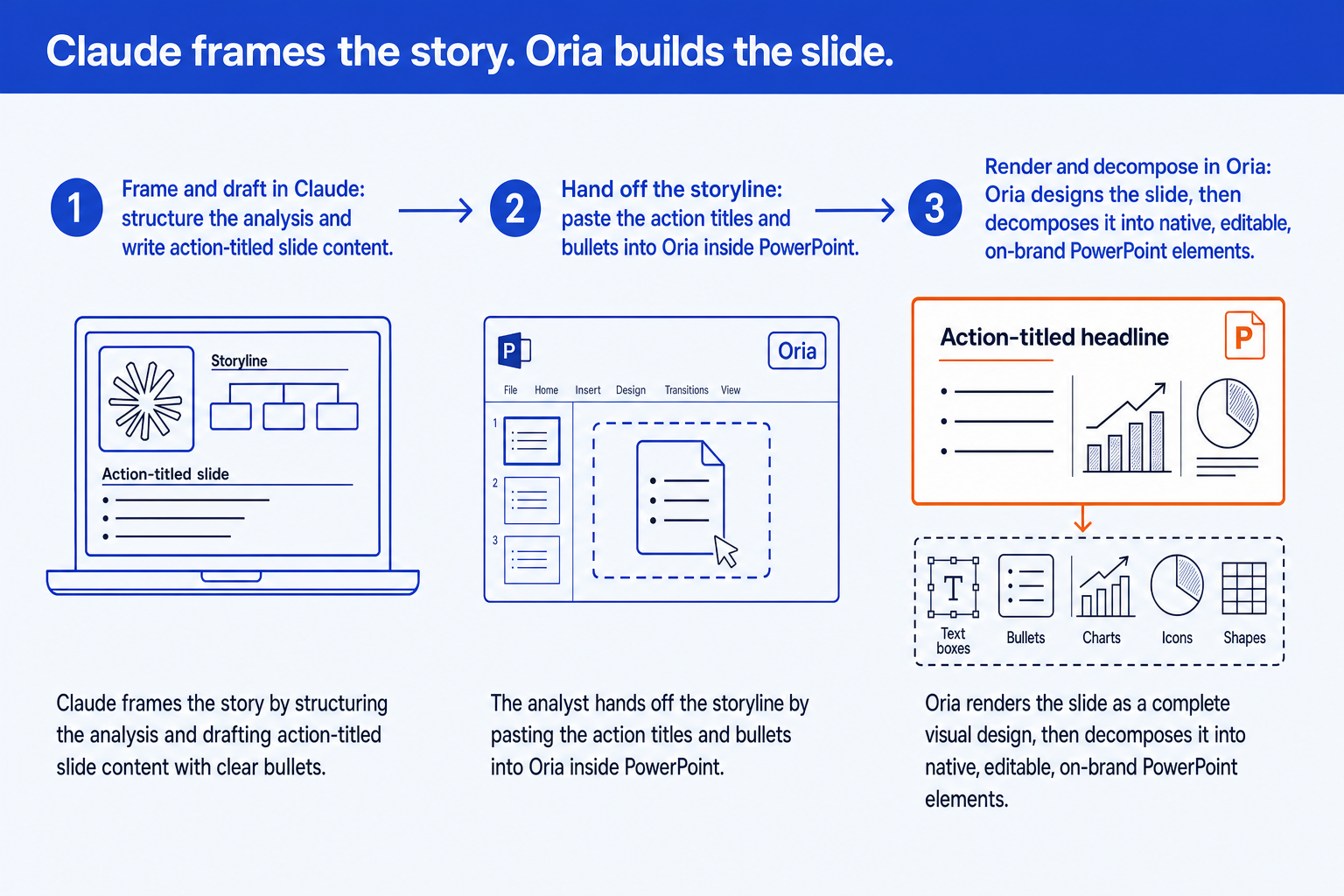
Here is the part a sales page leaves out. The corporate focus cuts both ways. If your slides are titles, bullets and the occasional bar chart, the Claude add-in already does this and a second subscription buys you little. And if the deliverable is visual-first work, a fundraising or pitch deck, a launch deck, a student presentation, a marketing one-pager, this is the wrong tool and a design-led one will look better. The case for Oria is narrow and specific: dense bespoke exhibits on a policed master, where a matrix, a swimlane and a driver tree all have to look like they came from the same firm. Our comparison of Oria and Plus AI covers the nearest alternative in the same category, and installing it inside Claude explains the MCP route for people who never want to leave the chat.
The trade-off: a second subscription and a second tool in the loop, which pays for itself only if your slides are genuinely complex and your template is genuinely enforced.
Microsoft 365 Copilot: who is it built for?
Copilot is the incumbent, and the reason to choose it has nothing to do with slide craft. It sits inside your tenant, so it reaches the SharePoint document, the Teams meeting and the mail thread the deck is actually about. For an internal readout assembled from files you already own, that is decisive.
Check the cost before you compare features. Microsoft 365 Copilot lists at $30 per user per month on an annual commitment and cannot be bought alone: it sits on a qualifying Microsoft 365 licence, so the real number is higher. A paid Claude plan starts at $20 a month on Anthropic's published pricing. On the output, the complaint is the one levelled at every in-app generator: competent, templated, visibly machine-made. We go through it in our Claude versus Copilot comparison, and converting Copilot slides into brand decks covers the clean-up if you are already licensed.
The trade-off: unmatched access to your own data, at the highest per-seat price on this page, for output most reviewers rate below Claude's on writing quality.
A presentation designer: who is a human rebuild for?
There is a category of deck where none of this applies: the board presentation, the fundraise, the deck that decides something. Nancy Duarte, writing in MIT Sloan Management Review, put the limit plainly: "Generative AI can remix what's known, but it can't originate what's next." She has described watching capable leaders deliver AI-generated presentations that looked perfect on paper and moved nobody to act. That is not a prompt problem.
The realistic version is a split: Claude for the eighty percent of the deck nobody will remember, human judgement for the five slides that carry the argument. Our breakdown of a design agency against AI on cost and speed puts real numbers on where that line sits, and building an executive summary slide is the single slide most worth doing properly.
The trade-off: the highest cost per slide by a wide margin, in exchange for the one thing no model on this page does, which is deciding what the audience needs to feel.
Which route to PowerPoint should you use?
Most people need one route, not six. The grid below is the short way to find yours, including where the right answer is a tool we do not sell.
| If you need | Go to | Why that one |
|---|---|---|
| A fast first draft you were going to edit anyway | The Claude for PowerPoint add-in | Already in the app, and it reads the template on the open deck. |
| Slides without paying for anything | Claude's free plan, asking for a .pptx in chat | File creation runs on every plan. A real file, minus the in-app editing loop. |
| A deck that must not drift off your template | Your own layouts, filled by copy and paste | Zero template risk, because no AI touches the file. Still right for regulated decks. |
| A designed deck with no PowerPoint in the loop | Gamma, Beautiful.ai or Canva | Web-first generators with strong defaults. None is built around a corporate master. |
| Slides grounded in your own company files | Microsoft 365 Copilot | It reaches your tenant: SharePoint, Teams, mail. Nobody else can copy that. |
| A dense bespoke exhibit on a policed master | A design layer such as Oria or Plus AI | The narrow case where a second tool earns its keep. Titles and bullets do not. |
| A waterfall, Marimekko or football-field exhibit | A worked build guide, then reuse your own | Fiddly for every generator. Build the first one properly and clone it. |
| The one deck your year depends on | A presentation designer | Judgement about what an audience needs to feel is the thing none of these do. |
On that seventh row: awkward exhibits are worth building once and cloning forever. Start with the waterfall chart build and when a Marimekko is the right chart. If you are choosing between add-ins rather than routes, our review of AI PowerPoint add-ins is the narrower comparison.
The 3-step workflow to use Claude with PowerPoint
Whichever route you picked, the sequence is the same, and it is what separates a usable deck from a fast disappointment. Do the thinking before the slide exists.
Frame and draft before you open PowerPoint. Paste your notes, transcript or analysis into Claude and ask for an action-titled storyline: one sentence per slide stating the so-what, plus three supporting bullets. Read the action titles alone, top to bottom. If they do not tell the story, no design tool will rescue it.
Open the deck on your template, then generate. Anthropic's own best-practice list starts here: apply your template before asking Claude to generate content. The add-in reads the slide master of the deck that is open, so starting from a blank default deck and hoping to re-skin it later is the commonest way to lose the template.
Edit one slide at a time, not the deck. The add-in targets a single selected slide and leaves the rest alone, so fix by selection rather than by regenerating. Name the slide, the element and the change. Then review before anything leaves the building, which Anthropic recommends explicitly.
Tip
Sceptical that any of this saves time? The Federal Reserve Bank of St. Louis found that workers using generative AI reported saving 5.4 percent of their work hours, about 2.2 hours a week. Real, but modest: that is the right expectation to bring here. For the thinking half of the job, our consultant's guide to Claude goes deeper on structuring the argument, and Claude Skills for slide design covers packaging your own house rules as a reusable Skill.
Copy-paste prompts for Claude and PowerPoint
The prompts behind the three steps, in the order you would run them. Copy a block and replace the bracketed part. The first three work anywhere Claude does; the Step 2 pair is written for the add-in sidebar with a deck open.
Step 1: Frame and draft
Turn notes into an action-titled storyline
Tighten one slide to fit
Rewrite a topic title as an action title
Step 2: Build inside PowerPoint
Generate a section on the open template
Turn bullets into a native diagram
Step 3: Refine and review
Pressure-test the storyline before you build it
Draft the executive summary slide
Tip
Anything you retype in every prompt belongs in the add-in's Instructions field instead, where it applies to every conversation in PowerPoint. Bullet style, accent colour, titling convention: set once.
A worked example, start to finish
Say you need a board section recommending a new market entry, built from a page of raw notes. Run the storyline prompt in a normal Claude conversation and you get an 8-slide outline with action titles. Run the topic-title prompt over anything still reading as a label. Run the pressure-test prompt and you usually find two slides that answer no real question; delete them before they cost you design time.
Now open the deck. Not a blank one: the one on your template, because that is what the add-in reads. Paste the approved storyline into the Claude sidebar and run the section prompt, naming the layout. Claude writes the slides in on the theme that is already there. Select the timeline slide alone and run the diagram prompt to turn its bullets into a four-stage flow as native shapes. Fix what is wrong slide by slide rather than regenerating the section.
What you have is a draft that is structurally right and visually consistent, in the time it used to take to format three slides. What you do not have is a finished deliverable: the pass where you decide what the audience needs to believe is still yours. For finance rather than strategy, the same loop runs in our CFO's guide to Claude.
Common mistakes to avoid
The second is the expensive one. In the Nielsen and empower study, 47 percent of presentations did not comply with their own company's design guidelines, which is 68 non-compliant decks per employee per year. Every route here either fixes that or worsens it, and it is decided in the first ten seconds, by whether the deck you generate into is already on your template.
Frequently asked questions
Can Claude create PowerPoint slides?
Yes, in two ways. On any plan, including the free one, Claude can build a .pptx file inside a normal chat and hand you the download. On paid plans, the Claude for Microsoft 365 add-in works inside PowerPoint itself: it reads the open deck, builds new slides on your existing layouts, edits a selected slide without regenerating the rest, and turns bullets into native editable charts rather than pasted images.
Is there a Claude add-in or plugin for PowerPoint?
Yes. It is called Claude for Microsoft 365, and it is one add-in covering PowerPoint, Excel, Word and Outlook, which is why searches for a Claude plugin, a Claude add-on and a Claude extension all land in the same place. Anthropic released it as a research preview in February 2026 and moved it to general availability on 7 May 2026 for the Pro, Max, Team and Enterprise plans.
How do I add Claude to PowerPoint?
Install it from the Claude for Microsoft 365 listing on Microsoft AppSource, then open PowerPoint, activate the add-in from Home and then Add-ins on Windows or Tools and then Add-ins on Mac, and sign in with your Claude account. Administrators can deploy it from the Microsoft 365 Admin Center under Settings and Integrated apps, or upload Anthropic's custom manifest XML where the Office Store is switched off.
Is Claude for PowerPoint free?
The add-in is not. Anthropic lists it as generally available on Pro, Max, Team and Enterprise, and Claude Pro is $20 a month on monthly billing. What is free is file creation in the chat: every plan, the free one included, can ask for a .pptx and download it, up to 30MB per file. That gives you a deck, not Claude inside PowerPoint.
Does Claude keep my corporate PowerPoint template?
Inside the add-in, largely yes. Anthropic's documentation says Claude reads the slide master, layouts, fonts and colour scheme of the open deck and uses them when generating or editing, and its best-practice list tells you to apply your template first. The weaker case is the chat route, where there is no open deck to read and formatting drifts as the deck gets longer.
Claude says my deck is at a path like /home/claude/deck/output.pptx. Where is the file?
Nowhere on your computer. When Claude builds a file in chat it runs code inside an isolated container, and paths like that belong to that sandbox, which Anthropic describes as a controlled environment separate from your systems. Use the download link in the conversation, or save the file to Google Drive. If the link fails, the usual cause is the 30MB ceiling.
Is Claude better than Copilot for PowerPoint?
For slide craft, Claude's add-in is the better writer and the more precise editor, and it is cheaper: paid Claude plans start at $20 a month against a $30 per user per month list price for Microsoft 365 Copilot, which also needs a qualifying Microsoft 365 licence underneath it. Copilot wins on the thing nobody can copy, which is grounding in your own tenant.