

How to Turn Claude Output into Editable PowerPoint Slides
Shape the storyline in Claude with a few exact prompts, then render a native, on-brand, editable deck in Oria. A focused step-by-step with the prompts and a worked example you can copy today.
Turn Claude output into editable PowerPoint slides in three steps
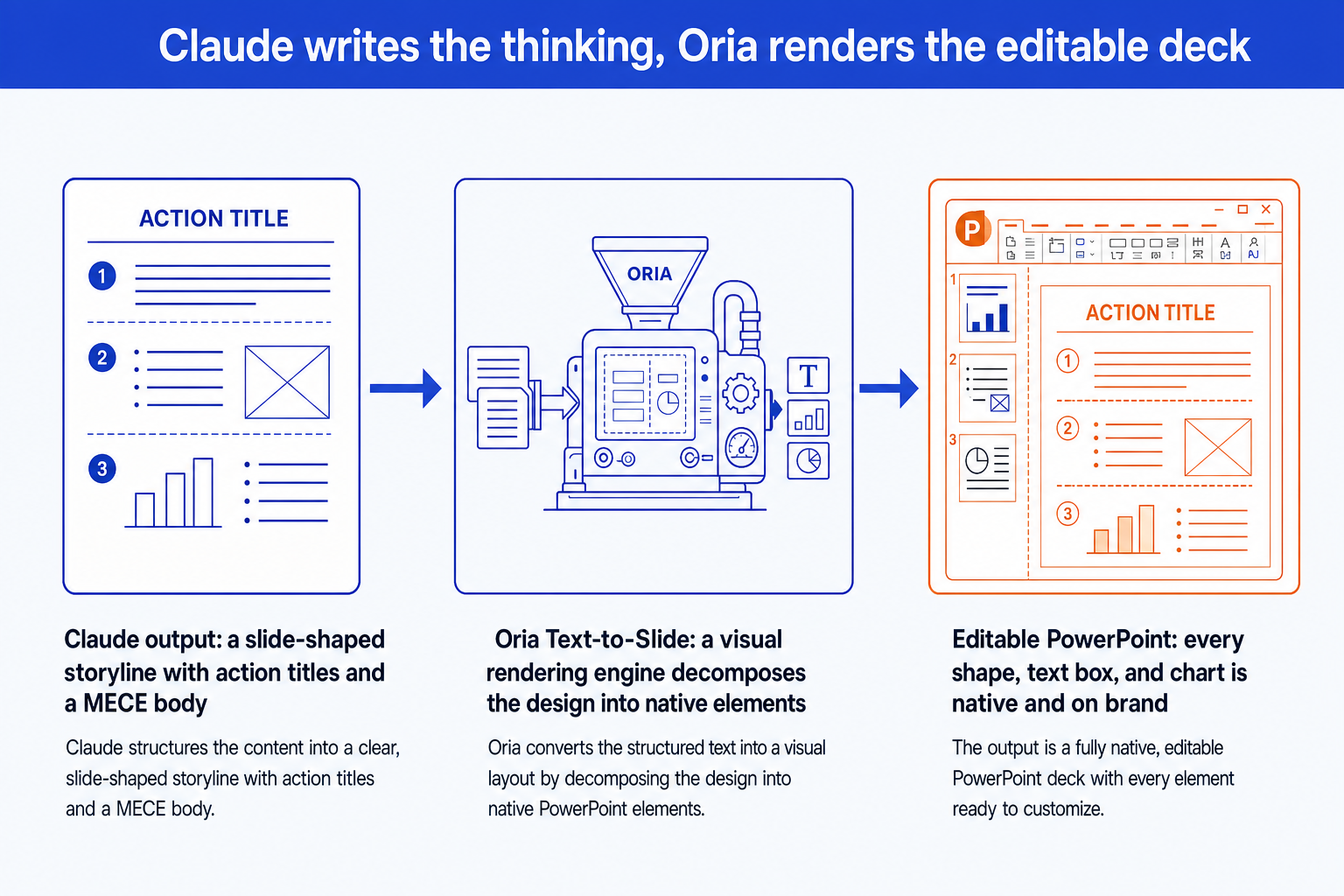
To turn Claude output into editable PowerPoint slides, do not ask Claude to build the deck. Ask it for a slide-shaped storyline with action titles, paste that storyline into Oria's Text-to-Slide, and refine the result in native PowerPoint. Claude writes the thinking; Oria renders an on-brand deck where every shape, text box, and chart is a real editable element. The whole conversion is a few minutes of prompting plus a few minutes of rendering.
This page is the focused conversion playbook. For the broader Claude to slides workflow, see the Ultimate Guide to Claude for PowerPoint. Here we go straight to the prompts that shape the output and the steps that make it editable.
Why pasting raw Claude text into PowerPoint fails
Claude is text-native. It is excellent at the storyline, the action titles, and the bullet logic, and weak at the things a board-ready slide needs. Paste its raw text straight into PowerPoint and three problems show up at once.
It loses structure. A slide is a layout, not a paragraph. Raw text arrives as a flat list of bullets with no hierarchy, no grouping, and none of the visual relationships the argument depends on.
It is not editable-native. The HTML-based route some tools use produces slides that look AI-generated, with inconsistent margins and broken font sizes. You cannot cleanly move, recolor, or restyle elements the way you can with native PowerPoint shapes and charts.
It is off brand. Pasted text lands in the default theme, not your corporate template. Fonts, colors, and logos are wrong, and matching a real brand standard by hand is exactly the evening of formatting you were trying to avoid.
The fix is a clean division of labor. Let Claude produce a precise, slide-shaped storyline, then hand that storyline to a tool built to render editable slides. The next sections show exactly how.
The 3-step conversion
Three steps take you from Claude output to an editable deck. Keep each one tight.
Get a slide-shaped storyline from Claude. Prompt Claude for one message per slide, an action title that states the so-what, and a short MECE body. This is the output you will convert, not prose.
Paste the storyline into Oria Text-to-Slide. Drop the storyline into Oria inside PowerPoint. Its visual rendering engine designs each slide individually and decomposes the design into native elements, on your template.
Refine in native PowerPoint. Pick the best of the 2 to 5 design options, then move, recolor, or restyle any element directly. Every shape, text box, and chart is native and yours to edit.
The prompts that shape Claude output for slides
This is the heart of the conversion. Each prompt below shapes Claude output into something a slide engine can render cleanly. Copy a block, replace the bracketed parts, and run them in one conversation so each builds on the last. Paste the final storyline into Oria.
1. Build the slide storyline with action titles
2. Rewrite to one message per slide
3. Turn bullets into a message, not a list
4. Write an exhibit spec for the data slides
5. Write the one-slide executive summary
6. Format the storyline for paste into Oria
Tip
Run prompts 1 through 6 in sequence in one chat. By prompt 6 Claude holds the whole storyline in context, so the formatted output you paste into Oria is consistent and complete. For deeper framing and analysis prompts before the storyline stage, see the Consultant's Guide to Claude.
A worked example, end to end
Say you have a Claude analysis recommending a mid-market software firm move from perpetual licenses to a subscription model. Here is the conversion, start to finish.
Storyline. Prompt 1 returns a ten-slide storyline. The action titles, read in order, already tell the story: "Perpetual licensing is capping growth," "Subscription lifts retention and lifetime value," "The transition costs two quarters of margin," and so on.
One message per slide. Prompt 2 catches a slide arguing both pricing and packaging at once. It splits into two: one on price model, one on tiering. Two thin slides become two sharp ones.
Bullets to messages. Prompt 3 rewrites the body of the retention slide so each bullet is a distinct proof point, not a restatement of the title. The slide now reads as an argument.
Exhibit spec. Prompt 4 specs the revenue-bridge slide as a waterfall: starting ARR, churn, expansion, new logos, ending ARR, with the expansion bar as the element to emphasize and placeholders where you still need numbers.
Render in Oria. Prompt 6 formats the storyline. You paste it into Oria's Text-to-Slide inside PowerPoint, on your firm's template. Oria returns 2 to 5 design options per slide; you pick the best and the waterfall arrives as a native, editable chart.
The result is an on-brand deck where every element is native PowerPoint. You spent your time on the argument, not on dragging text boxes into alignment at midnight.
Common mistakes to avoid
Frequently asked questions
Can Claude export an editable PowerPoint file directly?
Not in the way professionals need. Claude is text-native, so it either hands you raw text you have to rebuild by hand, or it uses an HTML-based route that produces slides which look AI-generated, drift off your brand, and break alignment. The reliable pattern is to let Claude write the storyline and let a tool built for slides render the editable deck. Oria does this with a visual rendering engine that decomposes the design into native PowerPoint shapes, text boxes, and charts.
Why not just paste Claude output into PowerPoint?
Pasting raw Claude text loses the slide structure. You get a wall of bullets in the default theme, off your corporate template, with no real visual hierarchy and no native charts. You then spend the evening re-formatting. Shaping the output as a slide storyline first, then rendering it in Oria, keeps the structure and gives you a native editable deck in minutes.
Do I need a specific Claude model for this?
No. Any current Claude model produces a usable slide storyline from these prompts. Use the strongest model when the thinking matters (framing, synthesis, action titles) and a faster one for high-volume rewriting. The conversion step happens in Oria regardless of which model wrote the text.
Will the slides stay on my corporate template?
Yes, when you render in Oria. You upload your template once and Oria maintains the fonts, colors, logos, and layout patterns across every generated slide. That is a key difference from HTML-based tools, which match a color palette at best and rarely hold a real corporate standard.
How long does the conversion take?
Shaping the storyline in Claude is a few minutes of prompting. In Oria, a single slide previews in roughly 30 to 40 seconds with 2 to 5 design options and reaches a final editable slide in 2 to 3 minutes. A 10-slide deck lands in about 6 to 8 minutes, so the bottleneck is your thinking, not the formatting.