

The Claude PowerPoint Skill: The Ultimate Guide to Prompts, Tips, and Workflows
Claude is one of the best tools for the thinking work behind a deck: outlines, storylines, executive headlines, speaker notes, and review. This guide covers the prompts, tips, and workflows that make it shine, and shows where you still need real visual execution to ship a board ready presentation.
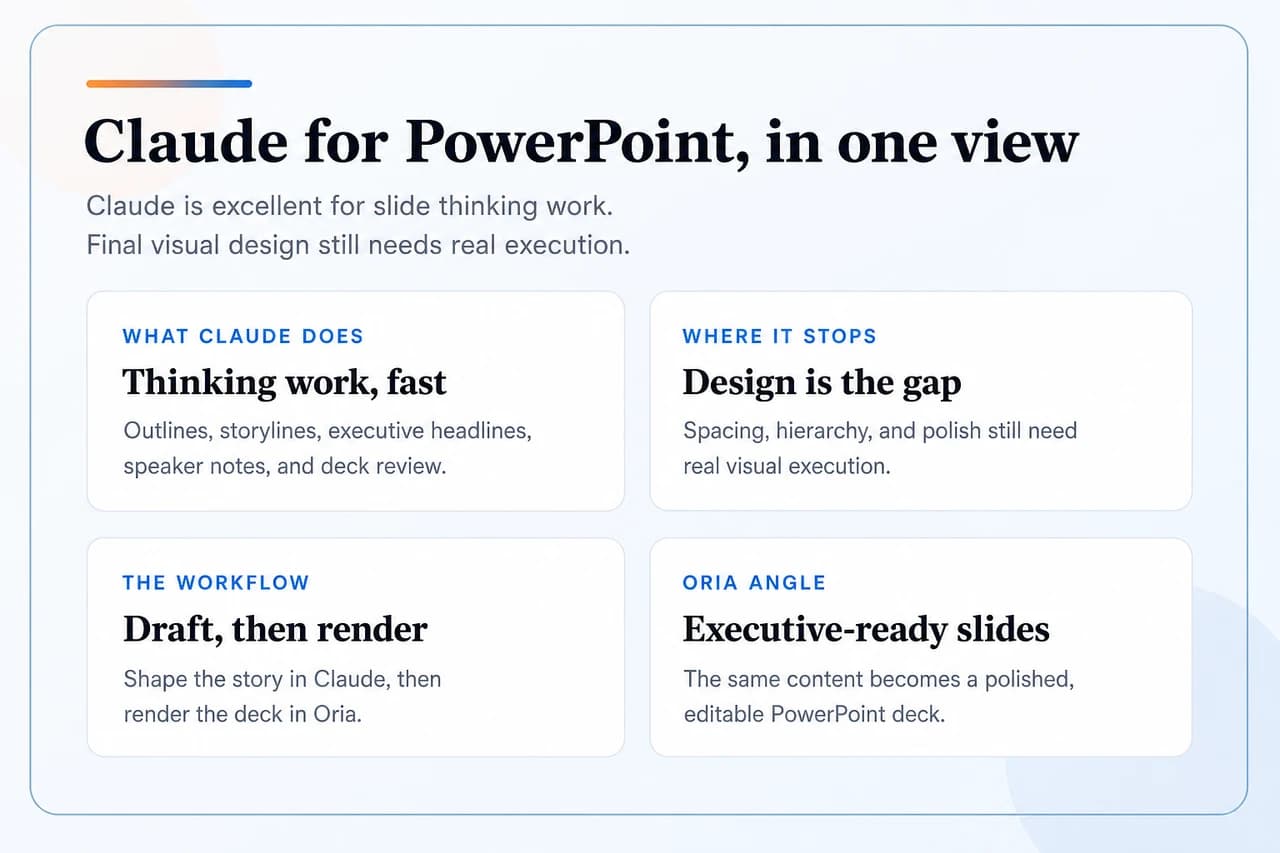
The Claude PowerPoint skill has quietly become one of the most useful tools in a slide maker's toolkit. Not because Claude designs beautiful slides, but because it is exceptional at the part that happens before design: thinking. It can take a tangle of notes and shape a clear storyline, sharpen vague titles into conclusions, draft speaker notes, and review an outline like a tough first reader. That is real leverage, and most people never use it well.
This guide is the long version. It walks through what Claude genuinely does well for presentations, the best prompts to set up, a large prompt library you can copy, and the honest limitations you will hit. Then it shows the workflow that ties it all together, where Claude handles the words and a visual rendering tool handles the look.
One theme runs through all of it. Claude is a brilliant writer and editor for slides. It is not a slide designer. When the deck has to look like a real strategy deck in front of a board or a client, the final visual execution needs a tool built for exactly that. That is where Oria comes in, and we will be clear about the handoff so you know which tool to reach for at each step.
What the Claude PowerPoint skill can do for your decks
The fastest way to understand Claude's value is to separate a deck into two jobs. The first job is the thinking: deciding what the deck argues, in what order, with which evidence, and in whose language. The second job is the making: turning that thinking into slides that look designed. Claude is outstanding at the first job and weak at the second.
When you point Claude at the thinking work, it earns its place immediately. Here is what it does reliably well.
Structure a storyline
Sequence ideas into a narrative so each slide sets up the next, instead of a flat list of topics.
Write action titles
Rewrite vague titles into headlines that state the takeaway, which is what makes a deck feel senior.
Draft speaker notes
Generate clean talking points so the slide stays minimal and the detail lives in the notes.
Review and pressure test
Read an outline critically, flag weak slides, and surface the questions an executive will ask.
Notice the pattern: every one of these is about content and logic, not pixels. Keep Claude on that side of the line and it will save you hours on the part of deck building that is genuinely hard to do well.
The best Claude prompts for slides
A reusable prompt is a saved, named instruction that returns the same structure every time. Instead of rewriting a prompt on every deck, you build it once and reuse it. These six prompts cover most of what a strong slide thinker needs, and each one is ready to adapt. If you build decks for a living, our consultant's guide to Claude goes deeper on the Claude PowerPoint skills that matter most for client work.
Storyline architect
Turn a messy brief into a logical narrative: situation, complication, key question, and answer. Claude is strong at sequencing ideas so each slide earns the next one.
Act as a strategy storyline editor. From the notes below, propose a 12 slide storyline using a situation, complication, question, answer structure. For each slide give a one line action title.
Executive headline writer
Rewrite vague titles into action titles that state the takeaway. This is the single fastest way to make a deck feel senior before any design happens.
Rewrite each slide title below as an action title that states the conclusion in under 12 words. Keep it specific, no buzzwords, no trailing punctuation.
Speaker notes drafter
Generate clean talking points per slide so the deck stays light and the detail lives in the notes. Useful when a slide is getting crowded.
For each slide title below, write speaker notes of 3 short talking points. Keep the slide itself minimal and push detail into the notes.
Deck reviewer
Paste an outline and ask Claude to pressure test the logic, flag gaps, and suggest where the argument is thin. It reads like a tough first reviewer.
Review this outline as a skeptical partner. List the 5 weakest slides, the missing logical links, and the questions an executive will ask that the deck does not answer.
Audience reframer
Take one core message and reframe it for different rooms: a board, a client, an investment committee, or an internal team. Same story, different emphasis.
Reframe the storyline below for a board audience. Cut operational detail, lead with decisions and risk, and keep it to 8 slides.
Reusable prompt builder
Turn your best prompts into named, reusable templates so the whole team gets the same structure every time, instead of rewriting the prompt on each deck.
Help me turn the prompt below into a reusable prompt template with a clear name, a short description, the inputs it expects, and the output format it should always return.
Tip: name your prompts the way you would name a teammate's role. A prompt called "Storyline architect" is easier to reach for than a wall of prompt text, and it keeps the whole team producing decks with the same backbone.
A copy and paste prompt library
This library covers the full deck lifecycle, from the first outline to final question prep. Work through them in roughly this order, or jump straight to whichever stage you are stuck on. Every card is ready to copy.
Build a deck outline from raw notes
You are a consulting storyline editor. Turn the notes below into a 10 to 12 slide outline. Use action titles that state the conclusion. Group slides into clear sections and flag any slide where the supporting data is missing.
Sharpen weak slide titles
Rewrite the slide titles below as executive action titles. Each title should state the takeaway in under 12 words, be specific, and avoid generic words like "overview", "update", or "strategy".
Pressure test the logic
Act as a tough first reviewer. Read this outline and list the three places where the argument does not hold, the data I still need, and the one slide I should cut to make the story tighter.
Draft notes, keep slides clean
For each slide below, write speaker notes as three short talking points. Keep the on screen text minimal and move the detail into the notes so the slide stays readable from the back of the room.
Adapt one story to a new room
Take the storyline below, written for an internal team, and reframe it for an investment committee. Lead with the decision and the risk, compress the operational detail, and keep it to eight slides.
Prepare a clean brief for rendering
Summarize the final outline as a clean slide by slide brief. For each slide give the action title, the three or four key points, and a one line note on the visual it needs, such as a flow, a matrix, or a metric panel.
Write a one slide executive summary
Read the outline below and draft a single executive summary slide. Give one action title, three supporting points, and one closing sentence that states the exact decision you are asking the audience to make.
Turn numbers into a takeaway
Here is a table of figures. Tell me the single most important message it supports, the one chart type that shows it most clearly, and a slide title that states that takeaway rather than describing the data.
Anticipate the hard questions
Act as a skeptical board member. Based on the outline below, list the ten toughest questions you would ask, ordered by how likely they are, with a one line answer or data point I should have ready for each.
Cut a deck down to size
This deck has too many slides. Reduce it to the strongest set without losing the core argument. Tell me what to merge, what to cut, and what to move to an appendix, and explain each call in one line.
Connect the storyline
For the slide sequence below, write a one sentence transition between each slide that makes the logical link explicit, so the deck reads as a continuous argument rather than a list of separate topics.
Enforce one voice and format
Review every title and bullet in the deck below and rewrite them to share one consistent voice, tense, and length. Flag any slide that breaks the pattern and show the corrected version next to it.
Where Claude stops: the design gap
Claude can place content onto a slide, and for rough internal drafts that is fine. The problem appears the moment a deck needs to look professional. A strong slide is not just the right words in roughly the right place. It depends on spacing, alignment, visual rhythm, a clear focal point, grouped components, and diagrams that are actually drawn rather than described.
On real decks, this is where the cracks show. The honest limitations are worth naming so you know exactly when to switch tools.
Flat visual hierarchy
Content tends to be evenly weighted, so nothing guides the eye to the single most important point on the slide.
Spacing and alignment drift
Margins, gaps, and alignment wander on dense slides, which reads as unpolished to a senior audience.
Diagrams get flattened
A requested flywheel, matrix, or process flow is often simplified into lists or skipped entirely.
Document feel, not slide feel
Output can read like a formatted page rather than a designed slide composition.
None of this is a knock on Claude. It is simply the wrong tool for visual execution. The fix is not a better prompt, it is a better handoff to a tool that designs slides as compositions.
The Claude plus Oria workflow
The most effective setup treats Claude as the writer and Oria as the designer. Claude shapes the story, the titles, and the notes. Oria renders that finished brief into designed, editable PowerPoint slides. Here is the flow end to end.
Brief
Gather the raw inputs: the goal, the audience, the data, and the rough message.
Story
Draft the storyline, action titles, and section logic. Pressure test the argument.
Notes
Generate speaker notes and trim each slide down to a single clear message.
Render
Turn the finished brief into designed, editable PowerPoint slides with real layout.
Polish
Make light edits in PowerPoint. Everything stays native and fully editable.
The handoff in step four is the moment that matters. The cleaner the brief Claude produces, the better the rendered deck. That is why the handoff prompt in the library asks for an action title, the key points, and a one line note on the visual each slide needs. Oria reads that intent and renders the right composition: a flow, a matrix, or a metric panel, rather than a wall of text.
Because Oria keeps every shape native and editable inside PowerPoint, step five is light. You make small adjustments rather than rebuilding slides. The result is a deck that carries Claude's sharp thinking and looks like it was designed by hand.
Claude vs Oria, side by side
These tools are not rivals so much as two halves of one workflow. The comparison makes the division of labor explicit: Claude owns the thinking, Oria owns the visual execution.
 Claude
 Oria
OriaThe takeaway: use Claude to decide what the deck says, and Oria to decide how it looks. Together they cover the full path from blank page to board ready slide.
Common mistakes to avoid
Most of the frustration people feel with AI slides comes from asking the wrong tool to do the wrong job. These are the mistakes that show up most often, with the fix for each.
Mistake
Asking Claude to design the slide
Fix
Ask Claude for the story, the titles, and the notes. Let a visual rendering tool handle layout, spacing, and the final look.
Mistake
Skipping the action title pass
Fix
Run every title through a headline rewrite. A deck with conclusion led titles feels senior even before any design work begins.
Mistake
One giant prompt for the whole deck
Fix
Work in stages: outline, then titles, then notes, then handoff. Each stage produces a clean input for the next.
Mistake
Pasting Claude output straight into slides
Fix
Treat the text as a brief, not a finished slide. The words are right, but the visual execution still needs a real design step.
Mistake
Re-writing the same prompt every time
Fix
Save your best prompts as named, reusable templates so the team gets consistent structure on every deck instead of starting from scratch.
Mistake
Letting slides absorb all the detail
Fix
Push detail into speaker notes. Keep the slide minimal so the single message is readable from the back of the room.
The deck ready checklist
Before you call a deck finished, run it against this list. The first half is Claude's job, the second half is visual execution. If every box is checked, the deck is ready for a serious audience.
Before you present
- Every slide has a conclusion led action title
- The storyline reads in order without the speaker
- Each slide carries one message, with detail in the notes
- Weak or duplicate slides have been cut
- The visual for each slide is specified in the brief
- The deck is rendered with real layout, not pasted text
- All shapes remain editable inside PowerPoint
- Titles, spacing, and hierarchy look board ready
Bottom line
Claude is one of the best things to happen to slide thinking. It turns rough notes into a real storyline, writes titles that sound senior, and reviews a deck like a careful colleague. Lean on it for all of that and you will build better decks faster.
Just remember where the line is. Content is Claude. Design is execution. When the deck has to look as good as it reads, hand the brief to a tool built for visual rendering and keep everything editable in PowerPoint. For a wider view of the options, see our roundup of the best AI for PowerPoint.
Frequently asked questions
Is Claude good for making PowerPoint presentations?
Claude is excellent for the thinking work behind a presentation: outlines, storylines, executive headlines, speaker notes, and review. It is less reliable for the final visual execution, where spacing, hierarchy, and polish decide whether a deck looks professional. The strongest approach is to use Claude for the content and a visual rendering tool like Oria for the design.
What are the best Claude prompts for slides?
The most useful prompts work in stages. Start with an outline prompt that asks for action titles and section logic, then a headline prompt to sharpen titles, then a review prompt that pressure tests the argument, and finally a handoff prompt that summarizes the deck as a clean brief. Saving these as reusable prompt templates keeps the structure consistent across a team.
Can Claude design slides, not just write them?
Claude can place content onto slides, but design is the weak point. On real decks the spacing drifts, the hierarchy stays flat, and complex diagrams get simplified or skipped. It is better to let Claude shape the content and use a visual rendering tool to handle layout and produce editable, presentation ready slides.
What is a reusable Claude prompt and why use one for decks?
A reusable Claude prompt is a saved, named instruction that returns the same structure every time. For decks, these prompts are valuable because they capture your best wording, such as a storyline architect or an executive headline writer, so anyone on the team can get consistent output without rewriting the prompt.
How do Claude and Oria work together?
Think of Claude as the writer and Oria as the designer. Claude builds the story, the titles, and the notes, then hands off a clean brief. Oria renders that brief into designed PowerPoint slides with real layout and hierarchy, and keeps every shape editable so you can refine the deck natively.
Do I still need Oria if Claude can generate slides?
If the deck only needs to be a rough internal draft, Claude on its own may be enough. For board, client, or investor decks that have to look designed, the visual execution matters as much as the content, and that is where Oria turns the same input into a polished, editable presentation.

Andrew Persh
Founder, Oria
Former top-tier strategy consultant turned product builder. Andrew founded Oria to help professionals create boardroom-ready presentations without the formatting overhead.