

How to Turn ChatGPT Output into a Board-Ready Deck
Structure the text into a slide storyline in ChatGPT, then render an editable, on-brand deck in Oria. The exact copy-paste prompts, a worked example, and the common mistakes that make a deck look auto-generated.
Free skills and prompts for Claude and strategy work
Templates for Claude, ChatGPT and Perplexity — from diagnostics to board-ready decks.
How to turn ChatGPT output into a board-ready deck
To turn ChatGPT output into a board-ready deck, do not ask ChatGPT to make the slides. Ask it to structure the text into a slide storyline with action titles, then paste that storyline into Oria's Text-to-Slide panel inside PowerPoint. ChatGPT carries the thinking; Oria renders the design as native, editable, on-brand slides. The result is a real deck in your template, not a generic export.
The rest of this guide is the exact prompts that structure the text, a short worked example, and the mistakes that make a deck read as auto-generated. Everything you need is here, so you will not have to leave the page for the substance.
Why generic text-to-slide converters fall short
Most tools that promise to turn text into slides take one of two routes, and both struggle with the dense, bespoke layouts a consulting deck needs. Some pick from a small library of fixed templates and push your content into the nearest one, which loses structure and detail. Others build the slide as an HTML page first, then convert it, which tends to produce slides that look AI-generated, with uneven spacing and weak brand fidelity.
Neither is wrong for a quick title-and-bullets slide. They fall down on the work that matters in a boardroom: multi-step frameworks, matrices, KPI tiles, and exhibits where every element is deliberate. For a fuller breakdown of how these tools differ under the hood, see the three approaches to AI slide generation. The practical takeaway: keep ChatGPT for the storyline and use a rendering layer built for editable, on-brand slides.
The 3-step route from ChatGPT to a deck
The whole method is three steps. ChatGPT structures the text, Oria renders it, and you refine in native PowerPoint. The exhibit below shows the same flow end to end.
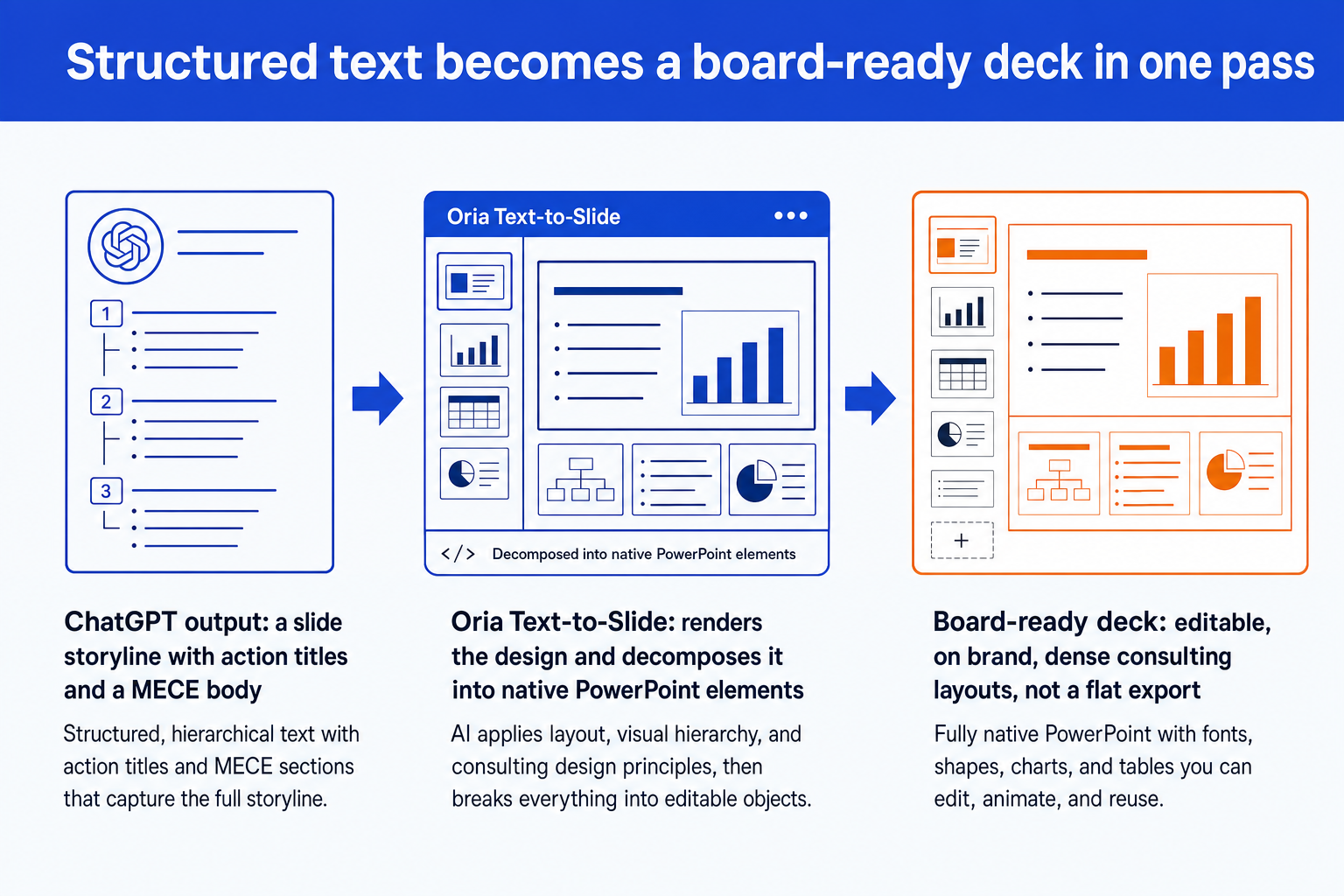
Structure in ChatGPT. Use the prompts below to turn your raw text into a slide storyline with action titles and a clean, MECE body for each slide.
Paste into Oria Text-to-Slide. Open the Oria panel in PowerPoint, drop in the storyline, and let it render each slide individually in your template with 2 to 5 design options.
Refine in native PowerPoint. Every shape, text box, icon, and chart is editable, so you adjust copy, swap a layout, or fine-tune a number directly on the slide.
The ChatGPT prompts that structure the deck
These are the workhorses. Run them in order in one conversation so each builds on the last, then paste the output into Oria. Replace the bracketed parts with your own material. The storyline prompt does the heaviest lifting, so start there.
Build the storyline
Slide storyline with action titles
One-message rewrite (governing thread)
Sharpen the content
Executive summary slide
Exhibit spec for one slide
Bullet-to-message rewrite
Pressure-test before the room
Tip
Keep the layout note from the storyline prompt attached to each slide when you paste into Oria. The clearer the structure you hand over, the closer the first render lands, so you spend your time refining rather than rebuilding.
A short worked example
Say you have a page of ChatGPT analysis on whether a retailer should launch a loyalty program. Here is the path to a finished deck.
Structure. The storyline prompt returns a ten-slide outline. The action titles, read in order, argue "Launch a tiered program, funded by margin, not discounts." Each slide carries a layout note, including a 2x2 for the segment view.
Tighten. The one-message rewrite cuts two off-thread slides and sharpens three titles. The bullet-to-message prompt turns soft bullets like "loyalty is growing" into claims like "Top-tier members spend 2x more per visit." (placeholder until data is added)
Spec the exhibit. The exhibit-spec prompt defines the 2x2 precisely: axes, quadrant labels, and the one comparison that matters, so the render is unambiguous.
Render and refine. You paste the storyline into Oria, pick the best of the design options per slide, then edit the headline copy and the 2x2 labels directly on the native slides. The deck is on-brand and board-ready.
The same pattern works whatever model wrote the analysis. If you start in Claude rather than ChatGPT, the handoff is identical; turning Claude output into editable PowerPoint follows the same structure-then-render route.
Common mistakes to avoid
For the deeper version of this workflow and a larger prompt library, see the guide to using Claude for PowerPoint.
Frequently asked questions
Can ChatGPT make a board-ready deck on its own?
Not reliably. ChatGPT is strong at the thinking, the storyline, the action titles, the executive summary, and weak at editable, on-brand slide design. Its file exports tend to be generic, off-template, and flat. The dependable pattern is to write the structure in ChatGPT, then render the actual deck in Oria so it lands in your corporate template with native, editable PowerPoint elements.
Why not just use a text-to-slide converter?
Most converters either force your content into a few fixed templates or build the slide as an HTML page first. The first approach loses structure and detail; the second produces slides that look AI-generated, with inconsistent spacing and weak brand fidelity. For dense consulting layouts, neither holds up under a partner review.
Do I need to be technical to do this?
No. You run the prompts in the normal ChatGPT chat, then paste the structured text into Oria's Text-to-Slide panel inside PowerPoint. There is no code and no export-and-reimport dance. Oria loads in the task pane on the right of the slide editor.
How long does the whole workflow take?
The ChatGPT structuring is a few minutes of prompting. Inside Oria, a single slide previews in roughly 30 to 40 seconds and reaches a final editable state in 2 to 3 minutes, with around 6 to 8 minutes for ten slides. The slow part, manual formatting, is what you remove.
Will the slides stay on-brand?
Yes, if you give Oria your template. Oria maintains fonts, colors, logos, and layout patterns from the corporate template you upload, so the rendered deck passes brand-compliance review rather than looking like a generic export.