

What this is
This is a pack of 18 Claude skills for consulting slide design. Each skill teaches Claude one named method that consultants and bankers use to build board-ready slides: writing action titles, structuring a Pyramid Principle storyline, enforcing MECE, choosing the right exhibit, raising the data-ink ratio, and running a partner-grade review.
The skills are grouped into the four stages of building a deck: get the message and structure right, turn content into the right exhibits, apply visual craft, then review and rework to a senior standard. Each skill is genuinely distinct, so install one, a stage, or the full set. For a single end-to-end skill that drives slide content, see our Claude skill for slide design.
Mechanically, each skill is one folder with a single SKILL.md file. Install just the ones you need, or load the full set.
Download all 18 skills
One zip, one folder per skill. Free, no signup.
The 18 Skills You Get
The collection is grouped into the four stages of slide design. They run in the order a real deck does, message first, review last, but every skill is also useful on its own.
Stage 1 · 5 skills
Message & Structure
Use these first, before any slide is designed. Get the recommendation, the storyline, and the titles right so the deck argues one case instead of reporting many.
Action Title Writer
Use when: A slide carries a topic label instead of a conclusion
Output: One-sentence action titles that state the so-what
Pyramid Storyline Builder
Use when: You have findings but no clear top-down argument
Output: A MECE storyline tree from apex to evidence
SCQA Opening Framer
Use when: The recommendation arrives without setting up the problem
Output: Situation, Complication, Question, Answer opening
Executive Summary Builder
Use when: The deck needs a one-page summary that stands alone
Output: One slide: recommendation, reasons, and the ask
Ghost Deck Skeleton
Use when: You want to agree the story before building anything
Output: Titled empty slides with exhibit sketches
Stage 2 · 5 skills
Exhibit & Data
Use these to turn content into the right visual. Pick the exhibit that matches the message, make the chart prove the point, and strip everything that does not.
Exhibit Selector
Use when: You know what a slide must say but not how to show it
Output: The chart, framework, or layout that fits the message
Chart-to-Message Mapper
Use when: A correct chart still does not communicate the point
Output: Title, one highlight, direct labels, one annotation
Data-Ink Reducer
Use when: A chart looks busy without being more informative
Output: A lighter exhibit where every mark carries meaning
MECE Layout Architect
Use when: Slide content overlaps, repeats, or has gaps
Output: Non-overlapping groups in a logical reading order
Framework Slide Designer
Use when: The point is a structure, not a number
Output: A clean 2x2, value chain, flow, pyramid, or matrix
Stage 3 · 5 skills
Layout & Visual Discipline
Use these to make the slide look designed rather than assembled. Grid alignment, restrained callouts, one icon system, a disciplined palette, and the right density.
Gestalt Alignment & Grid
Use when: Edges do not line up and gaps are uneven
Output: A grid layout with grouped, aligned elements
Callout & Annotation Designer
Use when: An exhibit shows a pattern but not the conclusion
Output: Restrained callouts that point at the insight
Icon Discipline
Use when: Icons are mismatched, multicolored, or decorative
Output: One consistent, meaningful icon system
Color & Brand Discipline
Use when: Charts are a rainbow or slides drift off-template
Output: A neutral base plus one accent, inside the brand
Slide Density Balancer
Use when: Slides are wall-to-wall text or nearly empty
Output: One message per slide, detail moved to backup
Stage 4 · 3 skills
Review & Rework
Use these to raise the bar before review. Rebuild weak slides, run a partner-grade check, and add the navigation a long deck needs to read as one document.
Before/After Redesign
Use when: A slide is correct in content but visually weak
Output: A rebuilt slide with all content preserved
Partner Review Checklist
Use when: A deck is about to go to a partner or client
Output: A prioritized fix list: blockers, majors, minors
Flow & Page Tracker Auditor
Use when: A long deck loses the reader between sections
Output: Dividers, a page tracker, consistent headers
Stages 1 and 2 fix the argument and the exhibits. Stage 3 makes the slide look designed. Stage 4 raises every page to a partner-grade bar before it leaves the room.
Setup Guide
Download the skills pack
The zip contains all 18 skills, one folder per skill. Each skill is a single SKILL.md file. Unzip it anywhere. Keep the whole set, or pull out just the folders you need.
Create a Claude Project
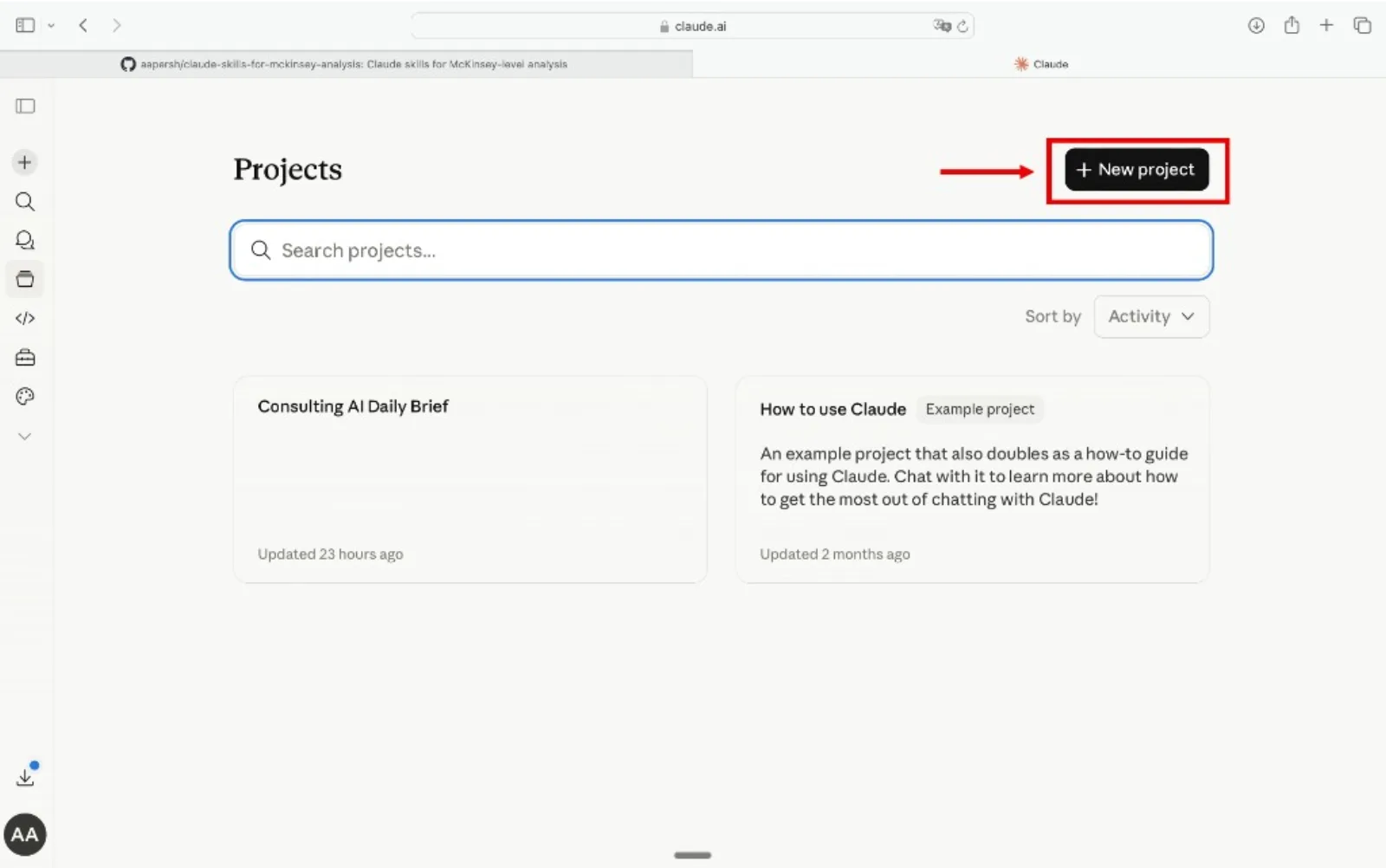
Go to claude.ai, open the left sidebar, click Projects, then Create Project. Name it something like "Slide Design" or "Deck Co-pilot" so you can reuse it across decks.
Add the skills as Project Knowledge
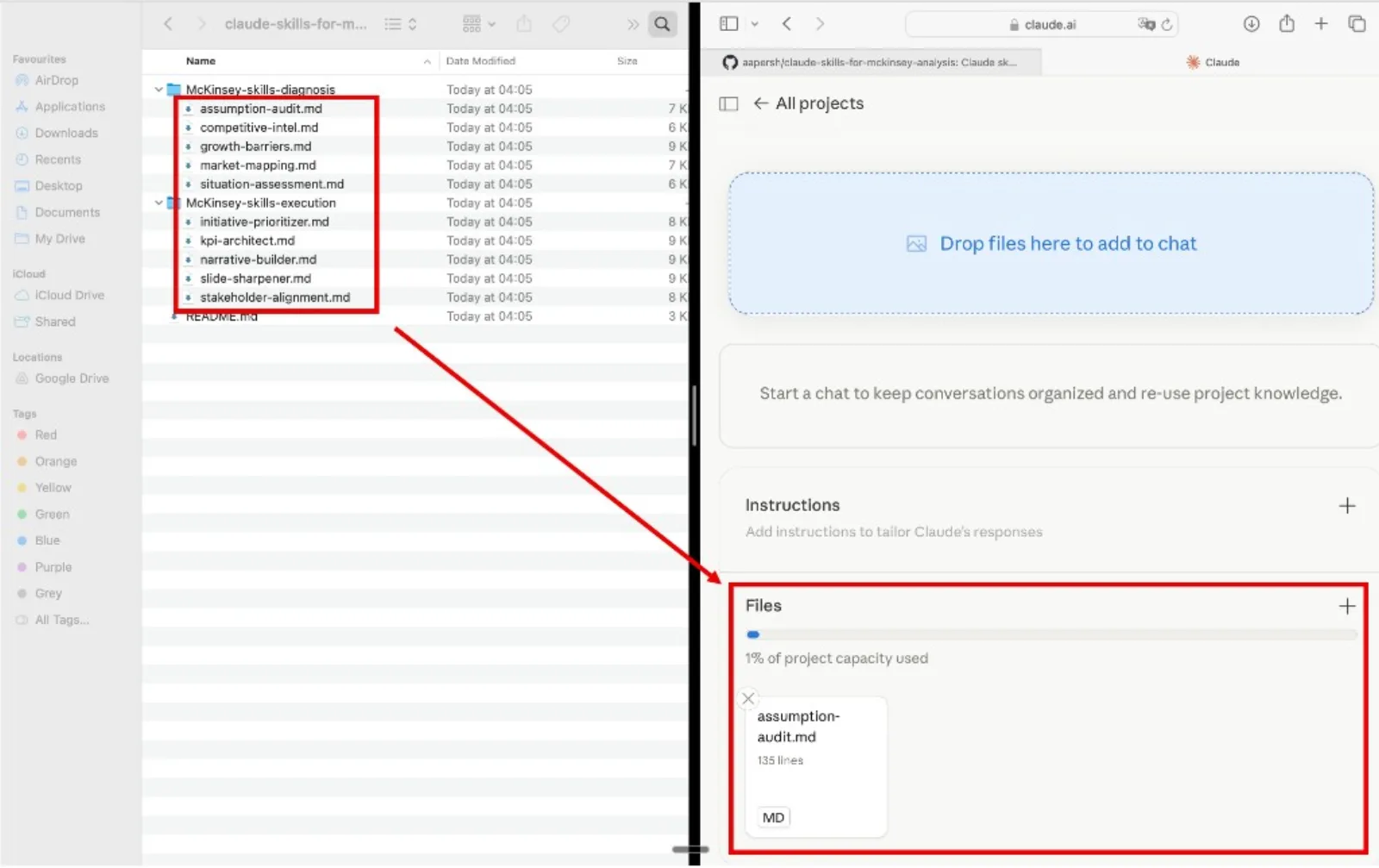
Inside your project, open Project Knowledge, click Add Content, and upload the .md files. Add as many as you want, one skill, a whole stage, or all 18. Claude will reference them automatically in every conversation inside that project.
Start using the skills
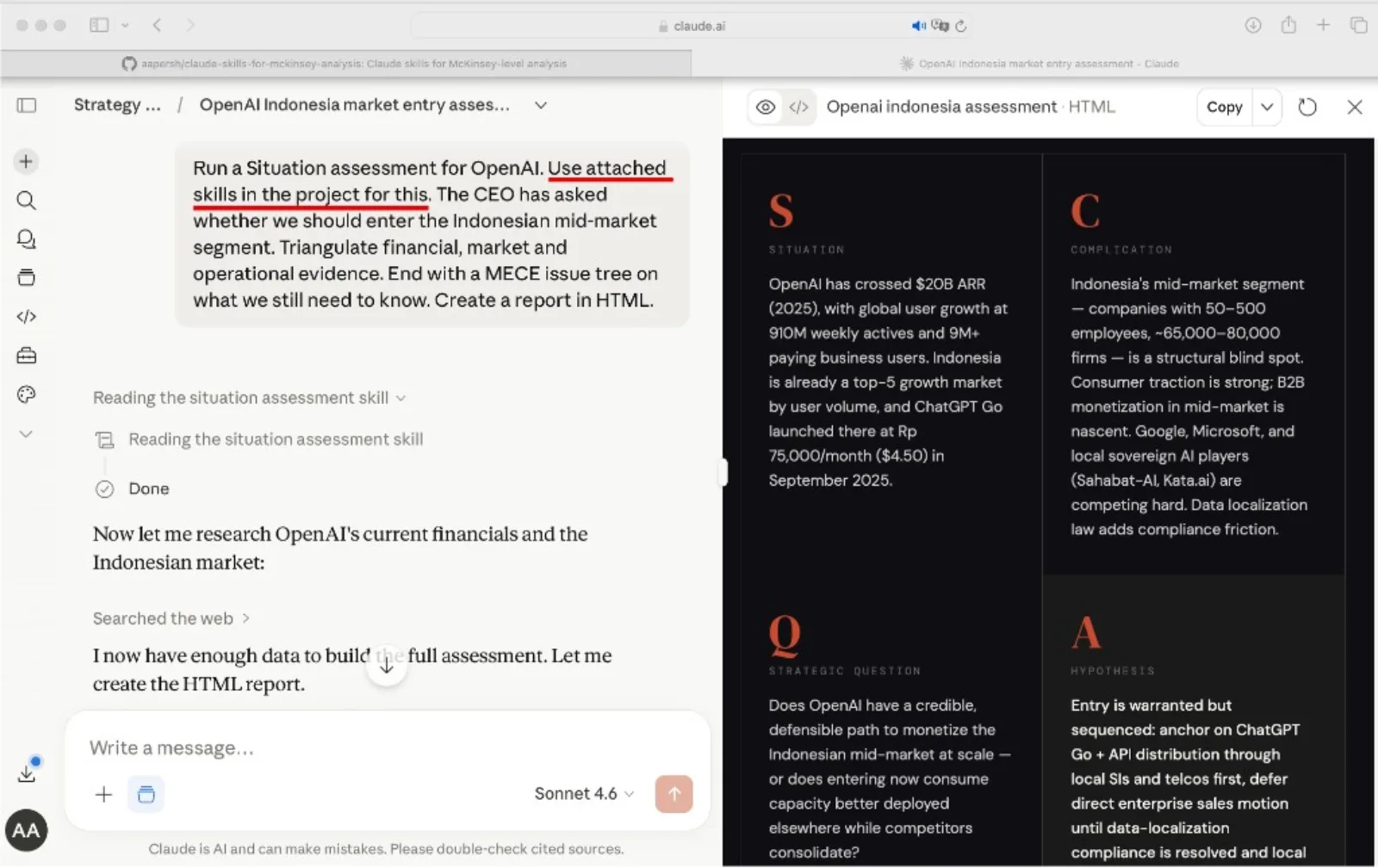
Open a new conversation inside the project, paste in your slide content, and name the skill you want Claude to run. Claude reads it from project knowledge and runs the method with the framework already loaded.
Tip
Refer to the skill by name in your prompt. Phrases like "Use the action-title-writer skill" or "Run the partner-review-checklist skill" point Claude at the right method instead of leaving it to guess.
Example prompts
- "Use the action-title-writer skill to rewrite these slide headlines into action titles."
- "Use the exhibit-selector skill to choose the right chart for this cost-driver message."
- "Use the before-after-redesign skill to rebuild this messy results slide."
- "Use the partner-review-checklist skill to self-review this deck before my partner sees it."
How to choose a Claude slide-design skill
Skip the hunt. Each skill maps to a specific slide problem, so pick the row that matches your situation and use that skill. For deck-level frameworks, see our Claude skills for consulting slides and how to build an executive summary slide.
The quality bar
Every skill pushes Claude toward slides that meet the same partner-grade bar, the standard a senior reviewer applies before a deck leaves the room.