

How to build a 2x2 positioning matrix slide in PowerPoint
To build a 2x2 positioning matrix slide in PowerPoint, choose two independent dimensions for the axes, draw a horizontal and a vertical line crossing at the midpoint to form four quadrants, label each quadrant with what an item there means, and plot your items as labeled dots in the right quadrant. Emphasize the top-right target quadrant so the eye lands on the most attractive options. PowerPoint has no native 2x2, so you build it from an XY scatter or crossed lines, and Oria can render the whole thing as an editable native slide from one line of text.
This guide walks the manual build and its real gotcha, gives you the exact prompts to choose the axes and plot the items, and shows the faster one-prompt route. Everything you need is here. You will not have to leave to get the substance.
What a 2x2 matrix is and when to use it
A 2x2 is the consulting favourite: two independent dimensions crossed to form four quadrants, with a set of items plotted by where they fall on each axis. It works because a strategic choice usually comes down to two things that matter at once. You pick the two dimensions, place each option, and the picture tells you which options belong together and which one to back.
Reach for it whenever you are comparing several options on two criteria and you want a recommendation to be obvious. Initiatives by cost to serve versus strategic value. Segments by size versus fit. Products by margin versus growth. It is a sorting tool, not a data chart, so the value is in clean axes and honest placement. For a structured framework that lists strengths and risks instead of plotting options, a SWOT analysis slide is the better fit; use the 2x2 when the message is a choice between options.
When the comparison runs across more than two dimensions, the matrix stops working and a criteria grid takes over. That is the job a Harvey ball rating grid does, with one circle per option per criterion.
A bubble-style 2x2 can carry one additional numeric measure without becoming a criteria grid. Keep the two axes for position, then size each bubble by a third variable such as revenue, budget, or headcount. Use this only when that third number changes the decision. Scale the circle's area to the value, not its diameter, and add a compact size legend so the encoding is honest and readable.
The anatomy of a 2x2 positioning matrix slide
Four parts carry the whole slide. Get these right and the matrix reads itself.
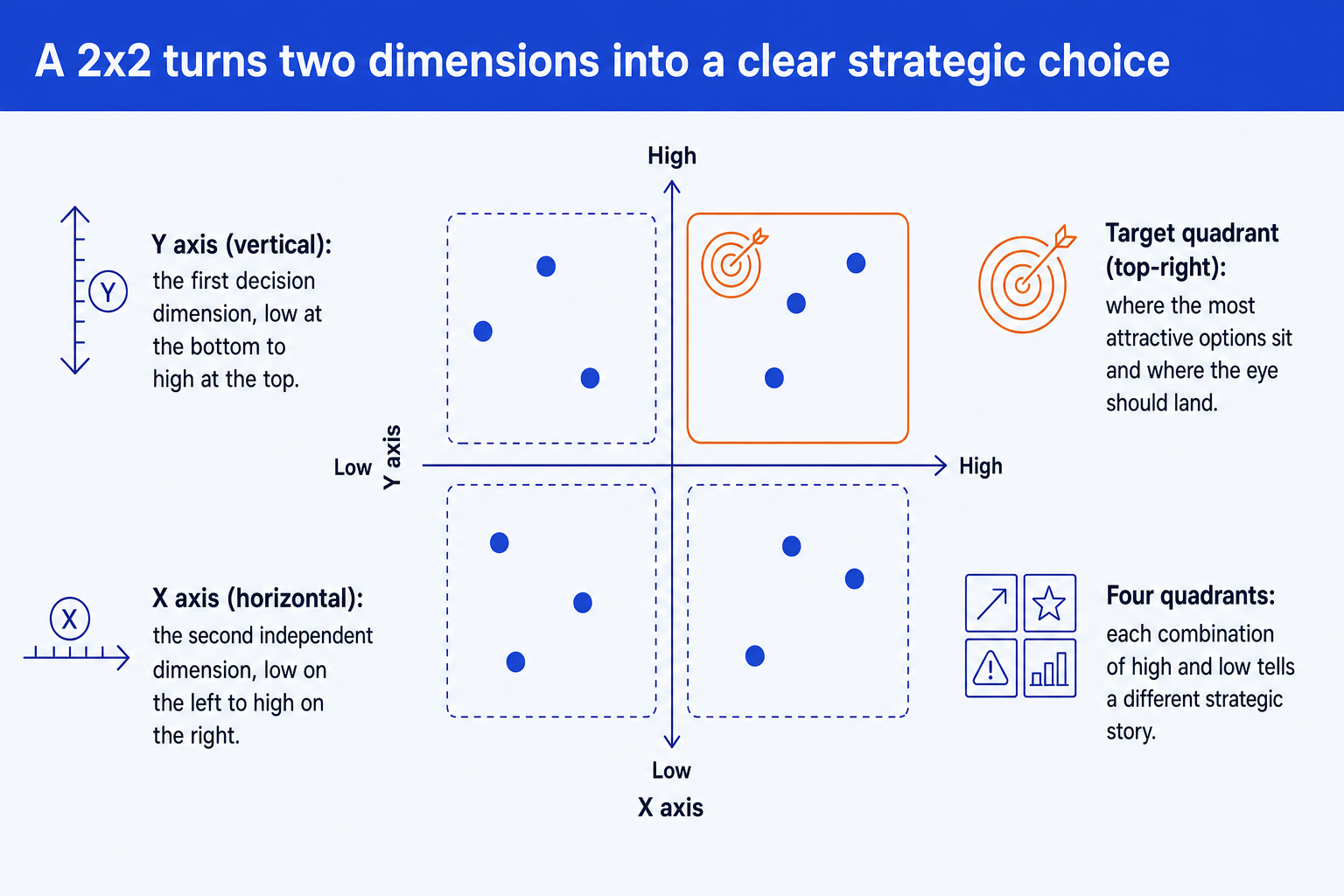
Two axes. A horizontal X axis and a vertical Y axis, each a single decision dimension running from low to high. Name them in plain words so the reader knows what high means.
Four quadrants. Each combination of high and low on the two axes. Give each one a short label that states what an item landing there means, like invest, protect, fix, or exit.
Plotted items. The options you are comparing, placed as labeled dots by their read on each axis. Keep dots one size and one color unless a second variable genuinely needs encoding.
Target quadrant. The top-right, where both dimensions are high and the most attractive options sit. Give it the emphasis color so the slide lands on the recommendation.
The step-by-step manual build, with the real gotcha
PowerPoint has no 2x2 chart type. For a label-only matrix, two crossed lines plus plotted shapes are quickest. For a data-driven version, an XY scatter chart with the axes crossed at the midpoint gives you precise placement. The steps below build the clean, presentable version either way.
Choose the two axes. Pick the two dimensions that actually drive the decision, for example cost to serve and strategic value. Write each as a low-to-high scale and confirm the two are independent before going further.
Draw the cross and the frame. Place a horizontal line and a vertical line crossing at the centre to split the canvas into four equal quadrants. Add a light outer frame so the field is contained.
Label the axes and the quadrants. Put the axis names at the ends of each line, low at one end and high at the other. Name each quadrant with a short action word that says what an item there means.
Plot the items. Drop a dot for each option in the quadrant its two reads put it in, and label each dot. Keep dots one size and one color so the eye groups them, and nudge overlapping labels so none collide.
Emphasize the target and write the title. Shade or recolor the top-right target quadrant and give the items there the emphasis color. Replace the topic label with an action title that states the recommendation the matrix supports.
Gotcha
The two axes must be independent, not correlated. If your dimensions move together, for example revenue and profit, every item lands on the diagonal and the matrix collapses into a single line. Pick two dimensions that can vary separately so items can fall in all four quadrants.
The one-prompt route: name the axes, get an editable matrix
The crossed lines, the hand-placed dots, and the nudged labels are exactly the kind of mechanical work that eats an evening. Oria removes it. It is an AI add-in that runs in the PowerPoint task pane and produces fully editable native PowerPoint elements in your corporate template. You name the two axes and list the items in one line, and Oria renders the 2x2 positioning matrix slide for you.
Because the output is native, every axis label, quadrant name, and plotted dot stays editable afterward. You can rename an axis, move an item, or recolor the target quadrant without rebuilding anything. The same approach works for any complex slide, from a 2x2 to a process flow, which is why Oria suits the dense decks consultants and bankers actually ship. See the Claude skill for slide design for the storyline side of the workflow.
One-line 2x2 prompt for Oria
The prompts that make the 2x2 positioning matrix slide sharp
These are the exact copy-paste prompts we use to build the matrix, place the items, and set the emphasis. The first three are for Oria inside PowerPoint; the last two are for choosing the axes and the placements in Claude before you build. Replace the bracketed parts with your own options.
Build the matrix in Oria
Spec the axes and quadrants
Plot the items into the right quadrant
Encode a third variable as bubble area
Emphasize the target and set the title
Choose axes and plot in Claude first
Choose two independent axes
Place the items and name the quadrants
Tip
Settle the axes and placements in Claude, then hand the clean axis names, quadrant labels, and item reads straight to Oria. For the full draft-to-deck method, see the consultant's guide to Claude.
Common mistakes to avoid
For a numeric story between two totals rather than a sorting choice, a waterfall chart slide is the right tool. Match the framework to the message.
Frequently asked questions
What is a 2x2 positioning matrix slide used for?
A 2x2 positioning matrix slide plots a set of options against two independent dimensions so the audience can see, at a glance, which options are most attractive. Strategy and consulting teams use it to compare initiatives, segments, products, or competitors and to make a single recommendation visible. The point is the quadrant an item lands in, not the precise coordinates.
How do I choose the two axes for a 2x2?
Pick two dimensions that actually drive the decision and that vary independently of each other. A common pair is something like cost to serve versus strategic value. If the two axes move together, every item lands on a diagonal and the matrix collapses into a single line, which defeats the purpose. Test for independence before you plot anything.
What goes in the four quadrants?
Each quadrant is one combination of high and low on the two axes, so each tells a different story. The convention is that the most attractive combination sits in the top-right, where both dimensions are high. Label every quadrant with a short, plain name that states what an item there means, for example invest, protect, fix, or exit.
Does PowerPoint have a built-in 2x2 chart?
PowerPoint has no native 2x2 chart type. The clean way to build one manually is an XY scatter chart with the axes crossed at the midpoint, or two crossed lines plus plotted shapes for a label-only version. Oria can render the whole 2x2 positioning matrix slide, axes, quadrant labels, and plotted items, as an editable native slide from one line of text.
What is the fastest way to build a 2x2 positioning matrix slide?
Name the two axes, list the items with a high or low read on each, and let Oria render it. You get a fully editable native PowerPoint slide in your template, with the axes, the four quadrant labels, and the plotted items already placed. You skip the manual scatter setup and the hand-aligned text boxes entirely.
When should I use sized bubbles instead of plain dots?
Use bubbles when a third numeric variable materially changes the decision, such as revenue, budget, or headcount at stake. Scale bubble area to the value, not diameter, and include a size legend. If the third variable is not important or the values are similar, plain dots are clearer.