

How to build a Business Model Canvas slide in PowerPoint
To build a Business Model Canvas slide in PowerPoint, lay out a nine-cell grid: a top row of Key Partners, Key Activities, Key Resources, then Value Propositions in the center, then Customer Relationships, Channels, and Customer Segments, with Cost Structure and Revenue Streams running across the bottom. Fill each block with a few tight phrases, emphasize the center, and write an action title that states the model in one line. Oria can render the whole canvas as editable native shapes from one line of text.
This guide walks the manual build and its real gotchas, gives you the exact prompts to draft the nine blocks and the title, and shows the faster one-prompt route. Everything you need is here. You will not have to leave to get the substance.
What the Business Model Canvas is and when to use it
The Business Model Canvas is a one-page map of how a business creates, delivers, and captures value, organized into nine blocks. The right side covers the market: the segments served, how the business reaches and retains them, and the value it offers. The left side covers the engine: the partners, activities, and resources that make the value possible. The bottom row carries the money: what it costs to run and how the business earns.
Reach for it whenever you need to show a whole model on a single slide rather than a detail of one. Framing a new venture. Aligning a leadership team on how the company actually makes money. Pressure-testing a pivot before the financial model gets built. It is a fixed structure, not a comparison grid, so use a 2x2 layout like a SWOT analysis slide when you are sorting items along two dimensions, and the canvas when you are mapping a model end to end.
The nine building blocks of the Business Model Canvas
Nine blocks carry the whole canvas. Get the fit between them right and the slide explains the business on its own.
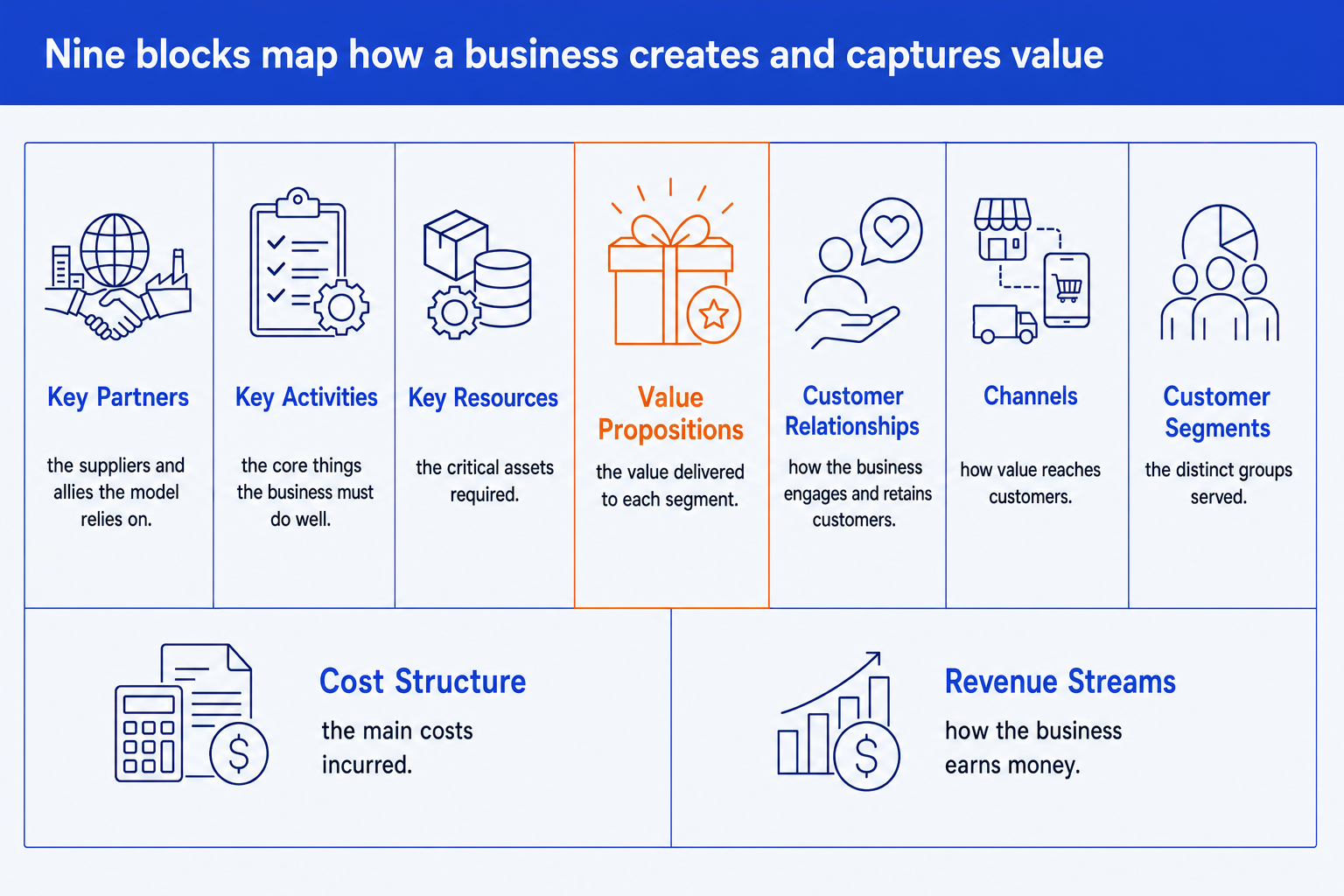
Key Partners. The suppliers, alliances, and outsourced functions the model relies on so it does not have to own everything itself.
Key Activities. The core things the business must do well to deliver its value, from production to a platform to ongoing service.
Key Resources. The critical assets the model depends on: people, technology, capital, brand, or physical infrastructure.
Value Propositions. The center block. The bundle of products and services that creates value for each segment and gives them a reason to choose you.
Customer Relationships. How the business engages and retains each segment, from self-serve to dedicated support to community.
Channels. How value reaches customers across awareness, sale, delivery, and after-sales support.
Customer Segments. The distinct groups the business serves, each with different needs, behavior, and willingness to pay.
Cost Structure. The main costs the model incurs, and whether it is driven more by cost or by value.
Revenue Streams. How the business earns from each segment, whether one-off sales, subscriptions, licensing, or usage.
The step-by-step manual build, with the real gotchas
PowerPoint has no native canvas layout, so the manual method builds the nine cells from a grid of rectangles. The trick is the proportions: the top is a five-column band with the center block tall, and the bottom is two wide cells. Build it once as a reusable layout and you can refill it for any business.
Block out the grid. Draw a top band split into a left half (Key Partners, Key Activities over Key Resources) and a right half (Customer Relationships, Channels over Customer Segments), with a full-height Value Propositions cell down the middle. Add two wide cells underneath for Cost Structure and Revenue Streams.
Title every cell. Put the block name as a small bold header at the top of each rectangle. Use a single consistent header style so the nine cells read as one frame, not nine separate boxes.
Fill each block with phrases, not paragraphs. Add three to five short bullet phrases per block. The canvas is a map, so each cell should be scannable in a second, never a wall of sentences.
Emphasize the center. Give Value Propositions the accent color or a slightly heavier border so the eye starts where the value lives, then reads outward to segments and operations.
Align and glue the cells. Use align and distribute so every border is shared and the grid is seamless. Group the whole canvas so it moves as one object when you resize the slide.
Write the action title. Replace the topic label with a full-sentence so-what that states the model, like how the business serves its core segment and earns. The title frames the slide; the canvas is the proof.
Gotcha
The canvas is read from the customer back, not left to right. Fill Customer Segments first, then Value Propositions, then work outward to the operations on the left. A canvas built engine-first usually ends up with value propositions that do not match any real segment.
The one-prompt route: describe the model, get an editable canvas
Drawing and aligning nine cells by hand is exactly the kind of mechanical work that eats an evening. Oria removes it. It is an AI add-in that runs in the PowerPoint task pane and produces fully editable native PowerPoint elements in your corporate template. You describe the nine blocks in one line and Oria renders the Business Model Canvas slide for you.
Because the output is native shapes and text, every cell stays editable afterward. You can rename a segment, recolor the center block, or move a phrase without rebuilding the grid. The same approach works for any complex framework slide, which is why Oria suits the dense decks consultants and strategy teams actually ship. See the Claude Skill for Slide Design for the storyline side of the workflow.
One-line Business Model Canvas prompt for Oria
The prompts that make the Business Model Canvas slide sharp
These are the exact copy-paste prompts we use to lay out the grid, fill the nine blocks, and write the title. The first three are for Oria inside PowerPoint; the last two are for drafting the canvas in Claude before you build. Replace the bracketed parts with your own model.
Build the slide in Oria
Lay out the nine-block grid
Fill the blocks from notes
Emphasize the center and write the title
Draft the canvas in Claude first
Draft the nine blocks from a description
Pressure-test the model
Tip
Draft and pressure-test the canvas in Claude, then hand the clean nine blocks straight to Oria to render. For the full analysis-to-deck pattern, see The Consultant's Guide to Claude: Skills, Prompts, Slides.
Common mistakes to avoid
For a different framework slide built the same disciplined way, see how to build a waterfall chart slide, which walks the bridge from one total to another.
Frequently asked questions
What is a Business Model Canvas slide used for?
A Business Model Canvas slide puts a whole business model on one page across nine blocks, so a reader can see how the company creates, delivers, and captures value at a glance. Strategy teams, founders, and investors use it to align on a model, pressure-test assumptions, or frame a new venture before drilling into financials. The point is the fit between the blocks, not any single cell.
What are the nine blocks of the Business Model Canvas?
Key Partners, Key Activities, Key Resources, Value Propositions, Customer Relationships, Channels, Customer Segments, Cost Structure, and Revenue Streams. The first seven sit in a top grid with Value Propositions in the center, and the last two run along the bottom as the financial base. Read it right to left from the customer back to the operations, or center out from the value proposition.
Does PowerPoint have a built-in Business Model Canvas template?
PowerPoint does not ship a native Business Model Canvas layout, so most people build it by hand from a nine-cell grid or download a third-party template. The manual build in this guide gives you full control over the proportions and the labels. Oria can render the whole canvas as editable native shapes from one line of text, in your corporate template.
How is the canvas different from a SWOT or a 2x2?
A SWOT and a 2x2 are framing tools with two axes or four quadrants. The Business Model Canvas is a fixed nine-block map of one business, not a comparison grid. Use the canvas to lay out how a model works end to end, and use a SWOT or a 2x2 when you are sorting items along two dimensions.
What is the fastest way to build a Business Model Canvas slide?
Describe the nine blocks in one line and let Oria render the canvas. You give the segments, the value propositions, the channels, and the rest, and Oria builds a fully editable native PowerPoint layout in your template, with the center block emphasized. You skip drawing and aligning the nine cells by hand entirely.