

How to Build a P&L Summary Slide for a Board Pack
The decision is not whether to show the P&L. It is how much of it survives onto one page, and for whom, from a single actuals-vs-budget line to a fully reconciled exhibit. The four real variants, when each one earns its place, the build sequence with the numbers that have to tie, and the mistakes that make a finance pack read as amateur.
Quick answer: what is a P&L summary slide?
Build a P&L summary slide by keeping only the lines that carry the story, Revenue down to Net income, adding a comparison column for budget and, where the audience needs trend, prior year, then reconciling any adjusted figure back to the statutory number. The comparison basis you choose is the real decision; the layout follows from it.
A P&L summary slide is a single page that condenses a profit-and-loss statement into the handful of lines a board, investment committee, or steering group needs to judge performance: Revenue, Gross profit, EBITDA, and Net income, shown against budget and often against the prior-year period, with margins carried alongside each subtotal. It is used in board packs, monthly business reviews, and deal teasers, wherever the reader needs to see how the business performed against a plan rather than read the full, unabridged income statement line by line. It is a communication exhibit, not the statutory record.
When a P&L summary slide is the right exhibit
A P&L summary slide is not the only way to show financial performance, and forcing it to do a job it was not built for is the fastest way to lose the room. It fits some situations cleanly and loses to a different exhibit in others.
Fits: You are reporting recurring financial performance to a board, investment committee, or steering group that already knows the business and wants the number, not a tutorial on it.
Fits: The reporting cadence repeats, monthly, quarterly, or annually, so the layout is worth building once and re-running rather than redesigning each cycle.
Fits: The story is about performance against a plan, budget or prior year, rather than the underlying unit economics behind a specific decision.
Different exhibit: If the point is explaining one specific swing, for example why gross margin dropped three points, build a P&L bridge instead; a full summary buries the one number the room actually asked about.
Different exhibit: If this is the deck's opening page rather than a body slide, use an executive summary slide; the P&L summary supports the argument, it does not open it.
Key takeaways
- Match the comparison to the room. A monthly ops review wants actuals vs budget; a board meeting usually wants budget and prior year both, because a single comparison can't say whether a swing is seasonal or structural.
- Reconcile every adjusted number you show. If EBITDA, adjusted EBITDA, or any other non-GAAP figure appears on the page, a line reconciling it back to the reported number belongs on the page too, even as small print at the bottom.
- Anticipate the variance question instead of just showing the variance. A number with no reason attached invites the room to guess at the cause, and the guess is rarely the one management wanted told.
- Weigh build effort against how often the number changes. A reconciliation rail or a full bridge is worth building once you can maintain it every cycle; it is a liability the first time it goes stale.
- Decide what the summary sits next to before you build it. It is rarely the only exhibit on the page, it pairs with a narrative headline, a bridge, or a KPI rail, and that neighbor decides what the summary itself still needs to carry.
Four ways to build a P&L summary slide, compared
Four structures cover almost every P&L summary that actually ships in a board pack. None of them is a vendor choice, they are decisions about how much comparison and how much reconciliation the page carries, scored on the rules above.
| Format | Best for | Reconciliation | What it invites | Build effort | Pair it with |
|---|---|---|---|---|---|
| Actuals vs. budget | Monthly or quarterly ops reviews, single-period check-ins | None beyond stating the GAAP basis once | Did we hit the number, and by how much | Lowest: one comparison column | A one-line narrative caption, not a separate bridge |
| Actuals vs. budget vs. prior year | Board packs, investment committee memos | Same basis both periods, no extra work | Is this seasonal or structural | Moderate: two comparison columns plus a change calc | An executive summary slide ahead of it |
| Reported vs. adjusted (GAAP reconciliation) | Pages where adjusted EBITDA or a non-GAAP figure is the headline | Full list of reconciling items, live or in backup | What is excluded, and why | Highest: needs a maintained reconciliation rail | A backup slide listing every adjustment |
| P&L bridge (waterfall) | Explaining why one number moved, not reporting the whole statement | Not applicable: shows variance drivers, not GAAP items | What drove the change | Moderate to high: needs driver-level data by category | The summary slide as the headline, the bridge as backup |
What goes on an actuals-vs-budget P&L summary?
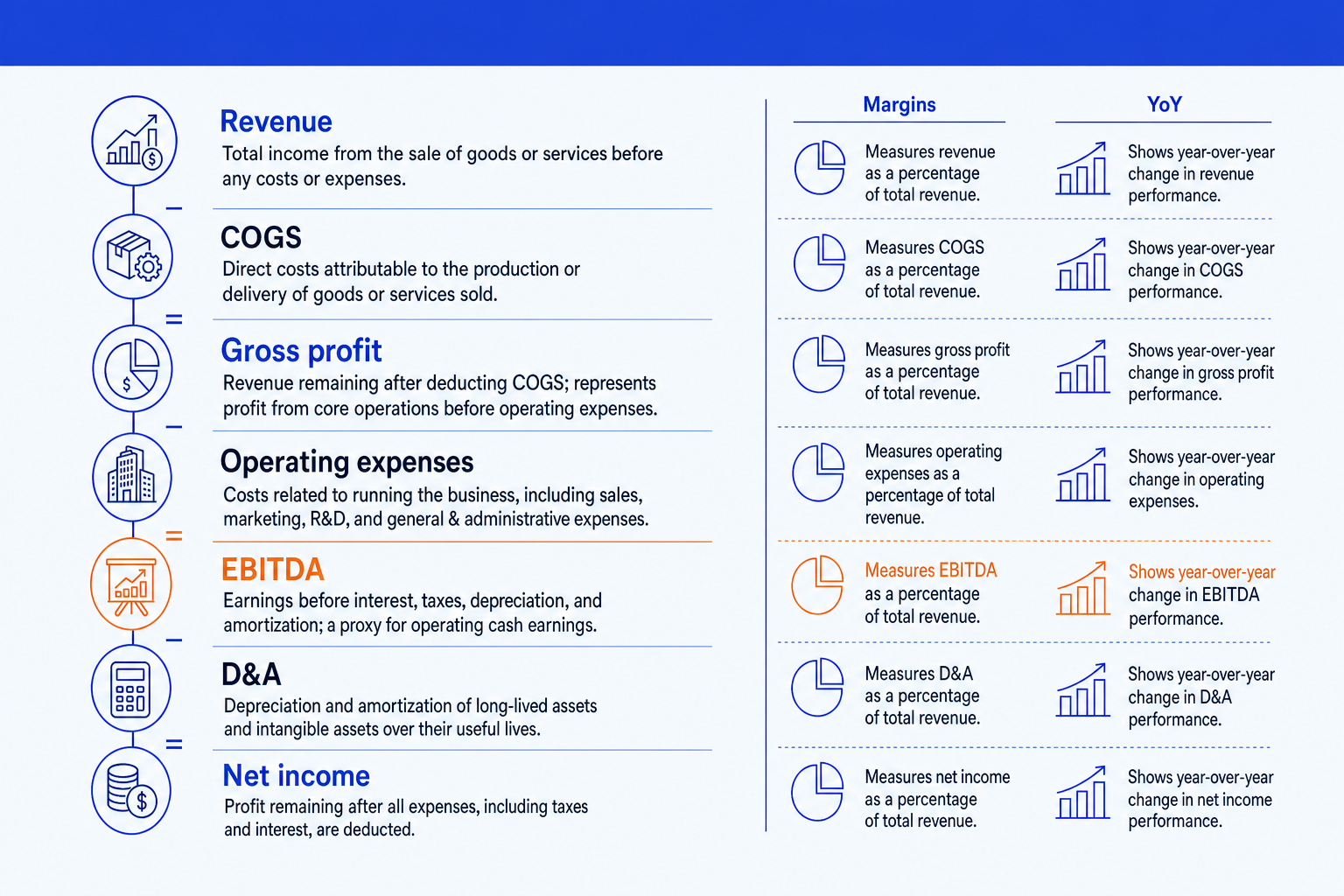
This is the minimum viable board P&L, and most monthly business reviews never need more. Keep Revenue, COGS, Gross profit, Operating expenses, EBITDA, D&A, and Net income, stacked top to bottom in statement order, with a single comparison column for budget beside the actual. Bold the subtotal lines, Gross profit, EBITDA, and Net income, so the skeleton of the statement is visible before anyone reads a figure, and add gross margin and EBITDA margin as a right-hand rail so each level carries meaning rather than just a number.
Cut everything else. Individual expense line items, one-off adjustments, and sub-ledger detail belong in a backup slide or the appendix, not on the summary page; a reader who wants that detail will ask for it, and the summary exists precisely so most readers do not need to.
The trade-off: this version is fast to build and reads cleanly, but it says nothing about direction. A soft quarter against a padded budget and a strong quarter against an aggressive one can look identical on the page, and only the room's memory of what the budget assumed tells them apart.
When do you add prior year to the summary?
Add a prior-year column the moment the audience needs to know whether a number is a trend or a blip, which is most of the time in a board pack, if rarely in a weekly ops stand-up. Place the prior-year actual beside the current actual and the budget, current first since it is what the eye should land on, and either show the year-over-year change as its own column or as a percentage beside the prior-year figure. Pick one comparison basis, prior year or budget, as the primary read and label it once so nobody in the room has to ask what a percentage is measured against.
A 2018 survey of 154 senior finance executives at Fortune 500 companies, run by researchers Thomas Conine and Michael McDonald and published on CFO.com, rated the importance of variance analysis 8.7 out of 10, yet found a real gap in practice: all of them compared current-year budget against current-year actual, more than 80 percent compared prior-year actual against current-year actual, but only about half compared prior-year budget against current-year budget, the read that actually catches a plan that missed twice in a row.
The trade-off: the three-way view earns its extra column by showing trend, but every column you add is another number someone in the room can misread. Do not add a fourth column without a specific question it answers.
How do you reconcile the summary to the statutory P&L?
The moment the summary shows an adjusted number, adjusted EBITDA, underlying operating profit, anything with "adjusted" or "underlying" in front of it, the page needs a reconciliation back to the reported, GAAP or IFRS figure. This is not a compliance nicety the way it is for a public filing; it is the difference between a number the room trusts and one it starts picking apart. Show the reconciling items, the specific add-backs and one-off exclusions, either as a short rail beside the adjusted line or in a backup slide the presenter can turn to on request.
This matters because the adjusted figure has become the default rather than the exception. Audit Analytics found that by the third quarter of 2015, 88 percent of S&P 500 companies disclosed at least one non-GAAP metric in their earnings releases. The prominence became enough of a concern that then-SEC Chair Mary Jo White warned, in a June 2016 speech to the International Corporate Governance Network, that "in too many cases, the non-GAAP information, which is meant to supplement the GAAP information, has become the key message to investors, crowding out and effectively supplanting the GAAP presentation." A board pack that shows adjusted EBITDA with no visible tie-out to the reported number is the internal version of exactly what she was describing.
The trade-off: the reconciliation is what keeps the slide defensible, but it is also the first thing a new director or an external auditor will pull apart. Do not put a number on the page you cannot stand behind, line by line.
When does a P&L bridge beat a summary slide?
A summary slide reports that a number moved. A bridge, a waterfall chart running from budget or prior-year EBITDA to actual EBITDA through each driver, volume, price, cost, mix, explains why. When the board's real question is what happened to gross margin this quarter rather than what gross margin is, the bridge answers it directly and the summary table does not, because a table of levels asks the reader to do the subtraction and the attribution themselves.
Build the bridge from the same numbers as the summary, it uses the same Revenue, COGS, and EBITDA lines, just decomposed into the drivers behind each variance rather than shown as static totals. For the full construction sequence, floating bars versus total bars, connector lines, driver ordering, see how to build a waterfall chart slide.
The trade-off: a bridge answers the "why" question no summary table can, but it only works for one number at a time. You cannot bridge an entire income statement without the page turning into a spreadsheet; pick the one line the room actually asked about.
How do you actually build the slide?
Getting the structure right is half the job. The other half is the sequence you build in and the numbers you check before the slide goes in the pack.
Pull the trial balance or GL export first, for the current period, budget, and, if you are adding trend, the prior-year period, all in the same reporting currency and unit. Building the layout before the data is final is how a formatted slide becomes a rebuild.
Choose the line items that carry the story. Revenue, COGS, Gross profit, Operating expenses, EBITDA, D&A, and Net income cover most cases; cut sub-line detail to a backup slide.
Decide the comparison basis and column order: actual first, then budget, then prior year if you are using it, then the variance or year-over-year column last, so the eye reads left to right in the order it should be interpreted.
Add the margin rail. Gross margin and EBITDA margin as percentages beside the lines they describe, not buried in a footnote.
Bold the subtotals and pick one line to emphasize with color, whichever line the narrative hinges on, and leave the rest neutral.
Format every number to one unit, stated once, right-aligned, with consistent decimal precision and one convention for negatives throughout.
The numbers that must tie
Here is how the ties should look, with illustrative figures only, not a real company's results. Revenue comes in at $120.0M against a budget of $115.0M. COGS at $54.0M holds gross margin at 55.0%, so Gross profit is $66.0M against a budgeted $63.2M. Operating expenses of $38.0M against a $36.0M budget, running 5.6% ahead of plan, pull EBITDA to $28.0M against a budgeted $27.2M: EBITDA dollars beat budget by $0.8M, but EBITDA margin still slips from 23.7% to 23.3%, because opex grew faster than revenue. After D&A and the remaining below-the-line items, Net income lands at $15.0M against a budgeted $14.4M. Every subtotal on the slide should reduce to the line above it minus the line below; if Gross profit, EBITDA, and Net income do not foot against the raw lines shown, the error is in the slide, not the business.
The three questions a CFO gets asked about this slide
Why did the margin move if the dollar figure beat budget? Exactly the pattern in the example above: EBITDA beat budget in dollars while its margin fell, because opex grew faster than revenue. Have the driver ready, not just the number.
What is excluded from the adjusted figure? If EBITDA carries any add-back, the specific list, not a general description, is the answer a sophisticated director expects on the spot.
Is this a timing difference or a trend? The question the prior-year column exists to pre-empt. If you have not added it, expect to answer this one from memory instead of from the slide.
Mistakes that make the slide read as amateur
Aligning the columns, bolding the subtotals, and keeping a margin rail in sync with the numbers by hand is exactly the mechanical work that eats an evening before a board meeting. Oria, an AI add-in that runs in the PowerPoint task pane and also connects to Claude and ChatGPT over MCP, renders this as a fully editable native slide from one description, so swapping a single figure next cycle does not mean rebuilding the table.
One-line P&L summary prompt for Oria
Which format should you build?
Route by what the exhibit still has to do after the meeting, not by habit.
| If you need | Build | Why |
|---|---|---|
| To explain why a specific number moved, not just that it moved | A P&L bridge (waterfall) | Shows the variance drivers by category. A summary table asks the reader to do that subtraction themselves. |
| To open the deck with headline metrics before the financial detail | An executive summary slide | The summary is a body slide that supports the argument. It is not built to open the deck. |
| A dashboard of tiles rather than a vertical statement | KPI tiles | The same margins and change figures, laid out as a metric grid instead of a statement. |
| A founder pitch or investor update that has to look designed, not just correct | Canva, Beautiful.ai, or Gamma | Where the job is visual impact rather than a defensible number, a design-led tool will beat a corporate template and look better doing it. |
| The full, unabridged statement for auditors or a technical reader | The complete income statement, as an appendix | A summary earns its place by leaving lines out; a technical reader wants the ledger, not the story. |
| This built as native, editable PowerPoint in your own template, from one line of text | Oria | Describe the line items and the comparison basis, and it renders the layout as real PowerPoint objects on your master, not an image. |
Frequently asked questions
What is a P&L summary slide?
A P&L summary slide is a single page that condenses a full profit-and-loss statement into the lines a board, investment committee, or steering group needs: Revenue, Gross profit, EBITDA, and Net income, usually shown against budget and prior year, with margins carried alongside each subtotal. It communicates performance against a plan rather than reproducing the statutory statement line by line, and it belongs in a board pack, a monthly business review, or a deal teaser.
What line items go on a P&L summary slide?
Revenue, COGS, Gross profit, Operating expenses, EBITDA, D&A, and Net income cover most cases, with gross margin and EBITDA margin as a right-hand rail and, where the board wants trend, a year-over-year or budget-variance column. Cut individual expense categories and one-off adjustments to a backup slide; a summary earns its place on the page by leaving detail out, not by finding room for it.
Should a P&L summary show budget, prior year, or both?
Show budget alone for a monthly ops review, where the question is whether the business hit its number. Add prior year once the audience is a board or investment committee, because a single comparison can't distinguish a seasonal swing from a structural one. Label whichever basis is primary so the room isn't left guessing what a percentage change is measured against.
How do you reconcile a P&L summary slide to the statutory income statement?
List the specific reconciling items, the add-backs and one-off exclusions, between any adjusted figure such as adjusted EBITDA and the reported GAAP or IFRS number, either as a short rail beside the line or on a backup slide. Non-GAAP measures now appear in the vast majority of large-company earnings releases, which is exactly why an unreconciled adjusted number is the first thing a new director or auditor will question.
What is the difference between a P&L summary slide and a P&L statement template?
A P&L statement template is an accounting worksheet, built in a spreadsheet, that produces the full statutory statement from raw ledger data. A P&L summary slide is the communication exhibit built from that output: a handful of lines, chosen for the story rather than completeness, formatted to be read on a screen from across a room. One is a working document; the other is a presentation.
What is the fastest way to build a P&L summary slide?
Describe the line items, the comparison basis, and the figures in one prompt and let Oria render it. It produces a fully editable native PowerPoint slide in your template, with the columns aligned, the subtotals bold, and the margin rail in place, so you skip the manual alignment of every row, and the rebuild next cycle is a data swap, not a redraw.