

How to Make a Clean Org Chart Slide in PowerPoint
The fast, practical way to build an org chart slide that reads at a glance: when to use one, SmartArt versus a one-prompt route, how to keep the hierarchy clean, the exact prompts to copy, and the mistakes that make it look amateur.
How to build an org chart slide, in short
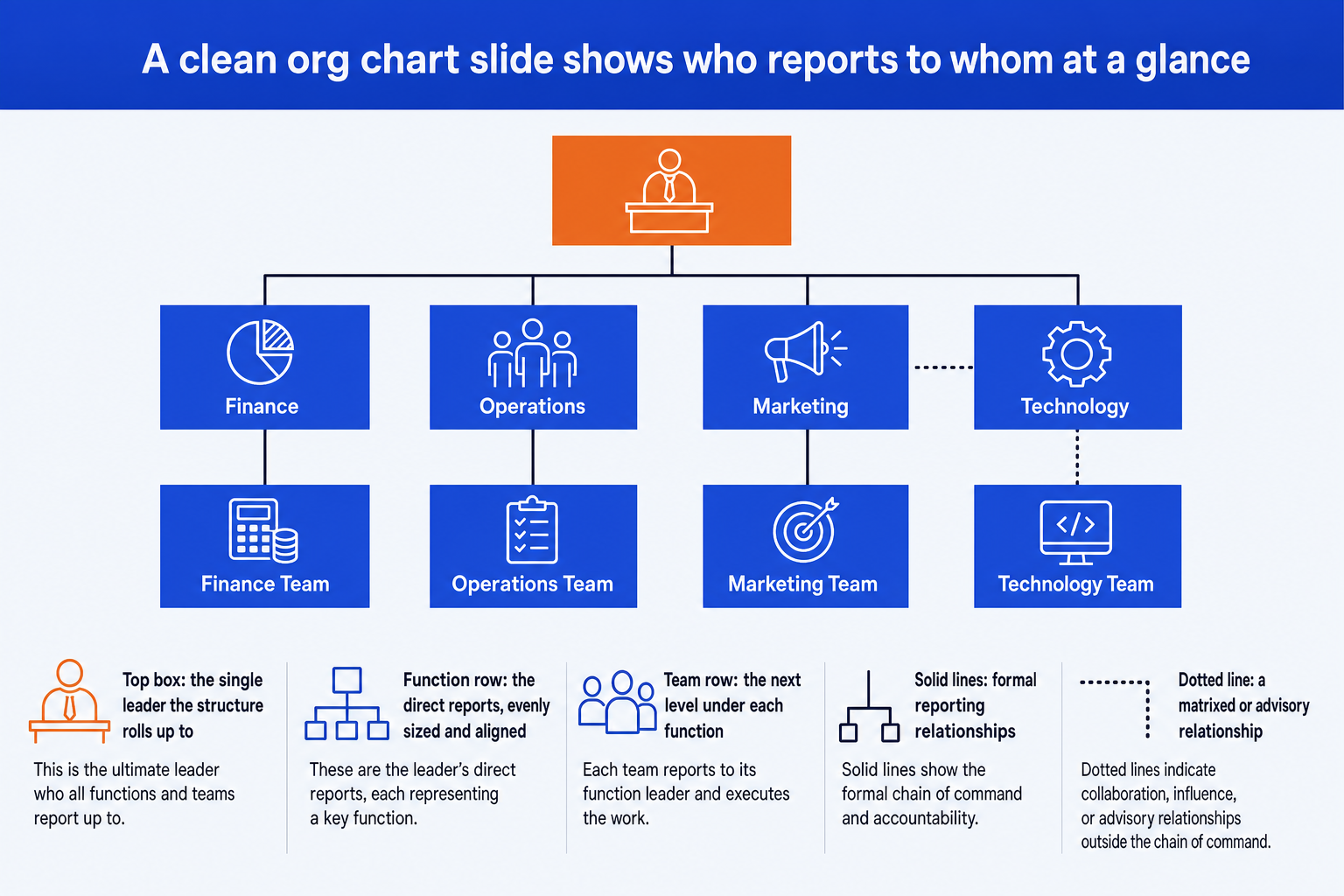
To build an org chart slide in PowerPoint, lay out one top leadership box, a row of evenly sized function boxes beneath it joined by solid reporting lines, then any further levels under each function. Use solid lines for formal reporting and a dotted line, with a legend, for matrixed relationships. You can draw this by hand, use SmartArt for a small chart, or describe the structure in one line and let Oria render it as native, editable boxes and connectors on your template.
The hard part is rarely placing boxes. It is keeping the hierarchy clean as the organization grows: consistent box sizes, true alignment, the right level of detail, and lines that mean one thing each. The rest of this guide walks that, with the exact prompts to do it fast.
When an org chart slide is the right choice
An org chart earns its place when the audience needs to understand who owns what and who reports to whom. Use one for:
Onboarding and team intros, where a new joiner needs the shape of the group fast.
Reorganization or operating-model slides, showing the move from a current to a target structure.
Deal and diligence decks, where ownership, span of control, and key roles matter to the buyer.
Governance pages, mapping a steering committee, workstream leads, and advisory lines.
Executive org charts deserve extra discipline because they are both high-stakes and long-lived. A board or diligence audience will notice an ambiguous reporting line immediately, while the slide itself may be revised for months as titles and ownership change. Build it so a single role can be updated without reworking the full hierarchy.
If the point is a process or a timeline rather than reporting relationships, a different layout serves better. For a financial bridge, see how to build a waterfall chart slide; for a four-quadrant assessment, see how to build a SWOT analysis slide.
SmartArt versus the prompt approach
PowerPoint ships with SmartArt's Organization Chart layout. It is quick for a handful of boxes and worth knowing. It also turns rigid the moment a real structure arrives. A prompt-driven route avoids that ceiling.
SmartArt
- Built in and fast for three or four boxes.
- Hard to add a dotted or matrixed line cleanly.
- Resists custom box sizes and brand styling.
- Layout reflows unpredictably as you add roles.
Prompt approach
- Describe the structure in one line of plain text.
- Returns a clean, editable hierarchy you control.
- Solid and dotted lines handled with a legend.
- Renders on your template, so it stays on brand.
The trade is simple. SmartArt is quick but rigid and hard to brand. A prompt-driven route gives you a clean, editable hierarchy that holds up as the chart grows and stays inside your corporate template.
Building a clean hierarchy
Whatever tool you use, a clean org chart slide follows the same five rules. Get these right and the structure reads in seconds.
Set clear levels. One top box, one row per level beneath it. Keep each role at the level it actually reports into, and resist the urge to float a favorite role one rank higher.
Align everything on a grid. Every box in a row shares the same top edge and the same vertical center. Misaligned boxes are the fastest way to make a slide look unfinished.
Use consistent box sizes. All function boxes the same width and height; all team boxes the same as each other. Same level, same size. Varying sizes implies a hierarchy that is not there.
Make lines mean one thing. Solid lines for formal reporting, dashed for matrixed or advisory. Add a small legend so dotted lines are never ambiguous. Never cross lines if a reroute avoids it.
Avoid clutter at scale. Do not draw every person. Pick one depth and hold it across every function, then group the rest into a single counted box. Showing full depth under one leader and one box under another looks unfinished and distorts the comparison.
The one-prompt Oria route
Oria is an AI add-in that lives in the PowerPoint task pane and builds complex slides from plain inputs. For an org chart, you describe the structure in one line and Oria renders editable native boxes and connectors, on your brand. Three steps:
Write the reporting structure as one line of plain text, or paste a reporting list.
Run it through Oria's Text to Slide; it returns the hierarchy as native shapes and connectors in your template.
Refine in PowerPoint: rename a role, restyle the dotted line, or nudge a box, exactly as you would with any slide.
Because the output is fully editable PowerPoint, not a flat image, the chart stays yours after generation. For the broader workflow of turning analysis into slides, see Claude skills for slide design.
Copy-paste prompts for an org chart slide
These are the prompts to drive the chart. Paste a block, replace the bracketed parts, and run it in Oria's Text to Slide or in Claude when you want the structure written out first. They are grouped by the job they do.
Turn a reporting list into a hierarchy spec
From a flat list to a structure
Build the slide from the spec
Label dotted-line and matrixed relationships
Add and label a dotted line
Condense a large org onto one slide
Pick a depth and group the rest
Tidy an org chart that is already cluttered
Update one role without rebuilding the chart
Tip
Run the first two prompts in order. Once Claude or Oria holds the clean structure, the dotted-line and condense prompts operate on it directly, so you are refining one chart rather than rebuilding it each time.
Common mistakes to avoid
Frequently asked questions
What is the fastest way to build an org chart slide in PowerPoint?
Describe the structure in one line and let a tool render it as native, editable boxes and connectors. SmartArt is the quick built-in option, but it gets rigid as soon as you add a dotted line or break out of its preset layout. A prompt-driven route in Oria turns a plain reporting list into a clean hierarchy on your template, with every box and line still editable in PowerPoint afterwards.
Should I use SmartArt or build the org chart manually?
Use SmartArt for a tiny three or four box chart you will not revisit. Build manually, or generate from a prompt, the moment you need consistent box sizes, matrixed dotted lines, or a brand-compliant look. SmartArt fights you on all three. Manual gives you control but costs time on alignment and spacing.
How do I show a dotted-line or matrixed reporting relationship?
Add a separate connector styled as a dashed line between the two roles, and label what it means in a small legend (for example, dotted equals advisory or matrixed). Keep solid lines for formal reporting only. Mixing the two without a legend is the most common reason an org chart slide confuses a board.
How do I fit a large organization onto one slide?
Do not show every person. Pick a level of detail (function leads, or function leads plus their direct teams) and stop there. Group the rest as a single box with a count, such as one box reading 240 colleagues across operations. One clean level of depth reads far better than a glued grid of forty boxes.
Will the slide stay editable after I generate it with Oria?
Yes. Oria renders the chart as native PowerPoint shapes, text boxes, and connectors, not a flat image. You can move a box, rename a role, restyle a line, or apply your corporate template after generation, the same as any slide you built by hand.