

Claude Dataviz Skill: What /dataviz Does, and 14 Chart Skills for PowerPoint
Two things answer to the name dataviz skill. This page covers both: Claude Code's bundled /dataviz skill for charts rendered in code, and a free pack of 14 dataviz skills for the charts that have to survive a board pack as native editable PowerPoint.
Two different things answer to the name Claude dataviz skill, and which one you want depends on where the chart has to end up. Claude Code ships a bundled /dataviz skill for charts you render in code. This page covers that, and then the other job: a chart that has to sit inside a board pack as a native PowerPoint object, inherit the template, and still be editable a week later when the numbers change.
The decision is not which charting library to use. It is how much of the chart you hand to Claude and how much you keep. Anthropic's own PowerPoint add-in now builds a native editable chart from a data table, which for four quarters in a bar chart is already enough. What it will not do is argue about whether a bar chart proves the sentence you are trying to prove. That argument is what a skill is for, and it is the gap the 14 skills below fill.
Download all 14 dataviz skills
One zip, one folder per skill. Free, no signup.
Quick answer: which Claude dataviz skill do you need?
There are three routes and most people end up using two of them. Sort yourself by the destination of the chart, not by the software you happen to have open.
If you write charts in code, use Anthropic's bundled /dataviz skill in Claude Code, which loads chart and dashboard design guidance plus a runnable color-palette validator. If the chart has to live in a slide, Claude for PowerPoint is generally available on the Pro, Max, Team and Enterprise plans and converts a data table into a native editable PowerPoint chart rather than a picture. Add the free 14-skill dataviz pack on this page when the harder question is which chart to build at all. For waterfalls and Mekkos linked live to Excel, think-cell is still the specialist.
What does the /dataviz skill do?
Claude Code ships /dataviz as a bundled skill, so it is present in every session without you installing anything. The release note that introduced it, in Claude Code v2.1.198, describes it as a skill "for chart and dashboard design guidance with a runnable color-palette validator." That last part is the interesting half: instead of asking the model to eyeball whether two series are distinguishable, it ships scripts that compute the answer.
Its own description says it applies to any output medium, from matplotlib and plotly to D3, Recharts, inline SVG and HTML artifacts, and that it should be read before the first line of chart code is written. Notice what is missing from that list. There is no PowerPoint in it. The bundled skill knows nothing about a slide master, a theme color, or the difference between a chart object and a picture of one. That is not a criticism. It was built for dashboards and data-heavy interfaces.
Invoking it is the part people search for. In Claude Code you type a forward slash and pick the skill by its directory name, which is why the query is /dataviz and not "dataviz". If it does not autocomplete, check that bundled skills have not been switched off. A bug report against Claude Code described exactly that, /dataviz in the release notes but absent from the session list, and it was closed without a reproduction.
How do you install the Claude dataviz skill?
Anthropic's support documentation lists Skills on the Free, Pro, Max, Team and Enterprise plans, with one prerequisite: code execution has to be on.
Download the pack
Unzip it anywhere. Inside you get 14 folders, one per skill, each holding a single SKILL.md file with the name and description frontmatter Claude uses to decide when it applies.
Turn Skills on
On Free, Pro and Max, open Settings, then Capabilities, and switch on code execution. On Team and Enterprise that switch lives in Organization settings, then Skills, so an admin may have to do it.
Upload the skill, or drop it in a folder
In Customize, then Skills, click the plus, choose Create skill, then Upload a skill. Anthropic's instruction is to package the skill folder as a ZIP file, so zip the one folder you want, not the whole pack. In Claude Code there is no upload at all: copy the folder into ~/.claude/skills/ and the directory name becomes the slash command, so ~/.claude/skills/waterfall-and-bridge-charts/ gives you /waterfall-and-bridge-charts.
The older route still works
If you would rather scope the skills to one piece of work, create a Claude Project, open Project Knowledge, click Add Content, and upload the .md files. Claude references them in every conversation inside that project. Less tidy than a real skill, because the files load as context rather than on demand, but it needs no admin.
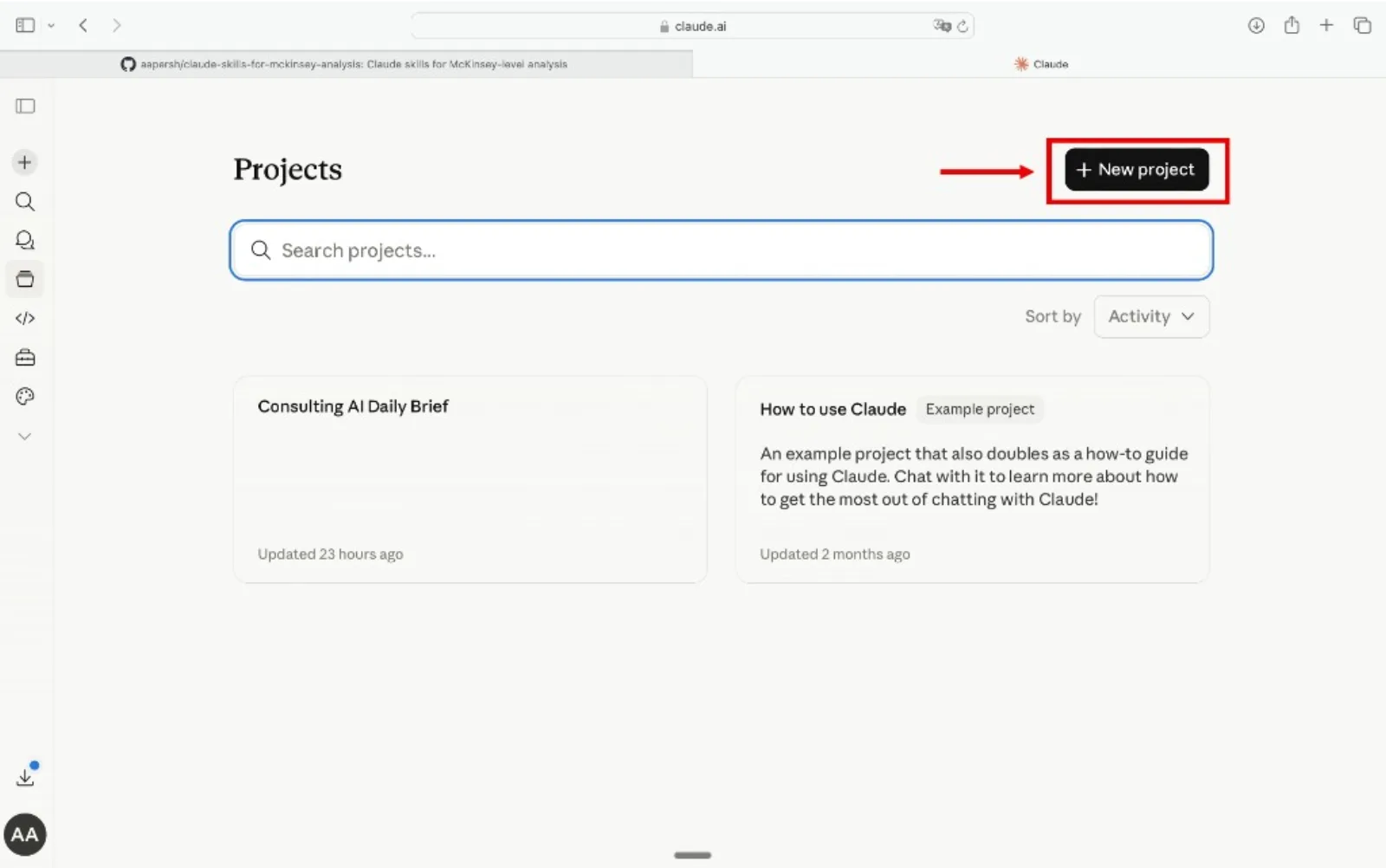
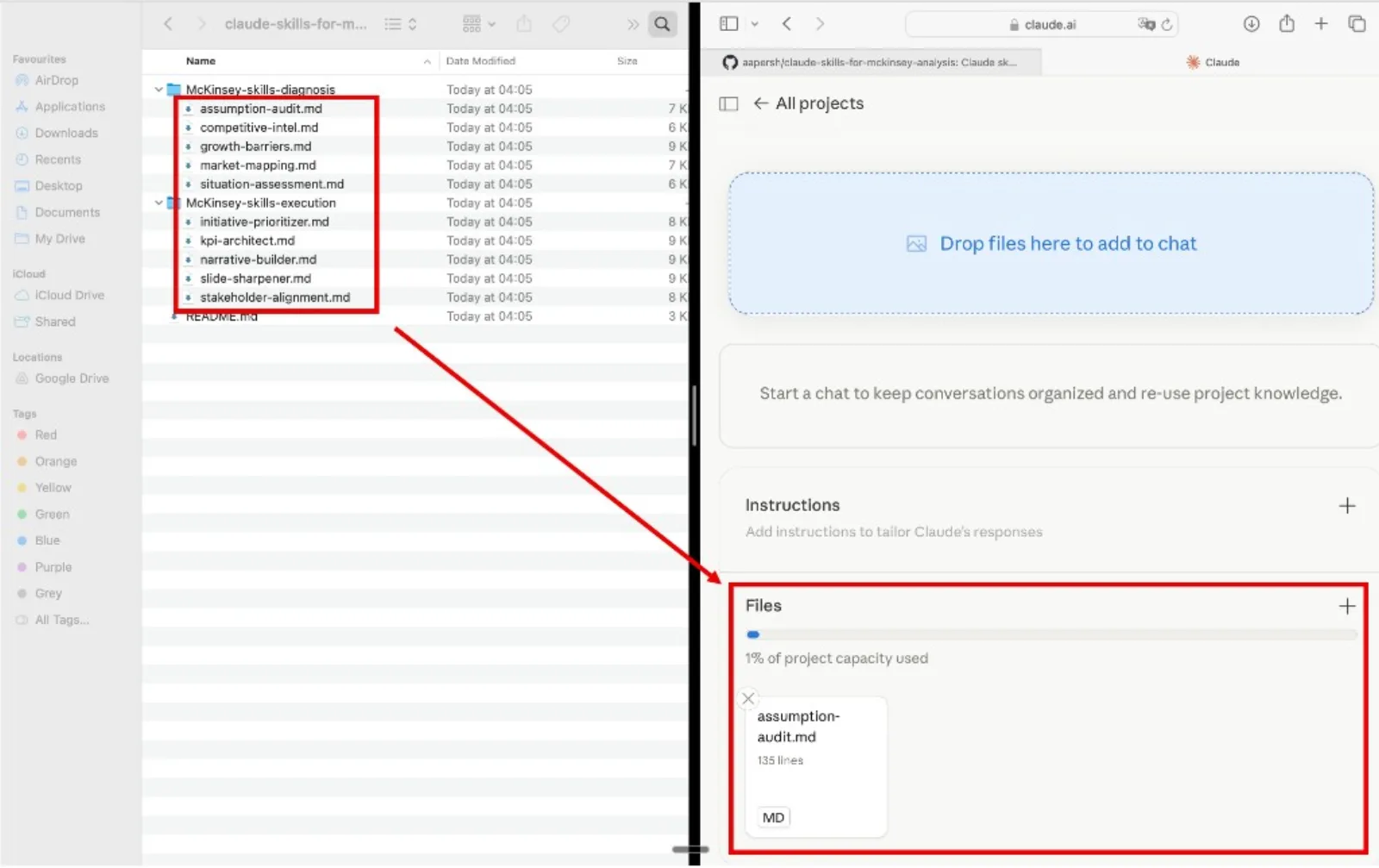
Call it with a slash, including inside PowerPoint
This is the step most write-ups miss. Anthropic's documentation for the Microsoft 365 add-ins says Skills enabled in your Claude settings are available in all of them, and that you invoke one by typing a forward slash in the add-in sidebar. The example the docs give is a PowerPoint one. So a charting skill you installed for chat is already in the PowerPoint task pane, beside the deck.

Example prompts
- "/chart-type-selection for revenue by region. The point is that two regions carry the growth."
- "/waterfall-and-bridge-charts on this operating profit bridge. Opening 412, closing 388."
- "/excel-to-native-chart on this export, then insert it in the open deck as a native chart."
How we chose these 14 skills
The pack is deliberately short. A skill earned a place only if it changed the output of a real exhibit, not if it described a chart type.
- It has to start from the message. Every skill opens by asking what single sentence the exhibit must prove. Skills that started from the shape of the data were cut.
- It has to survive a corporate template. Each one was run against a deck theme with enforced fonts and a fixed palette, not against a notebook default.
- The end state has to be editable. If the route ends in a pasted picture, the skill failed. Native chart objects can be recolored and relabeled; screenshots cannot.
- It has to name its own failure mode. Tested on profit bridges, price-volume-mix and mix shift, and kept only where it also said when not to use that chart.
- What we ignored on purpose. Interactive dashboards, animation, 3D, anything that only renders in a browser, and novelty chart types nobody reads in five seconds in a meeting room.
Key takeaways
- Choose from the message, never from the data. If you cannot write the one declarative sentence the exhibit has to prove, no chart type is correct yet, and every downstream formatting decision is guesswork dressed up as design.
- The input decides the outcome. A skill handed a 400-row export will specify a chart of a 400-row export. Aggregate to the level the message needs first, and say which theme colors and which font the deck enforces.
- A skill returns a specification, not a chart. Something else builds the object: the PowerPoint add-in, Oria, or your own hands. Knowing this stops you waiting for a file that was never going to arrive.
- Check the built-in capability before you add anything. Claude for PowerPoint already emits native editable charts from a table. For a straight bar or line chart, an extra skill buys you very little beyond the sort order.
- Every chart type has a breaking point and a good skill names it. Twelve categories, four stack segments, fifteen scatter points, uneven time intervals. Past those, the chart stops arguing and starts decorating.
The 14 dataviz skills, compared
One row per skill, against the five rules above. Read the fourth column first: on several of these the PowerPoint add-in already does the job.
| Skill | The message it serves | What you feed it | What comes back | Already in Claude for PowerPoint? | Where it breaks |
|---|---|---|---|---|---|
| Chart Type Selection | A table and a point, but no chart type yet | The data plus the one sentence you need to prove | A chart type, the reason, two runners-up. No chart object. | Partly. It picks something sensible. It will not say a chart is the wrong tool. | No one-sentence message, no recommendation. By design. |
| Chart to Message Titling | The title labels the chart instead of stating the point | The chart and the claim it carries | An action title plus one annotation. Text, not a chart. | No. Default titles describe the chart subject. | A takeaway the chart does not support is worse than a label. |
| Axis and Gridline Discipline | Any chart, once the encoding is settled | The value range, and whether zero is meaningful | Axis bounds, tick rule, gridline decision | No. Default axes come from the chart engine. | Truncated baselines. It forbids them, nothing enforces it. |
| Bar and Column Discipline | Which category is bigger, and by how much | Categories and one measure | Orientation, sort order, direct-label spec | Yes for the object. No for sort order and labels. | Past twelve categories. Use a top set plus an other bar. |
| Line and Trend Charts | Change over time | An evenly spaced time series | A line spec and the inflection worth marking | Yes for the object. | Uneven intervals plotted as if even. |
| Stacked vs Clustered | A category splits into sub-parts you must compare | Categories, sub-categories, one measure | A stacked or clustered verdict, plus segment order | No. It will pick one. It will not argue the case. | Past four segments, everything above the first stack blurs. |
| 100 Percent Stacked | Mix, or mix shift, rather than totals | Shares, or the values to normalize | A normalized spec, share labels, a note on the hidden totals | Yes for the object. | When totals matter. Normalizing can hide real growth. |
| Waterfall and Bridge Charts | How a start value became an end value | Opening value, signed drivers, closing value | Floating-bar construction, connectors, color by sign, labels | No. PowerPoint has no waterfall type; it is a stacked column. | Drivers that do not reconcile. It adds an unexplained bar. |
| Scatter and Bubble Charts | A relationship between two or three measures | Paired measures per entity, optional size measure | A scatter spec, quadrant lines, which outliers to label | Yes for the object. Quadrants and labels are manual. | Under fifteen points, where a table reads better. |
| Combo Charts | A level and a related rate on one exhibit | One absolute series, one rate series | A column-plus-line spec and the secondary-axis rule | Yes for the object. | Dual axes tuned so the lines cross where you want. |
| Small Multiples | One pattern compared across many categories | The same measure for five or more categories | Grid layout, shared-scale rule, ordering, what to strip | No. It builds one chart, not a synchronized grid. | PowerPoint auto-scales each panel. Locking it is manual. |
| Excel to Native Chart | Data sits in Excel and has to become a slide | The range, the chart type, the deck theme | A cleaned layout, an insertion method, an editability check | Largely yes. The skill the add-in most directly overlaps. | Hundreds of rows. Aggregate first or you plot the extract. |
| Data Labeling and Number Formatting | Values are hard to read or inconsistently rounded | The chart and the precision the audience needs | A selective-labeling rule and one number format | No. Rounding is a judgement, not a setting. | Labeling everything. Know which values carry the argument. |
| Color Encoding for Data | The chart is a rainbow and the point is buried | The chart, the deck palette, the element the message names | A palette type, an accent rule, an accessibility check | Partly. It inherits theme colors but encodes no meaning. | Red against green as the only signal. Check in grayscale. |
Three exhibits sit outside every chart type here. Reach for a Harvey ball rating grid when each cell is a judgement on a five-point scale, a Marimekko when segment share and segment size belong on one exhibit, and a heat map when a dense matrix has to be read cell by cell.
Which dataviz skill picks the chart type?
Stage 1 · 3 skills
Choose the Right Chart
Use these before you build anything. Convert your data and your one-sentence message into the right chart type, an action title that states the takeaway, and honest, uncluttered axes.
Chart Type Selection runs a message-first decision tree. It forces the claim into one declarative sentence, classifies it as comparison, change over time, composition, relationship, distribution or bridge, and only then maps that to an encoding. Comparison across categories becomes a sorted horizontal bar. Bridge becomes a waterfall. It also has a refusal built in: it will tell you a chart is the wrong tool and a table or a single large number would land harder. Chart to Message Titling then converts the chart subject into an action title, and Axis and Gridline Discipline sets bounds that do not flatter the data.
This stage is where the case for a skill is strongest, and Cole Nussbaumer Knaflic put the reason better than we can in Storytelling with Data (Wiley, 2015): “There is a story in your data. But your tools don't know what that story is.” A chart engine cannot know it either. The sentence has to come from you, and the skill's job is to refuse to move until it exists.
The trade-off: this stage produces no chart at all. You spend two minutes to be told your encoding is wrong, which is only worth it if being wrong would have cost you more than two minutes.
Which Claude skill builds a bar, column or line chart?
Stage 2 · 4 skills
Comparison and Composition
Bar and Column Discipline decides orientation from the category, sorts by value unless the category has a natural order, and pushes labels onto the bars so the axis can be deleted. Line and Trend Charts keeps the series count readable and marks the inflection the message names. Stacked vs Clustered earns its place most often, because the answer changes with the message rather than the data: stack when the total matters, cluster when the segments have to be compared, and accept that past about four segments neither works.
Be honest about the overlap here. Anthropic's documentation for Claude for PowerPoint lists "Create a bar chart comparing Q1 to Q4 performance" as a worked example, and the add-in produces a native editable chart object for it. The skill is not building anything the add-in cannot. It is supplying the sort order, the label policy and the decision to delete the legend.
The trade-off: for simple comparisons this stage is the most skippable in the pack. If your chart is four bars and a title, the add-in alone is already enough and the skill is ceremony.
Which Claude skill builds a waterfall or a scatter chart?
Stage 3 · 4 skills
Trend, Relationship, and Analytical
Use these when the chart must do analytical work: bridge a start to an end, plot a relationship between measures, pair a level with a rate, or compare a pattern across many categories at once.
This is the stage that justifies the pack. PowerPoint has no native waterfall type, so a bridge is assembled from a stacked column with an invisible base series lifting each delta to its floating height, connectors linking bar tops to the next base, and color carrying the sign of the move. Fiddly enough that a general instruction produces a broken chart, specific enough that a written method produces a correct one. It also refuses to hide a reconciliation gap: if the drivers do not sum from opening to closing, it adds an explicit unexplained bar. We walk through the finished exhibit in how to build a waterfall chart slide.
Scatter and Bubble adds quadrant lines and picks which outliers get labels. Combo Charts pairs a level with a rate and sets honest bounds on the second axis. Small Multiples is the quiet one: it locks a shared scale across every panel, which PowerPoint will not do for you, and a grid of panels that each auto-scaled independently is not a comparison at all.
The trade-off: these are the charts you build least often, so the method is hardest to retain and most worth writing down. But a bridge built from a stacked column is still a stacked column, and anyone editing it later needs to be told that.
Which skill turns Excel data into a native PowerPoint chart?
Stage 4 · 3 skills
Build and Finish in PowerPoint
Excel to Native Chart shapes the range so the chart engine can read it, insists on native insertion or an embed that takes the destination theme rather than a paste-as-picture, keeps the data with the chart, and ends with an editability check: click in and try to recolor one bar. If you cannot, it was pasted as an image and has to be redone. That matters more than it sounds. In the Nielsen study commissioned by empower, which surveyed 1,102 employees in Germany and the United States, creating and formatting charts was named the single biggest time waster in PowerPoint, and formatting overall consumed 37 percent of the seven hours a week a typical employee spends in the tool.
Color Encoding for Data is the other one people underrate. Its rule is that color must mean something: gray every mark except the one the sentence names. Its accessibility check is not decoration either. Colour Blind Awareness puts red-green colour blindness at roughly 1 in 12 men and 1 in 200 women, about 300 million people worldwide. If red against green is the only thing separating your good news from your bad news, part of the room is reading a chart with no message in it. If your data lives in a model rather than a flat export, the Claude skills for Excel modelling come first.
The trade-off: this stage gives you steps, not an inserted chart. Somebody still does the insert, and on a slide where the chart is one element among eight, that is where the time goes.
Do you still need Oria if you have the dataviz skills?
Oria is our own product, so weigh this accordingly. It reaches you two ways: as a PowerPoint add-in in the task pane on Windows, macOS and the web, and as a connector for Claude and ChatGPT over MCP, so a slide can be built from the conversation you are already in. It is built for one output: corporate and consulting documents. Board packs, steering committee decks, diligence exhibits, dense framework slides held to an enforced template.
Where it earns its place is the slide, not the chart. A bridge beside an action title, three callouts, a source line and a sidebar of numbers is a layout problem, and the layout is what breaks when a chart is pasted in as a foreign object. Oria generates the whole slide as native editable PowerPoint, chart included. On data posture: no training on customer content, Professional and Team do not persist presentation content after delivery, Enterprise adds private cloud deployment.
Where it loses, plainly. Oria is built for the corporate environment only, so on highly visual work it is beaten and looks worse losing: founder fundraising decks, launch and campaign decks, student presentations, marketing one-pagers. Where the job is visual impact, a design-led tool is the right answer and our own comparison against Gamma says so too.
The trade-off: a second subscription from $19 a month, justified only when your exhibits are genuinely complex and your template genuinely enforced. If your charts are four bars and a title, the free skills plus the Claude add-in are the honest answer.
If you need X, go to Y
Many people arriving on a dataviz skill query need no skill pack at all. If you are choosing a tool rather than a chart, start from the tested add-in comparison. Otherwise, find your row and leave.
| If you need | Go here instead | Why |
|---|---|---|
| A bar or line chart from a table, inside the open deck | Claude for PowerPoint, on its own | Generally available on Pro, Max, Team and Enterprise, and its documentation says it produces visuals you can edit directly. |
| Charts rendered in code for an app, notebook or report | Claude Code's bundled /dataviz skill | Design guidance plus a runnable color-palette validator, written for matplotlib, plotly, D3 and Recharts. |
| Waterfall, Mekko or Gantt charts linked live to Excel | think-cell | More than 40 chart types, inside Office, with PowerPoint objects linked to Excel so charts update on refresh. |
| A pitch, launch or campaign deck where the look is the point | Gamma, Canva, Pitch or Beautiful.ai | Design-led tools. A corporate charting stack loses to them on visual impact and looks worse doing it. |
| A rating grid where each cell is a judgement, not a number | Harvey balls | Built from shapes rather than data, so no chart type here reads as cleanly for a qualitative matrix. |
| An org structure, a timeline or a process flow | Diagram guidance, not chart guidance | Relationship diagrams, not data encodings. The add-in converts bullets into process flows, and none of the 14 skills applies. |
| A full slide where the chart is one element among eight | Oria, as an add-in or over MCP | Generates the slide as native editable PowerPoint so chart and layout hold one template. Overkill for one chart. |
| A chart in an organisation already paying for Copilot | Microsoft 365 Copilot first | Already licensed, already in PowerPoint, and for routine charts the marginal gain elsewhere is small. |
The quality bar
Every skill pushes Claude toward the same bar. If you write your own instead of using this pack, these are the twelve lines worth copying.
For the slide rather than the chart, see our Claude skills for slide design and the walkthrough on building an executive summary with KPI tiles.
Frequently asked questions
What is the Claude dataviz skill?
Two different things go by that name. Claude Code ships a bundled /dataviz skill for chart and dashboard design guidance, aimed at charts you render in code with matplotlib, plotly, D3 or Recharts. Separately, this page hosts a free pack of 14 dataviz skills written for PowerPoint charts, each one a folder holding a single SKILL.md file that teaches Claude one charting discipline, from picking the chart type to encoding color with meaning.
How do you install the Claude dataviz skill?
In Claude Code the bundled /dataviz skill is already present, so you type a forward slash and pick it from the list. For a custom skill, drop the folder into ~/.claude/skills/ and the directory name becomes the command. On claude.ai, turn on code execution in settings, open Customize then Skills, click the plus, choose Create skill, then Upload a skill, and upload the skill folder packaged as a ZIP file.
What does the /dataviz skill do?
Claude Code's release notes describe it as chart and dashboard design guidance with a runnable color-palette validator. It covers chart type selection, layout rules and visual hierarchy for data-heavy interfaces, and it checks palettes programmatically rather than by eye. Its own description says it applies to any output medium, from matplotlib and plotly to D3, Recharts, inline SVG and HTML. It says nothing about slide masters or PowerPoint chart objects.
Does the dataviz skill work inside PowerPoint?
Skills you enable in your Claude settings are available in all the Claude for Microsoft 365 add-ins, and Anthropic's documentation says you invoke one by typing a forward slash in the add-in sidebar to list the skills relevant to the app you are in. The bundled /dataviz skill is written for code output, so inside PowerPoint a charting skill built for slides is the better fit, and it sits in the same list.
Do the skills produce native PowerPoint charts or images?
Neither, strictly, and this is the thing most write-ups get wrong. A skill returns a specification: the chart type, the construction, the label policy, the colors. Something else builds the object. Anthropic's documentation says Claude for PowerPoint produces visuals you can edit directly rather than static images, and Oria generates native editable slides too. The skill is what stops either of them producing a confident, well-formatted, wrong chart.
Which chart types does the dataviz skill pack cover?
Bar and column, line and trend, stacked and clustered, 100 percent stacked, waterfall and bridge, scatter and bubble, combo charts pairing a level with a rate, and small multiples. Three further skills handle the choosing stage, and three handle finishing: turning Excel data into a native chart, data labeling and number formatting, and color encoding with an accessibility check. Harvey balls, Marimekkos and heat maps sit outside the set.
Is the dataviz skill pack free, and do I need an account?
The pack is free and downloads as a single zip straight from this page, with no login or sign-up in the way. The skills then run inside Claude on your own account. Anthropic's support documentation lists Skills as available on the Free, Pro, Max, Team and Enterprise plans, with code execution switched on first, so there is no paid tier gating the skills themselves.