

How to Convert a Whiteboard Photo Into PowerPoint Slides
A partner sketches a framework on a whiteboard, and the meeting ends before anyone redraws it. Here is how to take that photo straight into an editable, on-brand PowerPoint slide with Sketch to Slide, no manual redrawing required.
How to convert a whiteboard photo into PowerPoint slides
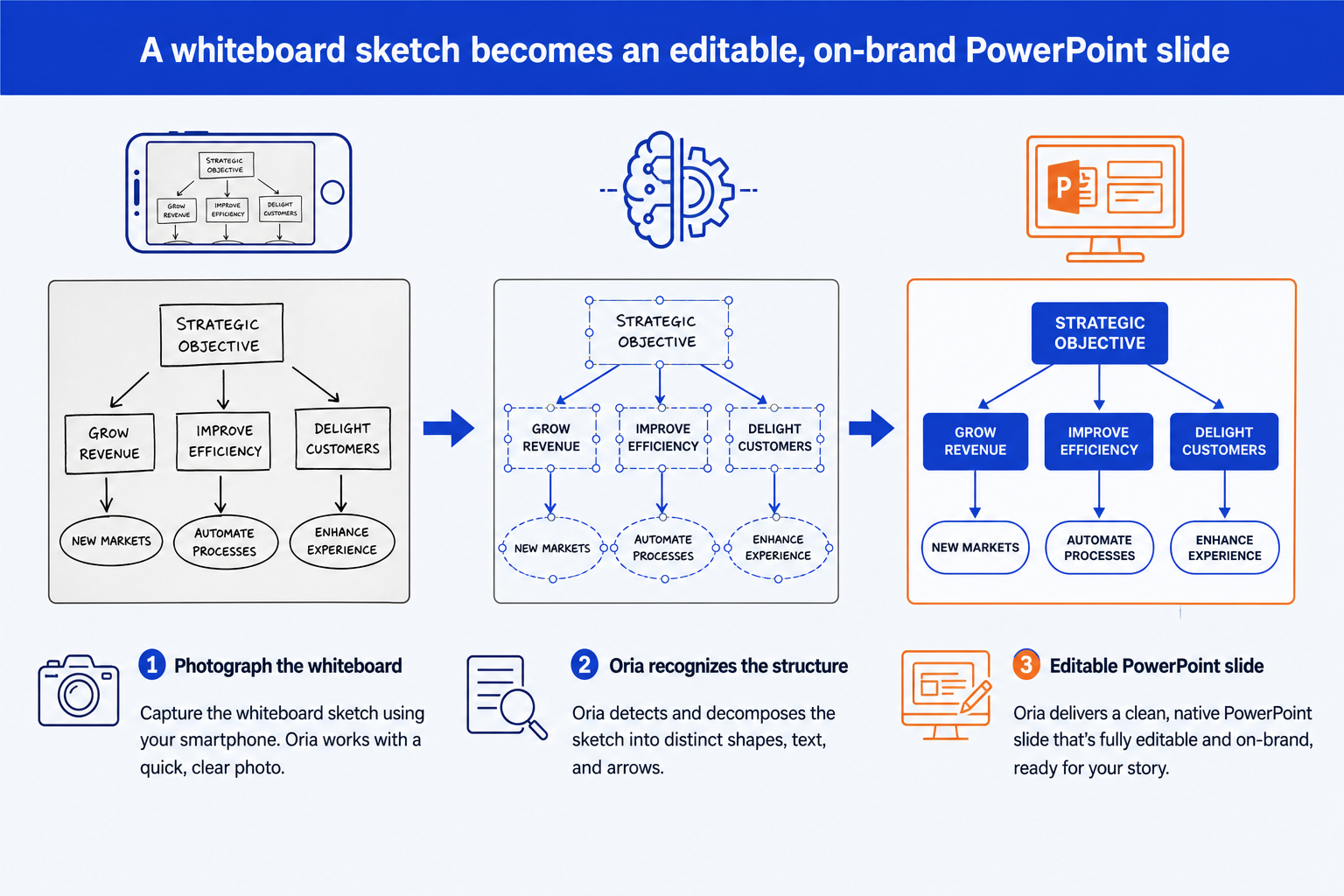
To convert a whiteboard photo into PowerPoint slides, photograph the board straight on in even light, then drop that photo into Oria's Sketch to Slide inside PowerPoint. Sketch to Slide recognizes the boxes, arrows, and handwritten labels as a structure, not as a picture, and rebuilds that structure as native, editable PowerPoint shapes and text on your corporate template. Pick the strongest of the design options it returns, then refine wording and emphasis with a follow-up prompt.
This guide covers when a whiteboard photo is the right starting point, how to shoot it so the conversion holds up, the step-by-step workflow, why Sketch to Slide can read a sketch when most AI slide tools cannot, the refinement prompts, a worked example, and the mistakes that leave a converted slide looking rough.
When a whiteboard photo is the right starting point for a slide
Senior consultants and bankers think in sketches. A partner draws a 2x2 matrix mid-workshop, a lead maps a transformation roadmap across the whole board, or a team works out a customer journey in boxes and arrows while the client watches. That diagram is the real output of the session, and redrawing it by hand afterward is a second pass of work that adds nothing to the thinking.
A whiteboard photo is the right starting point whenever the structure already exists on the board and the fastest path to a slide is preserving it, not rebuilding it from a blank page. If you are instead starting from a written outline or a paragraph of notes, Oria's Text to Slide is the better entry point. For how the AI deck tools compare on keeping that output native and editable, see our best Gamma alternative for consulting and board decks comparison.
How to convert a whiteboard photo into a PowerPoint slide, step by step
Five steps take you from a phone photo to a board-ready slide. Getting the photo right in step one determines how clean everything after it turns out.
Photograph the whiteboard straight on. Stand directly in front of the board, not at an angle, and get the full diagram inside the frame. Even, glare-free light matters more than camera quality; a washed-out corner is structure Sketch to Slide cannot recover.
Open Oria in PowerPoint and start Sketch to Slide. Drop the photo into the Sketch to Slide workflow in the task pane. Upload your corporate template first if you have not already, so the conversion renders on your firm's fonts, colors, and logo from the first pass.
Let Oria recognize the structure. Sketch to Slide detects the shapes, arrows, and handwritten text on the board and reconstructs them as a native PowerPoint layout, not as an embedded picture of the whiteboard.
Compare the design options and pick one. Oria returns 2 to 5 design options for the same sketch. Compare them for which one keeps the diagram's logic clearest, then pick that one to finalize.
Refine with a follow-up prompt. Clean up any label the handwriting made ambiguous, tighten spacing, emphasize the one element that matters most, and write the action title. Every element stays editable, so this is a prompt, not a rebuild.
Why Sketch to Slide can read a whiteboard when most AI slide tools cannot
Most AI slide tools build a slide as HTML text first, then convert that HTML into a PowerPoint file. That approach never touches an image of your actual diagram, so a whiteboard photo is not a workflow those tools support at all, at best you would describe the sketch in words and hope the description captures what the drawing showed.
Oria works the other way. Sketch to Slide is built on Oria's patent-pending Visual Rendering engine, which reads a visual composition directly, detects the shapes, icons, text, and arrows in it, and decomposes what it finds into editable PowerPoint elements. A whiteboard photo is exactly the kind of input that engine is built to read, since the photo already is the visual composition, nothing needs to be described in words first. For the fuller technical picture of why this approach differs from HTML-based tools, see our guide to the best AI for PowerPoint.
The refinement prompts that sharpen a converted whiteboard slide
Sketch to Slide gets the structure right on the first pass. These prompts are the follow-up polish, run them in the same session right after you pick a design option. Replace the bracketed parts with your own labels.
1. Clean up ambiguous handwriting
2. Apply the corporate template
3. Emphasize the one element that matters
4. Tighten spacing after conversion
5. Write the action title
Tip
Run prompt 1 before anything else. Fixing an ambiguous label early means every later prompt, template, emphasis, spacing, title, works from text you have already confirmed, instead of propagating a misread word through the rest of the slide.
A worked example: whiteboard to boardroom in one workshop
A partner sketches a transformation roadmap on the whiteboard during a client workshop: four phases across the board, with a short label and a couple of milestones written under each one. Here is the conversion, start to finish.
Photograph. The associate steps back, shoots the whole board straight on before anyone erases it, and checks the photo for glare across the marker ink.
Convert. Back at a laptop, the associate drops the photo into Sketch to Slide with the firm's template already uploaded. Oria recognizes the four phases, the arrows connecting them, and the milestone labels underneath each one.
Choose a design. Sketch to Slide returns several design options for the same roadmap. The associate picks the one that keeps the four-phase flow clearest and the milestone labels most legible.
Refine. A follow-up prompt cleans up one label the handwriting made ambiguous, emphasizes the current phase in the orange accent, and writes the action title stating what the roadmap commits the team to.
Share. The slide goes into the pre-read that afternoon, fully editable, on the firm's template, with the same structure the partner drew on the board. Nobody redrew it by hand.
Common mistakes to avoid
For the wider set of workflows Oria supports beyond sketches, from a rough outline to an existing weak slide, see our guide to the best AI for PowerPoint.
Frequently asked questions
What kind of whiteboard photo works best for a whiteboard to PowerPoint conversion?
A straight-on photo, taken in even light, with the whole diagram inside the frame and no glare across the marker lines. Sketch to Slide reads shapes, arrows, and handwritten text from the image, so anything cropped out or washed out in glare is structure it cannot recover. A phone photo from directly in front of the board, not at an angle, gives the cleanest read.
Does the converted slide stay editable, or is it just a picture of the whiteboard?
It stays fully editable. Sketch to Slide does not paste the photo onto a slide as an image. It recognizes the boxes, arrows, and text as a structure, then rebuilds that structure as native PowerPoint shapes and text boxes. You can move a box, rename a step, or recolor an arrow afterward exactly as you would on any other Oria-generated slide.
Can Oria read messy handwriting or a rough freehand sketch?
Sketch to Slide is built for the kind of fast, imperfect sketching that happens live in a room, boxes that are not quite square, arrows drawn in one stroke, labels squeezed into a corner. It reads the structure the sketch is pointing at, not a scan of perfect print. A diagram with a clear logic, even if the handwriting is rough, converts more reliably than a genuinely ambiguous scrawl.
Does the whiteboard photo need to already match my corporate template?
No. The whiteboard photo only needs to carry the structure, the boxes, the arrows, the labels. Upload your corporate template separately to Oria, and it applies your fonts, colors, and logo to the converted slide, the same brand handling every other Oria workflow uses. The photo supplies the logic; the template supplies the look.
How long does converting a whiteboard photo into a slide take?
About the same as any other Oria slide. Sketch to Slide previews 2 to 5 design options in roughly 30 to 40 seconds after you drop in the photo, and a final editable slide is ready in 2 to 3 minutes. The slower part is usually walking back from the whiteboard, not the conversion itself.