

PowerPoint Slide Size: The Settings That Actually Matter
PowerPoint slide size is the width and height of every slide in a file. It decides the aspect ratio, how a deck fits a screen or a printed page, and how content is rescaled when you change it. The default is Widescreen (16:9), 13.333 by 7.5 inches.
Why PowerPoint slide size matters before anything else
Slide size is the one setting that every other object on the slide depends on. A text box, a chart and a logo are all positioned and scaled against the page. Change the page after the deck exists and everything on it has to move, which is where most of the damage in resized decks comes from.
Most people never touch it, and for a deck shown on a screen that is fine. The trouble starts when a file arrives in the wrong shape, when it has to be printed, or when slides from two decks are merged. This guide covers the settings that matter, the numbers behind them, and the situations where the usual advice leads you wrong.
The PowerPoint slide size settings, one by one
Open the Design tab, choose Slide Size at the far end of the ribbon, then Custom Slide Size. That dialog holds every setting in this section. Six things can be set there, and only the first three change how the slides look.
| Setting | What it does | Usual choice | When to set it |
|---|---|---|---|
| Slide size preset | Sets width and height together | Widescreen (16:9) for a screen, A4 or Letter for paper | Choose before you add content |
| Width and height | The two numbers behind the preset | 13.333 in wide and 7.5 in high for Widescreen | Read them in the Custom Slide Size dialog, never from memory |
| Maximize or Ensure Fit | How existing content is rescaled when the size changes | Ensure Fit when shrinking, Maximize when enlarging | Pick after you have looked at both outcomes |
| Orientation of slides | Landscape or portrait for the slides | Landscape for screens, portrait for printed one-pagers | Set before the master is designed |
| Orientation of notes, handouts and outline | A separate setting that governs print layouts, not the slides | Portrait is the usual choice | Leave alone unless you print notes pages |
| Number slides from | The first slide number | 1 for a stand-alone deck, a higher number for an appendix | Change only when the deck is a section of a larger pack |
The presets and their dimensions
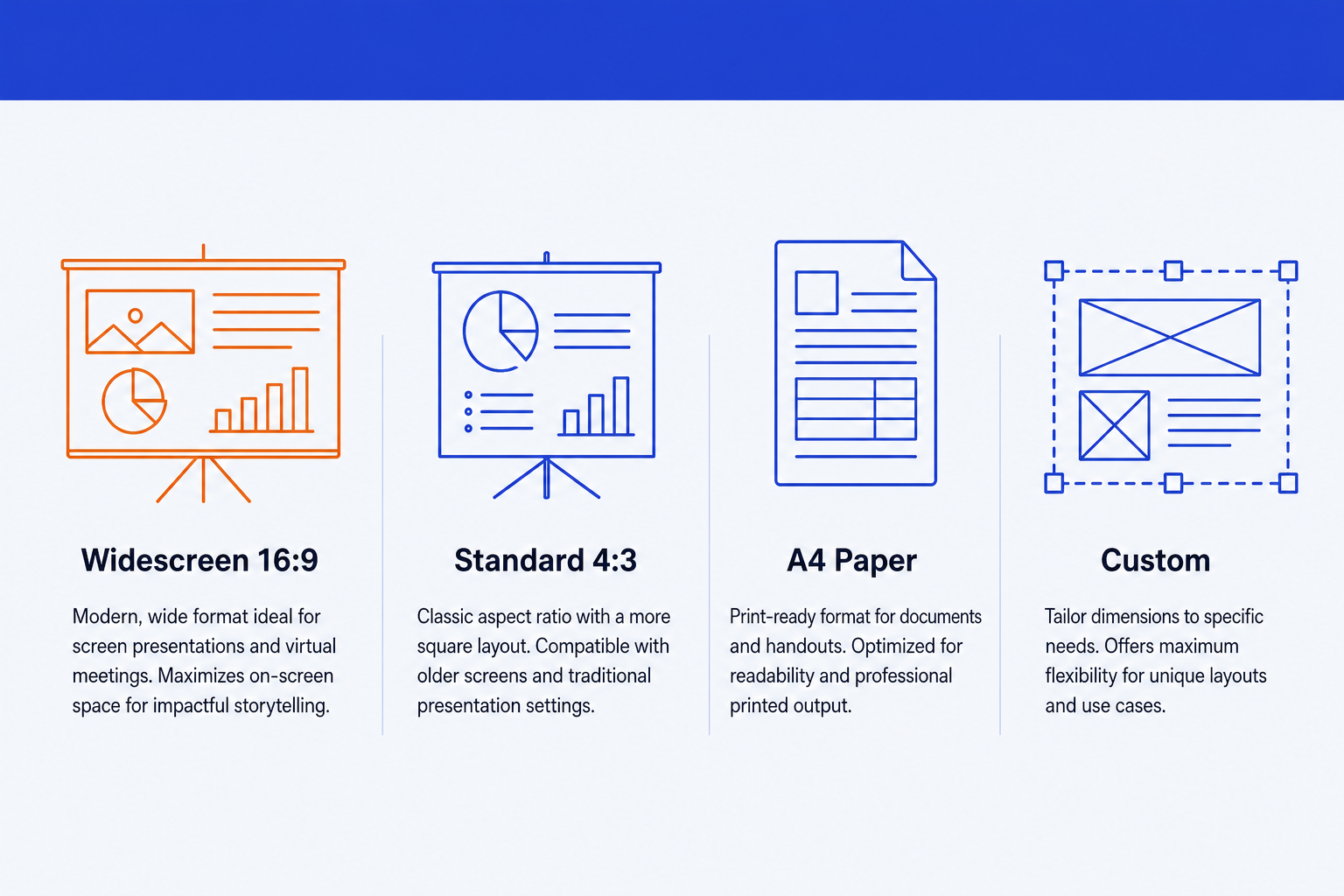
The presets are shortcuts for a width and height. The values below are what the Custom Slide Size dialog shows for each, and the ratio is simply width divided by height. Open the dialog on your own copy to confirm, since it is the source of truth for your version.
| Preset | Width x height | Ratio | Typical use |
|---|---|---|---|
| Widescreen (16:9) | 13.333 x 7.5 in (33.867 x 19.05 cm) | 1.78 : 1 | Projectors, screens, video calls, almost every modern template |
| Standard (4:3) | 10 x 7.5 in (25.4 x 19.05 cm) | 1.33 : 1 | Older templates, some printed handouts, legacy room displays |
| On-screen Show (16:10) | 10 x 6.25 in | 1.60 : 1 | Laptop-shaped displays that crop 16:9 content |
| A4 Paper | 10.83 x 7.5 in (27.51 x 19.05 cm) | 1.44 : 1 | Decks that are printed on A4 and read on paper |
| Custom | Any width and height from 1 in to 56 in | Your choice | Posters, banners, kiosk screens, square social tiles |
Microsoft's documentation gives the limits for a custom size: a minimum of 1 inch (2.54 cm) and a maximum of 56 inches (142.24 cm) in either direction. You can type a number followed by in, cm or px.
Maximize versus Ensure Fit: the choice that breaks decks
When PowerPoint cannot rescale your content on its own, it stops and asks. Microsoft describes the two answers this way: Maximize increases the size of your slide content when you scale to a larger slide size, though the content might not fit on the slide. Ensure Fit decreases the size of your content when you scale to a smaller slide size, so you can see everything.
Read that as a rule. Going from a small page to a big one, Maximize fills the space and risks overflow. Going from a big page to a small one, Ensure Fit keeps everything visible and makes it smaller. Neither is a repair. Both are a starting point you then have to inspect.
Worked example: moving a 4:3 deck to 16:9
Take a 4:3 deck inherited from a colleague. Its slides are 10 inches wide and 7.5 inches high. The firm template is Widescreen, 13.333 by 7.5 inches.
Now reverse it. Take a 16:9 deck at 13.333 by 7.5 inches and set it to 4:3 at 10 by 7.5. The width falls by a quarter, since 10 divided by 13.333 is 0.75. Ensure Fit scales content to roughly three quarters of its size so nothing is cut off, which means body text that was 18 pt lands near 13.5 pt. That is why the shrink direction is the dangerous one: the deck is intact but may be too small to read.
The conclusion from both directions is the same. The arithmetic tells you what to expect before you click, and the visual check afterwards tells you what to fix. If you need the slides to survive a move between tools rather than shapes, the guide to converting PowerPoint to Google Slides covers the same audit applied to a different kind of conversion.
When to use each PowerPoint slide size
Decide from where the deck will be read, not from habit. For most business decks the answer is Widescreen. The exceptions are specific and worth recognising.
| If | Use | Why |
|---|---|---|
| The deck is presented on a screen, projector or call | Widescreen (16:9) | It fills a modern display with no side bars. |
| The deck is read on paper or as a PDF handout | A4 or Letter | The slide matches the page, so nothing is scaled or letterboxed when printed. |
| You are inheriting a company template | Whatever the template uses | Do not resize a master you did not build. Fix the content instead. |
| The slide is a tile, banner or kiosk screen | Custom | Set the exact ratio of the target surface before designing. |
Set the size first, then design the master, then build content. A slide master drawn at the wrong size has to be redrawn, and a deck built on it has to be rechecked slide by slide. For dense slides such as a waterfall chart slide, where label positions are tight, that recheck is the expensive part.
When the slide size setting misleads
The setting looks simple, which is the problem. Three situations make it say less than you think.
The ratio is right but the file is not. A deck can read Widescreen in the dialog and still have a master drawn for 4:3, with placeholders sitting in the left three quarters of the page. The number is correct and the layout is wrong. Look at View, Slide Master to see where the placeholders actually are.
The preset name hides the dimensions. Standard, A4 and Letter slides share a 7.5 inch height and differ only in width, so moving between them looks like a tiny change and quietly shifts everything horizontally. Two decks both called widescreen by different tools may also differ in their exact width. Trust the numbers in the dialog, not the label.
The destination changes the answer. A deck that is perfect at 16:9 on your screen can be letterboxed by a 4:3 room projector, cropped by a 16:10 laptop, or scaled when exported to PDF. The setting controls the file, not the display it ends up on. Test on the real device when the stakes are high. For the PDF case in particular, see the guide to converting PDF and PowerPoint without losing formatting.
Common mistakes
How to change PowerPoint slide size
- Save a copy of the file. A resize is easy to do and awkward to undo cleanly.
- Open the Design tab and select Slide Size at the far right of the ribbon.
- Choose Standard (4:3) or Widescreen (16:9), or choose Custom Slide Size to type a width and height.
- If PowerPoint asks, pick Maximize when going larger and Ensure Fit when going smaller.
- Open View, Slide Master and check that placeholders and logos moved with the page.
- Step through every slide, starting with the densest, and fix anything that overflows.
If the deck is full of slides that came from elsewhere, the checklist in the guide to cleaning up a messy deck covers the alignment and spacing problems a resize tends to expose.
Building slides at the right size from the start
The cleanest fix for a resize is not needing one. Oria is built for corporate documents and consulting presentations, and it works inside your firm's template as a PowerPoint add-in in the task pane, or through a connector for Claude and ChatGPT over MCP. Slides are placed as native shapes on the master you already have, so they follow whichever size that template uses. It is built for the corporate environment, so highly visual decks such as fundraising or launch presentations are better served by a design-led tool like Gamma or Canva. If you are comparing editors for a deck that must still open in PowerPoint, see the PowerPoint alternatives that still export .pptx.
Frequently asked questions
What is the best slide size for PowerPoint?
Widescreen (16:9), 13.333 by 7.5 inches, for any deck shown on a screen, projector or video call. Use A4 or Letter only when the deck is mainly printed, and Custom for banners, tiles or kiosk screens.
What is the default PowerPoint slide size?
Widescreen (16:9) is the default in current versions of PowerPoint. Older templates and decks saved from earlier versions may still be Standard (4:3), so check the size of any file you inherit before you edit it.
How do I change the slide size in PowerPoint?
Open the Design tab, choose Slide Size near the right end of the ribbon, then pick Standard (4:3), Widescreen (16:9) or Custom Slide Size. If PowerPoint cannot rescale your content automatically, it asks you to choose Maximize or Ensure Fit.
What does Maximize versus Ensure Fit mean?
Microsoft's support page explains that Maximize increases the size of your slide content when you scale to a larger slide size, but the content might not fit on the slide. Ensure Fit decreases the size of your content when you scale to a smaller slide size, so everything stays visible.
What are the smallest and largest custom slide sizes?
Microsoft's documentation gives a minimum of 1 inch (2.54 cm) and a maximum of 56 inches (142.24 cm) for either width or height. Type a number followed by in, cm or px in the Custom Slide Size dialog.
What is the difference between 16:9 and 4:3?
They are two shapes. 16:9 is wider, at about 1.78 times as wide as it is high. 4:3 is squarer, at about 1.33 times. On a 16:9 screen a 4:3 slide shows bars at both sides, and a 16:9 slide on a 4:3 screen shows bars above and below.
Can I use different slide sizes in the same PowerPoint file?
No. One PowerPoint file has a single slide size that applies to every slide. If you need a mix, such as a landscape deck with a portrait appendix, keep them as separate files or design the appendix to fit the same landscape page.