

PDF to PowerPoint: Convert Without Losing Formatting
PDF to PowerPoint conversion turns a fixed-layout PDF page into editable slides: text becomes text boxes, drawings become shapes, pictures stay pictures. It exists because a PDF records where marks sit on a page, not what they mean, and it produces a deck you can change.
The decision you are making is not which converter to click. It is how much of the original page you need to keep, and how much repair you will accept. Below: what a PDF stores, five ways to convert it, one worked example with the arithmetic, and the cases where conversion quietly goes wrong.
Quick answer: how do you convert a PDF to PowerPoint?
Check whether the PDF has selectable text. If it does, export it with a desktop PDF editor or an online converter, set the slide size to match the page first, then repair the charts and tables by hand. If it does not, run text recognition before converting. Text and pictures survive. Charts and tables are where the formatting goes.
Converting a PDF to PowerPoint means rebuilding a fixed page as editable slide objects. A PDF stores the position of every line of text, drawn shape and picture, but not paragraphs, tables or chart data, so a converter has to infer that structure and sometimes gets it wrong. Clean text pages convert well. Charts arrive as loose shapes with no data behind them, tables can merge or reflow, and a scanned PDF has no text to convert at all. The reliable method is to classify each page first, convert the easy ones, and rebuild the hard ones natively.
How we compared ways to convert a PDF to PowerPoint
There is no single best converter, because the right method depends on the document. We applied four tests to every method before it earned a place.
Does the output stay editable
A slide made of one flat picture of the page is not a conversion. We counted a method only if text, shapes and charts could still be selected and changed in PowerPoint.
Does the layout survive
We checked whether columns, alignment, fonts and spacing came through, or whether text spilled out of its box and lines broke in the wrong place.
Does the content stay intact
A conversion that reflows a table into loose text, or silently drops a footnote, fails even if the slide looks clean. Completeness outranked polish.
Does it cope with a scanned source
Plenty of PDFs are photographs of paper with no text inside. We noted which methods can read them and which return a blank slide.
What we ignored: file size limits that change monthly, advertised page counts and interface design. Those vary by plan and by week. This page is about what a conversion can and cannot preserve, which does not change.
Key takeaways
- Know what the PDF contains before you choose a method. A PDF exported from a document has real text and real vector shapes. A scan is a picture. The first converts well with almost any tool. The second needs text recognition first, and no converter can fix a blurry original.
- Expect text and pictures to survive and charts to break. Text boxes and images map cleanly onto slide objects. A chart in a PDF is a set of drawn rectangles and lines, not a chart object, so it usually arrives as loose shapes you cannot edit by changing data.
- Match the method to the page count and the stakes. For a few pages going to colleagues, a free online converter is fast enough. For a board pack held to a corporate template, rebuilding the slide in your own master beats repairing a converted one.
- Convert for the content, then apply the template. Fixing the layout of a converted slide and then moving it to the firm template does the work twice. Pull the content out first, then lay it into the master once.
- Check the numbers after conversion, not just the look. A table that reflowed can swap two columns with no visible sign. Compare every figure on the slide with the source page before the file leaves your machine.
What a PDF stores, and what PDF to PowerPoint must rebuild
The format was created by Adobe in the early 1990s to make a document look the same on any screen or printer, and it was later standardised as ISO 32000. That goal explains every conversion problem. A PDF is a description of a finished page, not of the document that produced it.
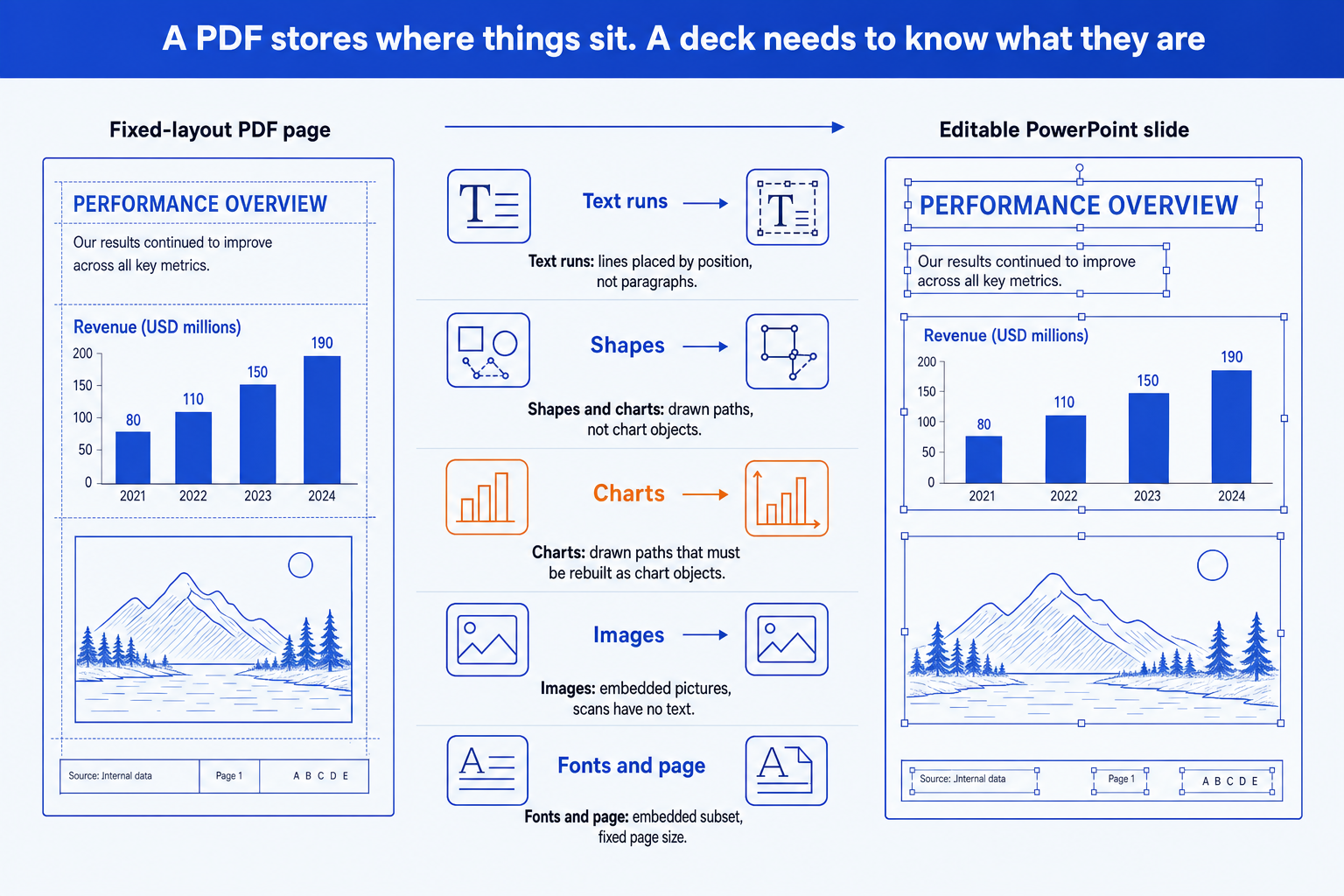
A converter reads six kinds of content and has to map each onto a slide object. The table shows what the PDF holds, what PowerPoint needs, and what typically goes wrong at each step.
| Layer | What the PDF stores | What PowerPoint needs | What typically goes wrong |
|---|---|---|---|
| Text runs | Lines of text placed at fixed coordinates, with a font and size | Paragraph, bullet, heading: the structure is inferred, not stored | A paragraph arrives as five separate text boxes, one per line |
| Shapes and rules | Drawn paths: rectangles, lines, arrows, filled areas | Native shapes with fill, outline and a position | Rounded corners become plain rectangles, arrowheads lose their style |
| Charts | A chart is a group of drawn paths and text labels with no data behind it | A chart object whose data you can edit | The chart arrives as shapes. The picture is right, the data is gone |
| Images | Embedded pictures, sometimes cropped or masked | Picture objects in PowerPoint | Resolution is fixed by the PDF, so a low-quality image stays low-quality |
| Tables | Text and ruled lines laid out to look like a grid, with no table structure | A table object with rows and columns | Cells merge, or a table becomes text boxes laid over lines |
| Fonts and page | Embedded font subsets and one fixed page size | Fonts installed on your machine and your slide size | A missing font is substituted and text reflows to a different width |
The charts row is the one that surprises people. A chart in a PDF is a picture made of paths, so even a perfect conversion cannot recover the numbers behind it. If you need an editable chart, the data has to be entered again, which is the reason a native chart tool such as think-cell, or PowerPoint's own charts, still has a job after a conversion.
Five ways to convert a PDF to PowerPoint, compared
The same file gives five different results depending on the route. Each row names what the method does, how it comes out, and when it is the right one.
| Method | What it does | Result | Best for |
|---|---|---|---|
| Native PowerPoint insert | Places the PDF page as a picture or an embedded object | Layout exact, text not editable | Quoting a page as evidence, not editing it |
| Desktop PDF editor export | Rebuilds text, shapes and images as slide objects | Editable, good on clean text pages, weaker on charts | A document you will edit heavily |
| Free online converter | Uploads the file and returns a deck | Fast and free, quality varies, content leaves your machine | A non-sensitive file you need in minutes |
| AI rebuild from the content | Reads the PDF, then builds new slides from its meaning | Clean native slides, but the layout is new, not copied | Turning a report into a deck, not matching its pages |
| Rebuild by hand | You retype and redraw each page in your template | Full control, slowest by far | A handful of pages that carry the whole argument |
Can you insert a PDF into PowerPoint directly?
Yes, but the result is a picture, not an edited slide. PowerPoint does not open a PDF as a deck. You can place a page as an image or embed the file as an object, and the page then sits on a slide looking exactly as it did in the PDF.
That is the right answer when the goal is to show a page, not change it. A scanned contract page, a regulator's table or a published chart you are quoting should go in unchanged, with a source line beneath. The layout is perfect because nothing was converted. The cost is that you cannot change a word, and a dense page shrunk onto a slide is usually unreadable from the back of a room.
The trade-off: exact fidelity comes from not converting at all, so you keep the look and give up every edit. Use it for evidence, never for content you intend to rework.
How good is a desktop PDF editor at PDF to PowerPoint?
Good on a clean, text-led document, and uneven on anything with charts or tight columns. Desktop editors such as Adobe Acrobat include an export that writes a PowerPoint file, and they do best when the PDF was itself exported from a word processor or a slide tool.
These tools read the text runs, group lines into paragraphs where they can, and place images and shapes as objects. A report page of one column and a header converts well. A page with sidebars, footnotes and a chart tends to produce a lot of small text boxes and a chart made of shapes. Set the slide size to match the source before you export, because a mismatch is the commonest cause of text running off the edge.
The trade-off: a paid editor gives the most faithful rebuild of a text page, but it copies the original layout, so a page designed for print becomes a slide designed for print.
Are free online PDF to PowerPoint converters safe to use?
They are fine for a file you would be comfortable emailing to a stranger, and wrong for anything confidential. Services such as Smallpdf and iLovePDF run in the browser, take an upload and return a deck, which is why they dominate search results for this query.
Read the service's own privacy page before you upload a board paper, a deal document or anything covered by a client agreement, because the file leaves your machine. On quality, expect the same split as above: clean text and images survive, charts and tables arrive as shapes or loose text. Many free tiers also cap the page count or file size, so test a representative page first.
The trade-off: convenience is the whole product. You trade control over where the file goes and how the layout is rebuilt for a result in under a minute.
Can AI turn a PDF into a PowerPoint?
Yes, and it works differently from a converter. An AI assistant reads what the PDF says, then writes new slides from that meaning. It does not trace the old layout, so the output follows slide logic rather than page logic.
That is why it suits a report that has to become a deck. A forty page document contains an argument. A converter hands you forty slides shaped like pages. An assistant can pull the argument into twelve slides, each with a headline that states the point. The catch is that the layout is new, so if the brief is to match the original page, this is the wrong route. Also check every figure, because the model reads the text and can still mis-transcribe a number.
The trade-off: you gain slides that read like a presentation and lose the guarantee that the page looks the same. Treat every number as unverified until you have compared it with the source.
When is rebuilding a PDF in PowerPoint by hand the right call?
When only a few pages matter and the deck has to sit in a strict corporate template. A converted slide carries the original's fonts, colours and spacing, so it never quite matches the master, and cleaning that up often costs more than starting fresh.
Pull the text out as plain content, open a slide in the correct layout and rebuild the structure natively: a real table, a real chart with data pasted in, shapes snapped to the grid. It is slow for forty pages and quick for four. A hybrid works well. Convert the whole file for the raw material, discard the converted layout, and keep only the text and images.
The trade-off: by-hand is the most accurate and the most expensive in time. It earns that cost only on the few slides a senior reader will study.
A worked PDF to PowerPoint example, with the numbers
One example carried end to end. The report is invented, so the reasoning is the point, not the document. Replace each count with your own.
The source (illustrative)
A 24 page market report, exported from a word processor, with text, 9 charts, 6 tables and a company logo on each page. The file and every figure here are invented to show the reasoning.
Step 1: classify the pages
Open the PDF and try to select a sentence. It highlights, so the text is real and no recognition is needed. Count the page types: 9 text pages, 9 chart pages, 6 table pages. That is 9 + 9 + 6 = 24.
Step 2: predict the damage
Text pages convert cleanly. Chart pages come back as shapes, so all 9 need rebuilding as chart objects. Table pages risk merged cells, so all 6 need a check. 9 + 6 = 15 pages need human work, 9 do not.
Step 3: price the two routes
Repair route: 15 pages at roughly 10 minutes each is 150 minutes, then template clean-up on all 24. Rebuild route for the 15 hard pages: roughly 20 minutes each is 300 minutes. Repairing the text pages and rebuilding only the charts is cheaper than rebuilding everything.
Step 4: verify
For each of the 6 tables, compare every number on the slide with the source page, row by row. The check takes minutes. A swapped column discovered by the reader costs the whole report's credibility.
The conclusion the exercise produces: 9 of 24 pages convert with no repair, 15 need hand work, and the cheapest plan is mixed, not uniform. The same idea applies when the source is not a PDF. See how to move slides from another tool into a brand deck, or how to turn meeting notes into editable slides.
The trade-off: the minutes per page are assumptions, and a tidy example hides the pages that fight back. Time one real page before you commit to a plan for the whole file.
When should you convert a PDF to PowerPoint?
Convert when the PDF is the only copy of content you must reuse. The source file is lost, a supplier sent a report as a PDF, or a colleague exported an old deck and deleted the original. In each case the text and images are already written and conversion saves retyping.
It is the wrong instrument when the real task is to change a deck's look. A slide that is already in PowerPoint and merely ugly does not need a PDF round trip, and improving the slide design directly keeps every object intact. It is also wrong when you only need to quote a page, where inserting it as a picture is faster and cannot break.
When does PDF to PowerPoint conversion go wrong?
The danger is a slide that looks right and is not. Conversion preserves appearance, so the failures are the invisible ones: a table whose columns have swapped, a footnote dropped because it sat outside a text run, a chart whose bars are correct to the eye but carry no data, a number split across two text boxes. A converted slide passes a glance and fails a reconciliation.
Scans are the second trap. A scanned page has no text, so a naive converter returns a slide holding one picture, and a recognition pass can misread a 6 as a 5 with total confidence. Dense print pages fail a third way: they convert faithfully, and the result is a slide with a page of text too small to read when projected. Below are the failures that appear most often.
How do you get a PDF into PowerPoint in practice?
Try to select a sentence in the PDF. If it highlights, the text is real. If not, run text recognition before anything else.
Sort the pages into text, chart and table pages, and decide a route for each type instead of one route for the file.
Set the PowerPoint slide size to match the PDF page, convert, then rebuild every chart as a native chart and re-check every table cell against the source.
Move the repaired content into your own template and delete the converted formatting, so the master controls fonts and colours.
Oria reaches you two ways: a PowerPoint add-in in the task pane on Windows, macOS and PowerPoint for the web, and a connector for Claude and ChatGPT over MCP, so a deck can be built from the chat you are already in. For a PDF report that has to become corporate slides, give the assistant the content and the brief, and Oria builds native, editable PowerPoint held to your template. If the source is an image of a page, the route is the one used for whiteboard photos turned into slides. It does not store your presentation content after delivery on the Professional and Team plans, and it does not train on customer content. Setup is covered in installing Oria in Claude and ChatGPT.
The trade-off: Oria is built for the corporate environment and loses on highly visual work. Founder fundraising and pitch decks, launch and campaign decks, student presentations and marketing one-pagers want visual impact more than defensible content, and a design-led tool such as Gamma, Canva, Pitch or Beautiful.ai will beat it there and look better doing it. It also rebuilds slides from content, so it will not reproduce a PDF page pixel for pixel. To compare the field, see the best AI tools for PowerPoint.
Which tool should you use to convert a PDF to PowerPoint?
It depends on whether the job is a faithful copy, a quick conversion or a rebuilt corporate deck.
| If you need | Use | Why |
|---|---|---|
| A quick conversion of a non-sensitive file | A free online converter such as Smallpdf or iLovePDF | Fastest route and free, with the privacy and layout limits described above. |
| A faithful rebuild of a text-led document you will edit | Adobe Acrobat or another desktop PDF editor | Reads text runs and shapes and writes a PowerPoint file you edit locally. |
| A page shown exactly as published, as evidence | Insert the page as a picture in PowerPoint | Nothing is converted, so nothing can break. Add a source line. |
| A report turned into a short, designed deck | Gamma, Canva or Beautiful.ai | Where the job is visual impact rather than defensible content, a design-led tool will beat Oria and look better doing it. |
| A report turned into corporate slides in your own template | Oria | Built for board packs, steering committee decks and dense, template-bound exhibits, as a PowerPoint add-in and through a connector for Claude and ChatGPT. |
| Editable charts, with data, inside PowerPoint | think-cell or native PowerPoint charts | Re-enter the data once and the chart is live, which no PDF conversion can give you. |
Frequently asked questions
How do I convert a PDF to PowerPoint without losing formatting?
Start by checking whether the PDF has real text, by trying to select a sentence. If it does, a desktop PDF editor or a good online converter will keep most of the layout. Set the slide size to match the PDF first, then check charts and tables by hand, because those are where formatting is lost. A scanned PDF needs text recognition before any conversion.
Can PowerPoint open a PDF directly?
Not as slides. PowerPoint can place a PDF page as a picture or embed the file as an object, and both keep the exact look but leave the content uneditable. To get editable text and shapes you need a conversion step, either a PDF editor's export, an online converter, or an assistant that rebuilds the content as new slides.
Why does my PDF to PowerPoint conversion look wrong?
A PDF stores where each line, shape and picture sits on a page. It does not store paragraphs, tables or chart data. A converter has to guess that structure, so a paragraph becomes several text boxes, a table becomes loose text over lines and a chart becomes a group of shapes. A missing font also changes text width and moves line breaks.
How do I convert a scanned PDF to PowerPoint?
A scan is a photograph of a page, so there is no text to convert. Run text recognition first, which turns the picture into selectable text, then convert as normal. Accuracy depends on the scan. A crisp, straight, high-resolution scan recognises well, and a skewed or faded one produces errors you must proofread.
Is there a free way to convert PDF to PowerPoint?
Yes. Several online services convert a PDF to a PowerPoint file at no cost, usually with limits on file size or page count. They suit non-sensitive files. For anything confidential, read the service's privacy policy first, because the file is uploaded. Pasting the content into a slide and rebuilding it in PowerPoint costs nothing and keeps the file local.
Can I turn a PDF report into slides in my company template?
Yes, but convert for the content and not for the layout. Extract the text and figures, then build slides in your master so fonts, colours and placeholders are right the first time. Oria is built for this kind of corporate work and produces native, editable PowerPoint held to your template, as an add-in or from a Claude or ChatGPT chat.