

Convert Word to PowerPoint and Back, Keeping Formatting
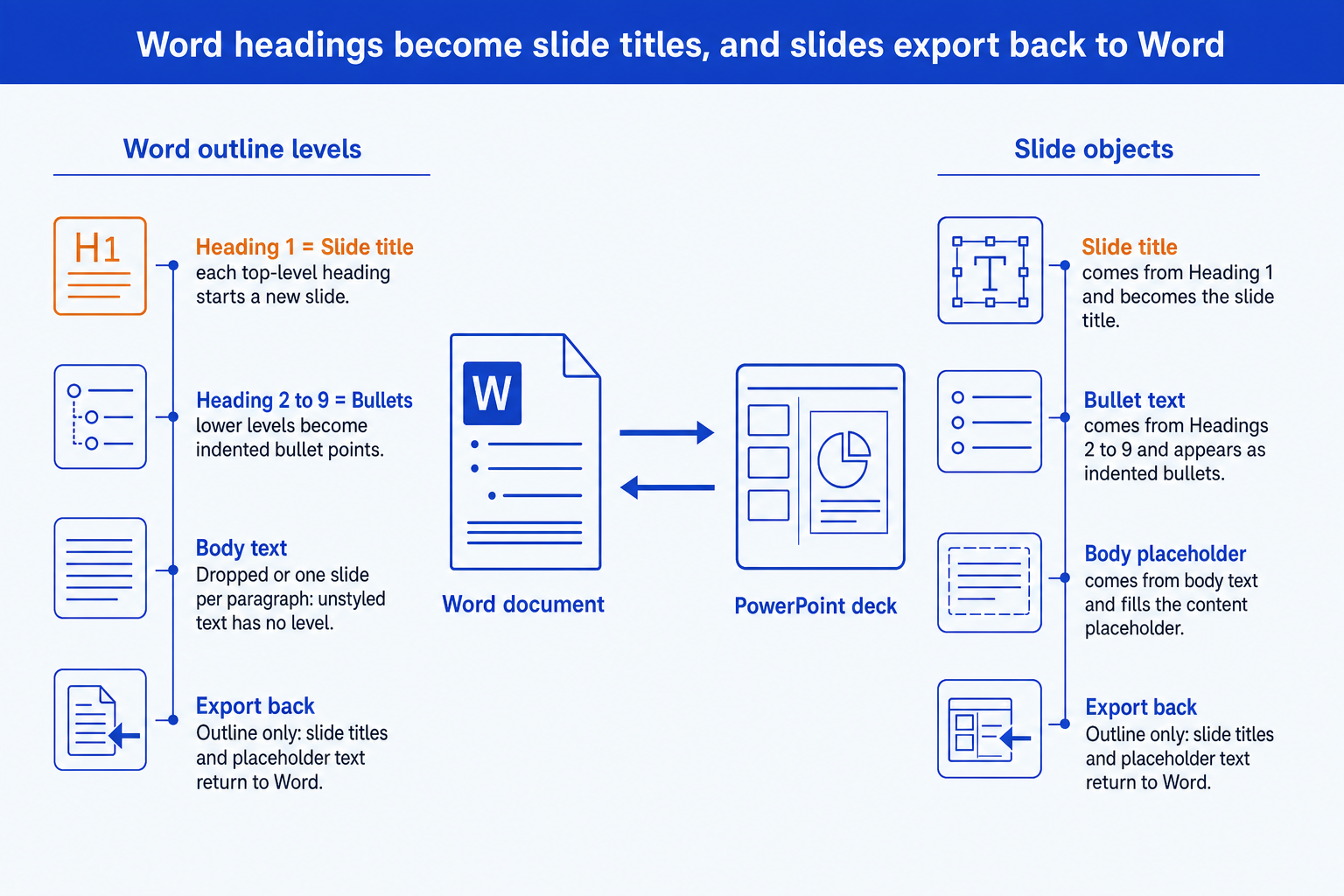
To convert Word to PowerPoint is to turn a document into slides using heading levels: Heading 1 becomes a slide title and lower headings become bullets. Going back, PowerPoint exports an outline or handout to Word. Text crosses in both directions. Layout, styles and tables do not.
The decision is not which button to press. It is how much of the document must survive as slides, and whether you will ever need the deck as a document again. Below: what each part of a Word file becomes, five routes compared, one worked example with the counts, and where the round trip quietly loses content.
Quick answer: how do you convert Word to PowerPoint?
Give the Word document real heading styles, open a deck in your template, then choose New Slide, Slides from Outline and select the file. Each Heading 1 becomes a slide and each lower heading becomes a bullet. Paste tables and pictures yourself, because only text crosses. To come back, use File, Export, Create Handouts, or save an outline.
Converting Word to PowerPoint maps a document's heading levels onto slide structure. PowerPoint reads the styles, not the look of the text, so a page of bold lines with no heading styles becomes one slide per paragraph. Titles and bullets move into the template of the deck you are in. Tables, charts, pictures and unstyled body paragraphs do not travel through the outline route. The return trip exports text or handouts to Word and does not rebuild the original document, so the conversion works in one direction and the way back is a review copy.
How we compared ways to convert Word to PowerPoint
The right route depends on the document and on whether you need to return to it. We applied four tests to every method.
Does the structure survive
A conversion that turns every paragraph into its own slide has not understood the document. We checked whether headings became titles and sub-points became bullets.
Does the content stay intact
Tables, pictures and footnotes are the usual casualties. We noted what each route carries across and what it silently leaves behind.
Can you go back
A reader often needs the deck as a document again. We tested the return trip in Microsoft's own export options, not just the outward one.
Does the result take your template
Slides that arrive in a default theme and need restyling slide by slide fail the test of a corporate deck. We checked which route lets the master do the formatting.
What we ignored: menu names that shift between Office versions, file size limits and interface polish. This page is about what a conversion keeps and drops, which follows from how the two file types are built. Button labels in your version may differ slightly from the ones named here.
Key takeaways
- Style the Word document before you convert it. PowerPoint reads heading levels, not appearance. A line that is bold and large but formatted as body text is invisible to the import, while a real Heading 1 becomes a slide title every time.
- Expect text to cross and layout to stay behind. Titles, bullets and plain paragraphs move. Tables, charts, pictures, headers and footers do not travel through the outline route, so plan to place them on the slides yourself.
- Choose the route by what you need to keep. Slides from Outline gives clean text in your template. Copy and paste gives you control slide by slide. Pasting as a picture keeps the exact look and gives up every edit.
- Treat the return trip as an export, not an undo. Sending a deck back to Word returns an outline or a handout. It does not rebuild your original document, so keep the source file and never rely on a round trip to recover it.
- Rewrite for the slide, not just move the text. A paragraph written for a reader at a desk is too long for a screen. The conversion is the start of the work, and a headline that states the point is the part no tool does for you.
What each part of a Word document becomes in PowerPoint
A Word file is a flowing document: text runs down a page and styles decide how each paragraph looks. A PowerPoint file is a set of fixed slides, each with placeholders and a master behind it. Those two models share almost nothing except text, and that explains every conversion surprise.
Six kinds of content have to find a home on a slide. The table shows what Word holds, what PowerPoint does with it and what goes wrong.
| Part | What Word holds | What PowerPoint does | What typically goes wrong |
|---|---|---|---|
| Title and Heading 1 | The top-level headings of the document | Becomes the title of a new slide, one slide per heading | A document with 40 Heading 1 lines produces 40 slides, whether or not that is a good deck |
| Heading 2 to Heading 9 | The sub-points under each heading | Become bullets and indented sub-bullets on the slide | Long sentences become dense bullets that do not fit the placeholder |
| Body text | Paragraphs with no heading level | Left out when headings exist, and one slide per paragraph when none do | Explanatory prose and the numbers inside it never reach the slide |
| Tables and charts | Objects placed in the document flow | Not carried by the outline import, so they must be pasted onto a slide | A pasted table keeps Word styling unless you change the paste option |
| Pictures | Inline images with a size and caption | Not carried by the outline import | Resolution is fixed by the file, and captions do not follow the image |
| Styles, headers and footers | Fonts, spacing, page numbers, running headers | Replaced by the slide master's fonts, colours and footer | The deck looks different from the document by design, which surprises people |
The body text row is the one people miss. Microsoft's support page on creating a presentation from an outline describes slides built from headings, and the reasoning that lives in ordinary paragraphs has no heading level to attach to. The slide gets the label of each point and loses the argument that justified it.
Five ways to convert Word to PowerPoint and back, compared
The same document gives different results by route. Each row names what the method does, how it comes out and when it fits.
| Method | What it does | Result | Best for |
|---|---|---|---|
| Slides from Outline | Reads heading levels in a Word file and creates slides | Clean text in the open deck's template, no tables or pictures | A structured document you want as a first draft deck |
| Copy and paste text | You paste sections into placeholders yourself | Full control, slow, formatting follows the paste option | A few sections that must be reshaped as they move |
| Paste a table or chart | Brings a Word table onto a slide as an object | Editable if you keep the table, styled by the paste option | Numbers that must match the document exactly |
| Insert as picture or object | Places the page or table as an image or embedded file | Look is exact, text is not editable on the slide | Quoting a page as evidence, not editing it |
| Export back to Word | Sends slides to Word as handouts or saves an outline | Text and notes return, layout does not | A reviewer who wants comments in a document |
How do you convert Word to PowerPoint with Slides from Outline?
Open a presentation, choose New Slide, then Slides from Outline, and pick the Word file. PowerPoint reads the heading levels and builds the slides in the theme of the deck you are in, which is why this is the route that respects a template.
Microsoft's support page on creating a presentation from an outline states that paragraphs styled as Title or Heading 1 become slide titles, and that Heading 2 through Heading 9 become bullet points. It also notes that a document with no Heading 1 or Heading 2 styles produces a slide for each paragraph. That second sentence explains most bad results. The import is not reading your meaning. It is reading the styles, so the quality of the slides is decided in Word before you start.
The trade-off: you get clean text in your own template and lose every table, picture and unstyled paragraph. The route moves words, not exhibits.
Should you copy and paste from Word into PowerPoint instead?
Yes, when only some of the document should become slides. Pasting lets you choose the text, rewrite as it lands and place a table where the story needs it, one slide at a time.
The paste option decides what formatting comes with the text. Keep Source Formatting carries Word's fonts and colours onto the slide, which breaks the template. Use Destination Theme drops them and lets the slide master style the text, which is almost always what you want for a corporate deck. For a table, keep it as a table if you need to edit numbers, and paste as a picture if the table is final and must not shift.
The trade-off: control is the whole benefit. You pay for it in minutes per slide, so it suits a short deck and punishes a long report.
Can you convert PowerPoint back to Word?
Partly. PowerPoint can send a deck to Word as a handout, or save it as an outline, but neither rebuilds the document the deck came from. What returns is text and thumbnails.
Under File, Export, Create Handouts, PowerPoint offers four layouts: notes next to slides, blank lines next to slides, notes below slides, and blank lines below slides. A separate outline-only option exports just the text. In the handout layouts the slides appear as pictures, so the result is a document to read and annotate, not a deck you can edit in Word. In the outline option, text in the title and body placeholders comes back, while text inside free text boxes and shapes does not, so a slide built from boxes can export almost empty.
The trade-off: the return trip is a convenient way to review a deck as a document and a poor way to recover one. Keep the original Word file.
Does pasting as a picture keep Word formatting in PowerPoint?
It keeps the look exactly, because nothing is converted. The table or page you paste is an image of the original, down to the font and the line weight.
That is the right answer for evidence: a clause from a contract, a signed table, a page you are quoting with a source line beneath. It is the wrong answer for anything a colleague will edit, because a picture cannot be changed and a number inside it cannot be searched. A dense Word page also shrinks to unreadable on a slide, so crop to the part that matters instead of pasting the whole page.
The trade-off: fidelity is perfect and editing is impossible. Use it for what must not change, never for content you will revise.
Can AI turn a Word document into a PowerPoint?
Yes, and it works on meaning where the outline import works on styles. An assistant reads the document, decides what the argument is, and writes slides that state it, so an unstyled document still produces a sensible deck.
That matters because most documents are not styled cleanly. The assistant can also compress: a twelve page memo can become eight slides with a headline each, where the outline route gives you one slide per heading. The catch is the same as for any rewrite. The model can mis-transcribe a figure, so every number on a generated slide needs checking against the source, and the layout is new, not copied from the page.
The trade-off: you gain slides that read like a presentation and lose the guarantee of a literal transfer. Verify each figure against the document.
The four handout layouts for sending PowerPoint back to Word
The way back has fewer options than the way out. The Create Handouts dialog offers four page layouts, and a separate outline export covers text only.
| Layout | What you get | Limit |
|---|---|---|
| Notes next to slides | Slide thumbnails with your speaker notes beside each | Slides return as pictures, so the page is for reading, not editing |
| Blank lines next to slides | Thumbnails with ruled lines for handwritten notes | A printable handout, with no deck text you can edit |
| Notes below slides | A thumbnail with its notes underneath, one slide per block | Good for a reviewer who wants to comment in the margin |
| Outline only | Only the text from title and body placeholders | Closest to a document, but text in free-floating boxes and shapes is left out |
A worked Word to PowerPoint example, with the counts
One example carried end to end. The memo is invented, so the reasoning is the point, not the document. Replace each count with your own.
The source (illustrative)
A Word memo on a market entry decision, styled with headings: 6 Heading 1 sections, 18 Heading 2 points, 11 unstyled body paragraphs, 3 tables and 2 charts. The memo and every count here are invented to show the reasoning.
Step 1: predict the slides
Slides from Outline makes one slide per Heading 1, so 6 slides. The 18 Heading 2 points divide across them, 18 / 6 = 3 bullets per slide on average, which fits a placeholder.
Step 2: predict what is left behind
The 11 body paragraphs are not imported, and neither are the 3 tables and 2 charts. That is 3 + 2 = 5 exhibits to place by hand, and 11 paragraphs of reasoning that now exist only in the document.
Step 3: decide the fix
Turn the best 6 of the 11 paragraphs into the slide headlines, one per slide, so each title states its point. Paste the 5 exhibits using Use Destination Theme, and keep the tables as tables so the figures stay editable.
Step 4: check the return trip
Export Outline only. The 6 titles and 18 bullets come back, 6 + 18 = 24 lines of text. The 5 exhibits do not, so the exported outline is a skeleton of the deck, not a copy of the memo.
The conclusion: the import yields 6 slides with 18 bullets, 5 exhibits and 11 paragraphs need human work, and the exported outline is a skeleton, not a copy. The same logic applies from other sources. See how to convert a PDF to PowerPoint without losing formatting, or how to turn meeting notes into editable slides.
The trade-off: the counts are tidy by construction, and a real memo has headings at inconsistent levels. Run the import on a copy first and count the slides before you commit to a plan.
When should you convert Word to PowerPoint?
Convert when the document is already structured as an argument. A memo with clear sections, a plan with numbered workstreams or a report whose headings already read as conclusions will produce a usable first draft in seconds. The import saves the retyping, and your time goes to the exhibits and the headlines.
It is the wrong instrument when the real task is to polish a deck that already exists, where improving the slide design directly keeps every object. It is also wrong for a one-page summary, where building an executive summary slide from the document's conclusion is faster than converting all of it.
When does Word to PowerPoint conversion go wrong?
The danger is a deck that looks structured and says less than the document. The import follows headings, so it produces a slide for every heading whether or not the heading deserves one, and it drops the paragraphs where the reasoning sat. The slide shows the conclusion and loses the evidence. A partner who reads the deck and the memo will find they disagree.
The round trip is the second trap. Exporting back to Word looks like a sync, and it is not. Handouts show slides as pictures, the outline leaves out text in free boxes, and edits made in either file never flow to the other. After two rounds you have two documents that drift. Below are the failures that appear most often.
How do you get a Word document into PowerPoint in practice?
In Word, apply Heading 1 to each section that should be a slide and Heading 2 to its supporting points. Switch to Outline view to check the levels.
Open a PowerPoint deck on your corporate template, choose New Slide, Slides from Outline, and insert the file.
Rewrite each slide title as a statement of the point, then paste tables and charts with Use Destination Theme so the master controls the look.
Export Outline only to Word if a reviewer needs the text, and keep the original document as the source of record.
Oria reaches you two ways: a PowerPoint add-in in the task pane on Windows, macOS and PowerPoint for the web, and a connector for Claude and ChatGPT over MCP, so a deck can be built from the chat you are already in. For a memo that has to become corporate slides, give the assistant the document and the brief, and Oria builds native, editable PowerPoint held to your template. If the source is a photo of a page, the route is the one used for whiteboard photos turned into slides. It does not store your presentation content after delivery on the Professional and Team plans, and it does not train on customer content. Setup is covered in installing Oria in Claude and ChatGPT.
The trade-off: Oria is built for the corporate environment and loses on highly visual work. Founder fundraising and pitch decks, launch and campaign decks, student presentations and marketing one-pagers want visual impact more than defensible content, and a design-led tool such as Gamma, Canva, Pitch or Beautiful.ai will beat it there and look better doing it. It also builds slides from content, so it does not export a deck back into your original Word layout. To compare the field, see the best AI tools for PowerPoint.
Which route should you use to convert Word to PowerPoint?
It depends on whether the job is a quick first draft, an exact quotation or a rebuilt corporate deck.
| If you need | Use | Why |
|---|---|---|
| A first-draft deck from a styled Word document | Slides from Outline in PowerPoint | Fastest route and it uses the template of the deck you are in. |
| A deck from an unstyled or messy document | An AI assistant that reads the content | It works from meaning, so missing heading styles stop mattering. |
| A page quoted exactly, as evidence | Paste as a picture, with a source line | Nothing is converted, so nothing can change. |
| A deck for review as a document | Create Handouts, or Outline only, to Word | Gives a reader something to annotate. It is not a way to recover the original. |
| A visual pitch or launch deck from a document | Gamma, Canva, Pitch or Beautiful.ai | Where the job is visual impact rather than defensible content, a design-led tool will beat Oria and look better doing it. |
| A memo turned into corporate slides in your own template | Oria | Built for board packs, steering committee decks and dense, template-bound exhibits, as a PowerPoint add-in and through a connector for Claude and ChatGPT. |
Frequently asked questions
How do I convert Word to PowerPoint without losing formatting?
Style the Word document with real heading levels, then in PowerPoint choose New Slide, Slides from Outline and pick the file. Heading 1 becomes the slide title and lower headings become bullets, in your deck's template. Formatting from Word does not travel by design, so tables and pictures must be pasted separately, using Use Destination Theme so the template controls the look.
How do I convert a Word document to PowerPoint slides automatically?
The built-in route is Slides from Outline, which reads heading styles and builds the slides for you. It is automatic only in the sense that it follows the styles. If the document has no Heading 1 or Heading 2 styles, it makes a slide per paragraph. An AI assistant is the other automatic route and works from the meaning of the text.
Why does my Word to PowerPoint conversion create so many slides?
Because the document has no heading styles, or has more Heading 1 lines than you expected. PowerPoint creates a slide for each paragraph when no Heading 1 or Heading 2 styles exist, and one slide per Heading 1 otherwise. Apply real heading styles in Word, demote minor headings to Heading 2, and import again.
Can I convert PowerPoint to Word?
Yes, in part. Use File, Export, Create Handouts to send the slides to Word with notes or blank lines, or save an outline to get only the text. The handout shows slides as pictures, and the outline leaves out text in free boxes and shapes. Neither rebuilds the original document, so keep your source file.
How do I keep the Word table when I paste it into PowerPoint?
Copy the table in Word, then in PowerPoint use the paste options. Keep Source Formatting preserves Word's look, Use Destination Theme applies the slide's theme, and Picture keeps the exact appearance but makes it uneditable. For a table whose numbers might change, keep it as a table and use the destination theme.
Can I turn a Word report into slides in my company template?
Yes. Open a deck built on the company template and import with Slides from Outline, so the master styles the text. For a report that needs to become a short, argued deck, Oria is built for this corporate work and produces native, editable PowerPoint held to your template, as an add-in or from a Claude or ChatGPT chat.