

PowerPoint Presenter View: Setup Nobody Explains Properly
PowerPoint Presenter View is a private control screen for a slide show. It shows you the current slide, the next slide, your speaker notes and a timer, while the audience sees only the slide. It lets you run a talk without memorising it.
Quick answer: what is PowerPoint Presenter View?
Most people meet Presenter View by accident, usually at the moment a projector shows the wrong screen. The feature is simple. The setup is where it goes wrong, because it depends on how your computer treats the second display, not on anything inside the slides.
PowerPoint Presenter View is a mode of the slide show that splits what you see from what the audience sees. Your monitor displays the current slide, a preview of the next slide, your speaker notes, a timer and a set of tools. The projector or wall display shows only the current slide. To use it, connect the second display, set Windows to Extend rather than Duplicate, tick Use Presenter View on the Slide Show tab, choose the audience monitor, and start the show. It is meant for live talks given from a desktop version of PowerPoint.
Why PowerPoint Presenter View exists
A projected slide and a spoken sentence are two channels, and they compete when they carry the same words. Richard Mayer's redundancy principle in multimedia learning says people learn better from graphics plus narration than from graphics, narration and matching on-screen text. In the Cambridge Handbook of Multimedia Learning, the 2005 chapter reported 10 of 10 supporting tests with a median effect size of 0.69, and the 2014 edition reported 16 of 16 with a median of 0.86.
Those studies concern instructional material, so treat them as a reason to keep the slide light, not as a law. The consequence for presenting is practical. If the slide must stay light, the detail has to live somewhere the audience cannot see, and you need a way to see it without looking at the wall. That is the whole purpose of Presenter View.
Edward Tufte, in his 2003 Wired essay "PowerPoint Is Evil", wrote that "PowerPoint is a competent slide manager and projector." Presenter View is the part of the software that takes the manager role seriously. It does not write the talk for you. It stops you losing your place in it. The notes you put into it are covered in the guide to speaker notes that actually help you present.
The parts of PowerPoint Presenter View, one by one
The screen has seven working parts. Knowing what each is for is most of the skill, because the layout is easy to read once you know what you are looking at. Menu names are as in current Microsoft 365 desktop builds and can differ slightly in older versions.
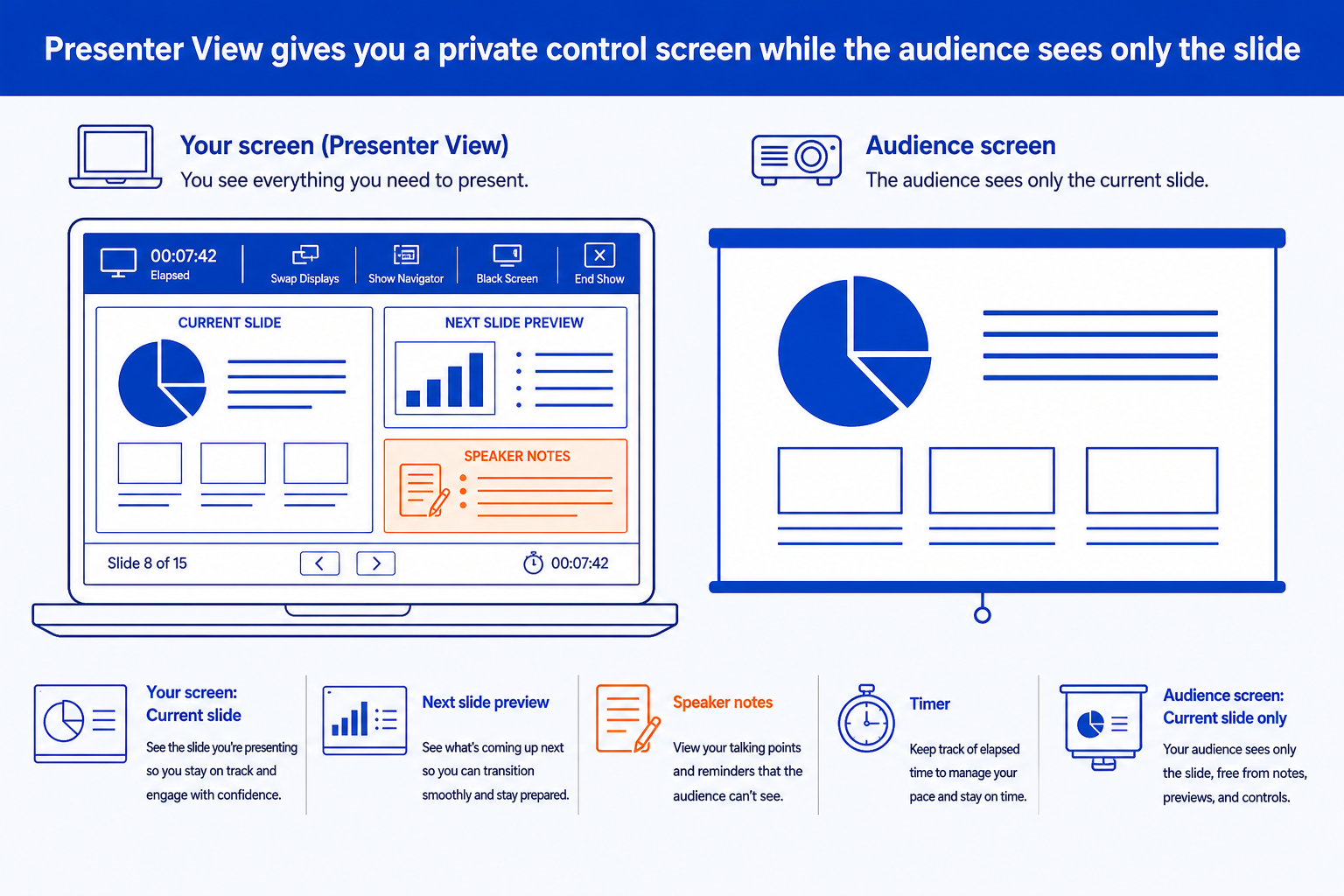
Current slide. The slide the audience is looking at right now, shown larger than anything else on your screen. Animations and builds play here exactly as they play on the projector, so you can see which click you are on.
Next slide preview. A smaller thumbnail of what appears after your next click. It is the cheapest tool for transitions, because you can say the hand-off sentence before the slide changes instead of reading the new title aloud.
Speaker notes. Your private text for the current slide, taken from the Notes pane. You can enlarge or shrink the type inside Presenter View itself, which matters when the screen is an arm's length away on a lectern.
Timer and clock. An elapsed-time counter that starts when the show starts, plus the time of day. It gives you a pace check against the slot you were given, not an alarm. You can pause and reset it between sessions.
Slide navigator. A grid of every slide, opened with the See all slides button. Click one to jump straight to it. It is how you get to a backup slide when someone asks a question the main story did not cover.
Pen, laser pointer and zoom. On-screen tools that mark up the slide for the audience. The pen and laser pointer draw on the projected slide, and the zoom control magnifies a region of a dense exhibit. Annotations can be kept or discarded when you exit.
Black screen and display controls. Black out the audience screen while you talk without a slide behind you, and swap which monitor shows Presenter View if PowerPoint guessed wrong. This is the control people hunt for when the projector shows the wrong screen.
Two of these do most of the work: the next slide preview and the timer. The preview removes the pause where you read your own title. The timer replaces the glance at your watch that the audience can see. The notes pane matters only if you wrote notes worth reading, which is a separate skill.
A worked PowerPoint Presenter View setup, start to finish
Here is one realistic setup carried through in order. The sequence matters, because most failures come from doing the right steps in the wrong order.
The situation
A 20 minute steering committee readout with 12 slides. You are on a laptop. The meeting room has a wall display on an HDMI cable. You have the file open.
Step 1: connect first
Plug in the display before you start the show. On Windows press the Windows key and P, then choose Extend. Choosing Duplicate mirrors your screen, and in a mirrored setup PowerPoint has nothing private to show you.
Step 2: switch it on
On the Slide Show tab, tick Use Presenter View. In the Monitor box, pick the wall display as the one the audience sees. Presenter View then lands on your laptop.
Step 3: start from slide 1
Click From Beginning, or press F5. Press Alt and F5 if you want to start in Presenter View on a single monitor to rehearse.
Step 4: check what the room sees
Look at the wall, not your laptop. If it shows your control screen, use the Swap Displays button. If it shows nothing, check the Monitor box. Do this before anyone sits down.
Step 5: run to the clock
Glance at the timer after the opening and again at about the 10 minute mark. At 12 slides in 15 speaking minutes you should be near slide 8 or 9 when the timer reads 10.
Notice that the connection happens first and the show starts last. PowerPoint decides which monitor is which when the show begins, so a display that appears after that moment is not assigned correctly. If you have to plug in late, end the show, set Extend, and start again from the beginning. The slides themselves should already be built to read from the back of the room, which is the point of the guide to building an executive summary slide.
Using the timer: the arithmetic behind step 5
The timer is only useful against a number you set beforehand. The widely repeated figure from the National Center for Voice and Speech is about 150 words per minute for US English conversation, and speech-coaching guides put a comfortable presenting pace lower, around 100 to 150. This worked example assumes 130.
| Step | Result | Reasoning |
|---|---|---|
| Total slot | 20 minutes | The time on the calendar invite, not the time you wish you had. |
| Reserve for questions | 5 minutes | A quarter of the slot. Talks run over far more often than they run short. |
| Speaking time | 15 minutes | The part the timer in Presenter View should be measured against. |
| Words you can say | About 1,950 | At an assumed 130 words per minute, a deliberate presenting pace. 15 times 130 is 1,950. |
| Minutes per slide | 1.25 | 15 minutes across 12 slides. Some slides will take 30 seconds and one exhibit will take 3 minutes, so the timer check at the halfway point matters more than the average. |
The conclusion from the arithmetic: at the 10 minute mark on the timer you want to be about two thirds of the way through the speaking time, not the slides. Check the timer at the end of the opening and at the halfway mark. Those two glances are enough, and any more turns a tool into a distraction.
When to use PowerPoint Presenter View
Use it when you present live from a desktop PowerPoint to a room with a second display: a board pack readout, a steering committee update, a diligence walkthrough, a client workshop. It earns its keep on dense exhibits, because a dense slide is where you forget which element to point at first. The notes pane holds the cue, and the next slide preview carries you across the transition.
It also helps when you inherit a deck. A colleague who picks up your slides can see the notes and the order in one view. The same holds for a talk that opens with an agenda, where a line on the first slide about timing keeps the room on track, as covered in the guide to agenda slides that set up the room.
The table below shows how the setup changes with the room you are in, including the cases where Presenter View is not the answer.
| Situation | What to do | Why |
|---|---|---|
| Two screens, desktop PowerPoint | Extend the display, tick Use Presenter View | The standard case. Presenter View on your screen, slide only on the other. |
| One screen, rehearsal | Press Alt and F5 | Presenter View opens on the single monitor so you can practise using the controls. |
| One screen, live to a room | Presenter View is not available as a private view | There is no second surface to hold it. Print notes pages or use a phone or tablet as a second screen. |
| Online meeting | Share the PowerPoint file, not your whole screen | Sharing the whole screen risks showing the audience your notes and the control window. Sharing the file keeps your view separate. |
When PowerPoint Presenter View fails you
Presenter View fails in predictable ways, and almost all of them show up in front of an audience rather than at your desk.
Duplicate mode hides it. If Windows is set to Duplicate, both screens show the same image and PowerPoint has no private surface for Presenter View. The checkbox is ticked and nothing appears. The fix is the Windows display setting, not PowerPoint.
It swaps to the wrong screen. PowerPoint chooses which monitor is which when the show starts. After a cable is unplugged or a room changes, it can put your control window on the wall. Always look at the audience screen before the room fills.
Screen sharing leaks it. Share your whole desktop in a video call and you may show attendees your notes, the next slide and a candid timer. Share the PowerPoint window or use the meeting tool's PowerPoint mode instead.
The timer is a guide, not a governor. It counts from the moment the show starts. If you pause for questions at slide 5 and do not pause the timer, it will tell you that you are running late when you are not. Reset it deliberately.
Notes cannot rescue a crowded slide. Presenter View lets you remember what to say. It does not make a dense slide readable from the back of the room. If the audience cannot read the slide, the notes are not the problem.
Microsoft also states that you need a desktop version of PowerPoint to see speaker notes while presenting. If the venue forces a browser or a borrowed machine, the feature you prepared for may not be there. Bring printed notes pages as a fallback.
The trade-off: Presenter View gives you control and costs you a dependency on hardware you do not own. Every extra cable, adapter and display setting is a point of failure. Arrive early, test on the real equipment, and keep a printed copy of the notes.
How to turn on PowerPoint Presenter View
The short version, for a desktop PowerPoint on Windows. The Mac version has the same panes under the Slide Show menu.
Connect the second display before you start. Press the Windows key and P, then choose Extend. Duplicate and Second screen only both defeat Presenter View.
Open the file on the machine you will present from, not one you copied it to later.
On the Slide Show tab, tick Use Presenter View. Under Monitor, pick the display the audience will see.
Click From Beginning, or press F5. For a quick single-screen rehearsal, press Alt and F5.
Look at the audience display. If it shows your control screen, click Swap Displays at the top of Presenter View.
Run through two or three slides, open See all slides once, and use the pen or laser pointer once, so none of it is new when it counts.
If the room uses a different aspect ratio from your file, check it before you rehearse, because a resized slide changes what the audience sees and where you point. The guide to PowerPoint slide size settings covers it. And if you have scribbled your talking points on paper, you can turn them into notes and slides as described in turning meeting notes into editable slides.
Where Oria fits with PowerPoint Presenter View
Oria does not replace Presenter View. It builds the slides you present from it. Oria is built for corporate documents and consulting presentations: board packs, steering committee decks, diligence exhibits, dense frameworks held to an enforced corporate template. It reaches you through a PowerPoint add-in on Windows, macOS and PowerPoint for the web, and through a connector for Claude and ChatGPT over MCP, so a deck can be built from the chat you are already in. The output is native, editable PowerPoint, so the Notes pane and Presenter View work as usual once the slides land. If a deck looks crowded on the next slide preview, the guide to improving ugly PowerPoint slides is the place to start.
The trade-off: Oria is built for the corporate environment and loses on highly visual work. Founder fundraising and pitch decks, launch and campaign decks, student presentations and marketing one-pagers want visual impact more than defensible content, and a design-led tool such as Gamma, Canva, Pitch or Beautiful.ai will beat it there and look better doing it.
Which presenting setup should you use?
It depends on where and how the deck will be delivered.
| If you need | Use | Why |
|---|---|---|
| A live talk from a laptop with a projector or wall display | PowerPoint Presenter View | Notes, next-slide preview and timer in one window. The default tool for the job and well documented by Microsoft. |
| A talk in an online meeting | The meeting tool's PowerPoint sharing mode | Present the file from within the meeting so attendees see slides while you keep your notes. Test it in a throwaway meeting first. |
| A talk with no second screen and no tablet | Printed notes pages | File, Print, then Notes Pages. A paper fallback never fails to connect. |
| A deck that will be read, not presented | Neither. Put the argument on the slides | Presenter View helps the speaker only. A reader gets the slides and nothing else. |
| A visual pitch or launch deck where design is the point | Gamma, Canva, Pitch or Beautiful.ai | Where the job is visual impact rather than defensible content, a design-led tool will beat a corporate template and look better doing it. |
| A board pack or steering committee deck on a corporate template | Oria, then run it in Presenter View | Oria builds the dense, editable slides. Presenter View is what you present them from. |
Common PowerPoint Presenter View mistakes
Frequently asked questions
What is Presenter View in PowerPoint?
Presenter View is a mode of a PowerPoint slide show that gives you a private control screen. Your monitor shows the current slide, a preview of the next slide, your speaker notes and a timer, while the audience sees only the current slide on the projector or wall display. It needs the show to be running on two displays, or a single display when you are rehearsing.
How do I turn on Presenter View in PowerPoint?
Connect the second display first. Set Windows to Extend rather than Duplicate. In PowerPoint, open the Slide Show tab and tick Use Presenter View, then choose which monitor the audience sees in the Monitor box. Start the show with From Beginning or F5. PowerPoint normally turns Presenter View on by itself once it detects a second screen.
Why is Presenter View not working in PowerPoint?
The usual causes are in this order. The display is set to Duplicate, so there is no second surface. Use Presenter View is unticked on the Slide Show tab. PowerPoint assigned the monitors the wrong way round, which Swap Displays corrects. The second display was connected after the show started. Disconnect, reconnect, set Extend, and restart the show from the beginning.
How do I use Presenter View with one monitor?
Press Alt and F5 to start the show in Presenter View on a single screen. This is for rehearsal, so you can learn where the notes, timer and navigator are. It is not a way to show the audience slides while keeping notes private, because there is only one surface. For a live talk with one screen, print notes pages instead.
Can I use Presenter View in Teams or Zoom?
Yes, if you present the PowerPoint file through the meeting tool's own PowerPoint sharing mode, which keeps your notes separate from what attendees see. Sharing your entire screen risks exposing the control window. Test the setup in a throwaway meeting with a colleague before the real session, because each tool behaves slightly differently.
Does Presenter View work on a Mac and in PowerPoint for the web?
PowerPoint for Mac has Presenter View with the same core panes. Microsoft's guidance is that seeing speaker notes while presenting needs a desktop version of PowerPoint, so the browser version does not give you the full experience. If the venue forces a browser, bring printed notes pages as a fallback.