

Text to PowerPoint: Turn Meeting Notes Into Editable Slides
Five routes from a page of notes to slides you can still click into, compared on time, cost, native editing, corporate template and how much of the original content survives the trip.
The meeting ended twenty minutes ago and the notes are good. Four decisions, a rollout in five steps, two questions nobody answered. By tomorrow morning that page has to be something a steering committee can read in ninety seconds.
The decision is not which AI tool is best. It is which route fits the notes you actually have, and three things settle it: how structured the notes already are, whether the slide has to survive a template somebody audits, and whether you need one slide or fifteen. Microsoft's own telemetry says this is a last-minute job for most people. In its Work Trend Index special report Breaking down the infinite workday, published in June 2025, Microsoft measured that "in the final 10 minutes before a meeting, PowerPoint edits spike 122%", calculated as a rolling 28-day sum of PowerPoint view and edit actions per meeting participant. The routes below are ordered by what they cost, and the cheapest one is free.
How do you convert text or meeting notes into PowerPoint slides?
Two jobs hide behind one question. Getting text onto slides at all is free and takes two minutes. Getting a slide that survives a partner review is where the tools differ.
Quick answer
To turn meeting notes into PowerPoint slides, first group the notes into one message per slide, then pick a route. PowerPoint's own outline view imports a .docx, .rtf or .txt outline free and makes one slide per heading, with no design. Design-led tools such as Gamma, Beautiful.ai and Plus AI take pasted text and return a finished deck, but they are built for visual impact rather than corporate templates. Claude for PowerPoint generates native, editable slides off your slide master on a paid Claude plan. Microsoft 365 Copilot builds a draft deck from a Word file on a Copilot licence. Oria targets the dense consulting layouts that have to stay inside an uploaded corporate template.
How we compared the routes
One page of real notes went through every route: four decisions, a five-step rollout, two unresolved questions and a side comment that had no business on a slide. The template was corporate, with a locked footer. Five tests, applied identically.
Does it accept the notes as they are
Some routes need heading levels before they do anything useful. Others read a brain dump. That gap is fifteen minutes of your time, every time you do this.
What the finished slide selects as
Click one shape. If the whole slide highlights as a single picture, the next correction is a regeneration rather than an edit.
Whether the corporate template holds on the first pass
We loaded the template before the first generation, never after, then checked the title block, the footer and the left margin against a real slide.
How many of the original points survived
We counted decisions, steps, owners and dates before and after. A five-step rollout rendered as three steps is a loss, however good it looks.
What it costs at the frequency you will actually use it
Weekly notes prices differently from a board pack twice a year. Both were priced, because the answer changes.
We ignored template library size, stock image generation, model counts, vendor case studies, and every demo that used clean marketing copy instead of real notes with half-finished sentences in them.
Key takeaways
Group the notes before you choose a tool. One message per slide, decisions separated from findings separated from next steps. Every route on this page does better on grouped notes, and the free one does nothing sensible without them.
Price the route against how often you do this. A route that saves twenty minutes pays for a subscription when the meeting is weekly and pays for nothing when it is annual. Count the meetings first.
Refuse any output you cannot click into. Native shapes, text boxes and charts are the reason to do this inside PowerPoint at all. A slide that arrives as one flat image moves the editing problem rather than solving it.
Load the corporate template before the first generation. Every route treats an uploaded template as a constraint at generation time and as a repaint afterwards. The two produce visibly different slides on the same notes.
Count what survived before you judge how it looks. Steps, figures, owners, dates. Open the original notes next to the slide and tick them off. Most disappointment with these tools is content loss described as a design complaint.
Ways to turn notes into PowerPoint slides, compared
The five columns are the five decision rules above. Routes are ordered by price, cheapest first, which is not the same thing as best first.
Sources: Microsoft's PowerPoint and Copilot support documentation, Anthropic's Claude for PowerPoint documentation, Gamma's help centre export articles and the oria.one pricing page, all read in September 2026. Pricing changes often. For whole-tool comparisons rather than routes, see the best AI for PowerPoint.
PowerPoint's outline view: who is this route for?
For anyone whose notes are already a list, this is the right answer and almost nobody reaches for it. In desktop PowerPoint, choose New Slide and then Slides from Outline. Microsoft's documentation states that "PowerPoint can import an outline in .docx, .rtf, or .txt format", that Level 1 headings become slide titles and Level 2 becomes the bullets on that slide, and that the feature "requires a desktop version of PowerPoint".
The failure mode is documented too, and it is the one people hit. With no Heading 1 or Heading 2 styles in the file, Microsoft says PowerPoint "will create a slide for each paragraph". Paste an unstructured page and you get thirty slides to delete. The quieter failure is the reverse: Microsoft warns that if you apply the Normal style to a block of text, "Word won't send that text to PowerPoint", so unstyled paragraphs vanish without an error.
Do not build a habit on Word's own export to a presentation either. Microsoft documents it as Word for the web only, English only and text only, and the same page carries a notice that the option "is being deprecated" and will then "no longer be accessible on Microsoft Word".
What the outline route will never give you is a process flow, a comparison layout or a framework. It produces title and bullet placeholders on your theme, and that is the entire offer.
The trade-off: free, instant and perfectly on-theme, and it does no design thinking whatsoever.
Design-led AI presentation makers: who are they built for?
Gamma, Beautiful.ai and Plus AI all take pasted text and return a deck that looks better than the one you would have built. For a launch, a campaign or a fundraising story that is the whole job, and they win it outright. They are also the friendliest to messy input. Plus AI names the case in its own documentation, with an Enhance mode for when you are "uploading a meeting transcript that needs cleanup" and a Preserve mode that keeps your wording verbatim. Canva still generates from a prompt, but its Docs to Decks conversion is gone: its help centre states the feature "is no longer available".
The cost lands at export. These tools render in the browser, so the PowerPoint file is a translation rather than the original. Gamma's help centre is explicit about it: "Exported content will match how it appears in Present Mode, not Edit Mode", and because "PowerPoint does not support rounded corners on tables", editable tables arrive with sharp corners instead of Gamma's own styling. None of that matters for a deck presented from the browser. All of it matters for a deck that has to go into a client file. Beautiful.ai gates editable PowerPoint export to its Pro, Team and Enterprise plans and loses transitions on the way out.
They are also the wrong shape for an enforced corporate template. Brand controls reach colours and fonts, not a slide master with a locked footer.
The trade-off: the best-looking output from the least structured notes, paid for in export fidelity and template control.
Claude for PowerPoint: who is it built for?
This route did not exist when most advice on this topic was written. Anthropic made Claude for PowerPoint generally available on 7 May 2026, and its documentation describes exactly the job this article is about: it reads "the slide master, layouts, fonts, and color scheme in your deck", converts bullet points into diagrams and native PowerPoint charts, and produces "visuals you can edit directly, not static images". Paste the notes into the task pane and you get editable slides on your template, with no second vendor involved.
For a large share of notes-to-slides work, that is now enough, and saying otherwise would be dishonest. The limits are stated in the same documentation. It needs a paid Claude plan, it runs on PowerPoint for the web, on Windows with a Microsoft 365 subscription and on Mac 16.46 or later, and it does not run on PowerPoint 2016 or 2019 perpetual licences, on iPad or on Android. Anthropic also says plainly that it is not recommended for final client deliverables without human review.
If you are already working in Claude, start here before you buy anything else. The complete guide to using Claude with PowerPoint covers the setup and the other routes out of a Claude draft.
The trade-off: no extra vendor and genuinely native output, with build requirements that rule out a lot of locked-down corporate estates.
Oria: who is it built for?
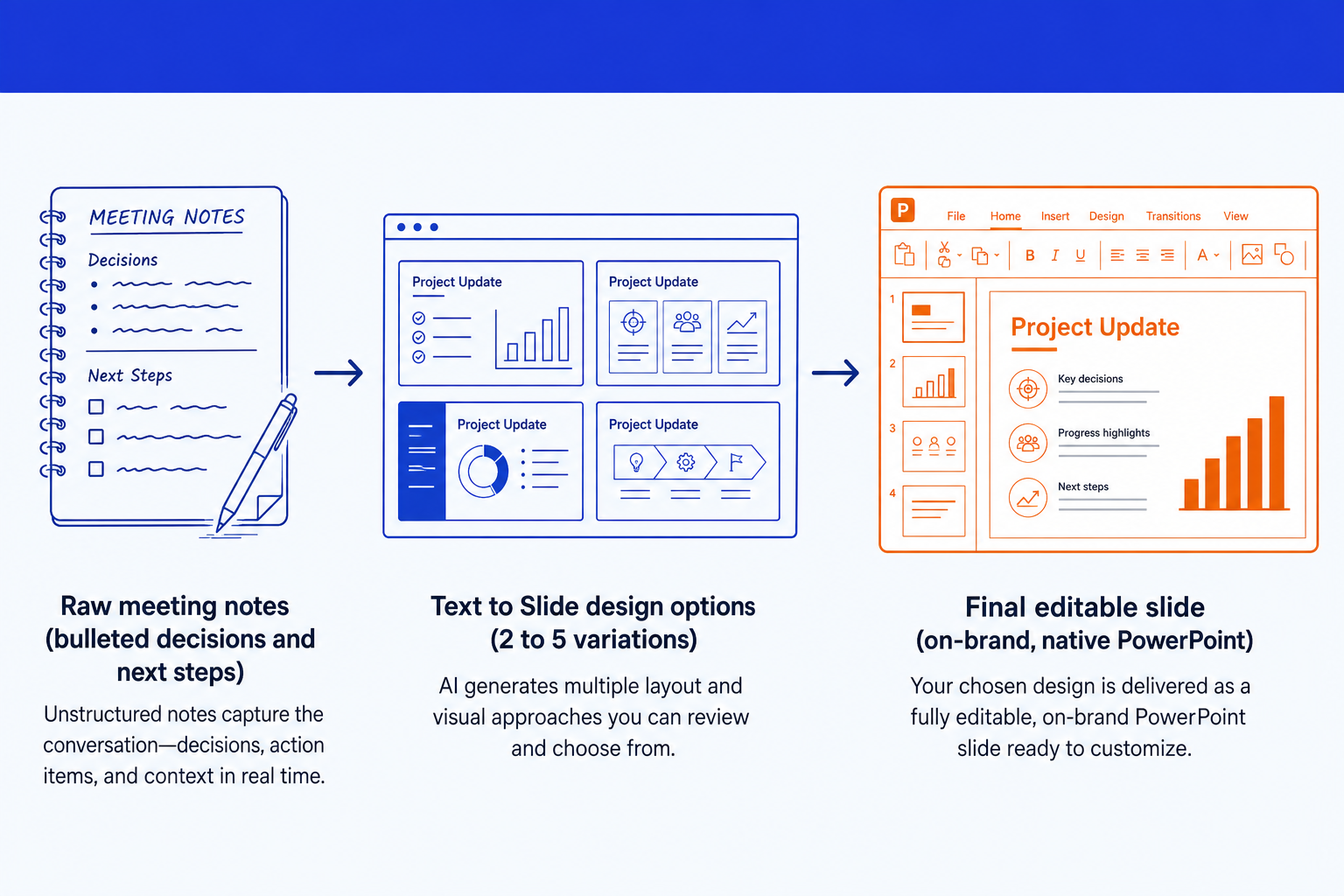
Oria is built for corporate documents and consulting presentations, and that is the whole of the design. Board packs, steering committee decks, diligence exhibits, operating-model slides, dense frameworks held to a template somebody audits. It reaches you two ways: as a PowerPoint add-in in the task pane on Windows, macOS and PowerPoint for the web, and as a connector for Claude and ChatGPT over MCP, so the slide can be built from the chat you are already in. Its Text to Slide flow takes the grouped notes, designs a layout for the structure they describe, then writes it as native shapes, text, icons, charts and tables on your uploaded template.
Pricing on oria.one runs from 19 dollars a month for Starter, which includes the Claude and ChatGPT MCP connector, to 59 for Professional and 399 for a Team pool. Oria does not train on customer content, Professional and Team do not persist presentation content after delivery, and Enterprise adds private cloud deployment and custom LLM integration.
Where it loses is visual work. Oria is built for the corporate environment only, so on founder fundraising and pitch decks, launch and campaign decks, student presentations and marketing one-pagers a design-led tool will beat it and look better doing it. If that is your deck, use Gamma, Canva, Pitch or Beautiful.ai and do not fight it.
The trade-off: the most template-faithful output on dense professional slides, from a tool that is deliberately narrow and will feel stiff on anything visual.
Copilot in PowerPoint: who is it built for?
For organisations that already pay for it, Copilot is the route with no procurement conversation attached. Point it at a Word document and it builds a draft deck. Microsoft gives one preparation step that changes the result: "By using Styles in Word to organize your document, Copilot will better understand your source document structure and how to break it up into slides of a presentation." There is also a second licence gate most write-ups miss. Creating a presentation from a file is among the features that "only work if the user also has a Designer license", and Microsoft says Copilot "works best with Word documents that are smaller than 24 MB".
Its weakness is the one that matters to template-bound teams, and Microsoft publishes it. Copilot learns from the sample slides in a brand template, and if a template does not contain enough of them, Copilot "falls back to the Slide Master", which "may result in less optimal output": generic layouts, minimal formatting and slides that do not match brand intent. Worth knowing before you plan a chart-heavy deck around it: Microsoft does not document Copilot in PowerPoint as producing native, editable charts, and its Visualize this slide skill is described as turning written content into an image.
If a Copilot draft already exists and just looks generic, repairing it beats starting again: converting Copilot slides into brand decks covers that path.
The trade-off: the easiest route to get approved inside a Microsoft shop, and the one most dependent on how well built your brand template already is.
How do you turn a meeting transcript into a deck?
A transcript is not a set of notes, and treating it as one is the single most common way this goes wrong. Forty-five minutes of conversation is roughly six thousand words of interruptions, half-sentences and people agreeing with each other. Every route on this page will do something with that, and none of them will do anything good.
Machine transcripts are now the normal case rather than the exception. A July 2026 Pollfish survey of 500 employed US adults, commissioned by Kolmogorov Law and published by Stacker, found that one in three employed Americans, 33.4 percent, say an AI notetaker or transcription bot has been present in their work meetings. Among the 167 workers who had one in the room, only 34.7 percent say they were always asked for permission first, which is worth knowing before a transcript becomes a slide that circulates.
Put a reduction step in between. Ask for decisions with owners, dates, and the questions left open, then discard the rest and group what remains. That output is a set of notes, and everything on this page works on it. If the record itself is the deliverable rather than a deck, six annotated meeting minutes examples by meeting type show what each kind of meeting actually needs recorded.
What should you cut from notes before they go on a slide?
Notes are written for the person who was there. Slides are read by the people who were not. The gap between those two audiences is what has to come out, and no tool will decide it for you.
Cole Nussbaumer Knaflic, the author of Storytelling with Data, named the hybrid that results when nothing is cut. Writing about the slideument, she put the conflict this way: "The report needs to be able to stand on its own without a presenter there to explain it. But if you put the dense slide that meets this first need in front of your audience, you lose them immediately because they turn their attention to trying to understand what you've put in front of them and stop listening to you." Notes pasted straight onto a slide produce precisely that object.
Four things almost always go. Attribution, because who said it is a minutes question and not a slide question. Side comments and the tangent somebody took at minute thirty. Unresolved debate, which belongs in the open-questions line rather than as competing bullets. And anything confidential that was fine in the room and is not fine in a file that gets forwarded. What is left is usually between one and four messages, and each of those is a slide. For the one that opens the deck, the executive summary slide structure is the pattern to copy.
The prompts that turn rough notes into a sharp slide
These work in any of the AI routes above. Replace the bracketed parts with your own notes. The first one is the reduction step, and it is the one people skip.
1. Reduce a transcript or a brain dump to notes
2. Turn the grouped notes into a slide
3. Write the action title
Tip
Run prompt 1 and read the output before you run prompt 2. Five minutes spent separating decisions from findings from next steps removes a whole round of rework, whichever route you then use.
Which route should you take?
The honest version. Most of these send you somewhere other than here, because most notes are not the kind this site is built around.
The image-first route is covered in converting a whiteboard photo into PowerPoint slides. If the notes are from a recurring management meeting, the agenda is half the work already: the seven sections a monthly business review deck needs and what a QBR deck should contain both give you the structure before the notes arrive. And if the slide already exists and simply looks wrong, improving an ugly PowerPoint slide is a different job from this one.
Frequently asked questions
How can I convert a text file to a PowerPoint presentation?
Save the text with heading structure, then in desktop PowerPoint choose New Slide and Slides from Outline. Microsoft's documentation says PowerPoint can import an outline in .docx, .rtf or .txt format, that Level 1 headings become slide titles and Level 2 becomes the bullets, and that the feature is not supported in PowerPoint for the web. If the file has no headings at all, PowerPoint creates a slide for each paragraph.
Can ChatGPT convert Word to PowerPoint?
Not into a .pptx by itself. A chat model will restructure a Word document into a slide-by-slide outline, which you then import through Slides from Outline or hand to a tool that writes PowerPoint objects. Inside Microsoft 365, Copilot goes the whole way from a Word file. Oria reaches ChatGPT from the other direction, through an MCP connector that builds the slide inside the chat you are already in.
Can Copilot be used to take meeting notes?
Yes, in Microsoft Teams, and that is a separate job from building the deck. Copilot summarises the call and captures action items, then Copilot in PowerPoint builds a draft deck from the document you save that summary into. The two halves are licensed separately, and Microsoft warns that Copilot may not appear at all in these apps depending on your Microsoft 365 subscription or your organisation's settings.
Is there a free way to turn notes into PowerPoint slides?
Yes, and most people never try it. Slides from Outline in desktop PowerPoint costs nothing and takes about two minutes. It gives you title and bullet placeholders on your theme, with no diagrams, no charts and no layout judgement. For a short internal update that is the correct answer. It stops working the moment the slide needs to be a process, a comparison or a framework.
How many slides should one page of meeting notes become?
Count the messages, not the lines. A page of notes usually carries between one and four things somebody has to act on, and each of those is a slide. Everything else is support that belongs in a backup section or nowhere. The common failure is the opposite: importing an unstructured page and getting thirty slides back, one per paragraph, then deleting twenty-six of them by hand.
Do AI notetakers export straight to PowerPoint?
Mostly no, and their own documentation is clear about it. Otter's export list is clipboard, TXT, DOCX, PDF and SRT, with no slide format, although its AI Chat Work mode is documented as able to create PowerPoint files. Fathom documents downloads in MP4 only. Fellow exports meetings to Word. Read AI offers .txt and .mp4. Treat the notetaker as the source of the outline, then choose the slide route separately.
Will the converted slides be editable, or flattened into an image?
It depends entirely on the route. PowerPoint's own import, Copilot, Claude for PowerPoint and Oria all write native objects you can click, retype and recolour. Browser-first design tools render in HTML and then translate on export, so parts of the layout arrive as pictures or as approximations. Test it the same way every time: click one shape and try to change its colour.