

How to Convert Copilot Slides Into On-Brand Board-Ready Decks
Microsoft Copilot gets the words on the slide fast, but the layout, fonts, and icons rarely match a firm's brand guide. Here is how to convert Copilot slides into on-brand, board-ready decks with Improve Design, plus the exact prompts.
How to convert Copilot slides into on-brand decks
To convert a Copilot slide into an on-brand deck, export or copy the slide into PowerPoint as-is, then run Oria's Improve Design on it. Improve Design aligns and groups the elements, fixes spacing and margins, swaps in your uploaded corporate template's fonts, colors, and logo, and adds supporting icons where they help. It keeps every word and data point Copilot wrote. You get a board-ready, fully editable native PowerPoint slide in a couple of minutes, without retyping the content or rebuilding the layout by hand.
This guide covers why Copilot output needs a design pass, the step-by-step workflow, the exact prompts, and the mistakes that leave a converted slide still looking generic.
Why a Copilot draft needs a design pass before a partner sees it
Microsoft Copilot for PowerPoint is fast at getting a first draft onto a slide. Earlier versions pick from a small library of pre-built layouts and fit your content into whichever one is closest; the current implementation runs in a more HTML-based mode that designs the slide as a web-style layout first, then converts it into PowerPoint. Neither approach was built around a strict corporate template, so the output tends to carry Copilot's own default theme, generic stock icons, and spacing that was never checked against your firm's brand guide.
For a consultant, banker, or strategy analyst, that gap matters. A slide that still looks like a Copilot default gets flagged in review before anyone reads the content. For a closer look at where Copilot's own output tends to fall short, see our Microsoft Copilot PowerPoint review. The fix is not to redo the analysis. It is to hand the slide Copilot already drafted to a tool built specifically to apply brand and layout standards.
What a Copilot draft looks like before and after Improve Design
The content does not change. The layout, spacing, icons, and brand styling do. The exhibit below shows the same slide before and after the Improve Design pass.
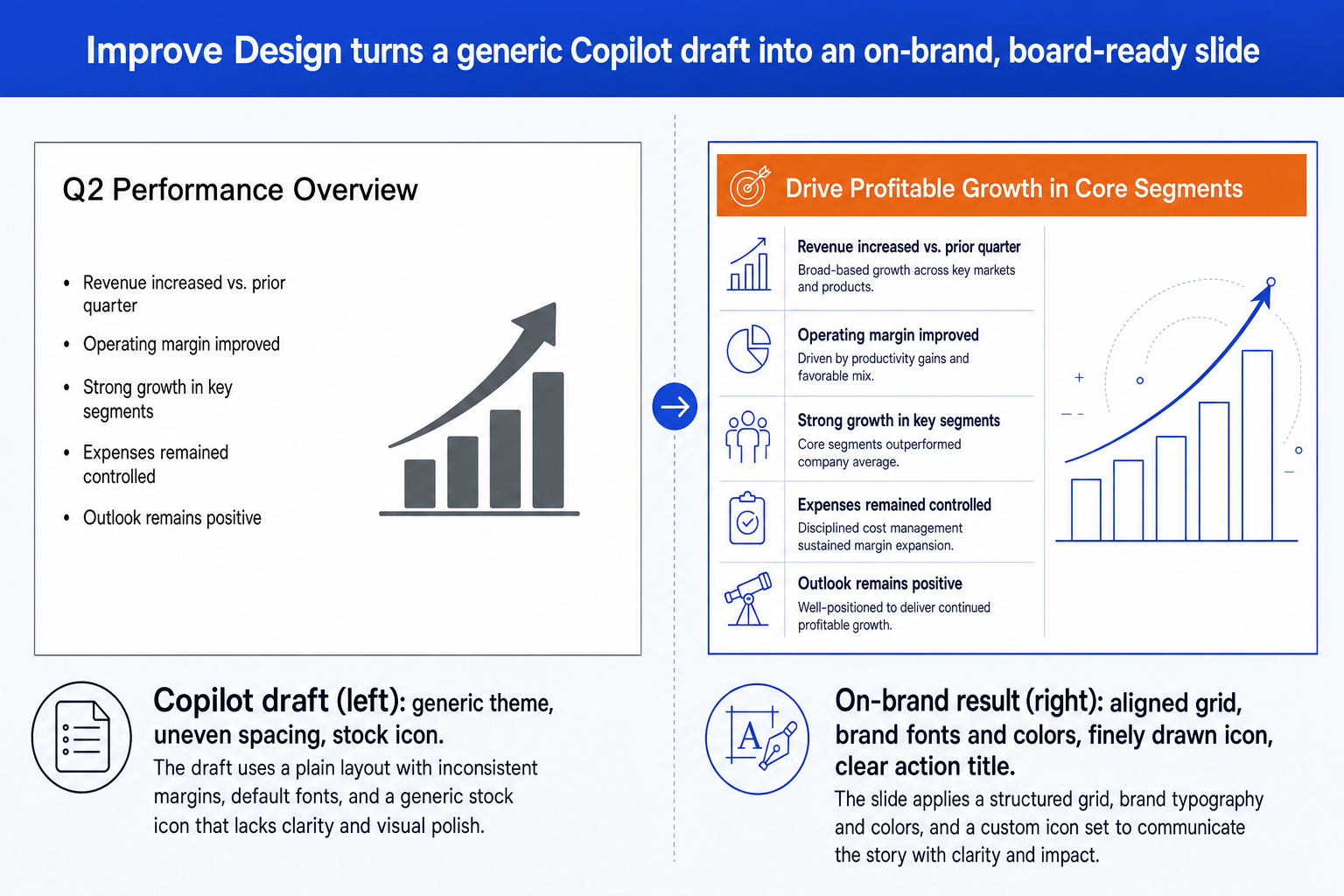
Alignment and spacing. Elements get aligned into a consistent grid, with margins and gaps fixed so nothing looks glued together by accident.
Brand fonts and colors. Copilot's default theme is replaced with your uploaded corporate template's fonts, colors, and logo, applied consistently across the slide.
Supporting icons and shapes. Generic stock icons are replaced with finely drawn, consistent icons, and structure is added where the slide needs it to communicate clearly.
Every word and number preserved. The headline, bullets, and data points you approved in the Copilot draft carry over exactly. Nothing gets rephrased or dropped.
The step-by-step workflow to convert a Copilot slide
This workflow assumes you already have a Copilot draft with the right content and the wrong look. It refines the slide you have, rather than asking you to start over from a blank page.
Get the Copilot slide into a PowerPoint file. Whether Copilot generated it directly in the desktop app or in PowerPoint Online, make sure it is a native slide, not a screenshot or an exported image, since Improve Design needs real PowerPoint elements to refine.
Check the content is final before you polish the look. Improve Design refines formatting; it will not catch a wrong number or an outdated claim, so confirm the text and data are correct first.
Upload your corporate template if you have not already. Oria uses it to match fonts, colors, and logo placement across every slide you convert afterward in the same workspace.
Run Improve Design on the slide. Oria aligns and groups the elements, fixes spacing so the layout reads as one designed slide instead of a template-fitted draft, and applies your brand.
Confirm every bullet, headline, and data point survived intact. Improve Design is built to preserve your original content, but a quick scan catches anything worth double-checking.
Ask for the finishing touch you still want. If an icon set feels generic or a callout needs more emphasis, a follow-up prompt in the same session adjusts it without rebuilding the slide.
Gotcha
Improve Design cleans up layout and brand styling, not the underlying argument. A slide with a weak so-what headline will come out of the pass looking sharp but still saying the wrong thing. Fix the message before you fix the look.
The Improve Design route: Copilot draft in, board-ready slide out
Realigning a dense slide by hand, recoloring every text box, and swapping out a generic icon set is exactly the kind of mechanical work that eats an evening. Oria removes it. It is an AI add-in that runs in the PowerPoint task pane, and Improve Design is the workflow built specifically to take an existing, imperfect slide and turn it into a clean, on-brand version, no design brief required. You point it at the Copilot draft you already have, and it hands back a fully editable native slide in roughly two to three minutes.
Because the output is native PowerPoint, every shape, text box, and icon stays editable afterward. You can move an element, recolor a callout, or add a data point without rebuilding the slide from scratch. For a wider comparison of how the two tools approach a business presentation, see Claude vs Copilot for business presentations. For a rough deck with more than one weak slide, the wider guide to improving ugly PowerPoint slides covers the same workflow at deck scale.
Improve Design prompt for a Copilot draft
The prompts that make a converted Copilot slide sharp
These are the exact copy-paste prompts for turning a Copilot draft into an on-brand, board-ready slide. The first four run inside Oria in PowerPoint; the last is for auditing the Copilot draft's content in Claude before you polish the look. Replace the bracketed parts with your own details.
Convert with Improve Design in Oria
Full conversion pass on a Copilot draft
Match a specific brand template
Add emphasis after the conversion
Write the action title on the converted slide
Audit the content in Claude first
Check a Copilot draft for gaps before converting
Tip
Audit the content in Claude, fix anything weak, then hand the corrected draft to Improve Design for the visual pass. Fixing the message after the slide looks polished just means redoing the design work twice.
Common mistakes to avoid
For the wider habits that make AI-assisted slides look board-ready rather than generic, the consultant's guide to Claude covers the end-to-end method from analysis to deck.
Frequently asked questions
Why does a Microsoft Copilot slide need a design pass before a partner review?
Copilot for PowerPoint builds slides from a small set of pre-selected layouts or, in its more recent HTML-based mode, generates a page-style design that is converted into PowerPoint. Either way, the result tends to carry a generic look, inconsistent margins, and a theme that does not match a firm's brand guide. A design pass with Improve Design fixes the formatting and applies your corporate template without touching the content you already wrote.
Will converting a Copilot slide with Improve Design change my content?
No. Improve Design refines layout, spacing, alignment, icons, and brand styling. It keeps every headline, bullet, and data point exactly as written. If a Copilot draft already has the right message and the wrong look, this is a formatting pass, not a rewrite.
Do I need to upload my corporate template every time?
Once uploaded, Oria holds your fonts, colors, logo, and layout conventions across every slide you refine afterward, so you do not need to re-upload it for each new Copilot draft in the same workspace. New team members or a new brand guide version will need a fresh upload.
How is this different from just editing the Copilot slide by hand?
Manually realigning shapes, recoloring text, and swapping icons on a dense slide is exactly the kind of mechanical work that eats an evening. Improve Design does it in about the same time it takes to generate a slide from scratch, roughly two to three minutes, and hands back a fully editable native PowerPoint slide rather than a flattened image.
What if the Copilot draft is missing a chart or an icon a clean slide needs?
Improve Design adds supporting shapes, icons, and visual structure where they help the slide communicate, while staying inside the brand template you uploaded. It works from what is already on the slide, so the clearer the Copilot draft's content, the stronger the finished result.