

Convert PowerPoint to Google Slides: Steps and Fixes
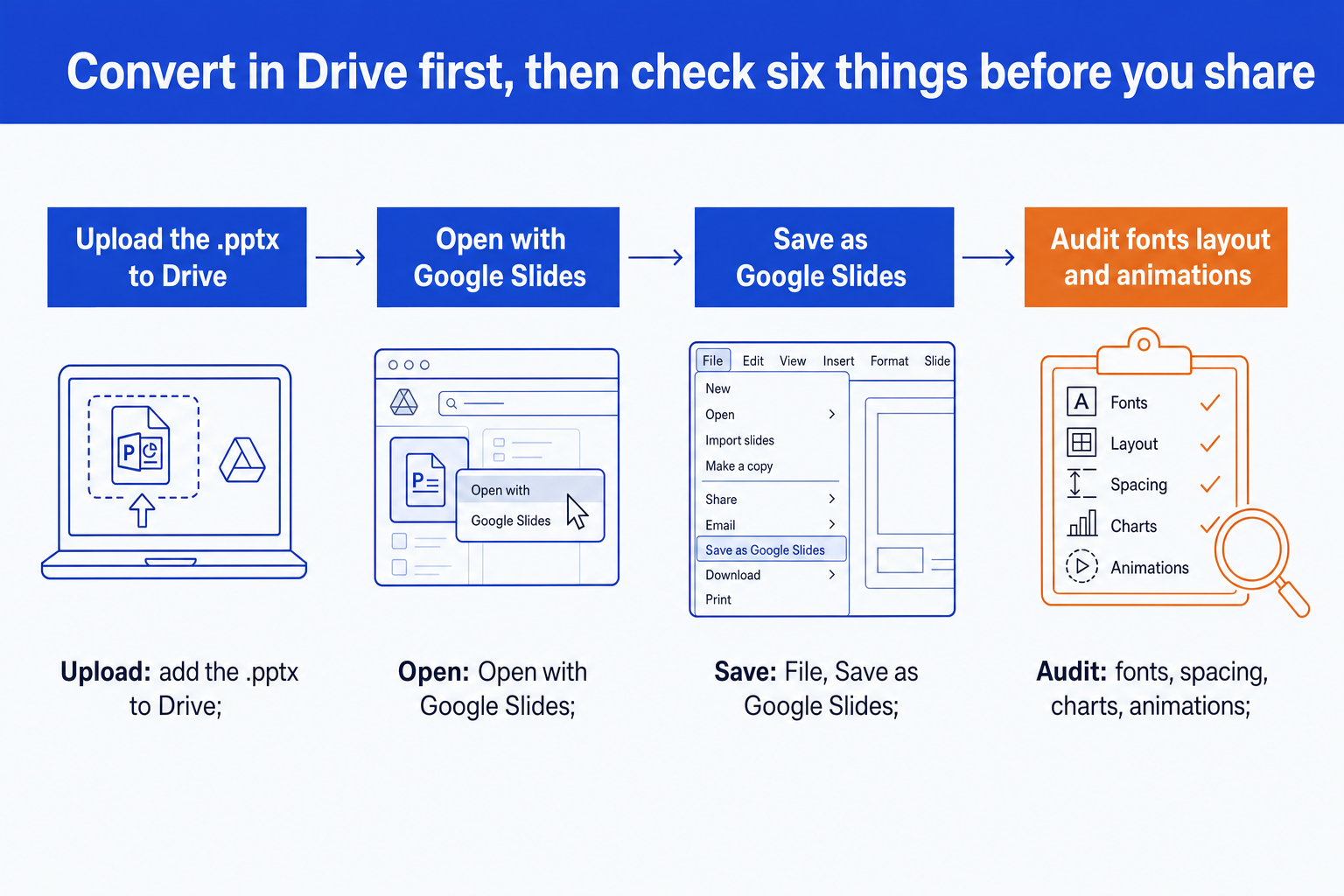
To convert PowerPoint to Google Slides, upload the .pptx to Google Drive, open it with Google Slides, then choose File, Save as Google Slides. That creates an editable Slides copy and leaves the original untouched. Check fonts, layouts, charts and animations afterwards, because those are what break.
Before you convert: what you need
The job takes about five minutes for a short deck and longer for a dense one. The conversion itself is quick. The checking is where the time goes, and it is the part most guides skip.
Google's Docs Editors Help lists .ppt, .pptx, .pps and .pot as supported PowerPoint formats and states that presentations converted to Google Slides can be up to 100 MB. If your file is larger, compress the pictures in PowerPoint first. The guide to cleaning up a messy deck covers the usual culprits.
Upload the PowerPoint file to Google Drive
Go to drive.google.com, choose New, then File upload, and pick your .pptx. You can also drag the file from your desktop into the Drive window. Wait for the upload progress card in the bottom corner to finish.
What you should see: the file in My Drive with an orange PowerPoint icon. At this point it is still an Office file, not a Google Slides deck.
Open the file with Google Slides
Right-click the file, choose Open with, then Google Slides. Double-clicking works too and opens the file in the same editor.
What you should see: your slides in the Google Slides editor with a grey .PPTX badge beside the title. That badge means you are editing the Office file directly through Office editing. Edits save back to the .pptx. It is useful for a quick tweak and not yet a conversion.
Save as Google Slides
In the menu bar choose File, then Save as Google Slides. A new tab opens with a converted copy. Google's own Drive help describes the point of this step: you can "convert the file to Docs, Sheets, or Slides to unlock more features, like inviting others to edit with you, commenting, chat, and more."
What you should see: a second file in Drive with the same name and the yellow Google Slides icon, and no .PPTX badge in the editor. The original .pptx is unchanged. Work from the new file from now on, and rename it so nobody opens the wrong one.
Check fonts and layout slide by slide
Put the original open in PowerPoint on one half of the screen and the converted deck on the other. Step through both at the same zoom. You are looking for four things: text that now wraps onto an extra line, a title that has dropped out of its box, shapes that no longer line up, and a font that looks different.
Fonts are the usual cause. Google Slides can only show fonts in its own list, so a corporate or licensed font gets replaced and every width changes with it. Fix it once rather than box by box. Use Slide, Edit theme, then set the heading and body fonts in the theme, and the change flows to every slide that uses a placeholder.
What you should see: every slide matching the original to within a line of text. Dense slides, such as a waterfall chart slide or a framework with a dozen labels, are the ones to inspect first.
Rebuild charts, animations and media that did not survive
Click each chart. If it selects as a single picture, it is no longer editable data. Rebuild it with Insert, Chart, paste the numbers into the linked Sheet, and match the colours to the deck. Then run Present mode from slide 1 and replay the animations. Anything that did not fire needs reapplying through Insert, Animation.
For embedded video, replace it with a link to the file in Drive or a YouTube address. Delete any macro dependency. Slides will not run it.
What you should see: a deck you can present end to end without a surprise. Only then change sharing from private to a link, and start with view-only.
What breaks when you convert, and how to fix it
The conversion is lossy in predictable places. This is the map, so the audit in step 4 becomes a checklist instead of a hunt.
| Element | What usually happens | Where it goes wrong | The fix |
|---|---|---|---|
| Layout, text boxes and shapes | Carry over as editable objects | Line spacing and text box padding can shift by a few points, so wrapped lines may break differently | Compare each slide against the original at the same zoom |
| Fonts | Kept if the font exists in Google Slides | A corporate or licensed font that Slides does not offer is swapped for a substitute, which changes widths | Pick a Slides font with similar metrics, then reapply it through Format, Theme |
| Slide master and layouts | Imported as the theme and its layouts | Custom placeholders and nested masters may flatten, and unused layouts can pile up | Open View, Theme builder and delete layouts you do not use |
| Charts and SmartArt | Often arrive as pictures or flattened shapes | Linked data is lost, so a chart you could edit in PowerPoint may no longer be editable | Rebuild the chart with Insert, Chart, or keep a link to a Sheet |
| Animations and transitions | Basic fades and entrances usually survive | Complex paths, triggers and timing chains can be simplified or dropped | Replay the deck in Present mode and reapply what is missing |
| Embedded video, audio and macros | Not reliable | Embedded media and VBA macros do not behave as they did in PowerPoint | Link to the file in Drive or YouTube and drop the macro |
Import slides from PowerPoint into an existing Google Slides deck
If the target deck already exists, skip the Drive route. Open the Google Slides deck, choose File, then Import slides, switch to the Upload tab and add the .pptx. Tick the slides you want, then decide whether to keep the original theme. Untick it and the slides take on the destination theme, which is usually what you want when you are merging into a team template.
Going the other way is one menu: File, Download, Microsoft PowerPoint (.pptx). The same fonts and spacing caveats apply in reverse. For the PDF case, see converting PDF and PowerPoint without losing formatting.
Common conversion mistakes to avoid
Can Oria help when the deck has to end up in Google Slides?
Not as a converter. Oria does not move a file from PowerPoint to Google Slides, and the five steps above remain the route. What it changes is the input. Oria is built for corporate documents and consulting presentations: board packs, steering committee decks, diligence exhibits, dense frameworks held to an enforced corporate template. It reaches you as a PowerPoint add-in in the task pane on Windows, macOS and PowerPoint for the web, and as a connector for Claude and ChatGPT over MCP, so a deck can be built from the chat you are already in. The output is native PowerPoint shapes on your master, with no pictures standing in for charts or diagrams, which is the kind of file that converts with the fewest surprises.
One-line prompt for a conversion-friendly slide
If your problem is that a Copilot draft needs to look like your firm, see converting Copilot slides into brand decks.
The trade-off: Oria is built for the corporate environment and loses on highly visual work. Founder fundraising and pitch decks, launch and campaign decks, student presentations and marketing one-pagers want visual impact more than defensible content, and a design-led tool such as Gamma, Canva, Pitch or Beautiful.ai will beat it there and look better doing it. It also will not convert the finished file for you.
Which route should you use?
For most people the answer is the built-in Drive route. The table covers the cases where something else fits better, including the tools that are not ours. If you are still choosing between editors, the PowerPoint alternatives that still export .pptx guide sets out the trade-offs.
| If you need | Use | Why |
|---|---|---|
| One deck, one time, with an ordinary template | Google Drive, Open with Google Slides | It is free, built in, and is the route Google documents. Nothing else is needed. |
| Pulling a few slides into a deck that already exists | Slides, File, Import slides | You pick the slides you want and choose whether to keep the source formatting or adopt the destination theme. |
| A quick conversion without opening Drive | A browser converter such as SlideSpeak's free tool | Handy for a one-off file when you do not want to sign in. Check the output with the same audit below. |
| A deck that must look designed and be shared as a link | Gamma, Canva or Pitch | Where the job is visual impact rather than defensible content, a design-led tool will beat a corporate template and look better doing it. |
| A board pack or steering committee deck on a firm template, built from scratch | Oria | Build the deck as native PowerPoint objects on your master, which also gives a conversion the simplest possible input. |
Frequently asked questions
How do I convert a PowerPoint to Google Slides?
Upload the .pptx to Google Drive, right-click it, choose Open with, then Google Slides. The deck opens in Office editing mode. Choose File, Save as Google Slides to create a native Google Slides copy. Then check fonts, layouts, charts and animations before you share it.
Is it free to convert PowerPoint to Google Slides?
Yes. Google Drive and Google Slides are available with a free Google account, and the Open with and Save as Google Slides routes need nothing else. Paid Google Workspace plans add storage and admin controls, not the conversion itself.
Will my formatting stay the same after converting?
Mostly for text, shapes and images, less reliably for fonts, charts, SmartArt, animations and embedded media. Plan on a slide-by-slide check. Decks built on standard fonts with native shapes convert most cleanly.
Why do my fonts change when I convert PowerPoint to Google Slides?
Google Slides can only show fonts it offers. If your deck uses a corporate or licensed font that is not in the Slides font list, it substitutes another font and the text widths change. Choose a similar font in Slides and set it once in the theme.
Is there a file size limit when converting a presentation?
Yes. Google's Docs Editors Help states that presentations converted to Google Slides can be up to 100 MB. A deck over that limit needs compressing first: compress the pictures in PowerPoint, remove embedded video, or split the deck in two.
How do I convert Google Slides back to PowerPoint?
Open the deck in Google Slides and choose File, Download, Microsoft PowerPoint (.pptx). The same caveats apply in reverse, so check fonts, spacing and animations in PowerPoint before you send it.
Can I import only some slides instead of the whole deck?
Yes. In an open Google Slides deck choose File, Import slides, upload the .pptx, select the slides you want and import them. A tick box lets you keep the original formatting or take on the destination theme.