

Compress PowerPoint Without Wrecking Images: How It Works
To compress PowerPoint is to lower the pixel count of the pictures inside the file, because pictures are what make a deck heavy. PowerPoint stores each image at its original size and resamples it to a chosen resolution in pixels per inch, producing a smaller file that looks the same until the picture is shown larger than the setting allows.
Quick answer: how do you compress PowerPoint safely?
You are choosing between a file that is small and a picture that is sharp, and the choice only bites at one point: the size the picture is shown. A deck is usually heavy because every photo and screenshot is stored at its full original size, then shrunk on the slide. That surplus is what compression removes, which is why most of the saving costs almost nothing visible.
To compress a PowerPoint file without wrecking the images, work on a copy, finish cropping and sizing every picture first, then use Picture Format, Compress Pictures with Apply only to this picture cleared. Choose 220 ppi if the deck will be shown on a 4K screen or printed, or 150 ppi if it will be read on laptops and standard 1080p screens. Avoid 96 ppi for anything that will be projected. Compression is permanent once saved, so keep the original deck as the master.
How we judged each compression setting
We went through PowerPoint's compression controls one at a time and asked the same four questions of each.
Does it change pixels or only metadata
Some switches discard hidden data, others throw away real pixels. We separated the two, because only the second kind can make a picture look worse.
Can you undo it
Compression inside a saved deck is permanent. We scored each setting on whether a mistake costs you the original or just a re-run.
What it costs on a projector
A picture that survives email can still go soft on a 4K screen. We judged every setting at the size the slide will actually be shown.
Where the bytes really are
Most heavy decks are heavy for one or two reasons. We ranked the causes by how often they are the real culprit, not by how easy they are to explain.
What we ignored: third-party compressor feature lists, claimed percentage savings that depend entirely on the deck, and archive tricks that shrink a file only until it is opened and saved again.
Key takeaways
- Compression in PowerPoint means resampling. It lowers the pixel count of each picture to a target resolution, and the discarded pixels are gone once you save. Keep the uncompressed deck as the master and compress a copy.
- Pixels per inch only matter at the size the picture is placed. A 24 megapixel photo shown six inches wide carries about 1,000 ppi of detail the screen can never display, which is why the savings are usually large and the visible loss small.
- Pick the target from the room, not from the file size. 150 ppi suits most on-screen decks, 220 ppi suits print and the default, and 330 ppi is for full-bleed pictures on large or 4K displays.
- Delete cropped areas only after the layout is final. That option permanently removes the hidden parts of cropped pictures, and you cannot get them back to re-crop.
- Screenshots of charts and text are the pictures that suffer. Photos tolerate resampling well. Pasted images of tables and charts blur at the edges, so rebuild those as native objects instead of compressing them.
What does it mean to compress PowerPoint? The parts, one by one
A .pptx file is a zipped package, and the heavy part is the folder of embedded pictures inside it. Compression acts on that folder. Five controls decide what happens, and only the first two change what you see.
| Control | What it does | Size effect | What can go wrong |
|---|---|---|---|
| Target resolution (ppi) | Resamples every picture down to the chosen pixels per inch | Biggest saving. Photos shrink most. | Soft or blocky if the target is below the display size of the slide |
| Delete cropped areas of pictures | Removes the parts of a picture hidden by a crop | Large on heavily cropped photos | Permanent. You cannot restore the crop or re-frame the picture. |
| Discard editing data | Drops stored undo information for edited pictures | Moderate, only on pictures you edited in PowerPoint | You cannot restore the unedited image after the next edit |
| Apply only to this picture | Limits the run to the selected picture | Depends on the picture | Left ticked, you compress one image and wonder why the deck is still heavy |
| Do not compress images in file | A document-level switch that blocks compression on save | None. It protects quality. | If it is ticked, every compress step you run is quietly ignored |
The resolution control is the one that matters. Microsoft Support states that the default picture resolution in Microsoft 365 is 220 ppi, and its own advice for a smaller file is to set the default to 150 ppi or lower. Pixels per inch is simply the number of pixels PowerPoint keeps for each inch of the picture's size on the slide. A lower number keeps fewer pixels, so the file is lighter and the picture holds less detail.
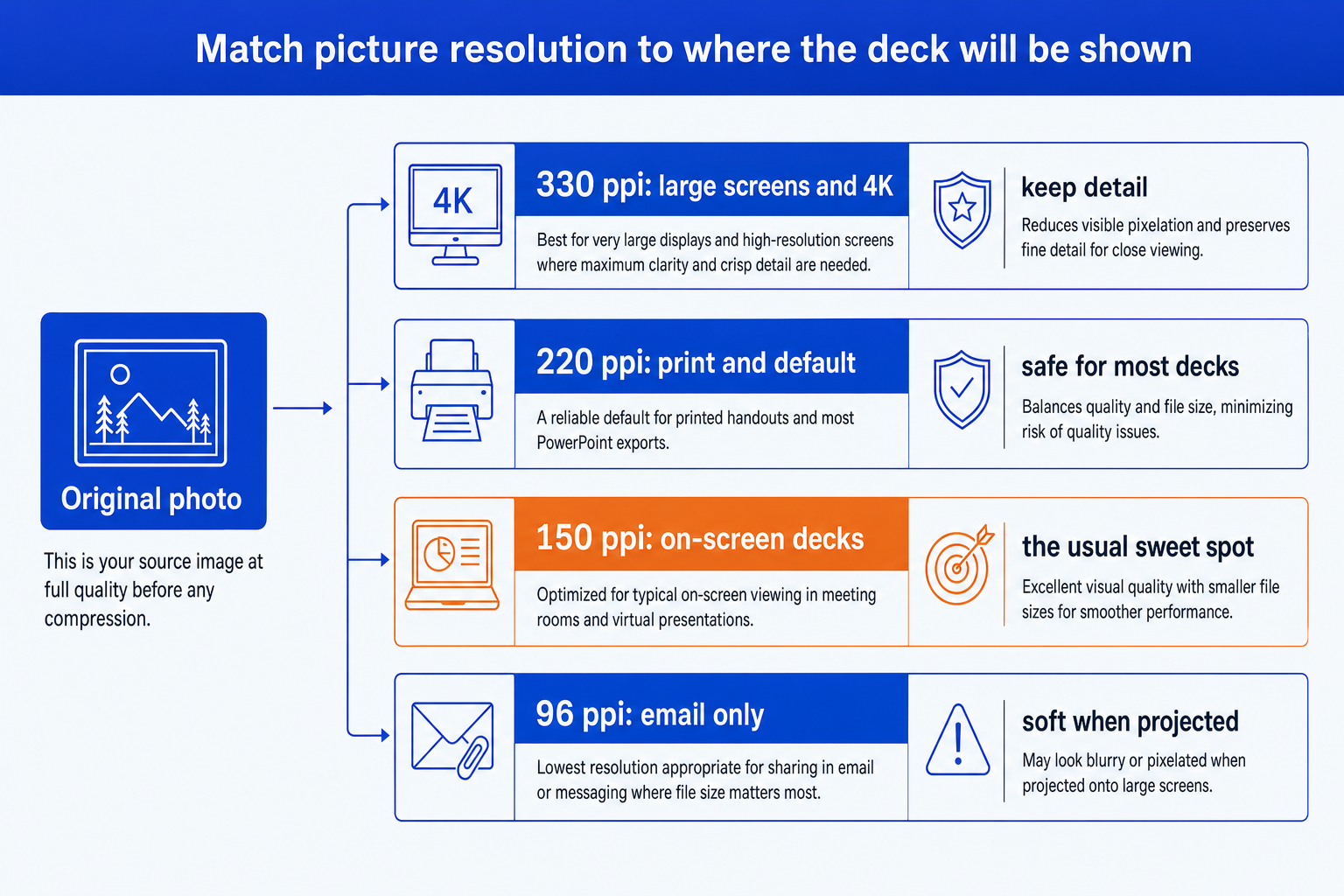
The four resolution targets, on a standard slide
On a widescreen slide 13.333 inches wide, a full-width picture needs the following pixel counts at each target.
| Target | Pixels across the slide | Fits | Watch for |
|---|---|---|---|
| 330 ppi (HD) | 4,400 px, more than the 3,840 across of a 4K screen | Full-bleed pictures on large or 4K displays | Largest files of the four |
| 220 ppi (print) | 2,933 px | Printed handouts and the Microsoft default | Still heavy on photo-rich decks |
| 150 ppi (web) | 2,000 px | On-screen decks in rooms and on video calls | Soft on a full-bleed picture shown on 4K |
| 96 ppi (email) | 1,280 px | A deck that will only ever be read on a laptop | Visibly soft when projected. Never the master. |
Worked example: compressing one photo, end to end
One photograph, one slide, every number shown. The pixel counts below are arithmetic, not measured file sizes. Actual file size also depends on the image format and how well the picture compresses.
The input
A 6,000 by 4,000 pixel photograph, 24 million pixels, placed on a standard widescreen slide at six inches wide and four inches tall. A standard 16:9 slide is 13.333 inches wide.
Effective resolution
6,000 pixels across six inches is 1,000 ppi. Nothing on a screen or a printer can use that detail at this size.
Compress at 220 ppi
220 ppi across six inches is 1,320 pixels, and the height scales to 880. That is 1,161,600 pixels, about 4.8 percent of the original count.
Compress at 150 ppi
150 ppi across six inches is 900 pixels by 600, which is 540,000 pixels, or 2.3 percent of the original.
Check it at the screen
A 1080p display is 1,920 pixels across, so the full slide width is about 144 ppi and the six-inch picture needs 864 pixels. Both targets clear that. A 4K display is 3,840 pixels across, about 288 ppi, so the same picture needs 1,728 pixels. 220 ppi (1,320) is slightly soft and 150 ppi (900) is visibly soft.
The conclusion
Compress to 220 ppi if the deck will be shown on a 4K screen, 150 ppi if it will go to people on laptops and 1080p rooms. The arithmetic, not the file size, decides.
The same arithmetic explains why a full-bleed picture is the risky one. Stretched across all 13.333 inches, a picture needs 2,933 pixels at 220 ppi and 4,400 at 330 ppi to match a 4K screen, which is 3,840 pixels across. Small inset pictures almost never need more than 150 ppi. Put your effort into the two or three big pictures.
When should you compress a PowerPoint?
Compress when the file has to travel and the destination has a limit. Email is the common one. Google states that personal Gmail accounts have a 25 MB limit, while Microsoft states that Outlook limits internet email accounts to 20 MB and that Exchange business accounts default to 10 MB, counting the message as well as the attachment. A deck that opens fine on your laptop can still bounce from a client's Exchange mailbox.
Compress also when the deck is slow to open or save, when a shared drive has quota pressure, or when a version history of large decks is filling storage. Before you reach for it, check slide dimensions, because a deck built at an oversized page size drags every picture with it, as covered in the guide to PowerPoint slide size settings.
When does compressing PowerPoint images wreck them?
Compression fails in four predictable ways, and each one is invisible in the compression dialog.
Screenshots of charts and tables. Photos hide resampling because noise masks the loss. A pasted chart has thin lines and small text, and lowering its resolution turns both into a smear. The cure is a native chart or table, not a better setting.
Full-bleed pictures on large screens. The size that looked fine on your monitor is the size that fails on a 4K projector, because the picture needs more pixels than the setting kept.
Cropping after the fact. If Delete cropped areas was ticked, the pixels outside the crop are gone. Re-framing a picture now means going back to the original file, and if you have only the compressed deck, there is nothing to go back to.
Scaling up later. Compression stores the picture at the size it had on the slide. Make it bigger afterwards and PowerPoint stretches the remaining pixels, so it goes soft in a way no further setting can repair.
On the permanence point Microsoft Support is blunt. In its guidance on reducing PowerPoint file size, it warns that "if you delete the cropped picture data, you won't be able to restore it." The same page makes the identical warning for discarded editing data. Treat every compressed deck as a one-way export.
How to compress PowerPoint pictures, step by step
The order matters more than the setting. Six steps, in sequence, for a copy of the deck.
Save a copy first. Compression is applied on save and cannot be reversed, so work on a copy named for the audience, and keep the full-resolution master untouched.
Finish the layout. Crop, resize and place every picture, because cropping after compression with the delete option on cannot be undone and resizing upward after compression softens the picture.
Select any picture, open Picture Format, then Compress Pictures. Untick Apply only to this picture so the run covers the whole deck.
Tick Delete cropped areas of pictures only if the layout is final. Then choose the resolution that matches the room, using the ladder above.
Open File, Options, Advanced. Under Image Size and Quality, check that Do not compress images in file is cleared, and set a default resolution that matches your target so the next paste does not re-inflate the deck.
Save, then step through the deck at full screen on the biggest display you will use. Look at faces, logos and any text inside a picture. If one fails, restore from the master and compress at the next resolution up.
Find the heavy ones first
Because a .pptx is a zip package, you can copy it, change the extension to .zip, open it, and sort the media folder under ppt/media by size. Two or three files are usually most of the weight. Replace or resize those and you may not need to compress the rest. Video and audio live in the same folder, which is why embedding video in PowerPoint is a separate decision from picture compression.
Can Oria help keep a PowerPoint small?
Partly, and only by prevention. Oria is built for corporate documents and consulting presentations: board packs, steering committee decks, diligence exhibits and dense frameworks held to an enforced template. It reaches you as a PowerPoint add-in in the task pane on Windows, macOS and PowerPoint for the web, and as a connector for Claude and ChatGPT over MCP. Its slides arrive as native shapes, text and charts rather than pasted images, and those are stored as small instructions, not pixels. A framework slide built that way leaves nothing to compress. Fixing an ugly slide by rebuilding a pasted screenshot as editable shapes is the same idea.
The trade-off: Oria does not compress an existing deck, and it will not make a photo-heavy deck lighter. Oria is built for the corporate environment and loses on highly visual work. Founder pitches, campaign decks, student presentations and marketing one-pagers lean on photography, where a design-led tool such as Gamma, Canva, Pitch or Beautiful.ai will look better, and the picture compression in this guide is what you need.
Which way to compress a PowerPoint should you use?
If you only want a smaller file, a free online tool is the shortest route. Pick by what binds.
| If you need | Use | Why |
|---|---|---|
| You want to drop a file in a browser and get a smaller one back | An online compressor, for example SlideSpeak's free tool | Fast and no PowerPoint needed. You are uploading the deck to a third party, so read what it does with the file before you send client material. |
| The deck holds client or board material | PowerPoint's own Compress Pictures | The file stays on your machine, and the controls above are the same ones the online tools approximate. |
| Video or audio is the weight | PowerPoint's media compression | Pictures are not the problem. Compress the media instead, covered in the guide on embedding video. |
| You want a file that is small because it was built small | Oria | Frameworks and charts come out as native shapes and text, not screenshots, so there is little to compress. It does not shrink an existing deck. |
| A fixed-layout copy for reading and sharing | Export to PDF | A PDF freezes the layout and is usually smaller, but it is no longer editable. See the guide on converting between PDF and PowerPoint. |
If the end goal is a fixed copy for reading rather than editing, see converting between PDF and PowerPoint for what survives the trip.
Common PowerPoint compression mistakes
Frequently asked questions
How do I compress a PowerPoint without losing quality?
You cannot compress pictures with zero loss, because compression lowers the pixel count. You can lose nothing you can see. Work on a copy, finish the layout, then choose a target resolution that matches the screen: 220 ppi for 4K or print, 150 ppi for most on-screen decks. Check faces, logos and any text inside pictures at full screen afterwards.
Why is my PowerPoint file so big?
Almost always pictures stored at their original camera or screenshot resolution, then scaled down on the slide. The file keeps every original pixel. Embedded video and audio, and fonts embedded with every character, are the next most common causes. A deck with one full-resolution photo per slide grows quickly because each image is stored at its full size.
What does Compress Pictures do in PowerPoint?
It resamples pictures to a target resolution in pixels per inch and can delete the hidden parts of cropped pictures. The pixels it removes are discarded when you save, so the change is permanent in that file. It does not touch shapes, text or native charts, which are stored as small instructions rather than pixels.
What is the default picture resolution in PowerPoint?
According to Microsoft Support, the default picture resolution in Microsoft 365 is 220 ppi. Microsoft's own guidance for a smaller file is to set the default to 150 ppi or lower under File, Options, Advanced, Image Size and Quality. You can also turn picture compression off there.
Can I undo compression after I save?
Not from inside the saved file. Undo works only until you save and close. Delete cropped areas and Discard editing data are explicitly permanent. The safe habit is to keep the full-resolution deck as a master and run compression on a copy.
How small should a PowerPoint be to email?
Under the limit of the weakest inbox on the thread. Personal Gmail accounts allow 25 MB, according to Google. Microsoft says internet email accounts such as Outlook.com and Gmail have a 20 MB limit in Outlook and that Exchange business accounts default to 10 MB, counting the message as well as the attachment. For a business recipient, aim well under 10 MB.
Does compressing a PowerPoint reduce print quality?
It can. At 220 ppi pictures hold up for printed handouts. At 150 ppi they are fine on screen but can look soft on paper, and at 96 ppi they will look soft almost anywhere but a laptop. If the deck will be printed, compress to 220 ppi or leave it uncompressed.