

Value Driver Tree: How to Build the Slide in PowerPoint
You have a target, say lift EBITDA 20 percent, defend an enterprise value in a diligence room, or push ROIC above the cost of capital, and one slide to show the room which levers actually get you there. That is what a value driver tree is for: it turns a single financial number into a map of the operational pieces underneath it, so the audience sees not just the target but where to push first. The decision here is not whether to draw boxes and connectors, PowerPoint will let anyone do that badly in five minutes. It is how deep to decompose before the tree stops earning its place on the slide, which of the real variants fits the number in front of you, and how to keep every branch mathematically exact enough that nobody in the room can poke a hole in the arithmetic.
How to build a value driver tree, in short
To build a value driver tree slide, put the top metric, such as EBITDA, ROIC, or enterprise value, at the root, then split it into first-level drivers that are mathematically exact, not just thematically related. Push one more level into the sub-drivers a manager can actually move, mark the single driver carrying the most leverage, and align every node on a shared grid before you touch color.
A value driver tree is a slide that decomposes one financial outcome into the operational levers that mathematically produce it: EBITDA splits into Revenue and Cost, Revenue splits into Volume, Price, and Mix, and so on until each leaf is something a manager can move. Unlike a waterfall chart, which shows movement between two points in time, a driver tree shows structure: how the pieces of a number fit together right now. Use one when a board, investor, or steering committee needs to see which lever to pull, not just what the number is.
When a value driver tree is the right exhibit
A value driver tree earns its place on the slide when the room needs to see what moves a number and where to act next. Use one for:
Value creation and operating plans, mapping how an EBITDA or enterprise value target breaks into the levers a management team actually owns.
Diligence and investment memos, showing a buyer or investment committee exactly which drivers a thesis depends on and how much each one is worth.
Performance and business reviews, where leadership needs to see at a glance which single driver to push next quarter.
Ratio decomposition, DuPont-style breakdowns of ROE or ROIC into margin, turnover, and leverage, when the story is multiplicative rather than additive.
Not the right choice when you need to quantify a bridge between two figures over time; build a waterfall chart slide instead.
A value driver tree is arithmetic, not logic: its branches add up or multiply to a number, and you can check the math. A sibling exhibit, the issue tree, decomposes a problem or a hypothesis instead of a metric, and you check it for completeness rather than addition. Run your own branches through the MECE test if you are not sure they are exhaustive and non-overlapping.
Few finance teams actually do this well. Michael Coveney, Head of Research at FP&A Trends Group, found that only 17% of organizations report using fully driver-based models in their own planning process, per the FP&A Trends Survey 2025. A clean, exact tree on a single slide is rarer, and more persuasive, than it should be.
Key takeaways
- Depth. Stop decomposing at the level a manager can act on, usually one level below the root metric and rarely more than two. A tree with five levels of boxes is an org chart pretending to be analysis.
- Arithmetic exactness. Every split must literally compute, not just relate: Volume times Price should tie to Revenue, with a reconciling Mix leaf absorbing whatever gap is left. If it does not tie, the tree is decoration.
- Leverage. Mark exactly one driver as the one worth the room's attention. A tree where every node is styled the same buries the single insight the slide exists to deliver.
- Sensitivity. Show which driver moves the number most without turning the slide into a spreadsheet: a single accent color or a one-line delta beats a five-column table nobody will read live.
- Editability. Ship the tree as native shapes and connectors, not a flattened image, so a driver can be renamed or restyled after the fact without redrawing the whole thing.
The four variants
A value driver tree is not one template. The four variants below differ in what holds the branches together (addition, multiplication, an operational metric, or a valuation model), and they score differently against the five decision rules above.
| Variant | Depth | Arithmetic tie | Leverage | Sensitivity | Editable |
|---|---|---|---|---|---|
| P&L (financial) tree | 1 to 2 levels | Additive: children sum to parent | One accent node, easy to isolate | Simple per-leaf delta | Yes, native shapes |
| DuPont-style ratio tree | 2 to 3 levels | Multiplicative: children multiply to parent | Harder, effects interact | Needs a stated base case | Yes, native shapes |
| Operational KPI tree | 1 to 2 levels | Correlational, not always exact | Easy if the data is clean | Trend arrows work well | Yes, native shapes |
| Valuation driver tree | 1 to 2 levels | Model-derived, not additive | Needs the model run first | Best shown as a range | Yes, native shapes |
When should you build a P&L-style driver tree?
This is the default value driver tree, and the one most people mean when they say the phrase. The root metric, usually EBITDA or operating profit, splits into Revenue and Cost, and each of those splits again into the sub-drivers a manager owns: Volume, Price, and Mix under Revenue, COGS and OpEx under Cost. The appeal is that every split is additive, so the arithmetic is easy to check in the room. Revenue minus Cost has to equal the root, and each child has to sum back to its parent.
Use it for value creation plans, operating reviews, and most diligence decks, where the audience already thinks in P&L lines and just needs them regrouped around what management can move.
The trade-off: because every branch has to sum exactly, a P&L tree struggles the moment a driver is genuinely multiplicative, like a margin or a rate. Force a ratio into an additive tree and the numbers stop tying, which is worse than not showing the ratio at all.
When does a DuPont-style ratio tree make sense?
The DuPont-style tree decomposes a ratio, most often ROE or ROIC, into the factors that multiply to produce it: net margin times asset turnover times financial leverage for ROE, or NOPAT margin times invested capital turnover for ROIC. The technique is close to a century old. Donaldson Brown, an executive at the DuPont Corporation, built the original version around 1919 to diagnose exactly where the company's return on investment was coming from, and it later spread through General Motors during Pierre DuPont's time as chairman, according to the Hagley Museum and Library, which holds Brown's papers.
Because the children multiply rather than add, a DuPont tree is harder to sanity-check by eye than a P&L tree: a 2-point change in margin and a 2-point change in turnover do not combine the way two additive drivers would, so state the base case on the slide, not just the components. Use it whenever the audience already thinks in ratios, a lender review or an internal session that tracks ROIC against cost of capital.
The trade-off: a ratio tree explains what moved a percentage, not what dollar action a manager should take next. Pair it with a P&L tree, or a bridge, when the audience needs both.
When should the tree run on operational KPIs instead of dollars?
Some outcomes are better explained by operating metrics than by P&L lines, especially in software, retail, or services businesses: net revenue retention breaks into gross retention and expansion, utilization breaks into billable hours and headcount, and churn breaks into voluntary and involuntary components. The root is still a number leadership cares about, but the leaves are counts, rates, and percentages rather than currency, so the tree reads more like an operating dashboard than a P&L waterfall.
The catch is that operational drivers do not always tie exactly the way P&L drivers do: two metrics can be directionally related without one being mathematically derivable from the other. Say so on the slide, a small note naming the relationship as directional, rather than forcing a false sum. Use it for business reviews and board updates where the audience manages the business day to day through these metrics anyway.
The trade-off: because the arithmetic is looser, an operational KPI tree carries more risk of looking precise while being approximate. Label directional relationships as directional, every time.
When should the tree start from a valuation, not a P&L?
A valuation driver tree starts from enterprise value or equity value and works backward into the handful of assumptions a discounted cash flow model actually depends on: revenue growth, operating margin, reinvestment, and the discount rate. NYU Stern finance professor Aswath Damodaran, writing on his Musings on Markets blog, put the core discipline plainly: "The trickiest part of valuation is negotiating a balance between growth, profitability and reinvestment, with a plausible story holding them together, to derive value."
A valuation driver tree is that balance made visible. It forces the assumptions onto one slide so nobody can quietly assume high growth, high margin, and low reinvestment at once, a combination that rarely holds together. Use it in investment memos, fundraising materials aimed at a financial audience, and any review where the ask is to defend a valuation rather than a P&L target.
The trade-off: the tree is only as good as the model behind it. Show the drivers without the underlying model and a sophisticated audience will ask to see it; show the model as the slide and you have built a spreadsheet, not an exhibit.
Build the slide, step by step
Whichever variant fits your number, the build order is the same. Get the arithmetic right before you touch a single shape.
Pull the source numbers first. Before you place a single box, know the exact figures for the root metric and every driver beneath it, pulled from the same model or ledger, so nothing on the slide is invented after the fact.
Choose the cut. Additive, multiplicative, operational, or valuation-derived. This decides whether children sum, multiply, correlate, or feed a model, and it should not change once you start drawing.
Place the root, then branch one level at a time. Root on one side, first-level drivers next, sub-drivers last. Stop once you reach a driver a named person actually owns.
Check that every split ties. Add or multiply the children and confirm they reproduce the parent to a sensible precision. If they do not, a reconciling item is missing, not optional.
Highlight one driver and align the grid. Same-level nodes share a size and baseline, connectors run without crossing, and exactly one node carries the accent color.
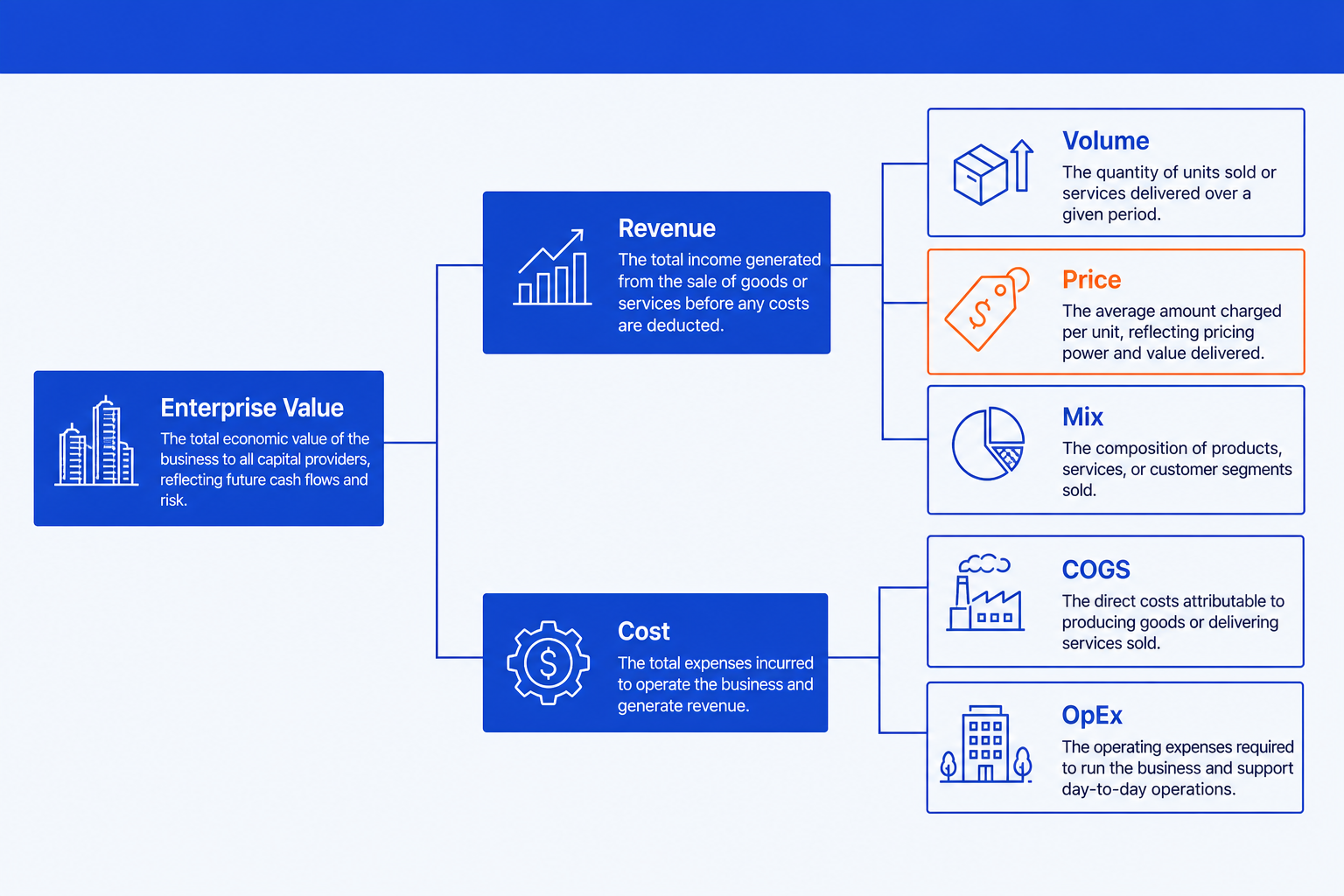
If you would rather not draw it by hand, Oria reaches you two ways: as a PowerPoint add-in for Windows, macOS, and PowerPoint for the web, or as a connector for Claude and ChatGPT over MCP, so you can describe the tree in the chat you are already in and never open PowerPoint at all. Either way it renders the same structure as native, editable shapes and connectors, on your template. For the broader workflow of turning analysis into slides, see Claude skills for slide design.
The discipline pays off. Organizations using dynamic or fully driver-based models rate their internal forecasts as good or great 77% of the time, versus 27% for those running on basic models or none, per the FP&A Trends Survey 2025 analysis by Pras Chatterjee of OneStream Software.
Mistakes that give a tree away as rushed
If a different exhibit fits better
A value driver tree is not the only decomposition slide, and it is not a visual design tool. Route to the exhibit or the tool that actually fits the job:
| If you need to... | Build this instead |
|---|---|
| Quantify a bridge between two points in time | A waterfall chart slide |
| Size a market top-down or bottom-up | A market sizing slide |
| Decompose a logical argument, not a financial number | An issue tree |
| Check whether your own branches are exhaustive and non-overlapping | Test it against MECE |
| Run a live, drill-down tree wired to your data warehouse | A driver-based planning or BI platform built for that job, not a static slide |
| Design a visually striking one-pager for a pitch or fundraise | A design-led tool such as Gamma or Canva, which will look better doing visual-first work than a corporate-template tool |
Frequently asked questions
What is a value driver tree?
A value driver tree is a slide that decomposes one financial outcome, commonly EBITDA, enterprise value, or ROIC, into the operational drivers that produce it. The root sits on one side, branches into first-level drivers, and those branches split again into the sub-drivers a manager can actually move. It turns a single number into a structured map of what is driving it and what to do about it.
What is a value driver tree used for?
Teams build one to show a committee, board, or investor exactly which levers move a target number, most often in value creation plans, diligence memos, performance reviews, and internal strategy sessions. A headline metric like EBITDA cannot answer the question a driver tree exists to answer: which piece underneath it is worth pushing on first, and by how much.
How many levels should a value driver tree have?
Most trees need one level of drivers below the root and one more level of sub-drivers, so two levels total. Stop as soon as a leaf is something a named person or team can actually act on. A third or fourth level almost always adds detail nobody in the room needs, and turns a slide into an org chart.
How do I keep a value driver tree MECE?
Mutually exclusive, collectively exhaustive means every branch covers a distinct slice and the slices add up to the parent. Revenue and Cost together explain operating value with no overlap; Volume, Price, and Mix together explain Revenue. If two boxes could claim the same effect, or a driver is missing, the tree is not MECE and the arithmetic will not tie.
What is the difference between a value driver tree and an issue tree?
A value driver tree is arithmetic: its branches add up or multiply to a financial number, and you can check the math. An issue tree is logic: its branches are the possible causes or sub-questions behind a problem, and you check completeness, not addition. Use a driver tree for a number you can decompose mathematically, and an issue tree for a question you are trying to answer.
Will the slide stay editable after I generate it with Oria?
Yes. Oria renders the tree as native PowerPoint shapes, text boxes, and connectors, not a flat image, whether you build it through the PowerPoint add-in or the connector for Claude and ChatGPT. You can move a node, rename a driver, restyle the highlighted branch, or apply your corporate template after generation, the same as any slide built by hand.