

Embed Video in PowerPoint: File, Link or Online Video
To embed video in PowerPoint is to place a video on a slide so it plays during the slide show. You can store the file inside the deck, link to a file beside it, or point to an online video such as YouTube. Each method decides whether the video travels with the deck.
The decision is not which menu to click. It is whether the clip will still play when the deck is emailed, uploaded, or opened on a client laptop with no network. The menu is the same few clicks every time. The failure, when it comes, arrives in the meeting. Below: the three methods broken out, one worked example from brief to tested deck, and the specific cases where each method misleads you.
Quick answer: how do you embed video in PowerPoint?
Select the slide, open Insert, choose Video, then This Device on Windows or Movie from File on Mac, pick the clip and insert it. Use an MP4 with H.264 video and AAC audio, and test the deck on a second machine before you send it.
There are three ways to put a video on a slide, and they differ in where the video lives. An embedded file is stored inside the presentation, so it travels with the deck and plays offline, at the cost of a larger file. A linked file stays outside the deck, which keeps the file small but breaks if the video moves. An online video plays from a website such as YouTube, adds almost nothing to the file, and needs an internet connection. Embed when the deck will travel. Link only when you control the folder. Use an online video when the clip already lives on a platform.
How we assessed the three methods
Each method was run against the same test deck: a short presentation with one demo clip, opened on the machine that built it, then on a second machine that had never seen the file. We scored them on five questions.
Does the video survive the trip
We asked what happens when the deck leaves your laptop: emailed, uploaded, opened on a client machine. A method that only works on the machine that built it failed this test.
What it does to the deck
File size decides whether a deck can be sent at all. We scored each method on whether it grows the file, and on what you can do about it.
Whether it needs the internet
Conference rooms and client sites have unreliable networks. A method that needs a live connection carries a risk the other two do not.
How much control you keep over playback
Start behaviour, looping, trimming and what the audience sees before the clip starts. We checked which controls each method actually offers.
Whether it works on Windows, Mac and the web
Menu names differ by platform, and one method is unavailable on older Mac versions. We checked each path against Microsoft's own documentation.
What we ignored: video editing inside PowerPoint beyond trimming, animation effects on the video frame, and third-party plug-ins that add players. They solve problems a plain embed does not have, and they add a dependency the recipient also needs.
Key takeaways
- Choose by where the video lives. Embedded means inside the deck, linked means beside it, online means on a website. Every other difference, including size, offline playback and risk, follows from that single choice.
- Embed when the deck will travel. A video stored inside the .pptx cannot be separated from the slide, which is why it is the safe default for anything emailed, uploaded or presented on a machine you do not control.
- Link only when you control the folder. A linked video keeps the deck small, but the link breaks the moment the file moves. Keep the deck and the video in one folder and send both, or do not link.
- Use an online video when the clip already lives on a platform and you will have a connection. It adds almost nothing to the file, and it cannot be trimmed, so cut it at the source.
- Fix the format before you insert. MP4 with H.264 video and AAC audio is the format Microsoft recommends, and converting a stubborn file first is faster than debugging a clip that will not play in the room.
The three ways to embed video in PowerPoint, compared
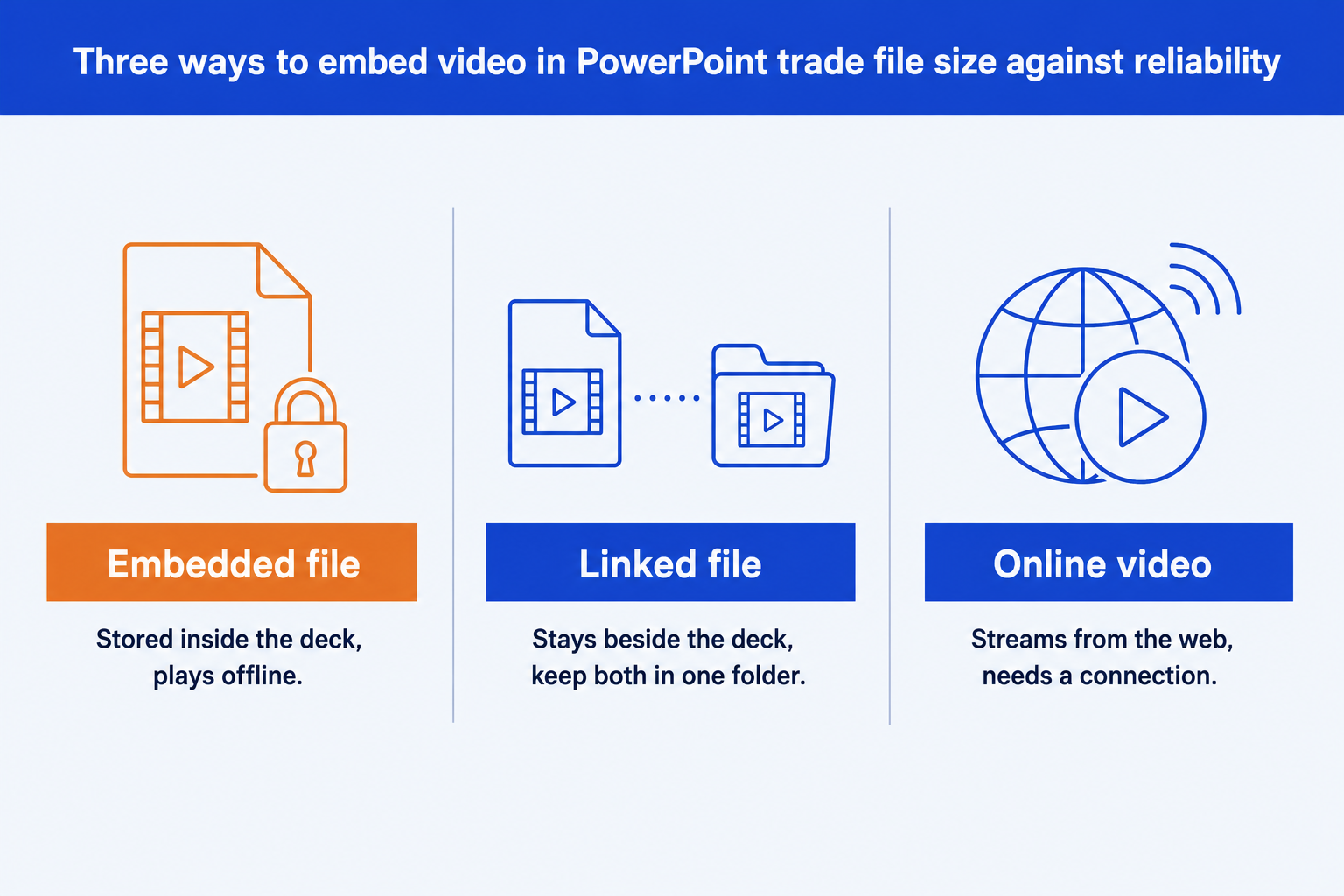
| Method | Where the video lives | Effect on file size | Needs internet | Main risk | Best for |
|---|---|---|---|---|---|
| Embedded file | Inside the presentation | Grows the deck by the size of the clip | No | The deck becomes too large to send | Decks that travel: email, upload, client laptops |
| Linked file | Beside the presentation, in a folder | Keeps the deck small | No, but the file must be found | The link breaks if the file moves | Decks presented from one machine you control |
| Online video | On a website such as YouTube or Vimeo | Adds almost nothing | Yes | No connection, no video; the clip cannot be trimmed | Clips that already live on a platform |
What does it mean to embed a video file in PowerPoint?
Embedding copies the whole video into the presentation file. It becomes part of the .pptx, so it moves wherever the deck moves and plays with no network and no second file. Microsoft puts it plainly: inserting an embedded video is convenient, but it increases the size of your presentation.
On Windows. In Normal view, select the slide. On the Insert tab, select the arrow under Video, then This Device. In the Insert Video box, choose the file and select Insert. You should see the video appear as a frame on the slide with a playback bar beneath it.
On Mac. On the Insert tab, select Video, then Movie from File. In the Choose a Movie window, select Insert to embed. Selecting Show Options and ticking Link to file turns it into a linked video instead, so check that box is clear.
In PowerPoint for the web. Select Insert, Video, This Device, pick the file and select Open. Microsoft states that PowerPoint for the web supports insertion of video files up to 256 MB, which is the one hard number to plan around.
Before you send the deck, open File, then Info. Under Optimize Media Compatibility, PowerPoint lists the media in the presentation, whether linked or embedded. If the deck is too large to send, Compress Media in the same area re-encodes the clip at a lower quality. The same discipline of checking the file before it leaves your machine applies to slide size settings, which change how a clip is framed on the slide.
The trade-off: an embedded video is the most reliable method and the heaviest. The deck can grow past what email will carry, and every edit to a deck that holds a large clip saves slowly.
How do you link to a video in PowerPoint instead of embedding it?
A linked video stores a path to the file, not the footage. The deck stays small, and the clip plays from wherever the path points. Microsoft Support describes the catch in one line: "A linked video keeps your presentation file smaller, but links can break."
On Windows. Follow the embed steps through choosing the file. Then select the down arrow next to Insert and choose Link to File. The slide looks identical to an embedded clip, which is why the difference is easy to forget.
On Mac. Insert, Video, Movie from File, then select Show Options, tick Link to file and select Insert.
To keep the link alive. Put the presentation and the video in the same folder before you insert, and send the folder rather than the deck. To see where each linked file points, open File, Info and select View Links under Optimize Media Compatibility.
The trade-off: a linked video keeps the deck light, and it fails silently. The slide looks fine on your machine and shows a placeholder on every other. Use it for a deck that stays on one laptop and nowhere else.
How do you embed an online video like YouTube in PowerPoint?
An online video is not stored in your presentation at all. The slide holds a player that streams the clip from the provider's website. PowerPoint for the web accepts YouTube and Vimeo, and with a Microsoft 365 business or education subscription it also accepts Microsoft Stream.
Copy the embed code. On the video page, select Share, then Embed, and copy the code. The ordinary page address is not the same thing, and pasting it into the wrong box is the usual reason this step fails.
Insert it. In PowerPoint, choose Insert, Video, Online Video, and paste the code into the From a Video Embed Code box. The clip appears as a frame on the slide.
Check your version. Microsoft lists support in PowerPoint 2013 and later for Windows and PowerPoint 2019 and later for Mac. Earlier Mac versions cannot insert an online video.
The trade-off: an online video adds almost nothing to the file and takes its reliability from the network and the provider. It also cannot be trimmed inside PowerPoint, so any cutting has to happen at the source before you paste the code.
How do you control how an embedded video plays?
Whichever method you pick, playback is set on the Playback tab after you select the video. The Start list holds the choice that matters most, and it has three settings.
In Click Sequence. The default. The video plays when you click to advance to the next step on the slide, so it behaves like any other animation in the sequence.
Automatically. The video starts on its own when the slide appears. If animations come before it in the sequence, they play first. Best for a clip that is the content of the slide.
When Clicked On. The video starts only when you click the video itself. Best when you want to talk before the clip and control the moment it starts.
The same tab holds trimming, volume and looping for local files. A video that carries the meeting should be easy to start and easy to stop, which is the same logic behind the keyboard habits in PowerPoint shortcuts consultants actually use. Pair the clip with speaker notes that say when to start it and what to say over the first ten seconds.
The trade-off: Automatically removes a click and removes your control. If the slide shows before the room is quiet, the first line of the clip plays to nobody.
Worked example: embedding a demo clip in a steering committee deck
One example, carried from brief to tested deck. The 180 MB clip size is an assumption chosen to show the arithmetic, not a benchmark.
The brief. A twelve-slide steering committee deck needs a 90-second product demo on slide nine. The deck will be emailed to eight people, then presented from a client room laptop with no guaranteed network.
Fix the format first. The demo is a screen recording saved as a .mov. Convert it to .mp4 with H.264 video and AAC audio before inserting it, because that is the format Microsoft recommends and the one least likely to fail on the client laptop.
Choose the method. The deck travels and the room may be offline, so the clip has to live inside the deck. That rules out a linked file, which breaks when the deck is forwarded without its folder, and an online video, which needs a connection.
Check the size. Suppose the converted clip is 180 MB. Embedded, the deck grows by about that much. That fits under the 256 MB limit PowerPoint for the web applies to video insertion, but not by much, and a 300 MB clip would not fit. If the deck is too heavy to send, Compress Media is the next move.
Set playback. Make the clip start When Clicked On so the presenter can introduce it first. Add a poster frame, so the slide shows a meaningful still instead of a black rectangle, and trim the first few seconds of screen recording that show nothing.
Test on a second machine. Open the .pptx on a laptop that has never seen the original file, with the network off. If the clip plays from there, the deck is safe to send. This one check catches every failure in the section on what goes wrong.
The conclusion is that the choice was made by the delivery conditions, not by preference. Two facts decided it: the deck travels, and the room may be offline. Change either one and the answer changes, which is why the method is a decision and not a habit.
The trade-off: the safest version of this deck is the largest one. If a heavy file is unacceptable, the honest alternative is to keep the clip out of the deck and send the link on the slide beside it.
When should you embed a video in a PowerPoint slide?
Embed a video when the clip is the evidence for the point the slide makes. A product demo, a customer interview excerpt, a site walkthrough, a recorded process that would take a page to describe. In each case the video does something a still cannot, and the audience is better served by watching ninety seconds than reading ninety words.
Do not embed one to fill space, or to carry a message the slide could state. On a dense page such as an executive summary, a moving frame competes with the argument. Put the clip on a slide of its own, with an action title that says what the audience should conclude from it.
When does embedding video in PowerPoint go wrong?
Every one of these looks fine in the room where the deck was built. That is what makes them dangerous.
Embedded does not mean compatible. An .mp4 is a container, not a guarantee. The audio or video inside can use a codec that PowerPoint on another machine cannot decode, so the clip plays on yours and shows a blank box on theirs. Re-encoding to H.264 and AAC is the fix.
A link is a promise about a folder. A linked video stores a path, not the footage. Email the deck alone and the recipient sees a placeholder. Moving, renaming or deleting the file has the same effect. Microsoft's guidance is to keep the presentation and the linked video in the same folder.
An online video depends on someone else. Microsoft notes that the video is stored on a website, not in your presentation, so you need an internet connection for it to play. The provider can also remove the clip or change its terms, and you will find out in the meeting.
A PDF will not play it. Exporting the deck to PDF freezes the slide as a still image. If the reader needs the video, send the .pptx, or put a visible link under the still.
Compression is a one-way trade. Compress Media lowers the quality of the clip to save space. Microsoft describes Presentation Quality as saving space while keeping overall quality, and Low Quality as the option for when space is tight, such as emailing a deck. Review the result before you send it.
All five are caught by one habit: open the finished .pptx on a second machine, offline, and play the clip. Everything in the list shows up there first.
Can Oria help with slides that carry video?
Partly, and the boundary matters. Oria is built for corporate documents and consulting presentations: board packs, steering committee decks, diligence exhibits, dense frameworks held to an enforced corporate template. It reaches you two ways: a PowerPoint add-in running in the task pane on Windows, macOS and PowerPoint for the web, and a connector for Claude and ChatGPT over MCP, so the deck can be built from the chat you are already in. Either way the output is native PowerPoint objects on your master.
That covers the slide the clip sits on: the action title, the framing text and the layout, in your template. The clip itself is inserted in PowerPoint with the steps above. The wider guide to the best AI for PowerPoint covers where each tool fits, and the guide to the slide master explains why a clip dropped onto a locked layout stays inside the template.
The trade-off: Oria is built for the corporate environment and loses on highly visual work. Founder fundraising and pitch decks, launch and campaign decks, student presentations and marketing one-pagers want visual impact more than defensible content, and a design-led tool such as Gamma, Canva, Pitch or Beautiful.ai will beat it there and look better doing it. It does not insert or edit video for you.
Which method should you use to put video in PowerPoint?
It depends on where the deck is going.
| If you need | Use | Why |
|---|---|---|
| Video must play inside the deck, offline, on any machine | Embedded file | The clip is part of the .pptx, so it moves with the file and needs no network. |
| The deck stays on one laptop and the clip is large | Linked file | A small deck and a separate file in the same folder. Test it before the meeting. |
| The clip already lives on YouTube or Vimeo | Online video | Paste the embed code. Trim at the source, because PowerPoint cannot trim an online video. |
| The whole presentation has to be a video | PowerPoint's export to video | File, Export, Create a Video turns the deck into a video file. The right route when nobody will open PowerPoint. |
| A visual launch or campaign deck with motion as the point | Gamma, Canva or Pitch | Where the job is visual impact rather than defensible content, a design-led tool will beat a corporate template and look better doing it. |
| The corporate slide the clip sits on, built in your template | Oria | Built for board packs and steering committee decks. It builds the surrounding slide on your master; you insert the clip with the steps above. |
Common video in PowerPoint mistakes to avoid
Frequently asked questions
How do I embed a video in PowerPoint?
Select the slide, open the Insert tab, choose Video, then This Device on Windows or Movie from File on Mac, and pick your file. Selecting Insert embeds it, so the video is stored inside the presentation. For a YouTube or Vimeo clip, choose Online Video and paste the embed code. Test the finished deck on a second machine before you send it.
What video format works best in PowerPoint?
Microsoft recommends .mp4 files encoded with H.264 video, also known as MPEG-4 AVC, and AAC audio. PowerPoint supports other formats, including .mov, .wmv and .avi, but an MP4 in that encoding is the one most likely to play on every machine. If a clip fails, converting it to that format is the first fix.
What is the difference between embedding and linking a video in PowerPoint?
Embedding stores the video inside the presentation. It is convenient, but it increases the size of your file. Linking keeps the video outside, so the deck stays smaller, but the link breaks if the file is moved, renamed or deleted. Embed when the deck travels. Link only when you control the folder and will keep the two together.
Why is my PowerPoint file so large after adding a video?
Because inserting a video from your device embeds the whole file in the presentation, so the deck grows by roughly the size of the clip. Use File, Info, Compress Media on Windows to reduce it, choosing the quality that still reads on screen, or link to the file instead if the deck stays on one machine.
Can I embed a YouTube video in PowerPoint?
Yes. Copy the embed code from the Share menu under the video, then in PowerPoint choose Insert, Video, Online Video and paste it into the embed code box. Microsoft lists support in PowerPoint 2013 and later for Windows and PowerPoint 2019 and later for Mac, and the video needs an internet connection to play.
How do I make a video play automatically in PowerPoint?
Select the video, open the Playback tab, and set Start to Automatically. The video then starts when the slide appears, after any animations that come before it. The default, In Click Sequence, plays it when you click to advance, and When Clicked On starts it only when you click the video itself.
Why will my embedded video not play on another computer?
The usual cause is a codec the other machine cannot decode, even though the file plays on yours. A linked video also fails when the deck is opened without the video file. Re-encode the clip as MP4 with H.264 and AAC, embed it instead of linking it, and check File, Info, Optimize Media Compatibility.