

PowerPoint Master Slide: What It Is and How It Works
A PowerPoint master slide is the top slide of a deck's design hierarchy. It stores the fonts, colours, background, logo and placeholder positions that every layout and slide inherits, so one edit changes the whole deck.
If you have ever fixed the same logo on forty slides by hand, or watched a pasted slide arrive in the wrong font, you have met the mechanic without being told about it. Below: the three levels, the parts broken out, one template built end to end with a copyable spec, when to use it, and where it misleads.
Quick answer: what does a PowerPoint master slide do?
It makes design a property of the deck instead of a property of each slide. You set the look once on the master, you decide the slide types once as layouts, and every slide you add afterwards reads both.
A PowerPoint master slide is the top slide in a presentation's hierarchy. It holds the theme (colours, fonts, effects), the background, the logo and footer, and the default text styles. Beneath it sit slide layouts, which decide where each placeholder goes for one type of slide. Your slides sit beneath the layouts and inherit from them. Change the master and every layout and slide that has not been manually overridden updates. Open it from View, then Slide Master.
Key takeaways
- Edit the master, never the slide. A font, logo or colour changed on one slide is an override that the master cannot correct later. A change made once on the master reaches every slide built on it, which is the entire reason the mechanic exists.
- There are three levels, and the middle one does the daily work. The master sets the global rules, each layout fixes where placeholders sit for one slide type, and your slides inherit from a layout. Most template damage happens at the layout level.
- Theme settings belong on the master. Colours, fonts and effects are stored once in the theme, so a rebrand is a single edit. Hard-coded hex values and typed font names on slides break that link.
- Placeholders are the enforcement mechanism. A slide made from text boxes ignores the template. A slide made from placeholders follows it, so a template without placeholders is a decoration, not a control.
- Fewer layouts beat more. Eight well-named layouts that cover the real slide types get used. Thirty near-duplicates send people back to copy-pasting old slides, which carries the old problems along with it.
How a PowerPoint master slide inherits down to your slides
Think of it as cascading rules. Each level sets defaults and passes them down. A lower level can override, and an override breaks the link for that one setting only. Microsoft's own training page puts the relationship in one line: "Every theme you use in your presentation includes a slide master and a related set of layouts."
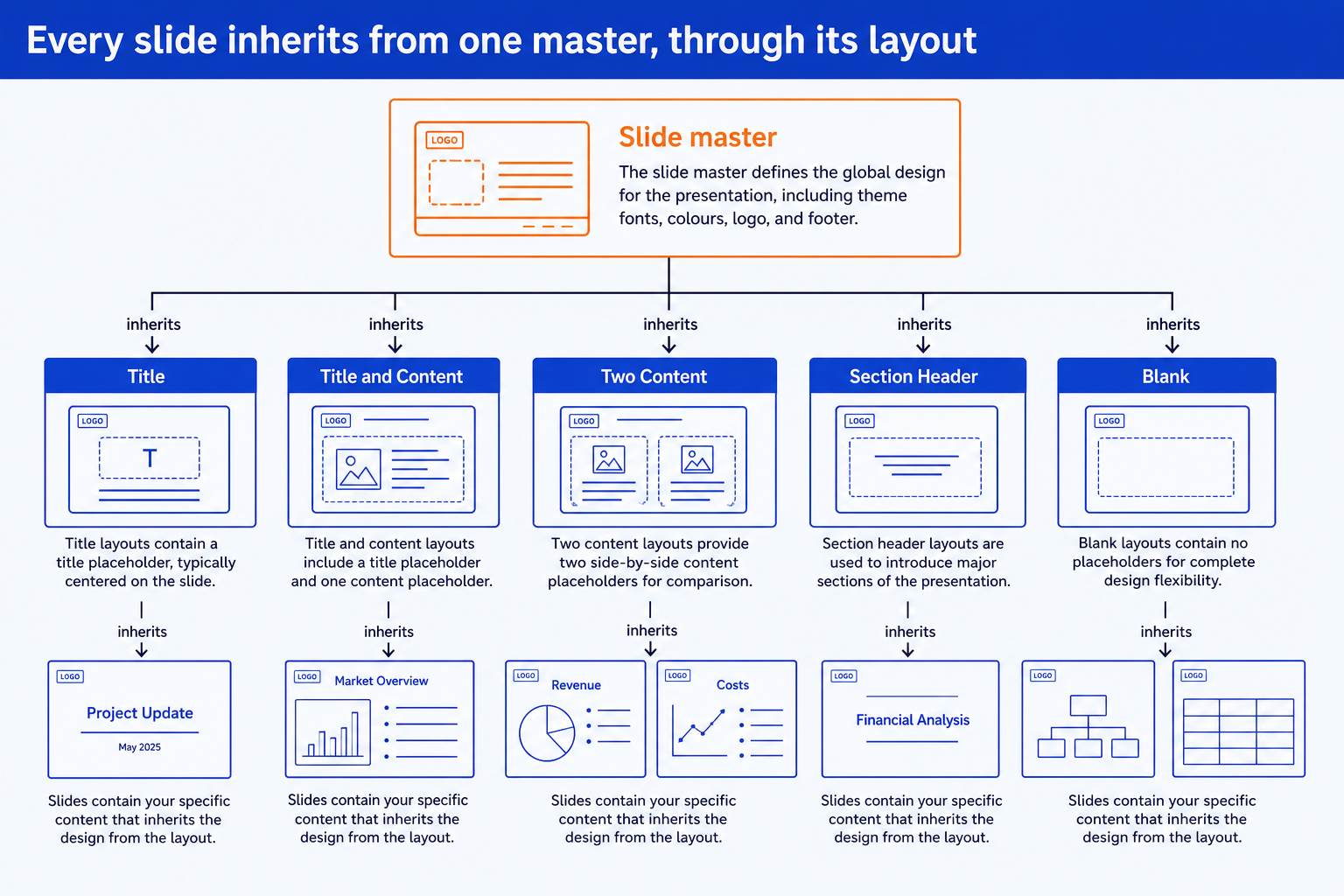
Indezine, a long-running PowerPoint reference, describes the same structure: the master sits at the highest position for background, colour, fonts, effects and placeholder size and position, and the layouts below it take that information from the master they belong to.
The parts of a PowerPoint master slide, broken out
Five things get confused with each other. Here they are in one grid, then one at a time with a concrete entry for each.
| Piece | How many | What it holds | Use it for |
|---|---|---|---|
| Slide master | One per theme, top of the hierarchy | Fonts, colours, background, logo, footer, default text styles | Changing the logo on every slide at once |
| Slide layout | Several per master, one per slide type | Which placeholders exist and where they sit | Making a two-column slide land in the same place every time |
| Placeholder | Slots inside a layout | Title, body, picture, chart, table, date, footer, slide number | Stopping people dragging a title to a random spot |
| Theme | One per master | The colour palette, the two theme fonts, the effects set | Re-colouring an entire deck for a new brand |
| Template file (.potx) | A saved presentation with no content | A master, its layouts and a theme, packaged for reuse | Starting every new deck from the same base |
The slide master. The top slide in Slide Master view. Whatever you set here is the default for everything below: the background, the logo in the corner, the footer line, the font used for titles and the font used for body text, and the bullet styles at each indent level. It is also where the date, footer and slide number placeholders get their position and size.
The slide layouts. The smaller slides indented beneath the master. A layout is a slide type: Title, Title and Content, Two Content, Section Header, Blank. Each one decides which placeholders appear and where. Move the title placeholder on the master and every layout follows. Move it on one layout and only that layout changes, which is the override you usually do not want.
The placeholders. Each placeholder is a labelled slot with its own formatting: a title, a content box, a picture slot, a chart slot. Content typed into a placeholder inherits its font, size, colour and alignment from the layout, which inherits from the master. Content typed into a plain text box inherits nothing.
The theme. Colours, fonts and effects live in the theme, and the master points at it. Set the palette once in Design, Variants, Colors and every chart, shape and table that uses theme colours updates. Shapes filled with a typed hex value do not, which is why decks drift after a rebrand.
The slides. Your actual content. A slide records two things: which layout it uses, and what you typed into each placeholder. Everything else is read from above at display time. That is why Reset on the Home tab works. It throws away the local overrides and re-reads the layout.
Worked example: building a corporate master slide end to end
The brief: a steering committee template for a consulting team. Dense slides, action titles, one confidentiality line, one logo. Here are the decisions in the order you take them, because the order matters. Size comes before layouts, and layouts come before anyone builds a slide.
Slide size
Widescreen 16:9, 13.333 in by 7.5 in. Set this first. Changing it after layouts exist rescales every placeholder and ruins the grid.
Margins
0.5 in on left and right, 0.4 in at top. Drag guides on the master to these values so every layout snaps to the same edges.
Title
28 pt, bold, left aligned, top of the slide, two lines allowed. An action title states the conclusion, so give it room.
Body
Level 1 at 18 pt, level 2 at 16 pt, level 3 at 14 pt. Nothing below 12 pt anywhere on the slide except the footer.
Footer
10 pt, grey, left: the confidentiality line. Right: slide number. The logo sits top right at a fixed 0.9 in width.
Theme colours
Dark 1 near-black for text. Accent 1 the brand blue. Accent 2 the one highlight colour. Accents 3 to 6 a tonal ramp for charts.
Check the arithmetic before you lock the grid. A 13.333 in wide slide with 0.5 in margins leaves 12.333 in of live width. Split into two content boxes with a 0.4 in gutter, each box is (12.333 minus 0.4) divided by 2, which is 5.967 in. Split the chart layout in thirds and the chart takes about 8.2 in with the takeaway text in the remaining 4.1 in. Write those numbers into the layouts and every slide lands on the same edges.
The conclusion this produces is concrete. A new analyst adds a slide, picks Title, chart and takeaway, pastes the chart into the slot, writes the action title and is done. They made no font, size or position decision, so there was nothing to get wrong.
Copyable master slide spec: sections in order, with the wording for each
Copy that block into a note, then build it in Slide Master view top to bottom: master first, layouts second, theme last. For the layouts you will fill most, see how the same grid discipline applies to an org chart slide and a timeline built on a template.
When to use a PowerPoint master slide
Use it any time a deck will be edited by more than one person, will outlive one meeting, or has to match a house style. Recurring decks such as monthly reviews and board packs are the clearest case, because the template is reused fifty times and the cost of building it is paid once.
The business case is consistency. Lucidpress, now Marq, reported in its 2019 brand consistency study that companies with consistently presented brands could see up to a 33 percent increase in revenue, up from 23 percent in its 2016 edition, and that 81 percent of the companies it surveyed still dealt with off-brand content. Both figures come from self-reported surveys of marketers rather than controlled experiments, so read them as direction, not a promise. The mechanism they point at is real: a master is the cheapest control on whether a deck looks like it came from one organisation.
When a PowerPoint master slide misleads
A master controls appearance, not discipline. The template can be flawless while the deck is full of local overrides, because nothing stops a user typing over a placeholder with a new font and size. A deck that looks consistent on screen can still be a pile of manual formatting that breaks the first time someone applies a new theme.
Three failure modes recur. Pasted slides keep their source formatting and quietly import a second master, so the deck carries two templates and the layout picker doubles in length. Hard-coded colours ignore the theme, so a rebrand misses every shape filled with a typed hex value. And a master with too many layouts fails by choice: people cannot find the right one and revert to the Blank layout, which is the one layout that enforces nothing.
The trade-off: a tight master protects consistency and costs flexibility. If the work is a one-off visual pitch where every slide should look different, a strict master gets in the way, and a design-led tool such as Canva, Pitch or Gamma will serve you better.
How to build and enforce a master slide
The manual route is View, Slide Master, then the spec above, then Close Master View and save as a .potx template. The harder part is enforcement, because every pasted slide and every hand-formatted text box is a chance for a deck to leave the template. A deck the team built from a master still needs checking.
Oria is built for the corporate environment: board packs, steering committee decks, diligence exhibits and dense frameworks held to an enforced corporate template. It reaches you two ways, a PowerPoint add-in in the task pane on Windows, macOS and PowerPoint for the web, and a connector for Claude and ChatGPT over MCP so a deck can be built from the chat you are already in. Slides come out as native, editable PowerPoint objects on your master, not images. Oria does not train on customer content. For a conversion case, see how to convert Copilot slides into brand decks.
One-line prompt
The trade-off: Oria loses on highly visual work. Founder fundraising decks, launch decks, student presentations and marketing one-pagers want visual impact more than a defensible template, and a design-led tool will beat it there. It also does not design your master for you; the spec above is still your decision.
The same discipline carries into every framework slide, such as a 2x2 positioning matrix or the layouts in roadmap templates for PowerPoint.
Frequently asked questions
What is a slide master in PowerPoint?
A slide master is the top slide in a deck's design hierarchy. It stores the theme, background, fonts, colours, effects, logo, footer and placeholder positions that every layout and slide inherits. Edit it in View, Slide Master, and a change made once reaches every slide built on that master.
How do I edit the slide master?
On the View tab, choose Slide Master. The master is the large slide at the top of the thumbnail pane and the layouts sit beneath it. Make changes there, then choose Close Master View on the Slide Master tab to return to your slides.
What is the difference between a slide master and a layout?
The master sets global rules for the whole deck: fonts, colours, background and logo. A layout decides which placeholders appear on one type of slide and where they sit. Layouts inherit from the master, and slides inherit from a layout, so a change on the master flows down through both.
Why won't my slide master changes apply to my slides?
Usually one of three causes. The slide carries a local override, so click Reset on the Home tab to re-read the layout. The layout itself has been changed, so edit that layout. Or the deck has more than one master and you edited the wrong one, so check the thumbnail pane for a second master.
How do I add a logo to every slide in PowerPoint?
Open View, Slide Master, select the top master slide, then use Insert, Pictures to add the logo and position it. It now appears on every layout that shows master graphics. A layout that has Hide Background Graphics ticked will not show it.
What is the difference between a slide master and a template?
The master is a component of the file. A template is the whole file saved as .potx, containing a master, its layouts, its theme and sometimes sample slides. New decks start from a template, and the master inside it controls how those decks look.
Can I have more than one slide master in a deck?
Yes. Each theme carries its own master, and Insert Slide Master adds another. Decks usually gain extra masters by accident, from pasting slides that keep their source formatting. Use extra masters deliberately, such as for an appendix with a different look, and delete the ones that arrived by accident.