

PowerPoint Speaker Notes That Actually Help You Present
PowerPoint speaker notes are private text attached to each slide. Only the presenter sees them, in the Notes pane or in Presenter View, and they hold what you will say, point at and time, so the slide itself can stay light.
Quick answer: what are PowerPoint speaker notes for?
They exist so the slide does not have to carry your script. Put the claim, the evidence and the source on the slide. Put the opening line, the thing you will point at, the exact number and the hand-off to the next slide in the notes.
PowerPoint speaker notes are text stored with each slide that only the presenter can see. You type them in the Notes pane under the slide in Normal view. During a slide show on a desktop version of PowerPoint, Presenter View shows them beside the current slide, the next slide and a timer, while the audience sees the slide alone. Good notes are short cues around two or three lines that are written word for word: the opening sentence and the transition. They can also be printed as notes pages. They are a memory aid for a live talk, not a script to read aloud and not a substitute for a clear slide.
Why PowerPoint speaker notes exist at all
A slide shown on a screen and a sentence spoken aloud are two channels. When both carry the same words, the audience reads faster than you speak and stops listening. Richard Mayer's redundancy principle in multimedia learning says people learn better from graphics plus narration than from graphics, narration and matching on-screen text. In the Cambridge Handbook of Multimedia Learning, the 2005 chapter reported 10 of 10 supporting tests with a median effect size of 0.69, and the 2014 edition reported 16 of 16 with a median of 0.86.
Those studies were on instructional material, and the effect depends on the audience's prior knowledge and the pace. Treat them as a strong reason to keep a slide from duplicating your speech, not as a law. The practical result is the same split Microsoft recommends in its own guidance on notes: keep the text on the slide to a minimum and put the extra detail in the speaker notes, out of the audience's sight.
Edward Tufte put the underlying problem more sharply in his 2003 Wired essay "PowerPoint Is Evil": "PowerPoint is a competent slide manager and projector." The tool stores and shows slides. What you say is your job, and the Notes pane is the one place the software gives you to prepare it.
What goes in PowerPoint speaker notes: the six parts
Notes that help have a repeatable shape. Not every slide needs all six, but a slide with none of them is a slide you are improvising.
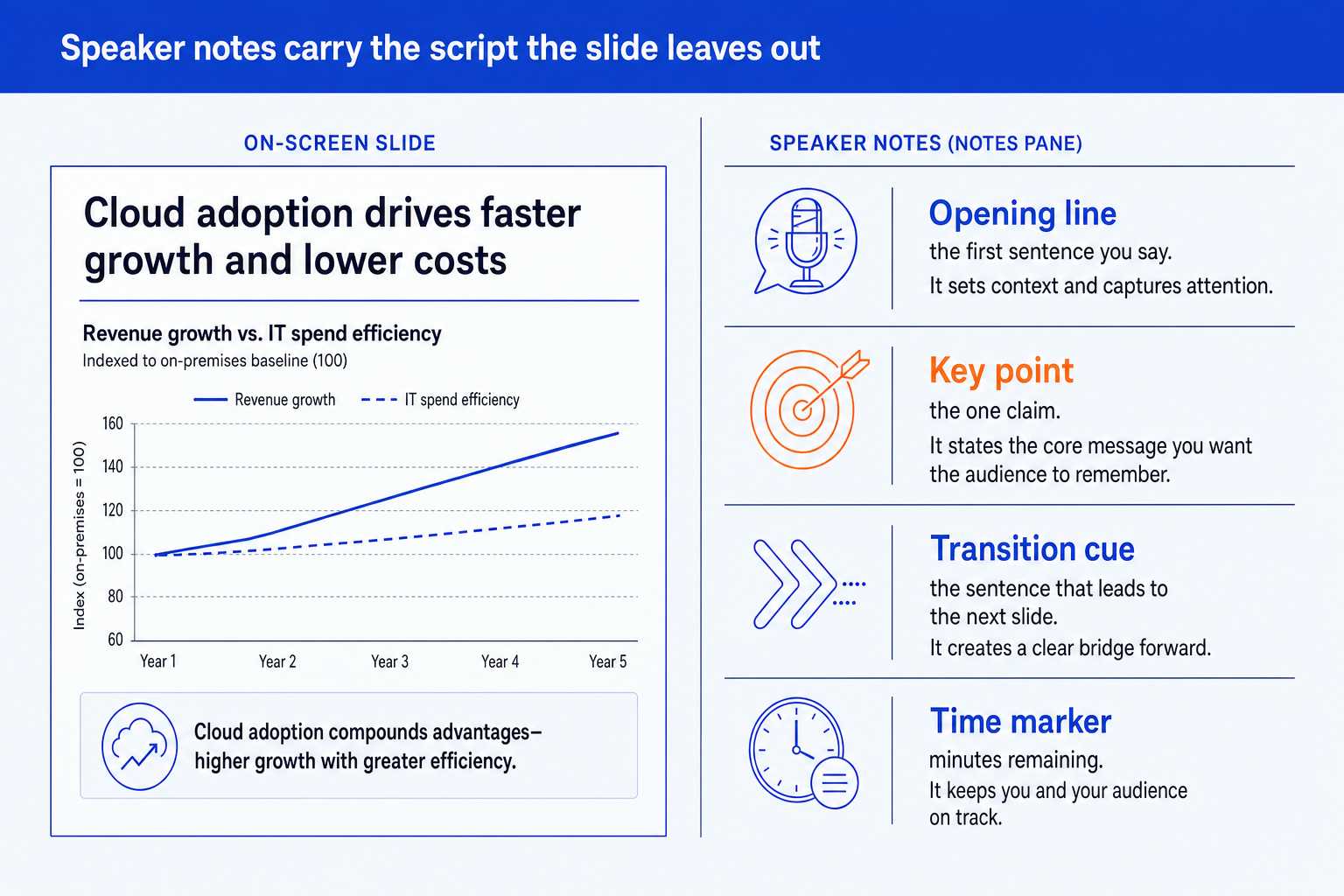
The opening line. The first sentence you say when the slide appears. It is the part people lose most often, because the previous slide's thought is still in your mouth. Example: "That brings us to cost, which is where the decision actually gets made." Write it word for word.
The one claim. What the slide proves, in one sentence, in plain speech. If the slide has an action title, the claim is that title said aloud with the so-what added. If you cannot write it in one sentence, the slide is carrying two messages.
The evidence you will point at. Which bar, row or cell you will gesture to, in the order you will gesture. This is the part the audience cannot see and you most need to remember: the third column is the one that matters, and the first two are context.
The number you cannot afford to misquote. Any figure that will be written down by someone in the room. Put the exact value and its unit in the notes, including the source and date, so you never have to reconstruct it under pressure.
The transition cue. The sentence that hands the audience to the next slide. A good transition names the question the next slide answers. It is the cheapest way to make a deck feel like one argument rather than a stack of pages.
The time marker. Minutes elapsed or remaining at this slide, for example "at 12 minutes you should be here". It is the single note that stops a presenter spending nine minutes on slide three.
Notice what is missing: the slide's own bullets. If the notes repeat the slide, you have written nothing. The test for every line is whether it tells you something you could not read off the screen.
A worked example: one slide, one set of notes
Take a single finance slide: a bridge chart making the case for changing a supplier. The slide stays clean. The notes carry everything else. Figures in square brackets are left for you to fill from your own source.
On the slide
Action title: Switching suppliers pays back inside the contract term. One bridge chart from current annual cost to projected annual cost. Source line at the foot.
Opening line
"So the question is whether the saving survives the switching cost. It does, and here is how."
The one claim
Net of one-off switching cost, the new supplier is cheaper before the contract ends.
Point at, in order
Left bar (today's cost). The orange step (the switching cost, which is the objection they will raise). The right bar (projected cost). Leave the two small steps unmentioned unless asked.
The exact number
[Annual saving, in the currency and unit on the slide.] [Source and date.] Say it once, slowly, then stop talking for two seconds.
Transition and time
"That is the financial case. The harder question is delivery risk." Target: 3 minutes on this slide, 11 minutes into a 20 minute slot.
Read that back and count the words. The notes run to roughly a short paragraph, and the only sentences written out in full are the first and the last. Everything in the middle is a cue. That is the density to aim for. The same discipline applies to the slide the notes sit behind, which should lead with its conclusion, as the guide to the executive summary slide shows.
Doing the timing arithmetic
Notes also tell you whether the talk fits. The widely repeated figure from the National Center for Voice and Speech is about 150 words per minute for US English conversation, and speech-coaching guides put a comfortable presenting pace lower, around 100 to 150. This worked example assumes 130.
| Step | Result | Reasoning |
|---|---|---|
| Total slot | 20 minutes | The time on the calendar invite, not the time you wish you had. |
| Reserve for questions and slippage | 5 minutes | A quarter of the slot. Presentations run long far more often than short. |
| Speaking time | 15 minutes | What the slides actually have to fit inside. |
| Words you can say | About 1,950 | At an assumed 130 words per minute, a deliberate presenting pace. 15 times 130 is 1,950. Pauses and chart time come out of this. |
| Slides that fit | 8 to 10 | Roughly 1.5 to 2 minutes per content slide leaves room for pauses and two slides that run long. Fewer if any slide is a dense exhibit. |
When to use PowerPoint speaker notes
Use them when you will present live from a desktop client and the deck is heavy enough that memory will not cover it: a board pack, a steering committee update, a diligence readout, a pitch where one wrong number costs you. They earn their keep on dense exhibits, because a dense slide is exactly where you forget which element to point at first. They are also the right place for the numbers you must not misquote and for the transition that carries an argument across slides.
Notes also help when someone else presents your deck. A colleague who inherits your slides inherits your reasoning only if you left it in the notes. The same holds for an agenda, where a line on the opening slide about timing keeps the room on track, as covered in the guide to agenda slides that set up the room.
The table below separates notes from the three other places text can live, so you can decide where each sentence belongs.
| Place | What it holds | Who sees it | Best for |
|---|---|---|---|
| Speaker notes (the Notes pane) | What you say, hidden from the audience | Presenter View on a desktop client, or printed notes pages | A talk you give live |
| On-slide text | What the audience reads | Everyone, projected | Key claim, labels, source |
| Handout or leave-behind | The full written argument | The audience, after the meeting | A deck that will be read, not presented |
| Alt text and slide comments | Accessibility description or reviewer feedback | Screen reader users, or collaborators | Not a place for a script |
When PowerPoint speaker notes mislead you
Notes can make a talk worse. The failure modes are specific.
They tempt you to read. A paragraph of notes pulls your eyes to the monitor. The audience watches the top of your head. Notes written as sentences get read as sentences; notes written as cues get glanced at.
They hide a weak slide. If the slide only makes sense with three minutes of notes behind it, the slide is the problem. A deck that is read rather than presented will be seen without them. Fix the slide, not the notes.
They leak. Notes are stored inside the file. Send the .pptx to a client and they can open the Notes pane. Candid drafts such as "they will push back on price here" have ended up in front of the people they describe. Remove them before sharing, or send a PDF.
They do not follow you everywhere. Microsoft states that you need a desktop version of PowerPoint to see speaker notes while presenting. If the venue forces a browser or a borrowed laptop, plan for printed notes pages as a fallback.
They go stale. Edit the slide, forget the notes, and the notes now describe a chart that no longer exists. Review notes in the same pass as the slides, last of all.
The trade-off: notes buy you memory and cost you eye contact. The more you write, the more you read. Keep them short enough that a glance is enough, and rehearse until you only need them for the numbers.
How to add, view and print PowerPoint speaker notes
The mechanics take two minutes. Menu names are as in current Microsoft 365 desktop builds and can differ slightly in older versions.
Add. In Normal view, click Notes at the bottom of the window, or choose Notes on the View tab. Click the pane under the slide and type. Drag its top border up to enlarge it.
Format. Select the text and use the size buttons in the lower-left corner of the Notes pane. Microsoft documents this as the way to change the text size you see in Presenter View. Printed notes use a separate font controlled in the Notes Master.
Present. Start the slide show with two screens connected. Presenter View is PowerPoint's default and shows notes, the next slide and a timer on your screen only.
Rehearse. On the Slide Show tab, a coaching rehearsal mode gives feedback on pacing and filler words. Run it once against your real notes and cut whatever you stumble on.
Print. Choose File, Print, then change Full Page Slides to Notes Pages. Use this as a fallback or for a colleague who is presenting.
Clean before sharing. Use Inspect Document to remove presentation notes, or export slides only to PDF, before the file leaves your hands.
If the room is set up for a different aspect ratio, check it before you rehearse, because a resized slide changes what you point at. The guide to PowerPoint slide size settings covers that.
A prompt to draft notes from a finished slide, in Claude or ChatGPT
A prompt like that gives you a first draft to cut, not finished notes. The voice has to be yours, and every figure must be checked against its source before you rely on it. Notes that start as meeting scribbles can be tidied the same way, as in the guide to turning meeting notes into editable slides.
Where Oria fits with PowerPoint speaker notes
Oria does not write your notes, and you would not want it to: they are your voice. What it does is build the slide the notes sit behind. Oria is built for corporate documents and consulting presentations: board packs, steering committee decks, diligence exhibits, dense frameworks held to an enforced corporate template. It reaches you through a PowerPoint add-in on Windows, macOS and PowerPoint for the web, and through a connector for Claude and ChatGPT over MCP, so a deck can be built from the chat you are already in. The output is native editable PowerPoint, so the Notes pane is there as usual once the slide lands. Slides that read at a glance are the ones that need the shortest notes. If a deck is looking crowded, the guide to improving ugly PowerPoint slides is the place to start.
The trade-off: Oria is built for the corporate environment and loses on highly visual work. Founder fundraising and pitch decks, launch and campaign decks, student presentations and marketing one-pagers want visual impact more than defensible content, and a design-led tool such as Gamma, Canva, Pitch or Beautiful.ai will beat it there and look better doing it.
Which notes approach should you use?
It depends where the deck will be used.
| If you need | Use | Why |
|---|---|---|
| A live talk you will deliver from a second screen | PowerPoint Presenter View | Notes, next-slide preview and timer in one window. A desktop client is needed to see notes while presenting. |
| A deck that will be emailed and read without you | On-slide text, not notes | Notes will not travel to a reader who only sees the slides. Put the argument on the page. |
| A talk you want timed and scored on pacing | Rehearse with Coach | PowerPoint's Slide Show tab includes a coaching rehearsal mode that gives feedback on pace and filler words. |
| A visual pitch where the story matters more than the content | Gamma, Canva or Pitch | Where the job is visual impact rather than defensible content, a design-led tool will beat a corporate template and look better doing it. |
| A board pack or steering committee deck built to a corporate template | Oria | Builds the dense, editable slides held to your master. You still write the notes, because they are your voice. |
Common PowerPoint speaker notes mistakes
A related point for structured talks: if the argument is an issue tree, the notes are where you say which branch you are on. The guide to building and presenting issue trees shows how to signpost it.
Frequently asked questions
What are speaker notes in PowerPoint?
Speaker notes are text attached to a slide that only the presenter sees. They live in the Notes pane below the slide in Normal view and appear in Presenter View during a slide show, while the audience sees the slide alone. They can also be printed as notes pages, one slide per page with its notes beneath. Use them for what you will say, not for what the audience reads.
How do I add speaker notes in PowerPoint?
Open the presentation in Normal view, select a slide, and click Notes at the bottom of the window, or choose Notes on the View tab. Click into the pane that appears under the slide and type. Drag the top border of the pane upward to enlarge it. Repeat for each slide. Notes save with the file, so they travel with it when you share it.
How do I see my speaker notes while presenting?
Start the slide show with Presenter View on, which is PowerPoint's default setting when two screens are connected. Your screen shows the current slide, the next slide, a timer and the notes, while the audience screen shows only the slide. Microsoft's guidance is that you need a desktop version of PowerPoint to see notes while presenting. The web version does not show them in the same way.
How do I print speaker notes in PowerPoint?
Go to File, then Print, and under Settings change the layout from Full Page Slides to Notes Pages. Each printed page then carries one slide with your notes beneath it. Microsoft suggests checking Presenter View first, since viewing notes on a second monitor saves paper. Printed notes use a separate font setting controlled through the Notes Master.
How much should I write in speaker notes?
Write the opening line and transition word for word, and everything between them as short cues. A useful ceiling is a few lines per slide: the one claim, what you will point at, and any exact number. If you need to read a paragraph to know what to say, the slide is carrying too much or you have not rehearsed it yet. Notes are a safety net, not a teleprompter.
Can the audience see my speaker notes?
Not during a normal presentation, but they can see them if you share the file. Notes are stored inside the presentation, so anyone you send the .pptx to can open them. Before sending a deck to a client, use Inspect Document and remove presentation notes, or export a PDF of slides only. Check this every time, because draft notes are often candid.
Should speaker notes be a full script?
Usually not. A full script invites reading, which breaks eye contact and flattens delivery. The exception is a high-stakes opening, a legal or regulated statement, or a talk in a second language, where word-for-word is the safer choice. For everything else, write the beginning and end of each slide's passage in full and the middle as cues you can glance at.