

python-pptx: Generating PowerPoint Decks With Python
python-pptx is a Python library that creates, reads and updates PowerPoint .pptx files from code. It turns data and text into slides, tables and charts without PowerPoint installed, and it produces a native, editable file.
The decision behind the search is whether a script is the right way to make the deck. For a report that repeats every week, usually yes. For a slide that has to argue something, usually no. Below: the object model part by part, one worked example from template to saved file, and the specific ways the library misleads you.
Quick answer: what does python-pptx do?
Install it with pip, import Presentation, open a template or start empty, add slides from a layout and fill their placeholders. Then add pictures, tables and charts at positions you choose, and call save. The output is a normal .pptx file.
python-pptx is an open-source Python library that reads and writes the PowerPoint .pptx file format. Its documentation says it does not require the PowerPoint application to be installed or licensed, so a script can build a deck on a server. It can add slides, text boxes, pictures, tables, shapes and charts, and it can open an existing deck and change it. It does not render slides, so it cannot show you how the result looks. Every position and size is something you specify.
How we assessed python-pptx
We read the library's documentation and ran its core calls against a template deck. Each part was judged on five questions.
What the library stores versus what you must supply
We separated what python-pptx owns, the file structure and the objects, from what the script author must decide: position, size and wording. Most surprises sit on that line.
Whether the output is a real PowerPoint file
We checked that charts, tables and text come out as native, editable objects and not pictures. That is the property that makes generated decks usable by the next person.
How a template is honoured
A script that ignores the corporate master produces a deck that gets reformatted by hand. We checked how layouts and placeholders carry the template through.
What fails silently
A library that cannot see the rendered slide cannot warn you about overflow. We listed the failures that only show when a person opens the file.
What we ignored
Raw XML manipulation, third-party forks and performance at thousands of slides. They matter for a small set of users and they obscure what the library is for.
Key takeaways
- python-pptx is a file library, not a design tool. It writes and reads the .pptx format and nothing else. It never renders a slide, so every layout decision is a coordinate you compute and no preview confirms it.
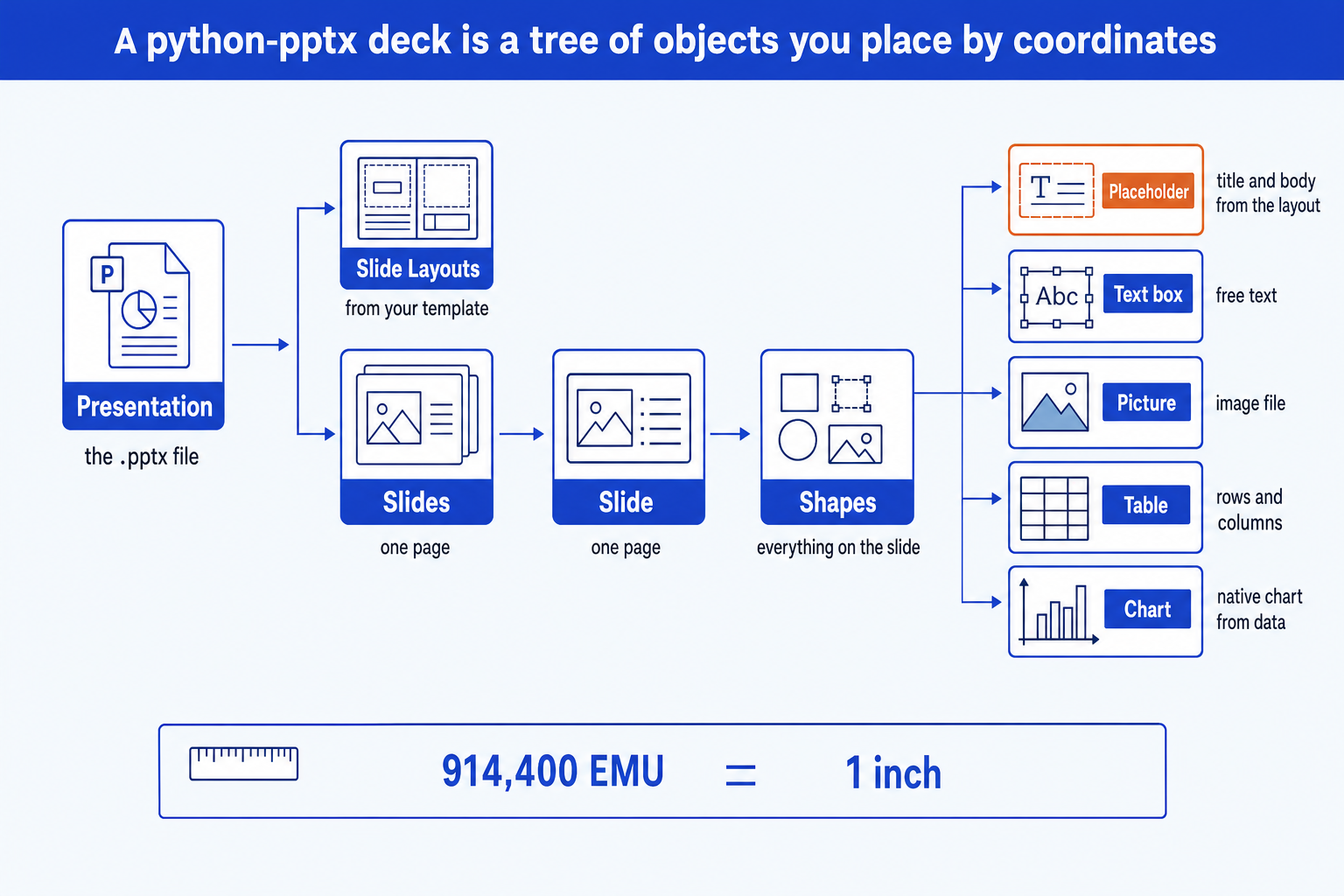
- Everything hangs off one tree. A presentation holds slides, a slide holds shapes, and a shape is a placeholder, text box, picture, table or chart. Learn that tree and the rest of the documentation reads as a lookup.
- Start from the template, not from the blank default. Opening your own .pptx and adding slides from its named layouts carries fonts, colours and the master into the output. The built-in default is a 4:3 sample, not a house style.
- Use placeholders for text and coordinates for exhibits. Titles and body text belong in placeholders so they inherit the template. Charts, tables and pictures are positioned by you in EMU units.
- Choose code when the slide repeats and a person when it is argued. A weekly report with the same shape is a good script. A board slide whose layout depends on the message is not, and generating it costs more than building it.
The parts of a python-pptx deck, compared
| Part | What it is | How you reach it | What it holds | Where it misleads |
|---|---|---|---|---|
| Presentation | The whole .pptx file | Presentation() or Presentation("file.pptx") | Slide size, layouts, slides, core properties | Default template is 4:3 unless you open your own |
| Slide layout | A named page design in the master | prs.slide_layouts | Which placeholders a new slide receives | Placeholder indexes differ between templates |
| Slide | One page of the deck | prs.slides.add_slide(layout) | Shapes, notes, background | No supported method to delete or reorder |
| Placeholder and text | A slot inherited from the layout | slide.placeholders, shape.text_frame | Title, body, paragraphs, runs, font size | The library does not measure text, so overflow goes unseen |
| Picture, table, chart | Free objects you position yourself | add_picture, add_table, add_chart | Native table cells and native chart data | You place them by coordinates, with no collision check |
How do you create a presentation with python-pptx?
Everything starts with the Presentation object. Called with no argument it opens a built-in sample template. Called with a path it opens your own file. Either way it owns the slide size, the slide layouts and the slides.
pip install python-pptxfrom pptx import Presentation
prs = Presentation() # the built-in default template
layout = prs.slide_layouts[0] # "Title Slide" in that template
slide = prs.slides.add_slide(layout)
slide.shapes.title.text = "Hello, deck"
slide.placeholders[1].text = "Built by a script"
prs.save("hello.pptx")Four lines do the work. Pick a layout, add a slide from it, fill the placeholders, save. A layout is a named page design in the slide master, and the master is where fonts, colours and footers live. If that idea is new, the guide to the slide master and template mechanic explains why a script that respects it produces a deck that looks like the house style.
The trade-off: the empty default template is a 4:3 sample with generic styling. Using it is the quickest start and the surest way to produce a deck nobody will send.
How do placeholders and text boxes work in python-pptx?
A placeholder is a slot a layout hands to a new slide. You write into it through slide.shapes.title or slide.placeholders, and the text takes its font and position from the master. A text box is a free object. You create it with shapes.add_textbox and give it a position and size, and the template does not style it for you.
Inside either, text is a text frame holding paragraphs, and a paragraph holds runs that carry the font size and colour. Each bullet is a paragraph, and its level property sets the indent. The documentation's own example adds a paragraph with add_paragraph, then sets its level.
The trade-off: placeholders keep the deck on brand and tie your code to one template's indexes. Text boxes work anywhere and ignore the brand. Use placeholders for the words and boxes only for the extras.
What are EMU units in python-pptx?
Every position and size in a .pptx file is an integer in English Metric Units, as the Office Open XML format defines them. python-pptx exposes them through helper functions so you can think in inches and points.
Inches(1) equals 914,400 EMU. EMU stands for English Metric Unit. Every position and size in the file is an integer count of them, and the helper functions convert from familiar units.
Pt(1) equals 12,700 EMU. Font sizes use points through the same helper, so a 14 point font is Pt(14). Mixing a raw integer and a helper is the usual cause of a shape landing off the slide.
The default slide is 10 by 7.5 inches. That is 9,144,000 by 6,858,000 EMU, a 4:3 page. A widescreen 16:9 slide is 12,192,000 by 6,858,000, which you set with prs.slide_width when you build from scratch.
from pptx.util import Inches, Pt, Emu

Inches(1)    # 914400
Pt(1)        # 12700
Emu(12192000)  # a 13.333 inch wide 16:9 slide
The slide size matters before you place anything. The same chart that fits a 4:3 slide sits off-centre on a widescreen one, which is the problem PowerPoint slide size settings cover from the user's side.
The trade-off: integer units are exact and unfamiliar. The cost is arithmetic in every script: margins, gaps and widths that must add up to the slide width by hand.
Can python-pptx add charts and tables?
Yes, and they are native. A table comes from shapes.add_table with a row count, a column count and four measurements, and you fill cells by index. A chart comes from shapes.add_chart with a chart type, four measurements and a CategoryChartData object holding categories and series. The documentation lists column, bar, line and pie charts as supported.
Because the chart carries its data, a person can open it in PowerPoint and edit the numbers. That separates a generated deck from one pasted as pictures, and it is also why this is the strongest case for the library: a recurring report whose figures change and whose layout does not.
The trade-off: you get the supported chart types and the formatting the API exposes. Waterfalls, Marimekko charts and heavily styled exhibits sit outside it.
Worked example: a three-slide steering committee deck
One example, carried from brief to saved file. The revenue and workstream figures are invented to show the mechanics, not drawn from any real programme.
The brief. A steering committee pack needs three slides every quarter: a title, a revenue chart and a workstream table. The numbers change each quarter and the layout does not, which is the profile a script suits.
Open the template. The script opens corporate-template.pptx instead of calling Presentation() empty. Every slide it adds now inherits that master, including the fonts, colours and footer.
Look layouts up by name. Indexes such as slide_layouts[5] are a property of one file. Searching for the layout named Title Only keeps the script working when someone reorders the master.
Put text in placeholders. The titles go into slide.shapes.title, so the template decides their font and position. Write the title as the conclusion the slide proves, not as a topic label.
Place the exhibits. The chart takes a CategoryChartData object and four measurements. Here the chart is 8.6 by 4.8 inches, starting 0.7 inches from the left, so on a 10 inch slide it leaves 0.7 inches at the right edge. Add the margins and they must equal the slide width: 0.7 plus 8.6 plus 0.7 is 10.
Save, open, look. The script runs in well under a second and produces steerco.pptx. Open it and check every slide by eye, because nothing in the run proved the table fits under its title. That final look is the step the library cannot do for you.
from pptx import Presentation
from pptx.util import Inches, Pt
from pptx.chart.data import CategoryChartData
from pptx.enum.chart import XL_CHART_TYPE

prs = Presentation("corporate-template.pptx")

def layout_named(name):
    return next(l for l in prs.slide_layouts if l.name == name)

# Slide 1: title
s1 = prs.slides.add_slide(layout_named("Title Slide"))
s1.shapes.title.text = "Programme status: Q3 steering committee"

# Slide 2: action title plus a native chart
s2 = prs.slides.add_slide(layout_named("Title Only"))
s2.shapes.title.text = "Revenue grew in every quarter of the year"
data = CategoryChartData()
data.categories = ["Q1", "Q2", "Q3", "Q4"]
data.add_series("Revenue, GBP m", (12.4, 13.1, 14.8, 15.2))
s2.shapes.add_chart(
    XL_CHART_TYPE.COLUMN_CLUSTERED,
    Inches(0.7), Inches(1.6), Inches(8.6), Inches(4.8), data,
)

# Slide 3: a table of workstreams
s3 = prs.slides.add_slide(layout_named("Title Only"))
s3.shapes.title.text = "Two of three workstreams are on track"
rows = [("Workstream", "Status", "Owner"),
        ("Data migration", "On track", "Finance"),
        ("Controls redesign", "On track", "Risk"),
        ("Vendor onboarding", "Late", "Procurement")]
table = s3.shapes.add_table(4, 3, Inches(0.7), Inches(1.6), Inches(8.6), Inches(2.0)).table
for r, row in enumerate(rows):
    for c, value in enumerate(row):
        cell = table.cell(r, c)
        cell.text = value
        cell.text_frame.paragraphs[0].font.size = Pt(14)

prs.save("steerco.pptx")
The conclusion is that the script decided nothing about design. The template supplied the look, the numbers supplied the content, and the only judgement left in the code is the sentence in each title. Change the four revenue figures next quarter and the deck regenerates. The same approach pairs well with Claude working inside PowerPoint when the slides do need drafting rather than refreshing.
The trade-off: the table in this example has no collision check and no overflow check. Add a fourth workstream with a long name and the script runs the same and the slide looks worse.
When should you use python-pptx?
Use it when the same slide is produced many times. Weekly performance reports, one fact sheet per client or per region, a deck refreshed from a database each month. In each, the layout is settled once and the data changes, so the script pays for itself on the second run.
Use it, too, to read and audit decks: list every slide title, find text in notes, or check that a set of files uses approved layouts. Do not use it to design. A single slide for a board that must read in one pass, such as an executive summary, costs more to specify in coordinates than to build.
When does python-pptx mislead you?
Each of these runs cleanly. That is what makes them dangerous.
It cannot see the slide. python-pptx writes XML. It does not render it, so a long title that wraps to four lines, a table that runs off the page and a label that collides with a chart all save without error. The first render is whoever opens the file.
Text does not shrink to fit. The library does not measure text. An autofit setting is an instruction PowerPoint applies when a person edits the text, not something the script run resolves. Generated text needs a character budget you enforce in your own code.
Placeholder indexes belong to one template. slide.placeholders[1] is the subtitle in the default title layout and may be something else in yours. Code written against the sample template breaks, or worse silently writes to the wrong slot, on the corporate one.
Some operations have no supported method. There is no documented call to delete or reorder a slide. People do it by editing the slide list in the underlying XML, which works until a library update changes the internals. Plan the deck so you only add slides in the final order.
Judgement does not generate itself. A script places things where the code says. Whether a dense framework reads clearly, whether the chart and the title agree, whether the slide is the right slide: none of that is in the file format. Repetitive slides survive this, argued slides do not.
One habit catches most of them: open the generated file and look at every slide before it leaves, or render it to images in a check step and review those.
Can Oria replace a python-pptx script?
For a different job, yes. Oria is built for corporate documents and consulting presentations: board packs, steering committee decks, diligence exhibits and dense frameworks held to an enforced corporate template. It reaches you two ways: a PowerPoint add-in in the task pane on Windows, macOS and PowerPoint for the web, and a connector for Claude and ChatGPT over MCP, so the deck can be built from the chat you are already in. The output is native, editable PowerPoint.
The difference is who computes the layout. With python-pptx you do, in EMU. With Oria you describe the slide and it designs each one individually. Our comparison of AI tools for PowerPoint shows where each approach fits. On privacy, Oria does not train on customer content, and Professional and Team plans do not persist presentation content after delivery.
The trade-off: Oria is built for the corporate environment and loses on highly visual work. Founder fundraising and pitch decks, launch and campaign decks, student presentations and marketing one-pagers want visual impact more than defensible content, and a design-led tool such as Gamma, Canva, Pitch or Beautiful.ai will beat it there. It is also not a library: there is no code route to a scheduled, unattended deck.
Which approach should you use to generate a deck?
It depends on whether the slide repeats or has to be argued.
| If you need | Use | Why |
|---|---|---|
| A recurring report with the same layout and new numbers | python-pptx | Fixed layout, changing data. A script is cheaper than rebuilding it, and the template carries the style. |
| A one-off board slide whose layout depends on the message | Build it by hand, or with Oria | The layout is the work. Coordinates are a poor way to express a framework you have not drawn yet. |
| A dense consulting slide drafted from an outline, in your template | Oria | Built for board packs, steering committee decks and diligence exhibits on an enforced template. It is not a library, so you do not script it. |
| Visual decks: fundraising, launch, campaign, student work | Gamma, Canva, Pitch or Beautiful.ai | Where visual impact matters more than defensible content, a design-led tool will beat both a script and Oria. |
| Chart formatting beyond the library's reach | think-cell or PowerPoint itself | Waterfall and Marimekko charts, and anything needing a live chart engine, are not what python-pptx is for. |
Common python-pptx mistakes to avoid
Frequently asked questions
What is python-pptx?
python-pptx is a Python library for creating, reading and updating PowerPoint .pptx files. Its documentation states that it does not require the PowerPoint application to be installed or licensed. It works on the file format directly, so it runs on a server or in a scheduled job as well as on a laptop.
How do I install python-pptx?
Run pip install python-pptx. The package is named python-pptx, but you import it as pptx, so the first line of a script is from pptx import Presentation. Installing it inside a virtual environment keeps the version pinned, which matters when you rely on internal behaviour.
Can python-pptx edit an existing PowerPoint file?
Yes. Presentation("file.pptx") opens an existing deck, and the library round-trips the elements it understands. You can change text, add slides from the file's layouts and save under a new name. Features it does not model, such as animations, are preserved in the file but not exposed through the API.
Does python-pptx support charts?
Yes. Its documentation lists column, bar, line and pie charts, built from a chart data object and added with shapes.add_chart. The result is a native PowerPoint chart with an embedded workbook, so a person can edit its data in PowerPoint. Chart types outside the supported set need another route.
Can python-pptx turn a slide into an image or PDF?
No. The library writes and reads the file and never renders it. To get an image or a PDF you open the finished .pptx in PowerPoint, or in a converter such as LibreOffice, and export from there. That is also why layout problems stay invisible during the script run.
How do I use my own template with python-pptx?
Pass the template path to Presentation(), then add slides from its named layouts. Search prs.slide_layouts by name instead of by position, and write text into placeholders so the master controls the typography. Delete the template's sample slides before you start, or begin from a file that has none.
Is python-pptx the best way to generate PowerPoint with AI?
It is one way. A language model can write python-pptx code, and the script then produces a file, but the layout is still computed by coordinates with no preview. For dense consulting slides, a tool built for that output is closer to the goal. For recurring reports, a script is often the better choice.