

PowerPoint Transitions for Board Decks: What to Use
PowerPoint transitions are the animations that play as one slide changes to the next in Slide Show view. Each is set on the incoming slide and controls how the old slide leaves and the new one arrives. They carry no content, which is why the wrong one stands out.
Quick answer: which PowerPoint transitions should you use?
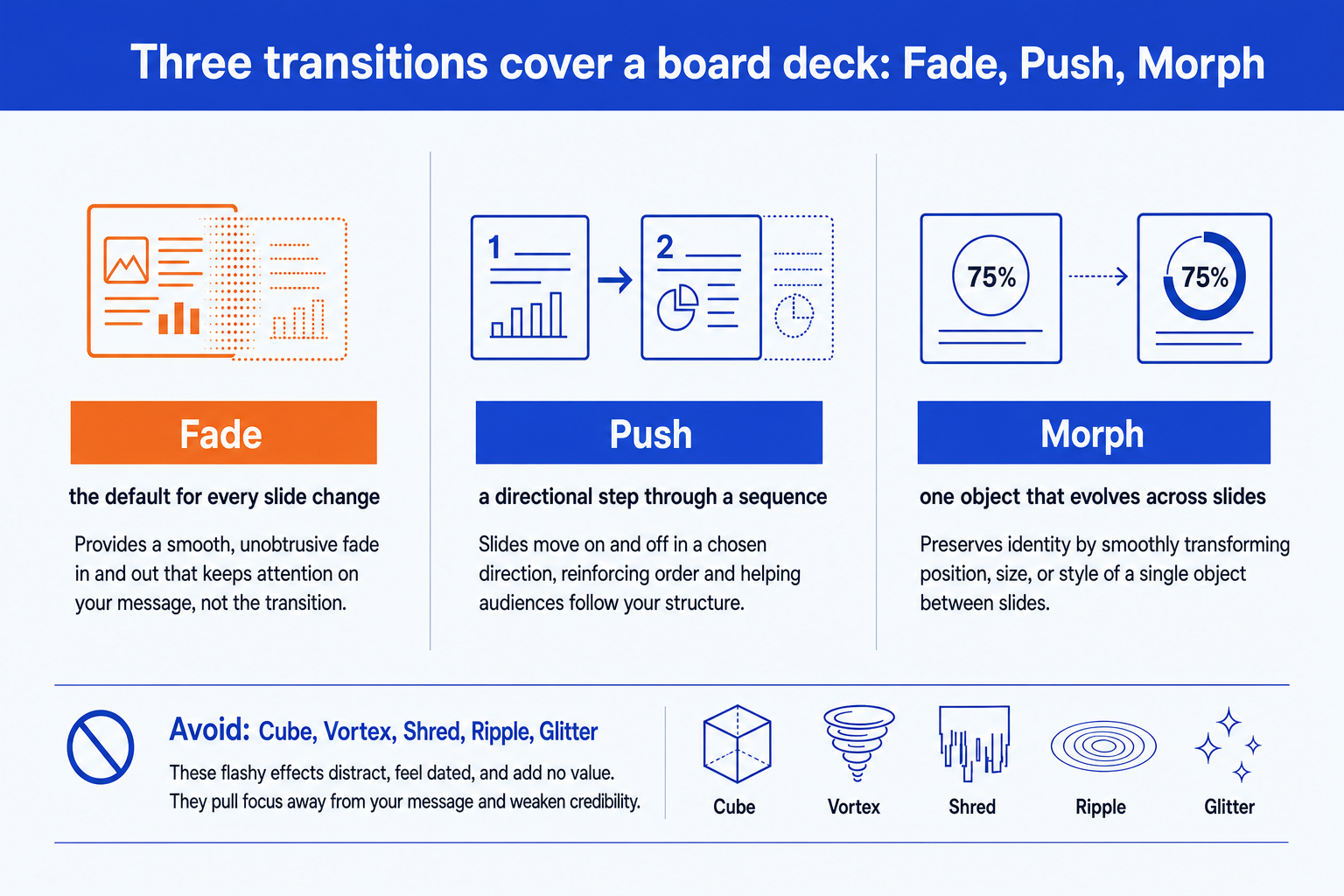
Use Fade at about half a second on nearly every slide change, Push to mark the start of a new section, and Morph when one object changes between two slides. Leave the rest alone.
PowerPoint transitions are set on the Transitions tab and play when you move between slides in Slide Show view. The gallery is grouped into Subtle, Exciting and Dynamic Content. For a board meeting, nearly everything you need sits in Subtle, plus Morph. Fade is invisible, Push signals a section break, and Morph shows a figure changing. The Exciting group, with effects such as Cube, Vortex, Shred and Ripple, makes a deck look assembled for effect, and that is the impression that costs you credibility with directors. Set the duration at half a second, leave the sound off, advance on click, and apply everything in one pass at the end.
How we judged each transition
We went through the full gallery as if setting it on a fourteen-slide quarterly board pack, and kept only what passed four tests.
Does it carry meaning
A transition earns its place only if it tells the audience something: the next section has started, or this is the same object after the update. Effects that only decorate were cut.
Does it survive a bad room
Boardrooms run old projectors, shared screens over video calls and borrowed laptops. We favoured effects that look the same on all three and degrade without breaking.
Does it hold up on the tenth slide
Something charming once is irritating fourteen times. We judged each effect as if it fired on every slide of a long pack.
Does it cost the presenter control
Auto-advance timings and long durations take the pace away from whoever is speaking. Anything that adds waiting scored badly.
What we ignored: how impressive an effect looks in the gallery preview, novelty, and how many effects PowerPoint ships. The preview is the one moment an effect looks its best, and it is not the moment you present.
Key takeaways
- Use one default and let it disappear. A short Fade on every slide change is the board-room standard because nobody notices it. The goal is that the audience watches the content, not the change.
- Use a directional effect only when order matters. Push or Wipe tells the room a new section has begun. Used on every slide it stops signalling anything, so keep it for the section breaks.
- Use Morph when one object changes between two slides. A bar that grows, a figure that moves from the left to the right, a framework that gains a layer. That is the single case where motion explains rather than decorates.
- Treat every showy effect as a credibility cost. Cube, Vortex, Shred, Ripple and Glitter signal a deck assembled for effect. In front of directors, that reading costs more than the effect gains.
- Set transitions last and in one pass. Build and edit the deck first, then apply them as a final step. Applying them per slide as you go is how a stray Dissolve survives into the circulated version.
What a PowerPoint transition is made of
A transition is not one setting. It is five, all on the Transitions tab, and the failures people remember usually come from the last four rather than the effect itself.
| Part | What it controls | Examples | Board-room guidance |
|---|---|---|---|
| The effect (the gallery) | How the outgoing slide leaves and the incoming slide arrives | Fade, Push, Wipe, Morph, Cube | Pick from Subtle, Exciting or Dynamic Content on the Transitions tab |
| Effect Options | The direction or variant of that effect | Fade: Smoothly or Through Black. Push: From Bottom, Left, Right or Top | Changes the feel without changing the effect |
| Duration | How long the change takes, in seconds | 0.5 seconds for a brisk change, 2 seconds for a slow one | The setting that most often makes a good effect feel bad |
| Advance Slide | What triggers the next slide | On Mouse Click, or After a set time | Leave on click for a live meeting so the presenter owns the pace |
| Sound | An audio cue that plays during the change | Applause, Camera, Chime | Leave on No Sound for any corporate audience |
Two points are easy to miss. The transition belongs to the slide you are arriving at, not the one you are leaving, so a divider slide with Push plays Push as it appears. And a transition is not an animation. Animations move objects inside one slide and live on a different tab. Whichever you use, rehearse in Presenter View, as the guide to setting up Presenter View explains.
Which PowerPoint transitions are safe for a board meeting?
Sort the gallery by what each family is for, and the choice stops being a taste question.
| Group | Right for | How it reads | Watch for |
|---|---|---|---|
| Subtle (Fade, Push, Wipe, Split, Reveal, Cover, Uncover) | Board packs, steering committees, client readouts | Quiet, and the group where nearly every deck should stay | Wipe and Split can look dated if the duration is long |
| Morph | One object that changes between two adjacent slides | The only effect that explains a change instead of dressing it | Fails silently when the two slides do not share matching objects |
| Exciting (Dissolve, Blinds, Checkerboard, Clock, Cube, Vortex, Shred, Ripple, Glitter, Honeycomb) | A conference opener or a deliberate visual brand moment | Loud, and it reads as effect for its own sake | The group that causes the embarrassment this page is about |
| Dynamic Content (Pan, Ferris Wheel, Conveyor, Rotate, Window, Orbit, Fly Through) | Moving only the content while the title stays fixed | Occasionally useful for a photo sequence | Rarely right for a numbers-led corporate deck |
Fade
Fade dissolves the old slide into the new one. It has two variants under Effect Options: Smoothly, which cross-blends the two slides, and Through Black, which dips to black between them. Smoothly is the one to use. At half a second it is close to a clean cut that does not jar, which is exactly the point. Through Black adds a pause that feels theatrical.
Push and Wipe
Push slides the new slide in and shoves the old one out in the direction you choose. It implies sequence, so reserve it for the first slide of a new section. Wipe reveals the new slide across the old one. Both are fine at short durations and both start to look like a 2008 deck when stretched past a second.
Morph
Morph finds objects that appear on both slides and animates the difference between them: a position, a size, a colour, a text change. Duplicate the slide, change the object on the copy, then apply Morph to the second slide. It needs a version of PowerPoint that includes it, which means Microsoft 365 or recent perpetual releases. Where PowerPoint cannot match an object it falls back to a plain fade, so give the matching objects identical names in the Selection Pane. A leading double exclamation mark on the name forces the match. The waterfall chart build is a good case: duplicate the finished bridge, change the values, and Morph shows the bars shifting between the two versions.
The Exciting group
Cube, Vortex, Shred, Ripple, Glitter, Honeycomb and their neighbours are built for visual spectacle. A board deck is the one place where spectacle reads as a lack of confidence in the content. These effects also tend to be the ones that render least predictably on a borrowed laptop or a shared screen.
The trade-off: a restrained set makes every deck look the same. That is acceptable. In a corporate pack the sameness is a feature, and the content is what should differ.
Worked example: transitions for a fourteen-slide board pack
A quarterly pack runs performance, outlook and a forecast revision, then asks for decisions. Each slide gets the transition its job needs and nothing more.
| Slide | Job | Transition | Reason |
|---|---|---|---|
| Slide 1. Title slide | Opens the deck | None | Nothing is leaving, so there is nothing to transition from. |
| Slides 2 to 6. Performance, in a run | Related slides of one argument | Fade, 0.5 seconds | Quiet, consistent, invisible. |
| Slide 7. Divider: Outlook | Marks a new section | Push, from the right, 0.5 seconds | The only direction change in the deck, so it signals a section. |
| Slides 8 to 11. Outlook, in a run | Related slides of one argument | Fade, 0.5 seconds | Back to the default. |
| Slides 12 and 13. Forecast bridge, before and after the revision | Same chart, updated | Morph, 1 second | The bars visibly move from the old values to the new ones. |
| Slide 14. Decisions requested | Closes the deck | Fade, 0.5 seconds | Ends on the default. |
The arithmetic is short. Fourteen slides produce thirteen changes. Eleven are Fade at 0.5 seconds, one is Push at 0.5 seconds and one is Morph at 1 second, so the total time spent in transition across the whole pack is 5.5 + 0.5 + 1, or 7 seconds. In seven seconds of motion the room sees exactly two signals: a section has started, and the forecast has moved. A deck with a different effect on every slide would spend a similar number of seconds and signal nothing.
The conclusion is that two non-default choices are the right number for a pack this size. If you find yourself wanting a third, ask what it would tell the audience. If the answer is nothing, it is decoration. For a pack that opens with a plan for the meeting, the same restraint applies to the agenda slide, which should arrive with the same default as every other slide.
When to use PowerPoint transitions
Use them when the deck is presented live, because the transition only exists in Slide Show view. A short Fade removes the hard flash between slides with different backgrounds, which is its practical value. Use Push or Wipe where the pack has sections and you want the room to feel the boundary. Use Morph where one exhibit evolves, such as a base case becoming a downside case or a roadmap gaining a phase.
Skip them entirely for a deck that will mostly be read. If the pack goes out as a PDF and is discussed from the page, transitions add nothing. Transitions cannot be stored on a slide master, so the template does not carry them. The guide to master slides explains what the master does hold, which is why the one-pass routine below matters.
When PowerPoint transitions mislead
Transitions are the part of a deck nobody scrutinises, which is how they cause problems. These are the specific ways they do.
It hides what changed. A transition animates the whole slide. If two consecutive slides differ by one number, a Fade makes the room see a full change and look for what moved. A Morph, or a plain cut, shows the real difference.
It disappears from the circulated version. Board packs are usually read as a PDF before the meeting, and a PDF carries no transitions. A Morph that explains a bridge live shows two static slides on paper, so the slides must still make sense with the motion removed.
It misbehaves on a shared screen. Over a video call the transition is re-encoded as video, so an elaborate effect can stutter or tear on the remote side. Fade and Push degrade cleanly. A Cube or a Shred often does not.
Morph flatters weak slides. Morph is smooth enough to make a muddled build look finished. If the two slides do not share objects, it falls back to a fade, and you will not know until you present.
Auto-advance hands the pace to the file. Timed advance suits a kiosk. In a live board meeting a director asks a question mid-slide and the deck marches on regardless.
The trade-off: if you remove every transition to avoid these risks, you lose the one place where motion genuinely clarifies, which is Morph on a changing exhibit. Keep that, and drop the rest.
How to set PowerPoint transitions in one pass
Do this last, after the content is final. Five steps cover it.
Open the slide sorter and select every slide. Open the Transitions tab, pick Fade, set Effect Options to Smoothly and the Duration to 0.5 seconds. Leave Sound on No Sound and Advance Slide on On Mouse Click.
Click Apply To All. Every slide now carries the same quiet default, and any stray effect from earlier editing is overwritten.
Select the divider slides one at a time and apply Push from the right at 0.5 seconds. Only the first slide of each section gets it.
For any exhibit that changes across two slides, duplicate the slide, edit the copy, name the matching objects identically, and apply Morph to the second slide at about one second.
Run the whole deck in Slide Show view once, on the machine and the screen you will present from. In the slide sorter, check the star under each thumbnail to confirm which slides carry a transition.
Gotcha
Apply To All overwrites everything, including the Morph slides you set earlier. Do step two first, then add the exceptions. Reversing the order loses the exceptions without any warning. If the deck embeds clips, check how they behave on slide change as well, which the guide to embedding video in PowerPoint covers.
If the slides themselves are the problem, transitions will not rescue them. A crowded or misaligned slide faded in at half a second is still a crowded slide, and the fix is design, covered in the piece on improving ugly PowerPoint slides.
Where does Oria fit, and where does it not?
Oria does not set your transitions. It sits upstream, where the slide itself is built. Oria is built for corporate documents and consulting presentations: board packs, steering committee decks, diligence exhibits and dense frameworks held to an enforced corporate template. It reaches you two ways, as a PowerPoint add-in in the task pane on Windows, macOS and PowerPoint for the web, and as a connector for Claude and ChatGPT over MCP, so a slide can be built from the chat you are already in. The output is native, editable PowerPoint on your master, which means the Morph mechanics above work on it like on any other slide.
A prompt that prepares a Morph pair
For the neighbouring exhibits that a board deck leans on, the guides to the stakeholder map and the swimlane process flow show the slides that benefit most from a calm, consistent change between them.
The trade-off: Oria is built for the corporate environment and loses on highly visual work. Founder fundraising and pitch decks, launch and campaign decks, student presentations and marketing one-pagers want visual impact more than defensible content, and a design-led tool such as Gamma, Canva, Pitch or Beautiful.ai will beat it there and look better doing it.
Which tool should you use for slide motion?
It depends on who is in the room and how the deck travels.
| If you need | Use | Why |
|---|---|---|
| A board or steering committee deck | PowerPoint, Fade and Push | Quiet, reliable, identical on every machine. |
| A figure that changes between two slides | PowerPoint, Morph | Native, no extra tool. Check that matching objects carry the same names. |
| A visual launch or fundraising deck where motion is the point | Gamma, Canva, Pitch or Beautiful.ai | Design-led tools beat a corporate template on visual impact and look better doing it. |
| The deck has to survive PDF circulation | No transition at all | If the argument depends on motion, move the logic into the slide itself. |
| Consistent slides in your firm template before you worry about transitions | Oria | Built for board packs and consulting decks. It builds native editable slides on your master. It does not choose your transitions. |
For a wider view of which tools suit which job, the roundup of the best AI for PowerPoint compares them side by side.
Common PowerPoint transition mistakes to avoid
Frequently asked questions
What are transitions in PowerPoint?
A transition is the animation that plays when one slide changes to the next in Slide Show view. It is set on the incoming slide from the Transitions tab, and it controls how the previous slide leaves and the new one arrives. A transition is different from an animation, which moves objects within a single slide.
How do you add a transition in PowerPoint?
Select a slide in the thumbnail pane, open the Transitions tab, and choose an effect from the gallery. Use Effect Options to change direction, set a Duration, and choose whether the slide advances on mouse click or after a time. Use Apply To All to give every slide the same transition.
What is the best transition for a professional presentation?
Fade, at around half a second, is the safe default. Push or Wipe works for marking a new section. Morph is the right choice when one object changes between two slides. Avoid Cube, Vortex, Shred, Ripple and Glitter in a corporate setting, because they draw attention to the effect rather than the content.
What is the difference between a transition and an animation in PowerPoint?
A transition governs the change between two slides and lives on the Transitions tab. An animation governs how an object, such as a text box or a chart, enters, emphasises or exits inside one slide, and lives on the Animations tab. Morph is a transition that animates matching objects across two slides.
How do you use Morph in PowerPoint?
Duplicate a slide, change the object on the copy by moving, resizing, recolouring or editing it, then select the second slide and apply Morph from the Transitions tab. PowerPoint matches objects between the two slides and animates the difference. Naming matching objects with the same text, or a leading double exclamation mark, forces a match.
How do you remove all transitions from a PowerPoint?
Select any slide, choose None in the Transitions gallery, then click Apply To All. This clears the transition from every slide in one step. Use the slide sorter view afterwards to check that no slide kept a star icon beneath its thumbnail, which marks a slide with a transition.
Do PowerPoint transitions work in a PDF?
No. A PDF is a static document, so every transition is dropped on export. If a pack is circulated as a PDF before the meeting, each slide has to read correctly without the motion. Transitions are kept when the deck is exported as a video.