

How to Create a RACI Matrix Slide for Strategy Teams
Most RACI grids do not start on a blank slide. They start as a rough table from a working session. Here is how to turn that rough grid into a clean, on-brand RACI matrix slide with Improve Design, plus the prompts that make it sharp.
How to create a RACI matrix slide for strategy teams
To create a RACI matrix slide for strategy teams, start from whatever rough grid already exists, a working-session table, an inherited deck, or a spreadsheet paste, and run Oria's Improve Design on it. Improve Design aligns the cells, applies your corporate template's fonts and colors, adds a legend, and keeps every task, role, and R, A, C, or I letter you already assigned. You get a board-ready, fully editable grid without retyping the plan.
This guide covers when a RACI matrix slide is the right operating-model tool, the four letters that carry it, the cleanup workflow with Improve Design, the exact prompts, and the mistakes that leave a grid unreadable. Everything you need is here.
Why strategy teams reach for a RACI matrix slide
A RACI matrix is a roles-by-tasks responsibility grid. Tasks or deliverables run down the rows, roles or people run across the columns, and each cell carries one letter that states how that person relates to that task. It is a common operating-model slide need because the moment a strategy plan moves from analysis into execution, someone has to own every piece of it, and a vague conversation about ownership does not survive contact with a real deadline.
Reach for it whenever a workstream launch, a target operating model, or a transformation program needs unambiguous accountability before the team disperses after the readout. For the reporting structure behind those roles, an org chart slide is the companion view. Use RACI when the message is who does what, not who reports to whom. For the wider field guide to when this framework earns its place in an engagement, see the consulting frameworks field guide.
What R, A, C, and I mean, and what a clean grid looks like
Four letters carry the whole grid, and how they read depends entirely on formatting. The exhibit below shows the same RACI matrix slide before and after a cleanup pass.
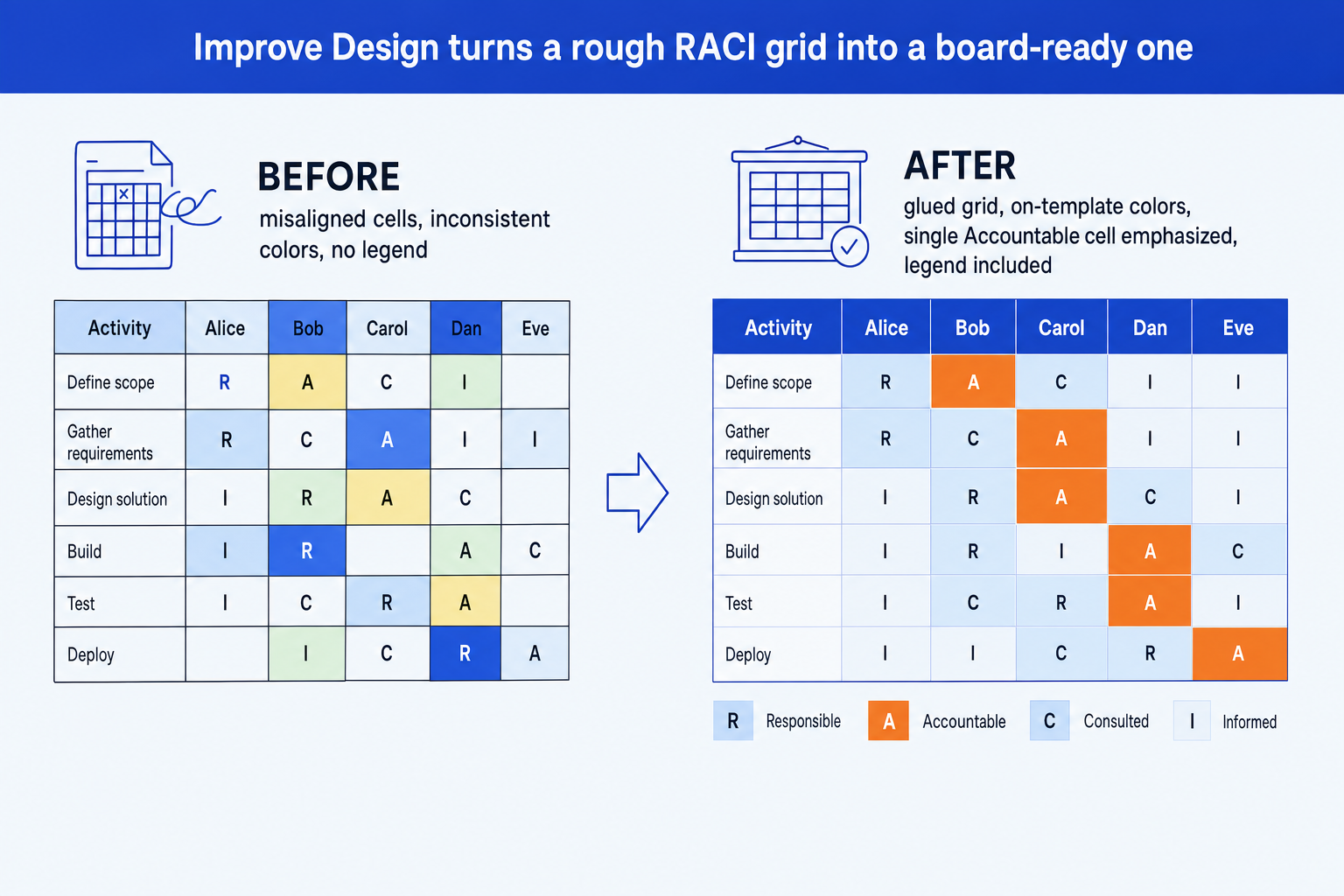
Responsible (R). The person who does the work to complete the task. A row can carry more than one R when the work is genuinely shared.
Accountable (A). The single owner who signs off the outcome and answers for it. There must be exactly one A per row, never two.
Consulted (C). People whose input is sought before a decision, in a two-way conversation. They shape the work but do not own it.
Informed (I). People kept updated after the fact, one-way. They need to know the outcome but are not part of the decision.
The step-by-step cleanup workflow with Improve Design
Most RACI matrix slides for strategy teams start life as a rough table dropped in mid-meeting, not a designed exhibit. Improve Design is built for exactly that starting point: it takes the slide you already have and refines it, rather than asking you to rebuild the plan from a blank page.
Get the rough grid into a PowerPoint slide. It can be a native table, a set of shapes, or a paste from a working document, as long as the tasks, roles, and R, A, C, or I letters are already in the cells. Improve Design refines formatting; it does not invent your content.
Fix any genuine ownership conflict first. Scan for a row with two Accountable letters or none at all and resolve it with the team before you clean up the visuals, since a polished slide with a real ownership gap is worse than an ugly one.
Run Improve Design on the slide. Oria aligns and groups the cells, fixes spacing so the grid reads as one glued table instead of a loose set of boxes, and applies your uploaded corporate template's fonts, colors, and logo.
Check that every task, role, and letter survived intact. Improve Design preserves your original content by design, but it is worth a scan to confirm no cell got dropped in the reformat.
Ask for the finishing touches you still want. If the output is missing a legend or the single Accountable cell is not emphasized clearly enough, a follow-up prompt in the same session adds it without rebuilding the grid.
Write the action title. Replace a leftover topic label with a full-sentence so-what, such as the one ownership decision the grid settles. The title is the slide; the grid is the proof.
Gotcha
Improve Design cleans up formatting, not logic. It will align a grid with two Accountable letters in one row just as neatly as a correct one. Resolve the ownership conflict in the source content before you clean up the slide, not after.
The Improve Design route: rough grid in, board-ready slide out
Aligning dozens of cells by hand and recoloring them to match a template is exactly the kind of mechanical work that eats an evening. Oria removes it. It is an AI add-in that runs in the PowerPoint task pane, and Improve Design is the workflow built specifically to take an existing, imperfect slide and turn it into a clean, on-brand version without a design brief. You point it at the rough RACI grid you already have, and it hands back a fully editable native slide.
Because the output is native PowerPoint, every cell, label, and color stays editable afterward. You can reassign a letter, rename a task, or add a role without rebuilding the grid from scratch. For a rough deck with more than one weak slide, see the wider guide to improving ugly PowerPoint slides with AI redesign tools.
Improve Design prompt for a rough RACI grid
The prompts that make the RACI matrix slide sharp
These are the exact copy-paste prompts we use to clean up a rough grid, check the ownership before we polish it, and write the action title. The first three are for Oria inside PowerPoint; the last two are for auditing the assignments in Claude before you clean up the slide. Replace the bracketed parts with your own tasks and roles.
Clean up with Improve Design in Oria
Full cleanup pass on an existing grid
Emphasize ownership after cleanup
Write the action title on the cleaned-up slide
Audit the ownership in Claude first
Check a rough grid for ownership conflicts before cleanup
Turn a task list into a first-draft RACI matrix
Tip
Audit the assignments in Claude, fix any ownership conflict, then hand the corrected grid to Improve Design for the visual pass. For the from-scratch build and the full letter-by-letter walkthrough, see how to build a RACI matrix slide.
Common mistakes to avoid
For the wider habits that make AI-assisted slides look board-ready rather than generic, the consultant's guide to Claude covers the end-to-end method from analysis to deck.
Frequently asked questions
What is a RACI matrix slide and why do strategy teams need one?
A RACI matrix slide is a grid where rows are tasks or workstream activities and columns are roles or people, with each cell holding one letter: R, A, C, or I. Strategy teams use it whenever a plan moves from analysis into execution and ownership has to be unambiguous, because a recommendation with no clear owner stalls the moment the team disperses after the readout.
How is this different from building a RACI matrix from scratch?
Most RACI grids do not start as a blank slide. They start as a rough table dropped in during a working session, an inherited grid from a previous deck, or a spreadsheet paste with inconsistent formatting. This guide covers the cleanup path with Improve Design, taking that rough starting point and turning it into a board-ready slide, rather than the manual build from an empty page.
What does Oria's Improve Design actually do to a RACI grid?
Improve Design takes an existing slide, aligns and groups the cells, fixes spacing so the grid reads as one glued table, applies your corporate template's fonts and colors, and adds supporting elements like a legend where one is missing. It keeps every task, role, and letter you already assigned. Nothing gets rewritten or simplified away, only the formatting and layout.
How many people should be Accountable for one task?
Exactly one. The Accountable letter marks the single owner who signs off the outcome, and a row with two A letters means ownership is split before the work even starts. Improve Design will clean up the visual formatting of a grid, but it will not fix a genuine ownership conflict. Resolve that in the source content first, then clean up the slide.
What is the fastest way to turn a rough RACI grid into a polished slide?
Paste or build the rough grid in PowerPoint with your tasks, roles, and letters in place, then run Improve Design on it. Oria aligns the cells, applies your template's colors and fonts, adds a legend, and hands back a fully editable native slide in around the same couple of minutes it takes to generate a slide from scratch, with none of your original content lost.