

Canva vs PowerPoint for Client-Facing Work, Compared
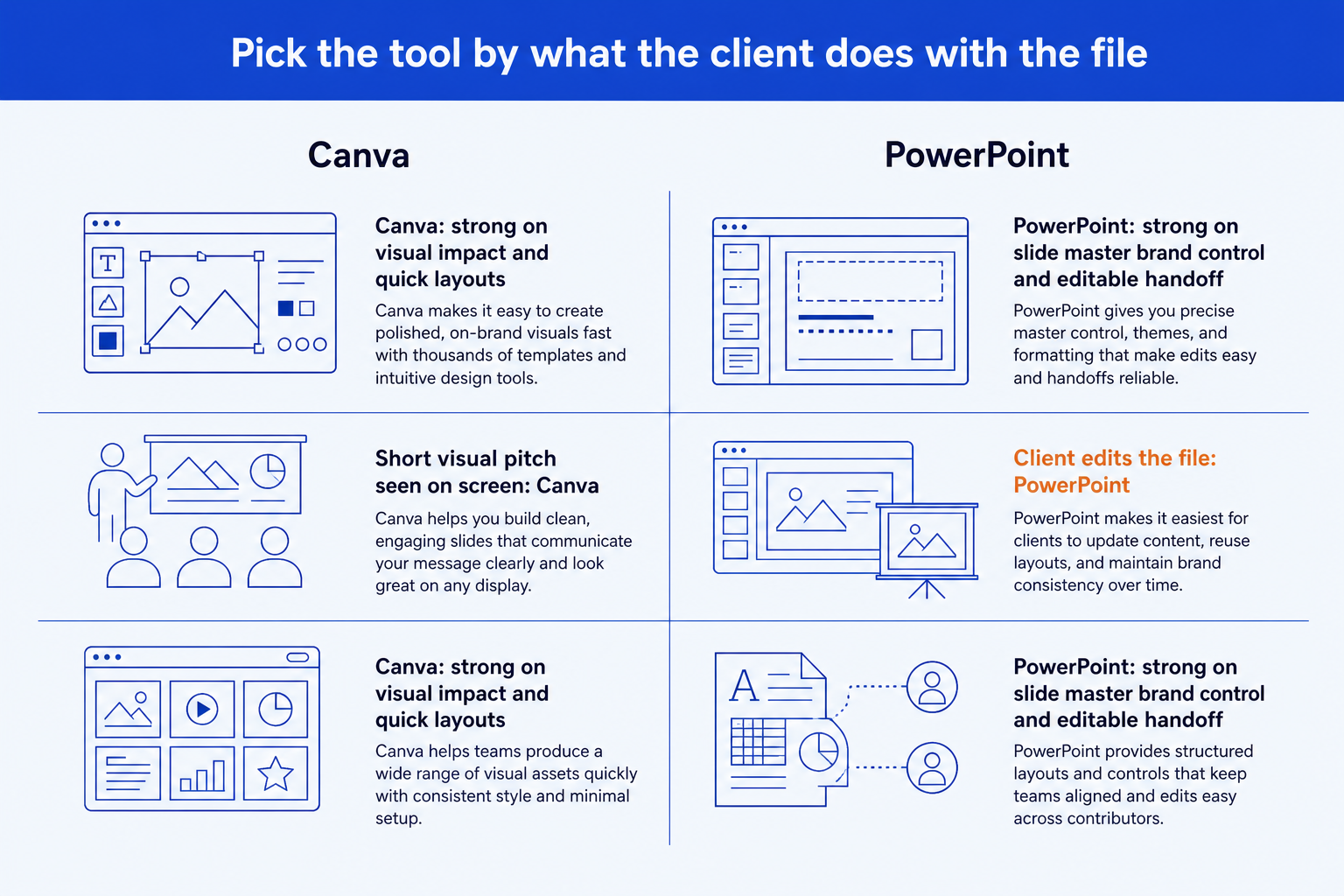
Pick PowerPoint for client-facing work that gets edited, reviewed and filed as a deck, and pick Canva when the deck is short, visual and mostly seen on a screen. The choice comes down to what your client does with the file after you send it, which is also where neither tool is always the right answer.
Disclosure: Oria publishes this page and makes an AI add-in for Microsoft PowerPoint, one of the tools compared here.
Every deck that leaves your firm is judged twice: once on how it looks, and again on what the client can do with it. Canva and PowerPoint answer those two questions differently, so the real decision is which one you are optimizing for. This page compares them on the points that matter to client work, then says plainly who should pick which.
It is written for consultants, analysts and finance teams who send decks to clients, not for students or social media teams. If you came here for a pitch deck that must look striking, the short version is that Canva is built for that. If you came for a deck that must survive a client review cycle, the case below favours PowerPoint, with one caveat about density that we cover in its own section.
Canva vs PowerPoint: the quick answer
Choose PowerPoint when the client team will edit, comment on, merge or archive the deck, or when a corporate template must be enforced. Choose Canva when the deck is a short visual pitch that you present on screen and send as a PDF. Both tools can make a good client deck. They differ on who controls the file once it leaves your hands.
In plain terms: Canva is a web design tool with a large template library and a brand kit, strongest for graphic, high-impact slides made quickly. PowerPoint is the presentation application most corporate clients already use, strongest when a slide master enforces fonts, colors and logos and when the file itself is the deliverable. Neither one drafts dense, framework-heavy slides for you. If that is your bottleneck, an AI add-in for PowerPoint is the third option worth testing, and a design-led tool is the better route when visual impact is the whole job.
How we compared Canva and PowerPoint
The criteria are the questions a client-facing team actually argues about. Where we cite a vendor fact, it comes from the vendor's own documentation and is linked in the sources at the bottom of the page.
- Who edits the deck after you send it, and in which application.
- Whether brand rules are enforced by the file or only applied by the author.
- How the deck is delivered: live on screen, as a PDF, or as an editable file.
- How the tool copes with dense slides such as frameworks, flows and exhibits.
- What happens when the deck moves from one tool to another.
What we ignored: popularity, template counts and anything we could not trace to a vendor page. We also did not score either tool. A score would hide the one thing that decides the outcome, which is your delivery format. We did not test pricing, because plans change often and you should read each vendor's current page.
Key takeaways for client decks
Ask who edits the file next. If the client team will change numbers, reorder slides or paste pages into their own deck, the file format decides the winner. PowerPoint is the working format of most corporate teams, so a native deck travels without conversion.
Ask whether the brand is enforced or applied. A slide master enforces fonts, colors, logos and placeholders on every slide you add. A brand kit applies them when you choose to. Regulated, board-level and multi-author work needs the first. A short campaign deck survives on the second.
Ask where the deck is read. A deck presented live on a screen rewards visual impact, and Canva is strong there. A deck sent ahead as a pre-read, marked up in review and filed in a data room rewards density and edit control, which favours PowerPoint.
Ask how dense the slides are. Frameworks, multi-step flows, matrices and number-heavy exhibits stress any layout tool. Both products can draw them. Neither drafts them for you, and that gap is where the third option in this page earns its place.
Ask what happens at the handoff. Moving a design between tools is a conversion, and conversions drift: fonts substitute, spacing shifts, effects drop. If the deck crosses tools on its way to the client, test that exact path with a real slide before you commit.
Canva vs PowerPoint side by side
The table maps each decision rule from the takeaways onto the two tools. Read across a row to see how the same question lands for each.
| Decision rule | Canva | PowerPoint |
|---|---|---|
| Best fit | Short, visual decks presented on screen: pitches, campaign recaps, workshop kickoffs. | Decks the client will edit, review, merge or file: proposals, board packs, steering committee updates. |
| Brand control | Brand kit and templates keep visuals consistent when the author applies them. | Slide master and layouts set fonts, colors and logos once and apply them to every slide. |
| Client edits | Works if the client team uses Canva. Otherwise the deck leaves as a PDF or a converted file. | Native file that most client teams already open, mark up and reuse. |
| Dense slides | Capable on layout, designed around visual composition rather than data-heavy exhibits. | Capable on layout and charts, with SmartArt and shapes. Dense work is manual unless you add a tool. |
| Visual impact | Strongest of the two for polished, graphic-led slides with little effort. | Can look excellent, but a plain default deck looks plain. Design takes deliberate work. |
| Handoff risk | Exporting to PowerPoint is a conversion, so check fonts, spacing and animations after export. | None inside the format. Risk appears only if the client opens it in another editor. |
| Built-in design help | Template library and design tools inside the editor. | Designer suggests layouts for slides on a Microsoft 365 desktop subscription, with limits (see below). |
Is Canva good enough for client-facing decks?
Yes, for the right kind of deck. Canva is a browser-based design tool built around templates, drag-and-drop layout and a brand kit for fonts, colors and logos. Its strength is visual finish: a non-designer can produce a graphic, modern slide in minutes, and the result usually looks more designed than a default PowerPoint deck. For a pitch, a campaign recap, a workshop kickoff or a proposal that is presented live and sent as a PDF, that is exactly what a client sees and values.
Collaboration is also easy when the whole client team works in Canva. Comments, shared links and a single live version remove the attachment ping-pong that plagues email decks. The cost is that everyone must be in Canva. Most corporate client teams review and file work in PowerPoint, so the moment your client wants to edit, you are exporting.
That export is where client-facing teams get caught. Canva can produce a PowerPoint file, but a conversion between two layout engines rarely reproduces a design exactly. Fonts that are not installed on the client machine get substituted, spacing shifts, and animations or embedded video may not carry over. Treat the exported file as a draft to inspect, not a finished deliverable, and open it in PowerPoint before you send it. Our guide to Canva alternatives for professional decks goes deeper on that handoff question.
Brand control is the other limit. A brand kit makes the right fonts and colors easy to reach, but it is applied by whoever builds the slide. It does not stop a colleague from picking an off-brand typeface on slide nine. For a one-author pitch that is fine. For a team of ten producing a monthly client report, it is a compliance risk.
The trade-off: Canva gives you the best-looking slide for the least effort, and in exchange the deck is happiest inside Canva. The further it travels toward a client's own editing and filing workflow, the more you pay in conversion checks.
Is PowerPoint the safer choice for client decks?
For client work that gets edited and filed, yes. PowerPoint is the format most corporate teams already open, mark up and merge into their own packs, so a native deck needs no conversion and no new login on the client side. It also gives you the one feature that matters most for brand discipline: the slide master. Microsoft's support pages put it this way: “Use a slide master to add consistency to your colors, fonts, headings, logos, and other styles.” Set once, it applies to every slide anyone adds.
Microsoft also documents that each master carries its own theme, so a presentation that needs more than one theme needs more than one master. In practice that means a well-built template can hold a client-branded variant and your own, and a reviewer can switch layouts without breaking the deck. That structure is why finance and strategy teams standardize on it for board packs and diligence material.
PowerPoint's weakness is the default look and the labour of dense slides. Designer helps at the margin. Per Microsoft's documentation, desktop Designer is a Microsoft 365 subscriber feature, needs a built-in theme rather than a custom one, and works best with no more than four photos over 200 by 200 pixels on the slide. It suggests layouts and can turn a list or process into SmartArt. It does not build a dense, bespoke exhibit from a brief, so a custom corporate template can sit outside what it supports. For the wider field of AI help inside the application, see our guide to the best AI for PowerPoint.
The trade-off: PowerPoint gives you control, a universal format and an enforceable template, and in exchange the attractive result is on you. A weak deck stays weak until someone does the layout work.
When is neither Canva nor PowerPoint alone enough?
When the bottleneck is dense slides in a strict template. A consulting-style client deck is full of framework pages, multi-step flows, matrices and exhibits, each one bespoke. Canva is optimized for visual composition and PowerPoint hands you a blank canvas, so either way an analyst spends the evening aligning boxes. That is the gap AI slide tools target, and our guide to improving ugly PowerPoint slides shows the manual version of the same fix.
Oria, the product published here, is one such option. It reaches users two ways: as an add-in in the PowerPoint task pane on Windows, macOS and PowerPoint for the web, and as a connector for Claude and ChatGPT over MCP, so a deck can be built from the chat you already use. Output is native, editable PowerPoint on your uploaded template. Oria's own documentation describes 30 to 40 seconds to preview two to five design options for a slide. Its strength is board packs, steering committee decks and dense frameworks.
Oria is built for the corporate environment only, so it loses on highly visual work. For a founder pitch, a launch deck or a campaign story, Canva, Pitch or Beautiful.ai will look better, and you should use them. On data handling, Oria states that it does not train on customer content. Professional and Team plans do not persist presentation content after delivery, and Enterprise adds private cloud deployment and custom LLM integration. Read the current terms on its site before relying on them.
The trade-off: Oria speeds up dense, on-template corporate slides inside PowerPoint, but it is not the tool for decks whose job is visual impact. For those, route to a design-led tool.
Which tool for which client deck?
If you need X, go to Y. This routing names the tool that fits each situation, including tools that are not ours.
| If you need | Go to | Why |
|---|---|---|
| Short visual pitch, seen on screen | Canva | Fast layouts and a graphic-led look. A design-led tool beats a corporate tool here. |
| Client edits, reviews or files the deck | PowerPoint | Native format, slide master, and the file your client's reviewers already use. |
| Dense consulting-style slides in a strict corporate template | Oria | AI add-in for PowerPoint, and a connector for Claude and ChatGPT. Built for board packs and framework slides, and weaker on highly visual work. |
| Fast narrative deck or page shared as a web link | Gamma | Web-first generator. See our Gamma alternative guide for the trade-offs on consulting work. |
| Fundraising, launch or campaign deck | Canva, Pitch or Beautiful.ai | Visual impact matters more than defensible density, so use a design-led tool. |
For the Gamma row, our Gamma alternatives for consulting decks page covers where a web-first generator strains. If your pain is a Copilot draft that does not match your template, see how to convert Copilot slides into brand decks.
Frequently asked questions
Is Canva or PowerPoint better for client presentations?
It depends on what the client does with the file. PowerPoint is the stronger default when the client will edit, review, merge or archive the deck, because the native format and slide master travel intact. Canva is stronger for short, visual decks presented on screen, where design impact matters more than edit control.
Can I use Canva for client work?
Yes. Canva suits client work that is visual and presented live: pitches, campaign recaps and workshop material. Plan the handoff early. Send a PDF if the client only reads it, and test the PowerPoint export on a real slide if they need to edit it.
Can you convert a Canva presentation to PowerPoint?
Canva can export a presentation as a PowerPoint file. Treat the result as a conversion, not a copy. After export, open the file in PowerPoint and check fonts, spacing, animations and any embedded media before it goes to a client.
Is PowerPoint good enough for client-facing design?
Yes, with a proper slide master. Microsoft's own support pages describe the master as the place to add consistency to colors, fonts, headings and logos. The weak point is not the tool but the default look, so a polished client deck needs a designed template, or help drafting dense slides.
Does PowerPoint Designer replace a designer?
No. Microsoft documents Designer as a layout suggestion feature with requirements, including a built-in theme and limits on photos per slide. It helps with simple slides and does not build dense, bespoke exhibits from a brief.
What should I use for a consulting-style client deck?
Use PowerPoint as the file format, because clients and reviewers expect it. If building dense framework slides in your corporate template is the bottleneck, an AI add-in such as Oria drafts them as native, editable slides. For visual-first decks, a design-led tool is the better choice.
Which is cheaper, Canva or PowerPoint?
Prices and plan terms change often and vary by region, so check each vendor's current pricing page before deciding. The more useful cost question is hidden: how many hours your team spends fixing a deck after it moves between tools.
Sources (checked on October 13, 2026)
Each link below was opened while writing this page. Every figure and quotation about PowerPoint comes from these Microsoft pages.
- Microsoft Support: Create professional slide layouts with Designer
- Microsoft Support: Customize a slide master
- Microsoft Support: Use multiple slide masters in one presentation
Canva's own site did not allow automated access during this check, so the Canva descriptions here are general and carry no figures. Confirm current Canva features, export behaviour and pricing on Canva's help and pricing pages before you decide. Oria details come from Oria's product documentation.