

ChatGPT for PowerPoint Add-in Explained: Uses and Limits
The ChatGPT for PowerPoint add-in is OpenAI's official assistant inside Microsoft PowerPoint. It lets you prompt ChatGPT from a task pane to create slides from notes, documents, and spreadsheets, and to edit, summarize, and explain existing slides. The output is editable PowerPoint, released as a beta with plan-based usage limits.
ChatGPT for PowerPoint add-in: quick answer
The decision most readers face is not whether to try it, because it is free to install. It is whether a general assistant inside PowerPoint is enough for the slides you actually have to ship, or whether the work needs a tool built around a strict template and dense layouts.
The ChatGPT for PowerPoint add-in is OpenAI's official task-pane assistant for Microsoft PowerPoint. It creates slides from prompts, notes, documents, and spreadsheets, edits and summarizes existing slides, and keeps the result editable in PowerPoint. OpenAI documents it as a beta, meters it in credits, and warns that advanced formatting may be limited and that outputs can be wrong. It is a strong drafting and editing layer, and a weaker finishing tool for template-bound decks.
How we assessed the ChatGPT add-in
OpenAI's own documentation first
Availability, usage limits, and limitations come from OpenAI's help center article on ChatGPT for PowerPoint and from launch coverage. We name the source in the sentence where a figure appears.
The job each capability does in a real deck workflow
We looked at creating, editing, summarizing, and auditing as separate jobs, because a tool can be good at drafting and weak at finishing.
What stays manual after the add-in has run
We looked for the work a reader still does by hand: fixing layout, matching the template, checking numbers.
Honest routing
Where another tool fits the job better, we name it, including where that tool is not Oria.
What we ignored: vendor adjectives, unsourced time-saving claims, and any capability we could not trace to OpenAI's documentation or to published launch coverage. This page is a documentation-based explainer. We do not publish a benchmark run, so test the add-in on your own deck before you rely on it.
Key takeaways
- The add-in is a general assistant placed inside PowerPoint. Its strength is that it sits where the deck lives, so a prompt can read the current slides and change them without an export or a paste.
- Usage is metered in credits, not slides. OpenAI's help center puts a typical task on GPT-5.5 at 10 to 50 credits per message, so the cost of a deck depends on how many rounds of revision it takes.
- It is documented as a beta with stated limits. OpenAI says advanced formatting, chart, and shape editing may be limited, and that outputs can be incomplete or incorrect.
- It works toward your existing template where possible, but OpenAI warns the result may not match your preferred style perfectly. A strict corporate master is the case to test first.
- Treat it as a drafting and editing layer. For dense, template-bound consulting slides, check the output against your master before it reaches a partner.
What the ChatGPT PowerPoint add-in does, part by part
OpenAI launched the add-in on May 21, 2026, according to Engadget's launch report. Engadget's Anna Washenko summed up the scope in one line: "ChatGPT is available in Microsoft PowerPoint. The chatbot can create new presentation slides, as well as editing and updating existing ones." Under that sentence sit six distinct capabilities, each with its own limit.
| Capability | What it does | The limit to keep in mind |
|---|---|---|
| Create from sources | Builds slides from prompts, notes, documents, spreadsheets, images, or an existing deck. | A first draft is fast. The slide structure follows the prompt, so a vague prompt gives a vague deck. |
| Edit and update | Changes existing slides in place from a plain-language request, keeping them editable in PowerPoint. | An unclear request can edit or delete the wrong content, so duplicate the deck first. |
| Summarize and explain | Reads a deck and returns a summary or an explanation of a slide. | A summary is only as reliable as the numbers on the slides. It does not verify them. |
| Audit and polish | Reviews a deck for narrative gaps and missing context, and tidies existing slides. | Narrative feedback is generic unless you state the audience and the decision. |
| Connected sources | Can pull material from Gmail, Outlook, and SharePoint, depending on plan and permissions. | Access depends on your workspace settings, and an admin may have to enable it. |
| Template handling | Designed to work within the presentation's existing template where possible. | OpenAI says generated slides may not always match a preferred style, which matters on a strict master. |
How does ChatGPT create slides in PowerPoint?
You open the task pane, describe the deck, and attach or reference the source material. OpenAI lists prompts, notes, documents, spreadsheets, images, and existing decks as inputs. The add-in then writes slides into the open presentation, where they stay editable like any other slide.
The prompt sets the quality ceiling. A prompt that names the audience, the decision, and the slide count gives a usable draft. One that says "make a deck on our strategy" gives a generic one. If the slides you need are bridges, frameworks, or matrices, our guide to the waterfall chart slide shows how much structure those exhibits need before any tool can draw them.
The trade-off: speed to a first draft is real, but the draft is a starting point. Expect to spend your time on layout, hierarchy, and the exact numbers rather than on the first pass of wording.
Can ChatGPT edit existing PowerPoint slides?
Yes, and for many readers this is the more valuable half. You can ask it to shorten titles, reorder slides, rewrite a slide for a different audience, or explain what a slide is arguing. The edits land in the open deck rather than in a separate chat window you then have to paste from.
OpenAI is direct about the risk. Its help center says an unclear request can lead to incorrect edits or deleted content, and recommends reviewing slide changes before sharing. Work on a duplicate of the deck, and keep version history on. For the cleanup case on its own, see how to improve ugly PowerPoint slides.
The trade-off: in-place editing is convenient and also the way a good slide gets damaged. The safer habit is one change per message, so you can see exactly what moved.
How much does ChatGPT for PowerPoint cost?
Installing the add-in is free from Microsoft's AppSource, and you need a Microsoft 365 account plus a ChatGPT account. OpenAI's help center lists availability for Free, Go, Plus, Pro, Business, Enterprise, and Edu users. Free and Go include limited usage, while Plus, Pro, and Business are subject to the plan's agentic usage limit.
The unit that matters is the credit. The same help center states that a typical task using GPT-5.5 may consume between 10 and 50 credits per message. That makes the cost of a deck a function of how many messages it takes, which the worked example below puts numbers on. Plan terms change often, so confirm them on OpenAI's page before you budget.
The trade-off: a free install is not a free deck. A long session of revisions on a dense deck can use the allowance of a lighter plan quickly.
Worked example: a six-message board update
The session below is illustrative, not a measurement. It shows how the credit range stated by OpenAI turns into a budget for one realistic job: a six-slide board update built from pasted notes and a spreadsheet, then revised.
Message 1
Build a 6-slide update from the pasted notes and the attached spreadsheet.
10 to 50 credits
Message 2
Move the risks slide ahead of the timeline and shorten the titles.
10 to 50 credits
Message 3
Rewrite slide 3 for a finance audience and flag any number that needs a source.
10 to 50 credits
Messages 4 to 6
Three rounds of layout and wording fixes against the template.
30 to 150 credits
Add it up. Six messages at 10 credits each is 60 credits. Six at 50 is 300. So the same deck can cost five times as much depending on how heavy each task is, and each extra round of revision adds another 10 to 50. The reasoning to take away: the budget is set by the number of revisions, so a precise first prompt is the cheapest saving available.
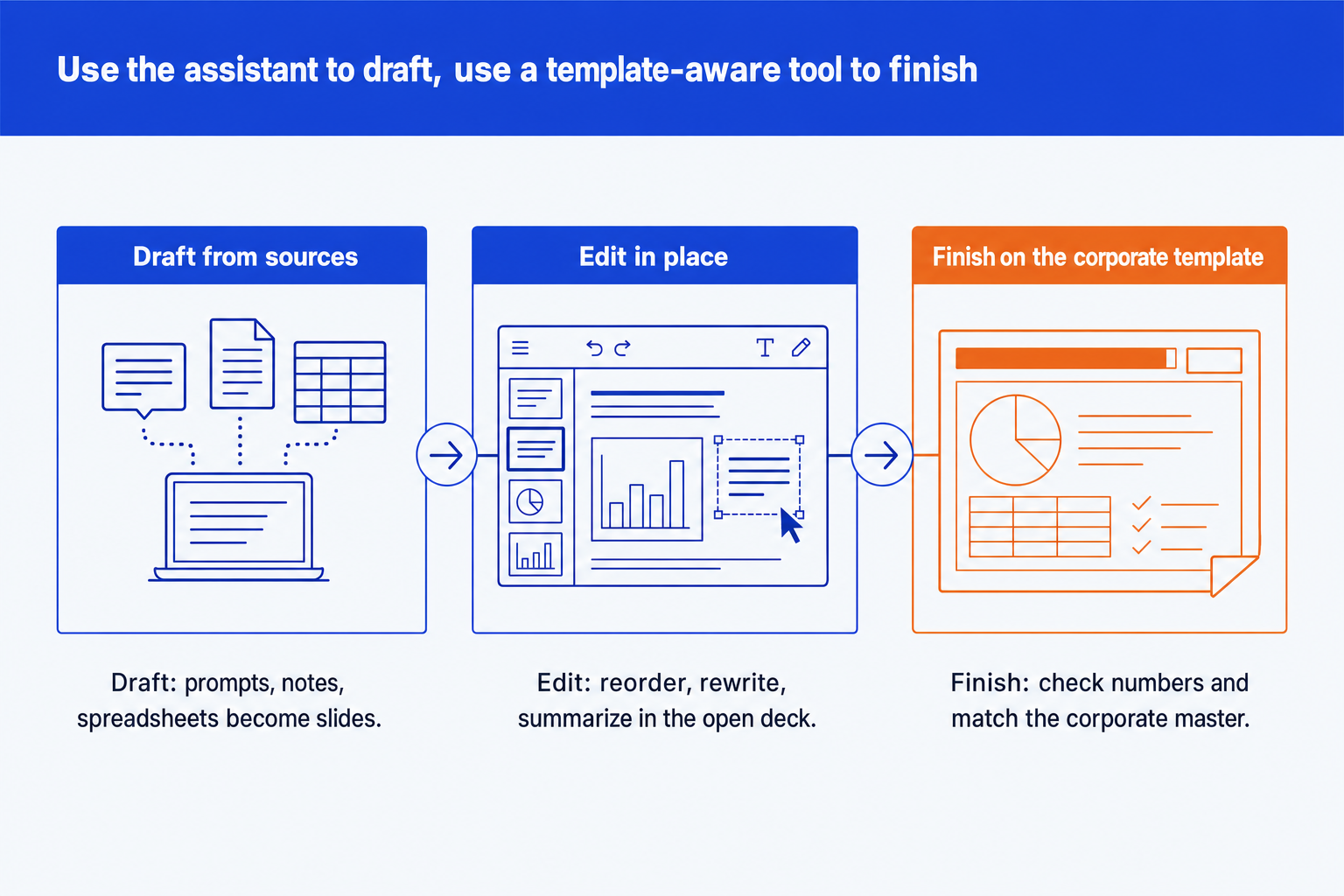
What the add-in handles: the draft, the reorder, the rewrite for a new audience, and a summary of what each slide says.
What you still check: every number against the spreadsheet, the title wording, and whether the slides match your master. OpenAI asks users to review claims and numbers before sharing.
What may need another tool: a dense bridge or matrix with exact alignment, where OpenAI notes shape and chart editing may be limited.
When the ChatGPT add-in is the right call
You need a first draft from notes or a document and will restyle it yourself afterwards.
You already have a deck and want to tighten titles, reorder the story, or rewrite for a new audience without leaving PowerPoint.
You want a summary or an explanation of a long inherited deck before a meeting.
The slides are mostly text and simple layouts, and the template is forgiving.
When the ChatGPT add-in misleads
The main risk is a slide that looks finished and is wrong. OpenAI states plainly that outputs may be incomplete or incorrect, and that users should review claims, numbers, and slide changes before relying on them. A tidy headline over a mis-copied figure is harder to catch than an ugly slide, because it reads as reviewed.
A second trap is template drift. The add-in aims to work within your template, but OpenAI warns the result may not always match a preferred style. On a loose template that is a nuisance. On an enforced corporate master, with fixed fonts, colours, and placeholders, it is a rework step on every slide. A third is the beta label itself: features such as chart editing, shape editing, and animations are described as limited or still in development, so test the exact edit you depend on.
The competitive context also matters when you choose. Engadget notes that Anthropic's Claude has offered similar presentation editing since September 2025, so the question is rarely whether an assistant can touch slides. It is which one respects your standards. Our comparison of Claude and ChatGPT for consulting decks goes through that choice.
Where does Oria fit next to the ChatGPT add-in?
Oria is built for the slides a general assistant struggles with: dense frameworks, operating-model diagrams, and board-pack exhibits held to an enforced corporate template. It reaches you two ways: a PowerPoint add-in in the task pane, and a connector for Claude and ChatGPT over MCP, so the deck can be built from the chat you are already in. The output is native, editable PowerPoint. Setup for the chat route is in installing Oria in Claude and ChatGPT.
| Question | ChatGPT for PowerPoint | Oria |
|---|---|---|
| Core job | A general assistant that drafts, edits, and explains slides from inside PowerPoint. | Builds dense, template-bound consulting slides from an outline, a note, or a photo of a sketch. |
| Where it runs | A PowerPoint add-in, on desktop and the web. | A PowerPoint add-in in the task pane (Windows, macOS, PowerPoint for the web), and a connector for Claude and ChatGPT over MCP. |
| Template handling | Works within the existing template where possible, with no guarantee of an exact match. | Built around an enforced corporate template: fonts, colours, logos, and master layouts. |
| Output | Editable slides in PowerPoint. | Native, fully editable PowerPoint elements, with 2 to 5 design options per slide. |
| Weakest on | Advanced formatting, chart editing, and strict style fidelity, per OpenAI's stated limits. | Highly visual work such as fundraising, launch, and student decks. Oria is built for the corporate environment only. |
Oria is built for the corporate environment only, so it loses on highly visual work such as founder pitch decks and launch decks, where a design-led tool beats it. On data handling, Oria does not train on customer content, and the Professional and Team plans do not persist presentation content after delivery. For the wider field, see the tested list of PowerPoint add-ins and our guide to the best AI PowerPoint add-in for consultants.
The trade-off: adding Oria means a second tool next to the free assistant. It pays off only if template fidelity and dense layouts are what cost you hours.
How to add ChatGPT to PowerPoint
- Open PowerPoint on desktop or the web and open the Add-ins menu.
- Search Microsoft AppSource for ChatGPT and add it. If your admin restricts add-ins, ask for it to be enabled.
- Sign in with your OpenAI account when the task pane opens, and grant the access it requests.
- Duplicate the deck, then give one precise instruction at a time and review each change.
For a comparison with the Microsoft-native option, read Claude vs Copilot for business presentations.
If you need X, use Y
| If you need | Use | Why |
|---|---|---|
| A quick first draft or a rewrite of a deck you already have, at no cost | ChatGPT for PowerPoint | It is free to install, sits inside PowerPoint, and handles drafting and edits well. |
| A deck inside a Microsoft 365 tenant that is already standardised on Microsoft's assistant | Copilot | It is the native option. See our comparison of Claude and Copilot for business presentations. |
| A dense framework, bridge, or operating-model slide on a strict corporate template | Oria | It builds native, editable PowerPoint on your master, in PowerPoint or from a Claude or ChatGPT chat. |
| A fundraising, launch, or campaign deck where visual impact decides the outcome | Gamma, Canva, Pitch, or Beautiful.ai | Oria loses on highly visual work, and a design-led tool will look better. |
| Chart automation: waterfalls, stacked bars, Gantt | think-cell | A dedicated chart tool edits an existing chart faster than any assistant. |
Frequently asked questions
What is the ChatGPT for PowerPoint add-in?
It is OpenAI's official add-in that lets you prompt ChatGPT from inside Microsoft PowerPoint. It can create slides from notes, documents, and spreadsheets, edit and update existing slides, and summarize or explain a deck. OpenAI documents it as a beta, with usage limits that depend on your ChatGPT plan.
Is the ChatGPT add-in for PowerPoint free?
The add-in is free to install from Microsoft's AppSource, and OpenAI's help center lists availability for Free, Go, Plus, Pro, Business, Enterprise, and Edu users. Free and Go include limited usage, while Plus, Pro, and Business are subject to the plan's agentic usage limit. Check the help center for current terms.
How do I add ChatGPT to PowerPoint?
Open PowerPoint, go to the Add-ins menu, search Microsoft AppSource for ChatGPT, and add it. A task pane opens beside the slide. Sign in with your OpenAI account and grant the document access it asks for. If your organization restricts add-ins, an admin may need to enable it first.
Does ChatGPT for PowerPoint work on Mac and the web?
Launch coverage describes it as available in both desktop and web versions of PowerPoint. Because add-in support differs by version and tenant, confirm it appears in your own Add-ins menu before you plan a workflow around it.
Can ChatGPT edit my existing PowerPoint slides?
Yes. OpenAI describes editing and updating existing presentations as a core use. It also warns that an unclear request can edit or delete content incorrectly, so duplicate an important deck first and review every change before you share it.
Will it match my company template?
OpenAI says the add-in is designed to work within existing templates where possible, and that generated or edited slides may not always match a preferred style perfectly. If brand fidelity is a hard requirement, test it on your real master and compare the result slide by slide.
What is the difference between ChatGPT for PowerPoint and Copilot?
Both put an assistant inside PowerPoint. Copilot is Microsoft's own, tied to a Microsoft 365 Copilot license. The ChatGPT add-in is OpenAI's, tied to a ChatGPT account. Which is better depends on your tenant, your data policy, and how strictly the output has to follow your template.