

How to Turn ChatGPT Output Into Board-Ready Slides
Most ChatGPT drafts do not become slides, they become paragraphs pasted into the default PowerPoint theme. Here is how to structure ChatGPT output as a storyline, render it with Text to Slide, and pick the strongest of several design options.
How to turn ChatGPT output into board-ready slides
To turn ChatGPT output into board-ready slides, do not ask ChatGPT to design the deck. Ask it for a slide-shaped storyline, one action title and a short set of supporting points per slide, then paste that storyline into Oria's Text to Slide inside PowerPoint. Text to Slide designs each slide individually and returns 2 to 5 Multiple Design Options, so you choose the visual direction instead of accepting a single output. Pick the strongest option and every shape, chart, and text box is native PowerPoint you can refine directly, on your corporate template.
This guide covers why pasting raw ChatGPT text into PowerPoint fails, the 3-step conversion, why Multiple Design Options matters more for a ChatGPT storyline than a single-shot generator, the exact prompts, a worked example, and the mistakes that leave a slide looking AI-made. For the full deck-level version of this workflow, covering the whole pre-read rather than one slide at a time, see how to turn ChatGPT output into a board-ready deck.
Why pasting raw ChatGPT text into PowerPoint fails
ChatGPT is excellent at the storyline: the logic, the ordering, the argument. It has no sense of a slide as a laid-out object at all. Paste its raw text straight into PowerPoint, or export whatever slide format it offers directly, and three problems show up at once.
It loses structure. A slide is a layout, not a paragraph. Raw text arrives as a flat list of bullets with no hierarchy, no grouping, and none of the visual relationships the argument depends on.
It is not editable-native. A direct export runs through an HTML-based route, which produces slides that look AI-generated, with inconsistent margins and broken font sizes. You cannot cleanly move, recolor, or restyle elements the way you can with native PowerPoint shapes and charts.
It is off brand. Pasted or exported text lands in a generic theme, not your corporate template. Fonts, colors, and logos are wrong, and matching a real brand standard by hand is exactly the evening of formatting you were trying to avoid.
The fix is a clean division of labor. Let ChatGPT write a precise, slide-shaped storyline, then hand that storyline to Text to Slide, which renders several design options built to hold a real corporate template. The sections below show exactly how.
The 3-step conversion
Three steps take you from ChatGPT output to a board-ready slide. Keep each one tight.
Get a slide-shaped storyline from ChatGPT. Prompt ChatGPT for one message per slide, an action title that states the so-what, and a short MECE body. This is the output you will render, not prose.
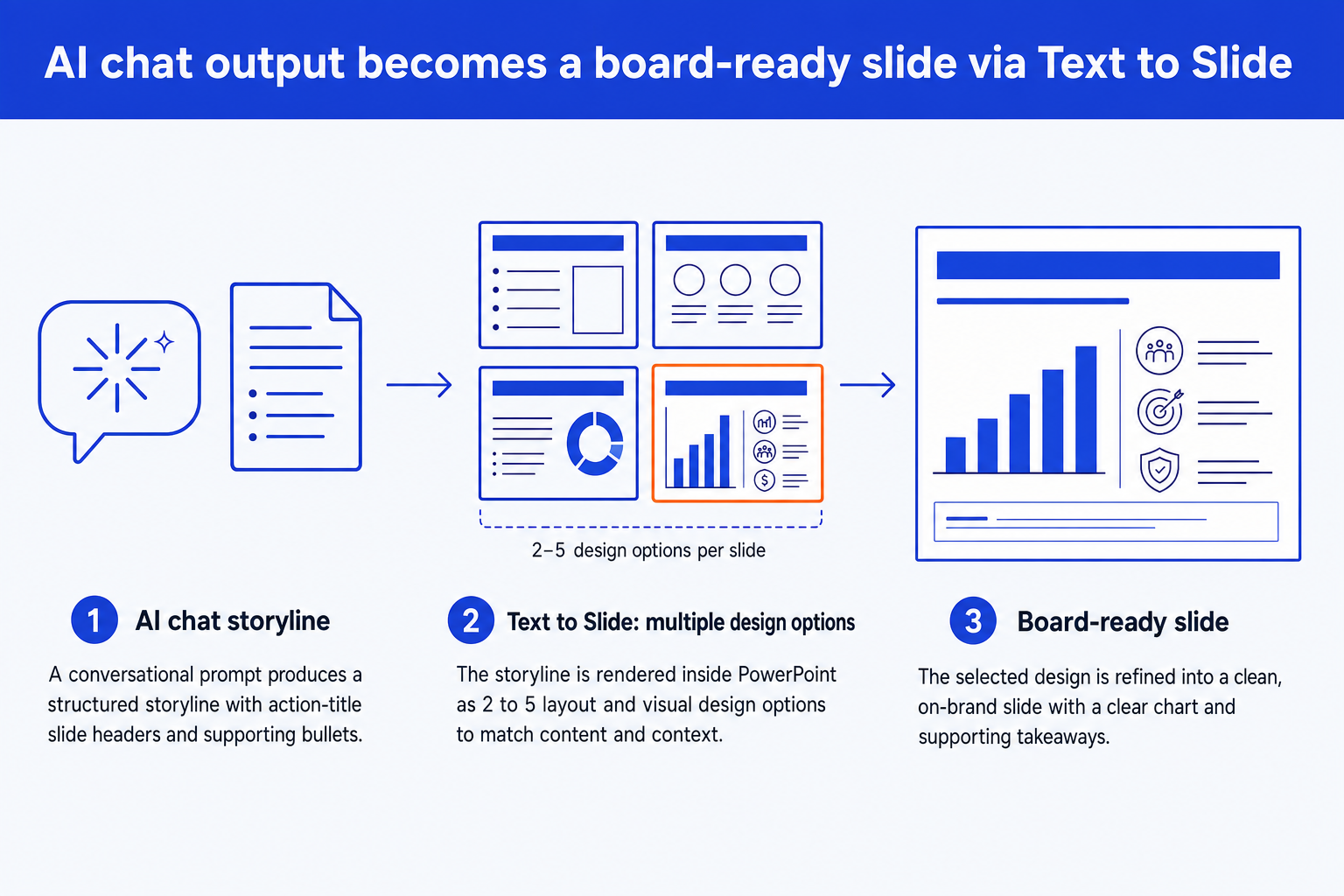
Paste the storyline into Text to Slide. Drop the storyline into Oria inside PowerPoint. Text to Slide designs each slide individually and returns 2 to 5 Multiple Design Options on your template, instead of committing to one layout.
Pick a design option and refine in native PowerPoint. Choose the strongest of the options, then move, recolor, or restyle any element directly. Every shape, text box, and chart is native and yours to edit.
Why Multiple Design Options matters for a ChatGPT storyline
A storyline written in a chat window carries no layout information. ChatGPT can tell you what a slide should argue, but not whether it should render as a comparison grid, a process flow, or a row of KPI tiles. A generator that commits to a single guess per slide forces a full re-render every time that guess is wrong. Text to Slide avoids that by producing 2 to 5 Multiple Design Options for the same storyline text, so you compare interpretations and pick the one that actually fits the message, rather than accepting whatever the first pass returned.
Speed
A single slide previews its design options in roughly 30 to 40 seconds and reaches a final editable slide in 2 to 3 minutes. A 10-slide deck, previewed and finalized slide by slide, lands in about 6 to 8 minutes total. Comparing several designs costs seconds, not a re-render.
This is also where corporate template fidelity gets decided. Every one of the design options is rendered on your uploaded template, holding fonts, colors, and logos, so picking a different option never means picking a different brand. For a wider look at how this approach compares with tools that render one fixed layout, see our guide to the best AI for PowerPoint.
The prompts that shape ChatGPT output for Text to Slide
This is the heart of the conversion. Each prompt below shapes ChatGPT output into something Text to Slide can render cleanly. Copy a block, replace the bracketed parts, and run them in one conversation so each builds on the last. Paste the final storyline into Text to Slide.
1. Build the slide storyline with action titles
2. Rewrite to one message per slide
3. Turn bullets into a message, not a list
4. Write an exhibit spec for the data slides
5. Format the storyline for paste into Text to Slide
6. Refine a design option after rendering
Tip
Run prompts 1 through 5 in sequence in one chat, so by prompt 5 ChatGPT holds the whole storyline in context and the formatted output you paste is consistent. Prompt 6 is for the follow-up refinement once a design option is on the slide. Any current model produces a usable storyline; use your strongest one for the framing prompts and a faster one for the formatting pass. If you work in Claude instead, the same conversion playbook applies, see how to turn Claude output into editable PowerPoint slides.
A worked example, end to end
Say you asked ChatGPT to summarize a customer-churn analysis and recommend a retention program. Here is the conversion, start to finish.
Storyline. Prompt 1 returns a nine-slide storyline. The action titles, read in order, already tell the story: "Churn is concentrated in the first 90 days," "A targeted retention program recovers most of the at-risk revenue," "The program pays for itself within two quarters," and so on.
One message per slide. Prompt 2 catches a slide arguing both the churn diagnosis and the program design at once. It splits into two: one on where churn happens, one on what the program does about it.
Bullets to messages. Prompt 3 rewrites the body of the payback slide so each bullet is a distinct proof point, not a restatement of the title. The slide now reads as an argument, not a list.
Exhibit spec. Prompt 4 specs the churn-by-cohort slide as a stacked column chart, with cohort on the x-axis and churn rate stacked by reason, the 90-day cohort as the element to emphasize, and placeholders where you still need the actual figures.
Render with Text to Slide. Prompt 5 formats the storyline. You paste it into Text to Slide inside PowerPoint, on your firm's template. Text to Slide returns 2 to 5 design options per slide; you pick the one that reads best for a stacked column and the chart arrives as a native, editable element.
The result is an on-brand slide where every element is native PowerPoint. You spent your time on the argument and the choice of design, not on dragging text boxes into alignment at midnight.
Common mistakes to avoid
For a rough deck with more than one weak slide already in it, see the wider guide to improving ugly PowerPoint slides with AI redesign tools.
Frequently asked questions
Can ChatGPT export directly to an editable PowerPoint file?
Not in a way that survives a partner review. ChatGPT can produce a rough slide export, but that route is an HTML-based approach under the hood: margins drift, fonts break, and the result looks AI-generated rather than designer-made. The reliable pattern is to let ChatGPT write the storyline and let Text to Slide render the deck, since it decomposes the design into native PowerPoint shapes, text boxes, and charts on your own template.
Why not just paste ChatGPT's raw text into PowerPoint?
Pasted text lands as a flat list of bullets in the default theme, with no layout, no visual hierarchy, and none of the relationships the argument depends on. You then spend the evening rebuilding it by hand. Shaping the output as a slide-shaped storyline first, then rendering it with Text to Slide, keeps the structure and produces a native, on-brand deck in minutes instead.
What is Multiple Design Options and why does it matter for a ChatGPT storyline specifically?
Multiple Design Options is Text to Slide returning 2 to 5 distinct layouts for the same slide text instead of one committed guess. It matters more for ChatGPT output than for hand-built slides because a storyline written in a chat window has no layout information attached to it. Text to Slide has to infer whether a slide should be a comparison, a process flow, or a KPI row, and giving you several interpretations to choose from means one wrong guess does not force a full re-render.
Do I need a specific ChatGPT model or a paid plan for this?
No. Any current ChatGPT model produces a usable slide storyline from the prompts below. Use the strongest model available to you when the thinking matters most, framing the argument and writing action titles, and a faster one for high-volume rewriting. The rendering step happens in Text to Slide regardless of which model wrote the text.
How long does the whole conversion take?
Shaping the storyline in ChatGPT is a few minutes of prompting. In Text to Slide, a single slide previews its design options in roughly 30 to 40 seconds and reaches a final editable slide in 2 to 3 minutes. A 10-slide deck lands in about 6 to 8 minutes total, so the bottleneck stays your thinking, not the formatting.