

How to Make a Customer Journey Map Slide With Text to Slide
Customer journey maps are dense, high-value slides: a timeline of stages, a touchpoint under each one, and an emotion line tying it together. Here is how to make one with a single paragraph and Oria's Text to Slide.
How to make a customer journey map slide with Text to Slide
To make a customer journey map slide, describe the stages, the touchpoint at each one, and the emotional highs and lows in a single paragraph, then send it to Oria's Text to Slide. Oria designs two to five layout options around that description, in your corporate template, and a follow-up prompt sharpens the emotion line or the emphasis. You get a fully editable native slide without building a grid by hand.
This guide covers why the slide is worth the density, the three blocks that carry it, the step-by-step Text to Slide method, the exact prompts, and the mistakes that leave a journey map flat instead of sharp.
Why customer journey maps are dense, high-value slides
A journey map slide packs more layered information into one page than almost any other exhibit a strategy or product team ships: a timeline of stages, the touchpoint inside each stage, and the emotional arc connecting them. That density is exactly why the slide earns its place in the deck. It forces a room to agree, in one glance, on where the experience actually breaks, instead of leaving it scattered across workshop notes and a dozen sticky notes.
Reach for it when the message is a sequence of experiences over time, not a static structure. For a plan that unfolds over months instead of moments, a strategy roadmap slide is the better fit. Use the journey map when the story is what the customer feels, stage by stage, on the way to a decision.
The three blocks: stages, touchpoints, and the emotion line
Everything on a customer journey map slide sits in one of three bands. Get the three right in your Text to Slide prompt and the layout takes care of itself.
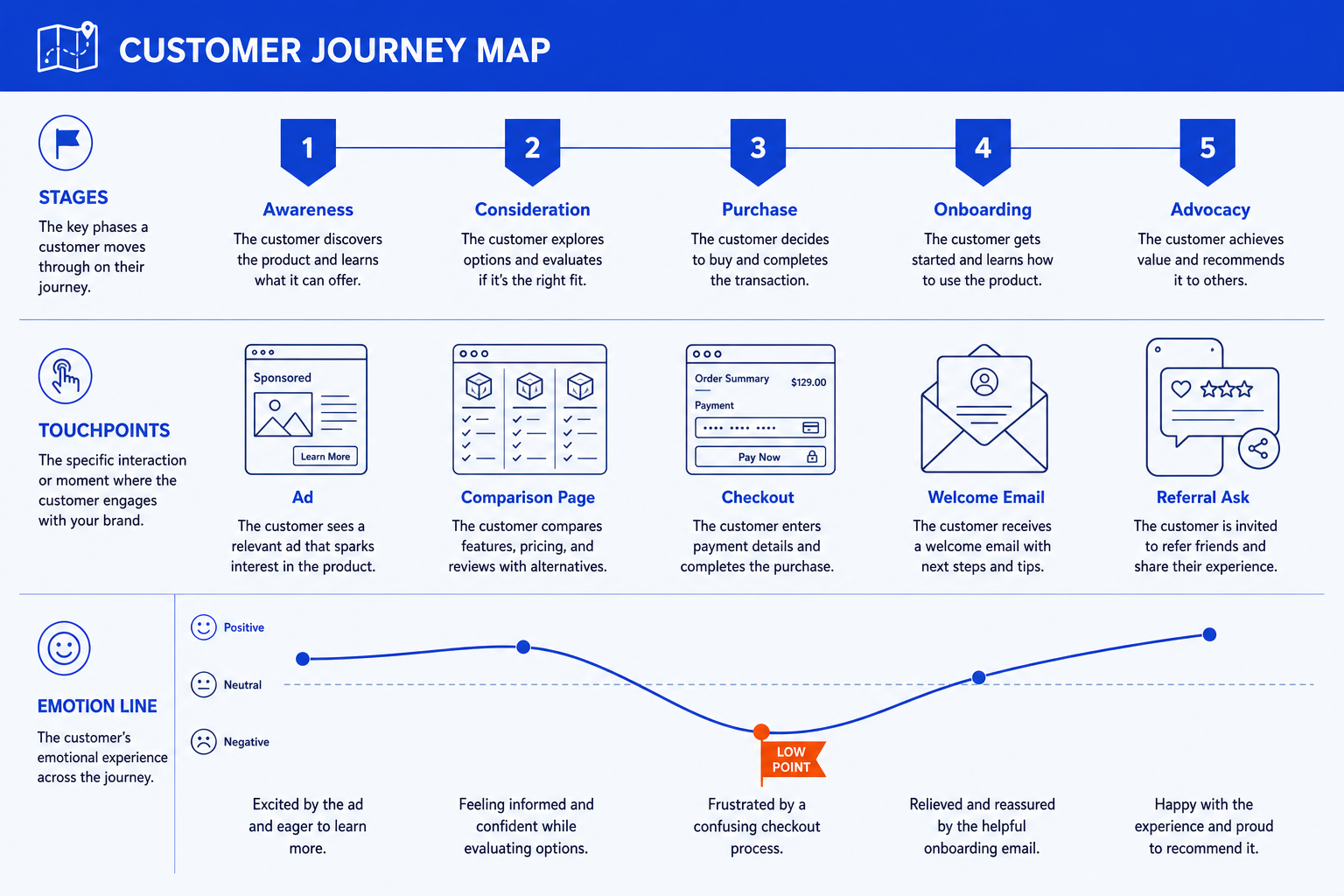
Stages. The phases a customer moves through, set left to right as the timeline. Name them for your business, four to seven of them, not a generic template pulled from a search result.
Touchpoints. One concrete interaction per stage, an ad, a comparison page, a checkout screen, a welcome email, a referral ask. Each touchpoint is where the customer meets your brand, not your internal process.
Emotion line. A single line running under the stages, rising at the good moments and dipping at the painful ones. It gives the room the emotional shape of the journey in one glance and points straight at the stage that needs work.
How to make it with Text to Slide, step by step
Text to Slide turns a paragraph into a designed slide, not a template with your words dropped in. That makes it a good fit for a journey map, since the layout has to flex to however many stages and touchpoints your business actually has.
Write one paragraph describing the journey. List the stages in order, one touchpoint per stage, and a short read on the emotion at each step, positive, neutral, or frustrated.
Send it to Text to Slide and review the design options. Oria renders two to five layout variations of the same slide in around 30 to 40 seconds, so scan all of them before picking one.
Pick the option whose density fits the message. A denser option suits a workshop reference slide; a lighter one suits a summary in an executive deck. Oria finishes the fully editable slide in a couple of minutes.
Prompt a follow-up to sharpen the emotion line. Ask for the line to curve more clearly, or for the single worst dip to carry the orange accent so it is unmissable.
Check that every stage, touchpoint, and emotional read survived the render. Text to Slide designs from your description, so a missing stage usually means it was thin in the original paragraph.
Write the action title. Replace a topic label with a full sentence naming where the journey breaks, since the title is the slide and the map is the proof.
Gotcha
Text to Slide designs each slide around what you actually describe. A vague prompt like "make a customer journey map" gives it nothing to reason about beyond a generic placeholder. Name your real stages and touchpoints and the layout comes out specific to your business instead of generic.
Why Text to Slide fits a journey map better than a fixed template
A tool that picks from a small library of fixed layouts has to force your five, six, or seven stages into whatever grid it already has, which is exactly where a journey map's odd shape, a timeline plus a touchpoint row plus an emotion line, gets lost or flattened. Text to Slide designs each slide individually around what you describe, so a seven-stage journey with a mid-funnel dip gets a seven-stage layout, not a six-box template with your seventh stage cut.
It is also fast enough to iterate on. Oria typically returns two to five design options in around 30 to 40 seconds and a final editable slide in two to three minutes, so comparing a denser layout against a lighter one costs you a minute, not a redraw. For the storyline that sits ahead of the slide itself, see the Claude skill for slide design.
The prompts that build the customer journey map slide
These are the exact copy-paste prompts we use to draft the journey, render it with Text to Slide, and sharpen the emotion line and the title afterward. Replace the bracketed parts with your own stages and touchpoints.
Draft the journey in Claude first
Turn research notes into a stage-by-stage journey
Render it with Text to Slide in Oria
One-paragraph build prompt for Text to Slide
Sharpen the emotion line and the icons
Try a denser or lighter design option
Tip
Draft the stages and the emotional read in Claude, then hand the clean paragraph straight to Text to Slide. For the wider end-to-end method from analysis to deck, see the consultant's guide to Claude.
Common mistakes to avoid
For the full cell-by-cell manual build and its own gotchas, alongside the same slide made with Improve Design, see the companion guide to building a customer journey map slide.
Frequently asked questions
What is Text to Slide and why use it for a customer journey map slide?
Text to Slide is one of Oria's core workflows: you describe a slide in a paragraph of plain text and Oria designs it individually, rather than forcing your content into one of a handful of fixed layouts. A customer journey map slide has an unusual layout, a stage timeline, touchpoints per stage, and an emotion line, so a tool that reasons about the message instead of picking a generic template fits it far better than a bullet-point generator.
How many stages should a customer journey map slide have?
Between four and seven. Fewer than four hides the detail that makes the map worth building; more than seven crowds a single slide and blurs which stage actually needs attention. Name the stages for your business, such as Awareness, Consideration, Purchase, Onboarding, and Advocacy, rather than reusing a generic template verbatim.
Will Text to Slide keep my corporate template on a journey map slide?
Yes. Upload your template once and Oria applies its fonts, colors, and logo to every slide it renders afterward, including a dense layout like a journey map. That is a large part of why a rough paragraph turns into a board-ready slide instead of a generic-looking export.
What if the first design option Text to Slide renders is not right?
Look through the other options in the same preview. Text to Slide typically returns two to five design variations of the same slide in around 30 to 40 seconds, so the fix is usually already sitting in the batch. If none fit, a follow-up prompt describing what to change, denser, more minimal, a different emphasis, regenerates it without you starting over.
How is this different from building a customer journey map slide by hand?
The manual route means placing a phase row, three label rows, and every cell yourself, then drawing the emotion line and aligning it all. Text to Slide replaces that with one paragraph describing the stages, touchpoints, and emotional read, and Oria renders the grid, the line, and the icons for you. For the full manual, cell-by-cell build and its own gotchas, see the companion guide to building a customer journey map slide.