

How to set up the Claude for Excel add-in
Install the Claude for Excel add-in from Microsoft AppSource, open it from the Insert tab on the ribbon, and sign in with a Claude account on a plan that includes it. Once you are signed in, it works inside the open workbook only. It will not touch linked workbooks, macros, or external data connections.
Below is the full install walkthrough, the exact edges of what it can and cannot reach, the mistakes that waste a first session, and where the handoff to a finished PowerPoint deck picks up. A six-skill pack at the bottom puts the add-in to work on real spreadsheet tasks right after setup.
What you need before you install
Four things need to be true before the install screen is worth opening.
- Microsoft 365 subscription with desktop or web Excel (Business, Enterprise, Education, or Personal)
- A Claude account on a plan that includes the Excel add-in; check the current plan list on Anthropic's site before you roll it out to a team
- Permission to install Office add-ins, or an admin who can push it through the Microsoft 365 Admin Center
- A network that allows the add-in to reach Anthropic's servers; behind a strict corporate firewall, ask IT to allowlist the domain first
Step 1 of 4
Install the add-in from Microsoft AppSource
Open Excel, go to the Insert tab, and click Get Add-ins. Search for Claude, then click Add. If your organization blocks self-install, ask an admin to push it through the Microsoft 365 Admin Center under Integrated Apps instead, so the whole team gets it without repeating this step one person at a time.
Step 2 of 4
Open Claude from the Excel ribbon
Once it is added, a Claude icon appears on the Home or Insert tab depending on your Excel version. Click it and a task pane opens on the right side of the worksheet. This is the same pane you will use for every session afterward.
Step 3 of 4
Sign in and grant workbook access
Sign in with your Claude account email in the task pane. On the first run, approve the permission prompt that lets it read and edit the open workbook. Without that approval it can chat, but it cannot touch a single cell.
Step 4 of 4
Point it at a range and run a first prompt
Select the range you want it to work on before you type, since it works fastest against a named selection rather than a guess across the whole sheet. A safe first prompt: "Audit this range for broken formulas and inconsistent units, and list what you find before changing anything."
What the Claude for Excel add-in will not touch
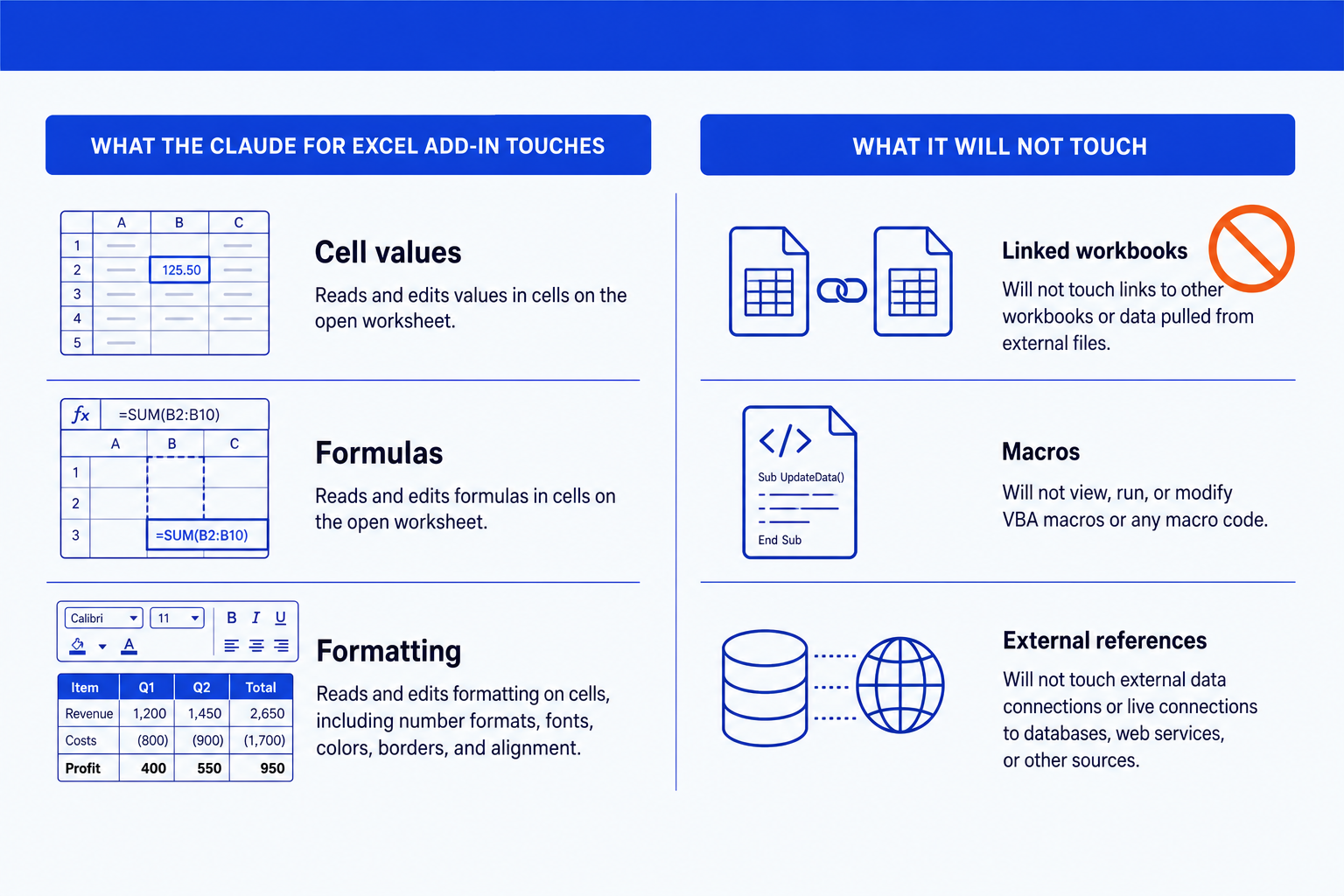
It is scoped to the worksheet you have open. That scope is a feature, not a bug, because it means it never silently rewrites something outside your view. Five things sit outside that scope on purpose.
Linked workbooks
It works inside the open workbook. Formulas that pull from other workbooks, or links other files depend on, sit outside what it reads or edits.
VBA macros
It will not view, run, or modify macro code. A workbook that depends on VBA for its logic keeps that logic completely out of reach.
External data connections
Live connections to databases, web queries, and other external sources are not something it can refresh, edit, or read the results of.
Protected or shared workbook structure
It can work inside a protected sheet's editable ranges, but it will not remove protection or resolve a structural lock for you.
Free-tier access
The add-in is bundled with a paid Claude plan. There is no separate purchase and no way to run it from a free account.
None of this is a defect. A macro-heavy or multi-workbook model is exactly the kind of file where you want a human, not an add-in, deciding what changes. Keep those files on the manual path and use the add-in for the worksheet-scoped work it is built for.
Common mistakes during setup
The handoff from Excel analysis to a PowerPoint deck
The add-in is built to finish inside the worksheet, not to write your slides. Once the numbers are checked and the variance or model work is done, the story still needs to move into a deck. See our complete guide to using Claude for PowerPoint before you assume the same assistant carries the work all the way to the slide.
A cleaner handoff keeps the two tools separate: finish the analysis in Excel, write a short brief for each slide (headline, the evidence, the chart source), then hand that brief to Oria. Oria is an AI add-in for complex professional slides that turns the brief into fully editable, on-brand PowerPoint, in your own template, rather than a generic layout. For the fuller model-to-deck workflow, the finance agent pack for Claude and the ultimate guide to Claude for finance cover the stages before this one in more depth.
Six Claude skills built for the Excel add-in
Each skill below is a single method file that keeps the add-in on a narrow, repeatable job instead of a vague open-ended request. Load the ones you use most, or the full set. For a broader library of Excel-focused methods, see the Claude skills for Excel modeling and the Excel-inspired Claude skills for strategy work.
Download all 6 skills
One zip, one folder per skill. Free, no signup.
Excel Workbook Audit
Use when: You open an unfamiliar or old workbook and need to trust its numbers before using them.
Output: A list of broken formulas, circular references, hidden sheets, and inconsistent units.
Formula Debugging
Use when: A formula throws an error or returns a number that looks wrong.
Output: A plain-language diagnosis and a corrected formula, with the fix explained.
Data Cleaning for Excel
Use when: Pasted or exported data arrives with mixed formats, blank rows, or duplicates.
Output: A cleaned, consistently formatted range ready for a pivot table or a formula.
Pivot Table Builder
Use when: You have a flat data range and need a summary view without building it cell by cell.
Output: A pivot table specification, rows, columns, values, and filters, plus the built table.
Variance Analysis
Use when: You are comparing budget to actual, or one period to the last, and need the drivers.
Output: A price-volume-mix or variance breakdown with the largest drivers called out.
Excel to Slide Handoff
Use when: The analysis is finished and the next step is turning it into a deck.
Output: A slide-ready brief: one headline, the evidence, and the chart source, per proposed slide.
Setup guide for the skills pack
Download the skills pack
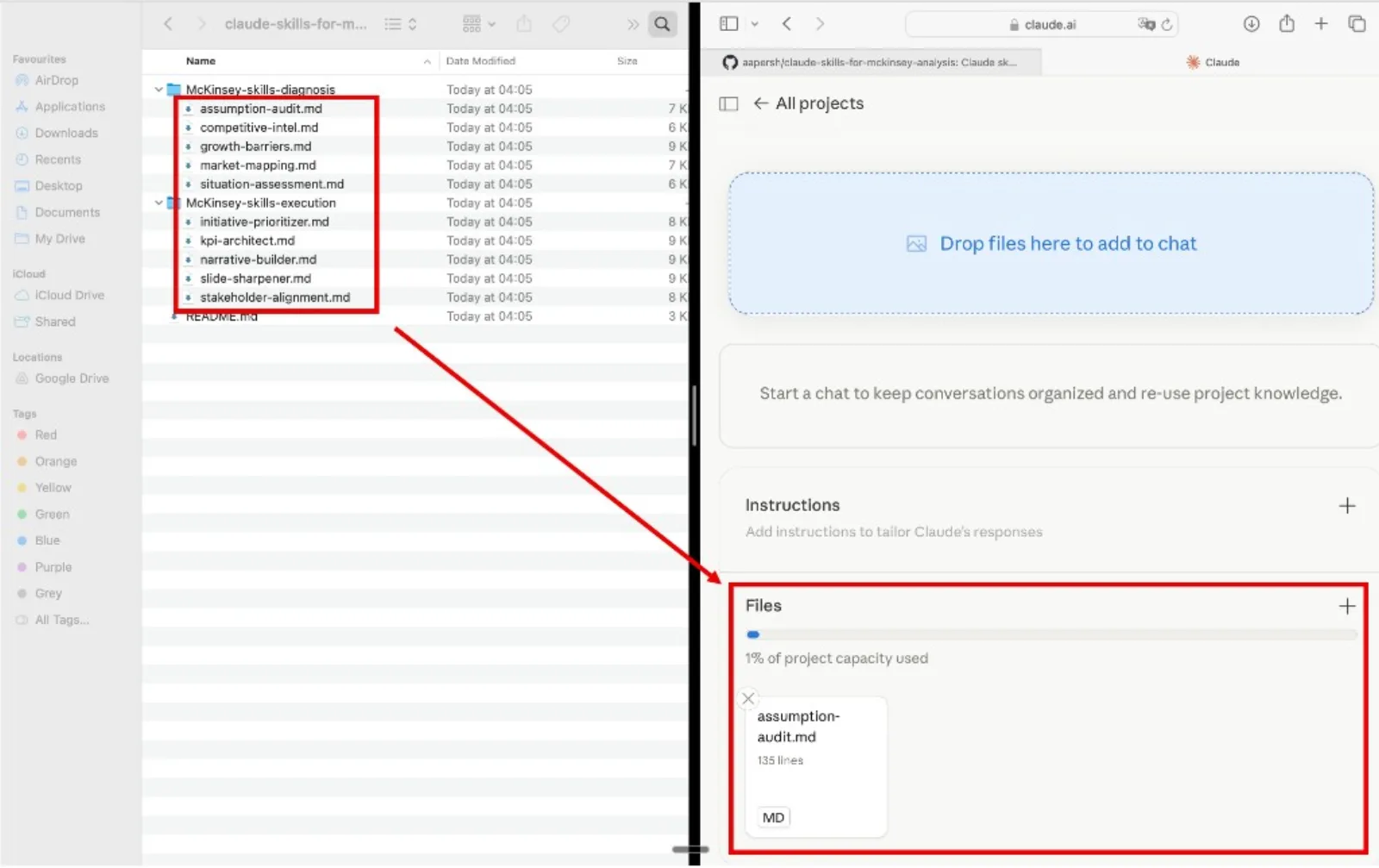
The zip contains 6 skills, one folder per skill, each a single SKILL.md file. Unzip it anywhere on your computer.
Create a Claude Project
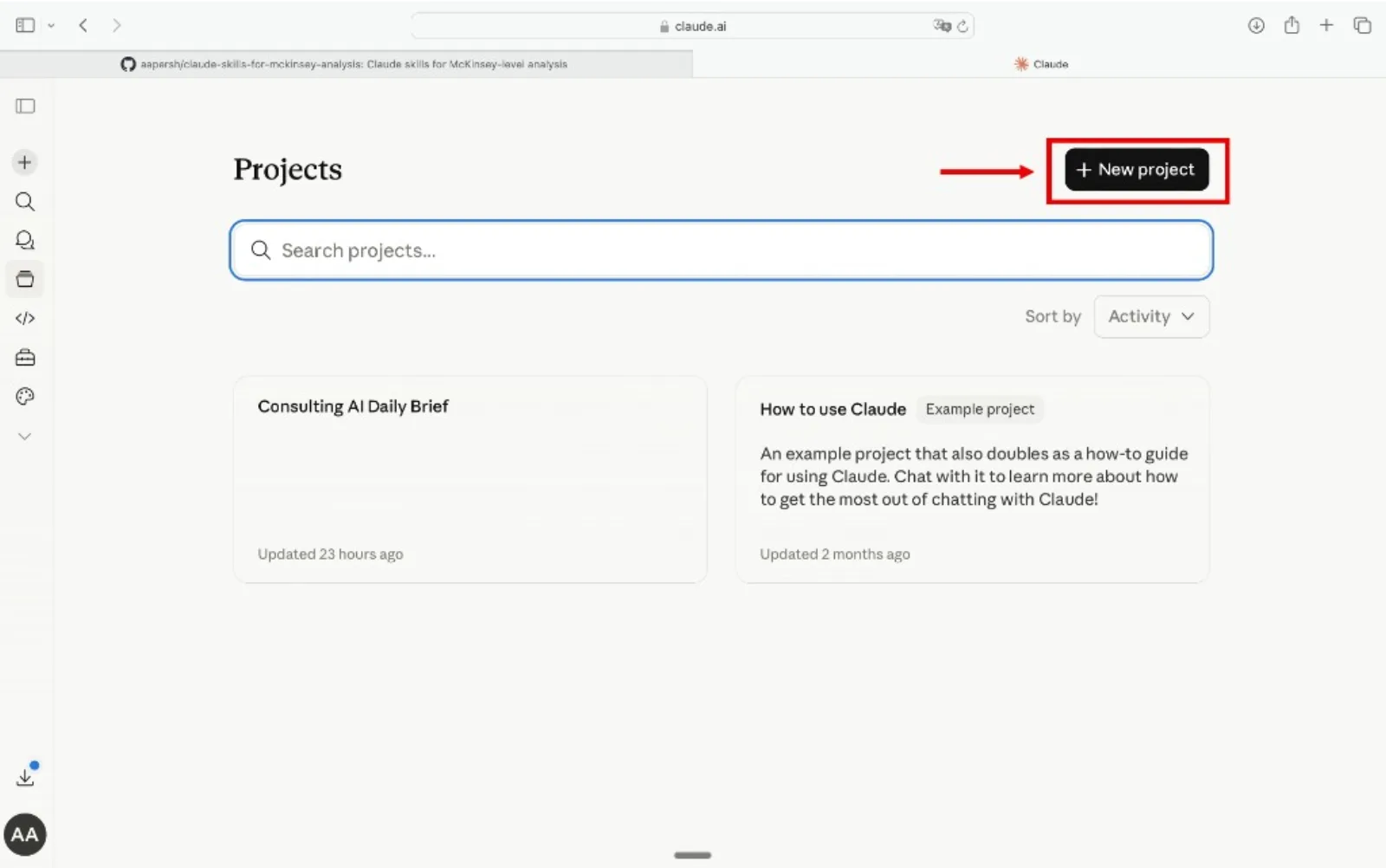
Go to claude.ai, open the left sidebar, click Projects, then Create Project. Name it something like "Excel Work" so you can reuse it for every workbook.
Add the skills as Project Knowledge
Inside the project, open Project Knowledge, click Add Content, and upload the .md files. Claude references them automatically in every conversation inside that project. Claude Code users can instead drop the skill folders straight into ~/.claude/skills/.
Name the skill in your prompt
Open the Excel add-in on the workbook you are working on, then name the skill in your prompt instead of describing the method from scratch each time.

Example prompts
- "Use the excel-workbook-audit skill on this whole tab before I trust it."
- "Use the formula-debugging skill on cell F22, it is returning #REF!."
- "Use the variance-analysis skill on this budget-versus-actual range."
- "Use the excel-to-slide-handoff skill to brief the three headline slides."
Frequently asked questions
Do I need a paid Claude plan for the Excel add-in?
Yes. The add-in is bundled with a paid Claude plan rather than sold on its own, so a free account cannot install or run it. Check the current plan list on Anthropic's site before you approve seats for a team, since which tier carries the add-in can change.
Does the Claude for Excel add-in work in Excel Online?
It installs the same way through Insert, Add-ins in the browser version and signs in the same way. Feature coverage in the browser can lag slightly behind desktop Excel on Windows or Mac, so test your exact workflow in Excel Online before you rely on it there.
Can IT deploy the add-in for the whole company at once?
Yes. An admin can push it to every user through the Microsoft 365 Admin Center under Integrated Apps, the same centralized route used for other Office add-ins, instead of asking each person to search for it individually.
Will it touch macros or VBA in my workbook?
No. It will not view, run, or edit VBA macro code. If your workbook's logic lives in macros rather than formulas, that logic stays completely outside what the add-in can read or change.
What Microsoft 365 plan do I need to install it?
Any Microsoft 365 plan that includes desktop or web Excel, on Business, Enterprise, Education, or Personal, meets the add-in requirement. The separate requirement is the Claude plan, which is where the paid tier actually matters.
Why does the add-in not see figures from a workbook I have linked to?
It only reads and edits the workbook that is open in front of it. Links to other workbooks and external files fall outside that scope, so paste the values you need into the open sheet before you ask it to work with them.